More coming soon
OneNotch keeps getting updates. More features are on the way.
Everything OneNotch can do, from clipboard history to AI agents, right in your notch.
Text, rich text, links, colors, images and files are saved as you copy them. Open the notch to scroll through the history and paste anything again.
See it in action →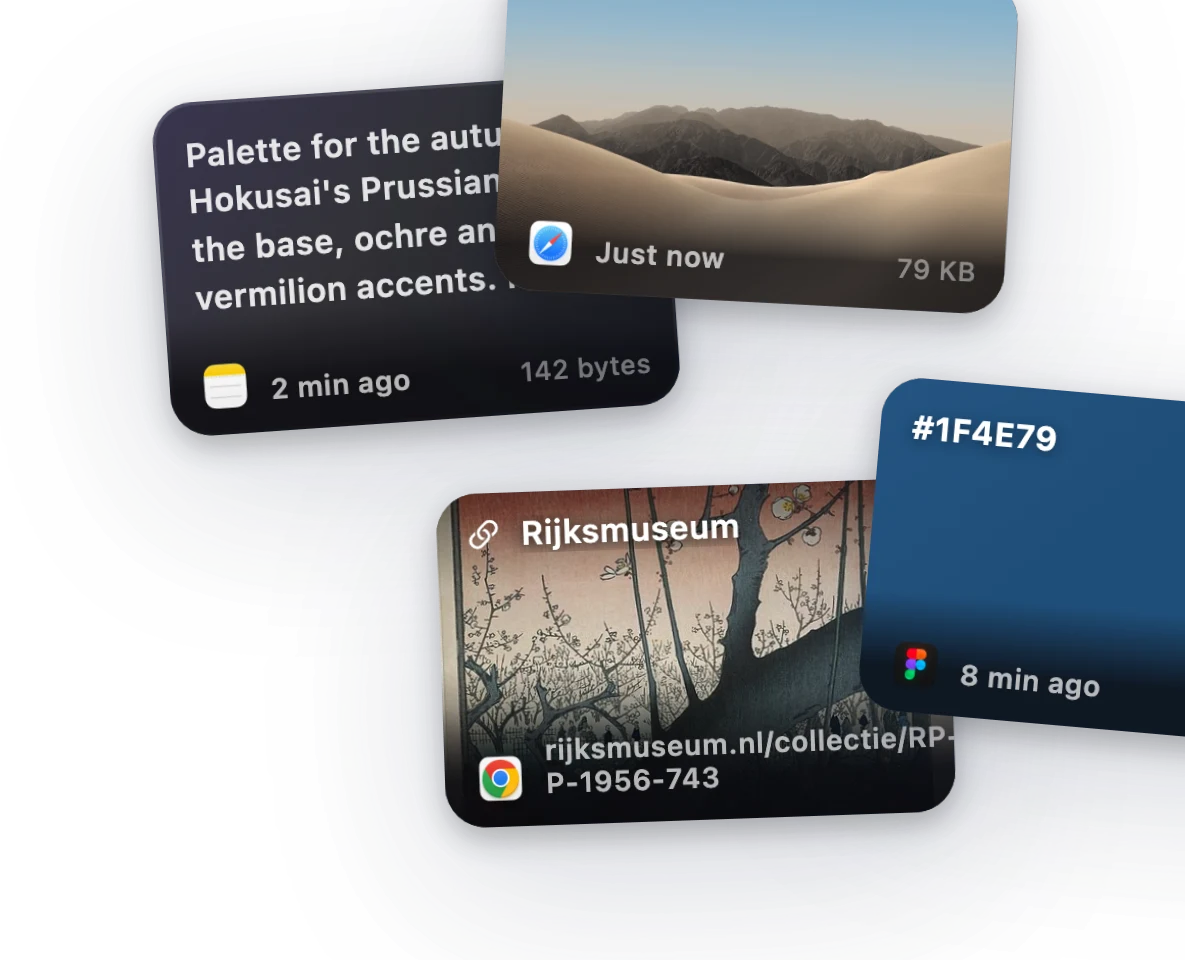
Double-press ⌘ or ⌥ to start collecting. Every copy joins the queue, and each ⌘V pastes the next item in order, in any app.
See it in action →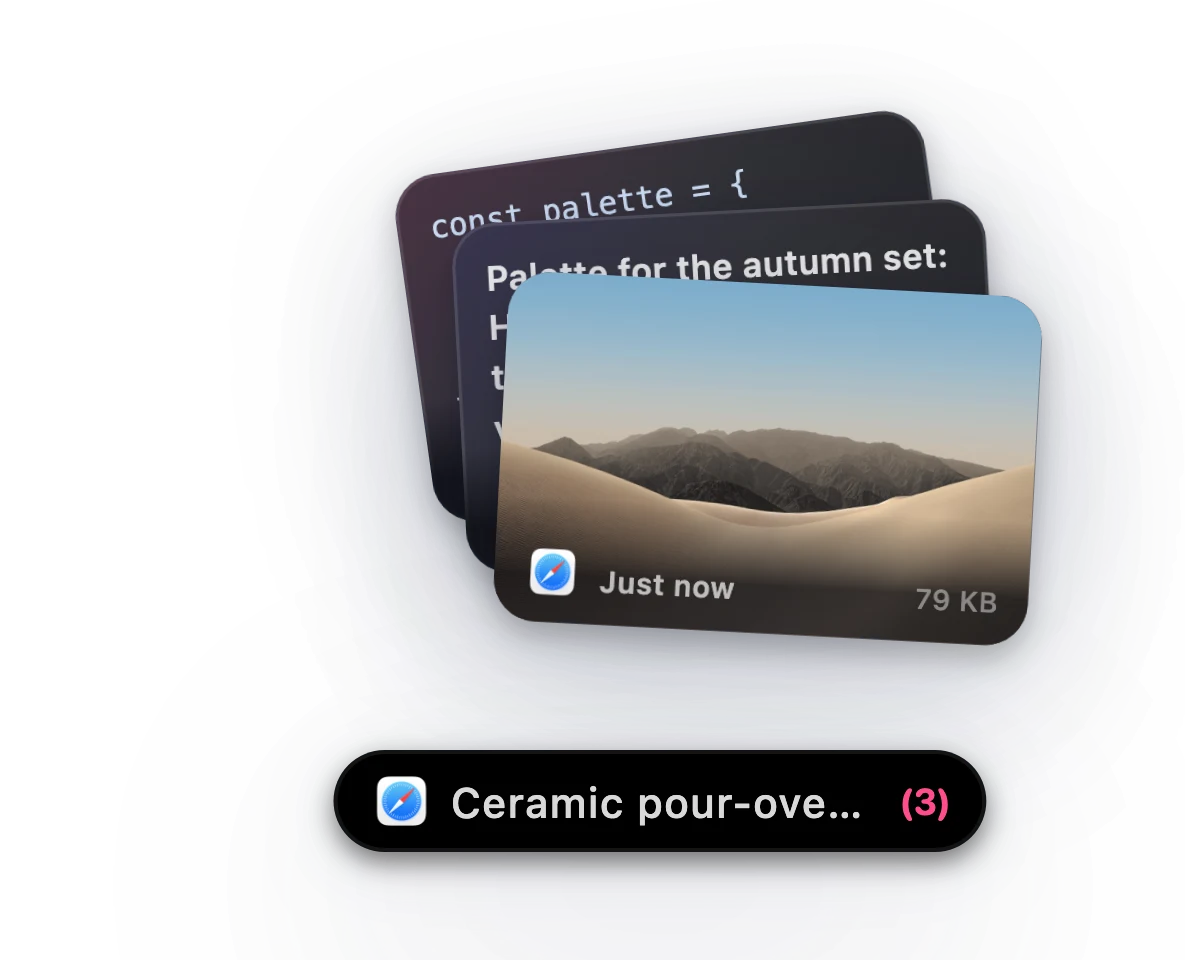
Right-click any item to pin it to a board. Pins survive restarts and history cleanup. Give each board its own icon and drag to reorder.
See it in action →Type @image, @file or @link to filter by type, or @chrome to see only what came from Chrome. Suggestions appear as you type.
See it in action →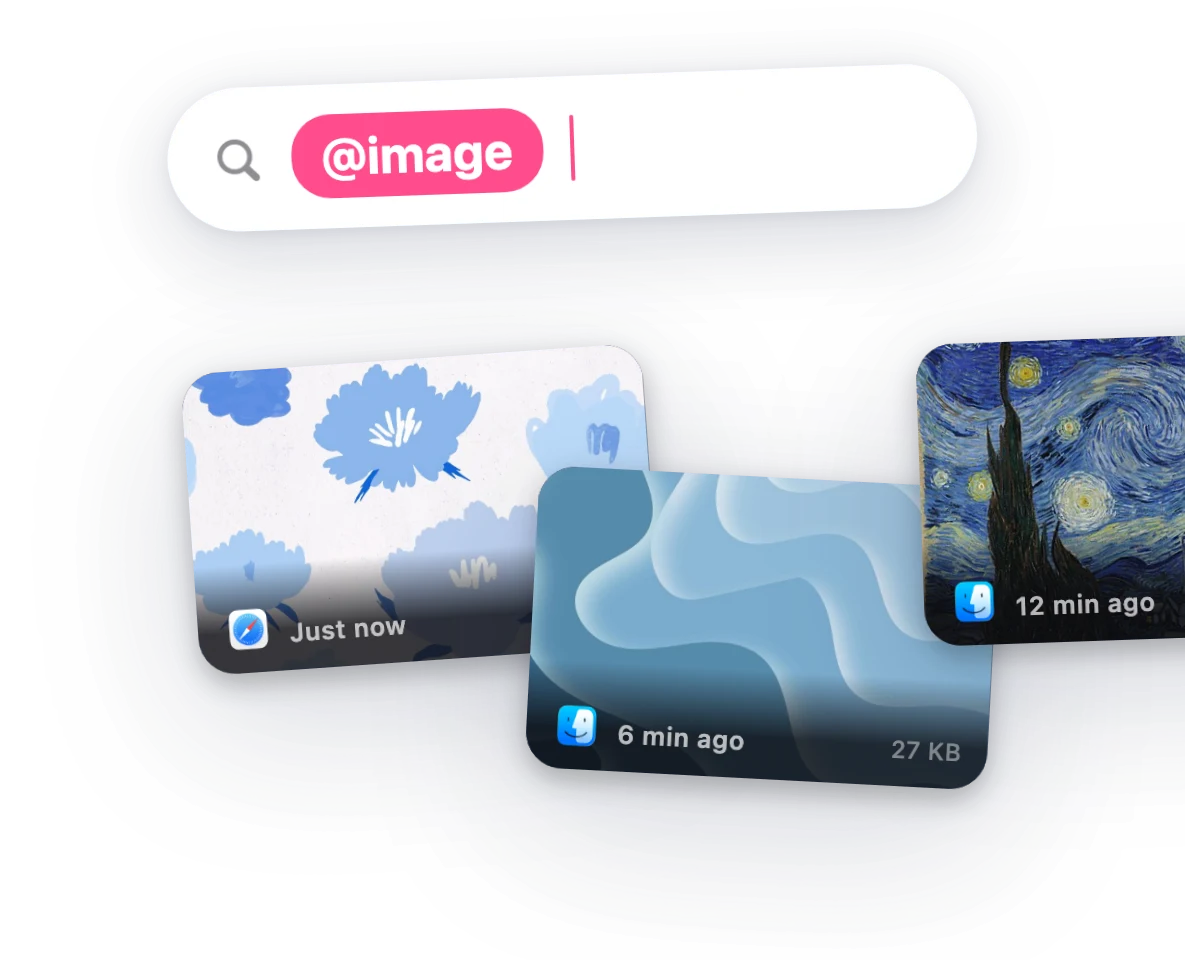
Open the clipboard as a panel with ⌘⇧C. Move with the arrow keys, peek at a preview, and pin the panel to keep it open. Light and dark styles.
See it in action →Copy #4A90D9, rgb(74, 144, 217) or hsl(210, 65%, 57%) and see a swatch. Optionally recognize values like FF0000 without the #.
See it in action →Copied links show the page title and lead image. Turn previews off to keep links fully offline.
See it in action →OneNotch detects the format of copied code and colors the preview with familiar Xcode and One Dark colors, entirely on your Mac.
See it in action →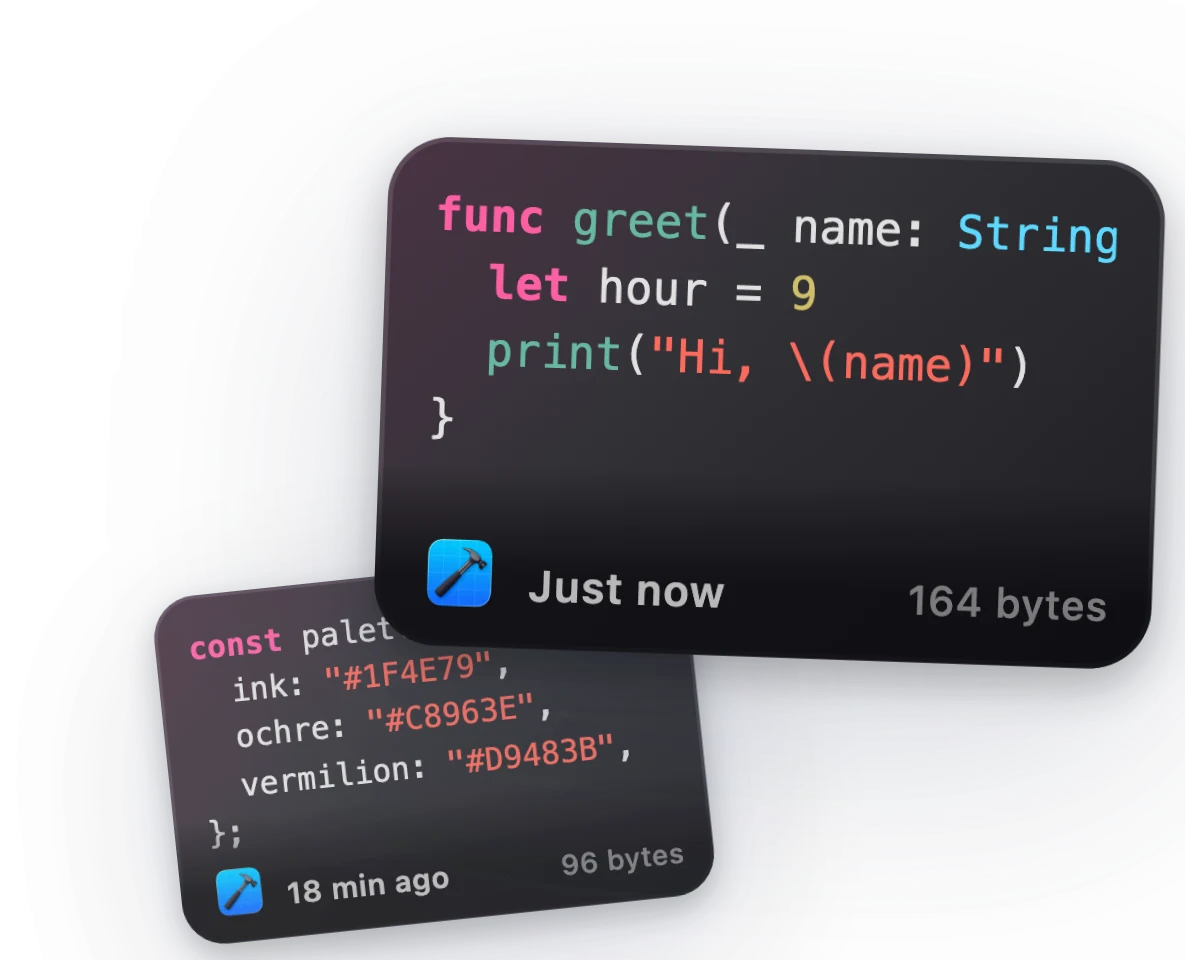
Time-synced lyrics in the notch player, karaoke-style on the lock screen, or in a floating desktop panel that stays up while you work.
See it in action →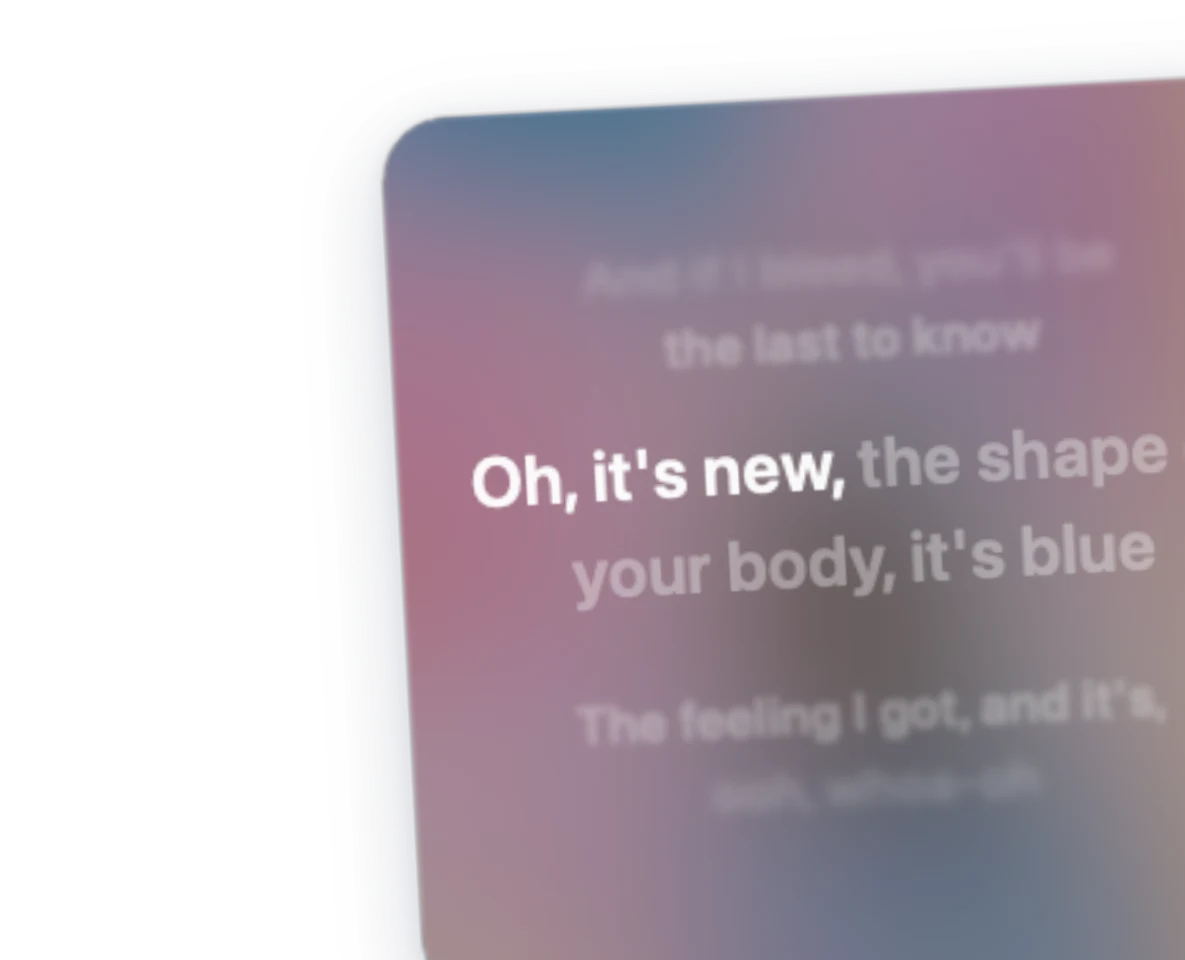
A soft sound when something new is saved, another when you paste, and a small toast under the notch. Pick your sounds or turn them off.
See it in action →The notch lights up when you plug in, when the battery runs low, and when it is full. Optionally show a battery indicator and percentage.
See it in action →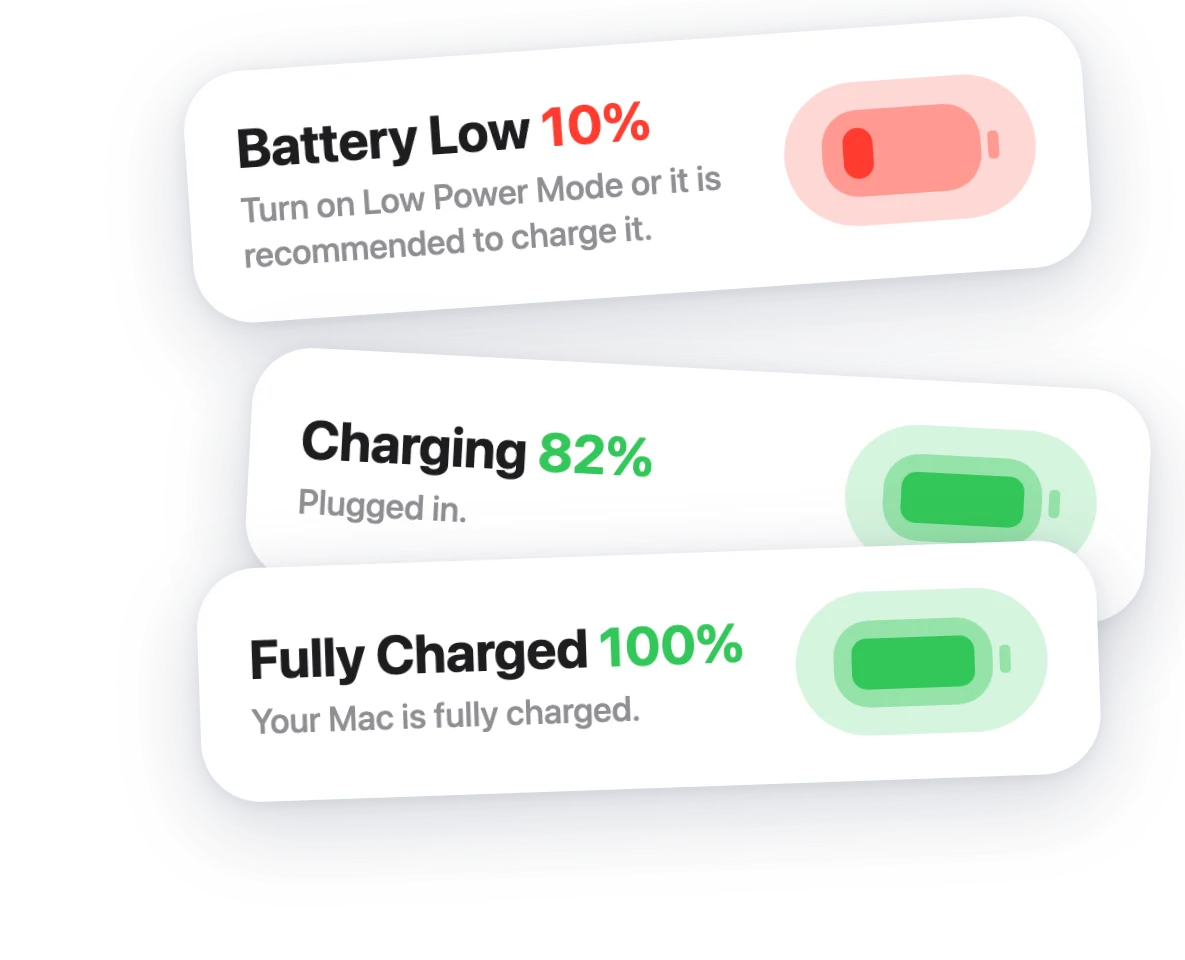
See the album art and control playback from the notch. A quick sneak peek appears when the song changes.
See it in action →A live activity appears in the notch when a Bluetooth device connects.
See it in action →The notch flashes ON or OFF whenever Caps Lock toggles, so you always know its state.
See it in action →Replace the standard macOS volume, display brightness and keyboard backlight HUDs with a cleaner design, inline or inside the open notch.
See it in action →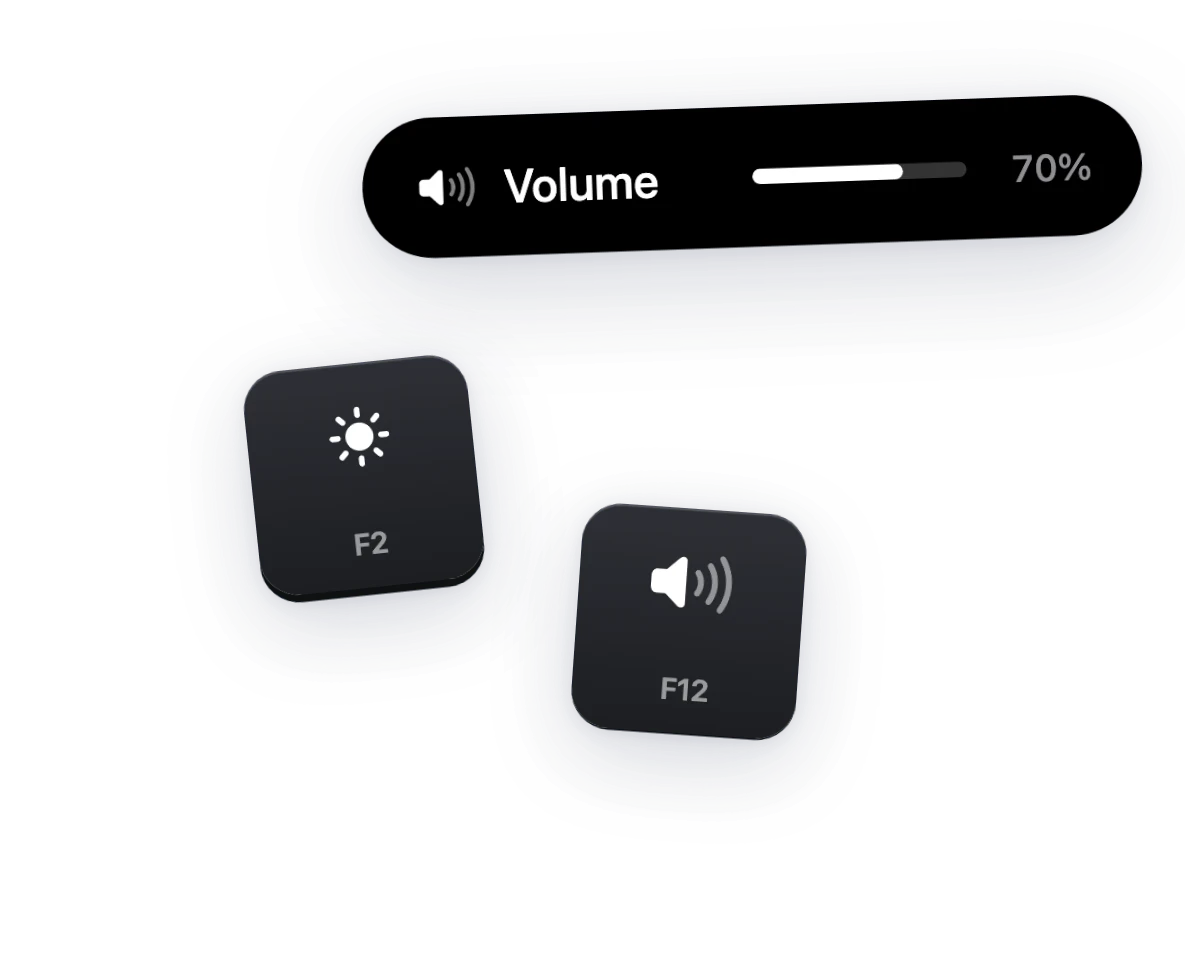
See upcoming events and reminders in the notch, create new ones without opening another app, and get a quick summary of your day. Pick which calendars to show and hide all-day events.
See it in action →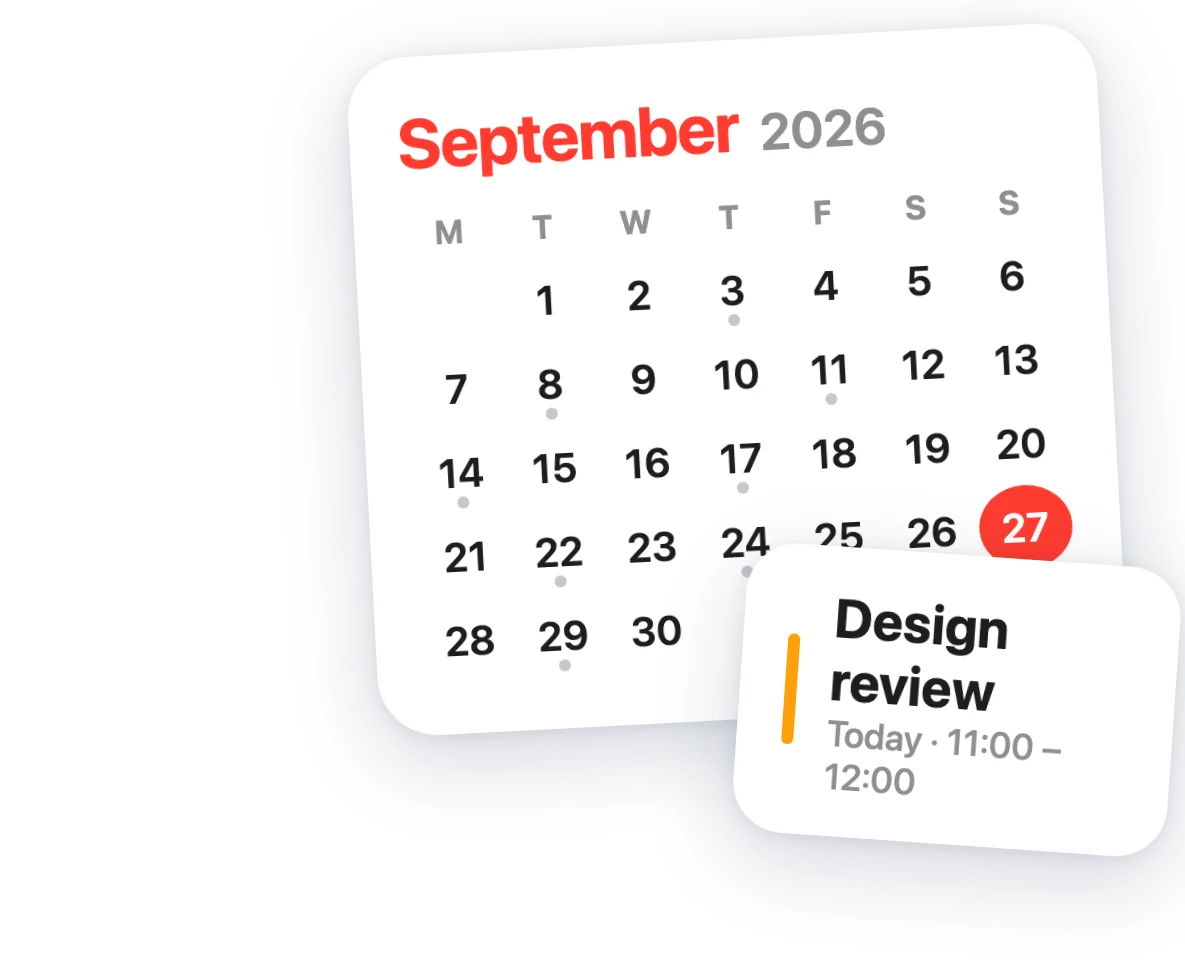
The notch tells you when your internet connection drops, without flashing for brief Wi-Fi hiccups.
See it in action →Start a timer in a click and watch it count down around the notch. Timers from the Clock app show up too.
See it in action →Translate selected text from any app with ⌘⇧G, or turn on a small translate button that appears next to your selection.
See it in action →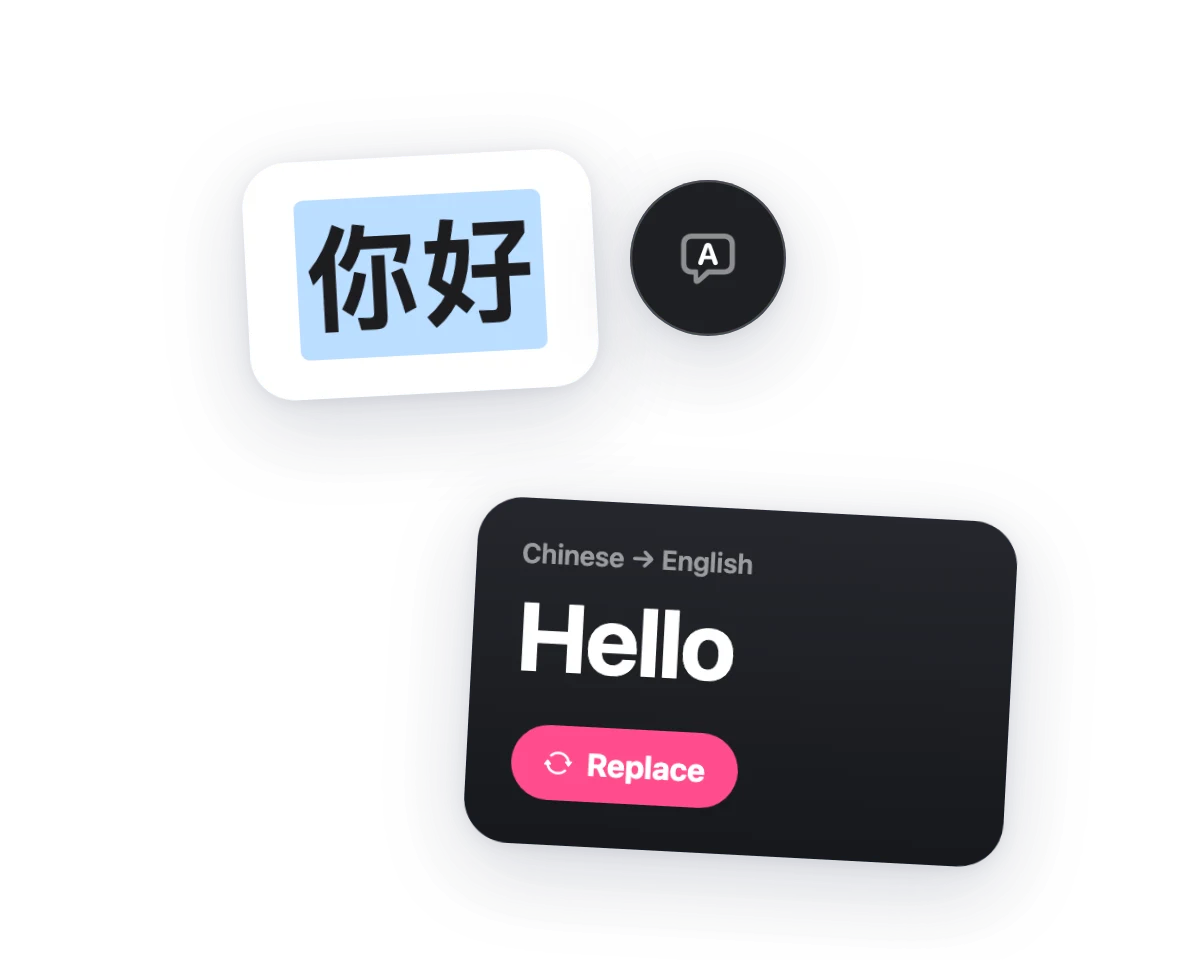
Add arrows, numbered steps, a magnifier or a ruler, then drag the shot anywhere. Erase a region into the background around it, drag a label past the edge and the canvas grows to fit, translate the text inside the image, copy text with OCR or lift the subject out.
See it in action →Drag any window up to the notch and it opens a row of layouts: left or right half, full screen, quarters, thirds or a centred Focus. Drop it on one and the window snaps into place.
See it in action →Drag files to the notch and drop them on an action: convert the format, resize, compress, remove the background, pull out the text with OCR, turn them into a PDF or AirDrop them. The result lands next to the original.
See it in action →A card slides out before each meeting with Join, Snooze and Dismiss. Works with Google Meet, Zoom, Teams, Webex, Whereby and Jitsi.
See it in action →See your 5-hour and weekly Claude usage as rings or bars, shown as used or remaining, and get a heads-up when your quota resets.
See it in action →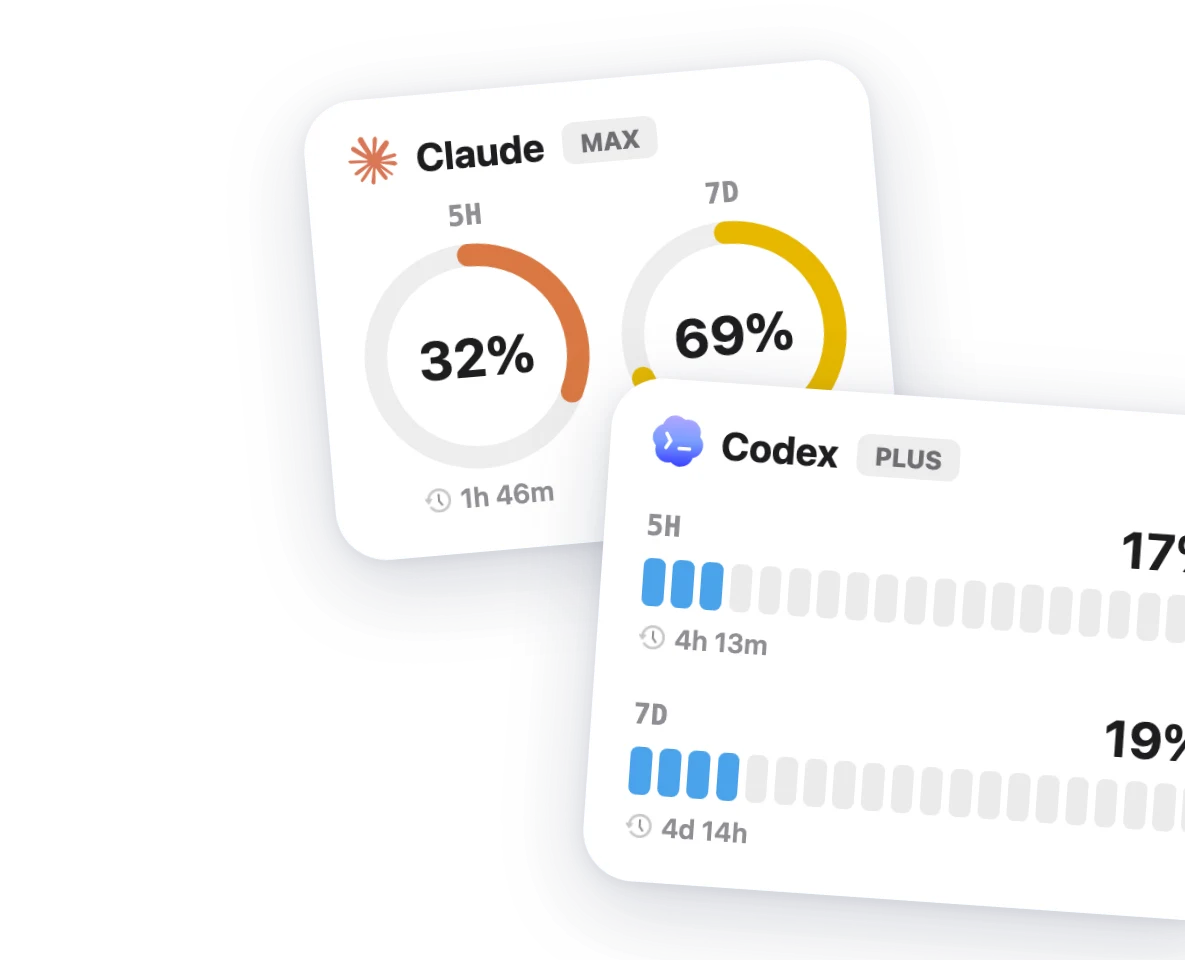
Swap the selected text for its translation in one click, without copying and retyping.
See it in action →Show OneNotch on every display or let it switch to the screen you are using. Works on Macs without a notch too, with an adjustable size.
See it in action →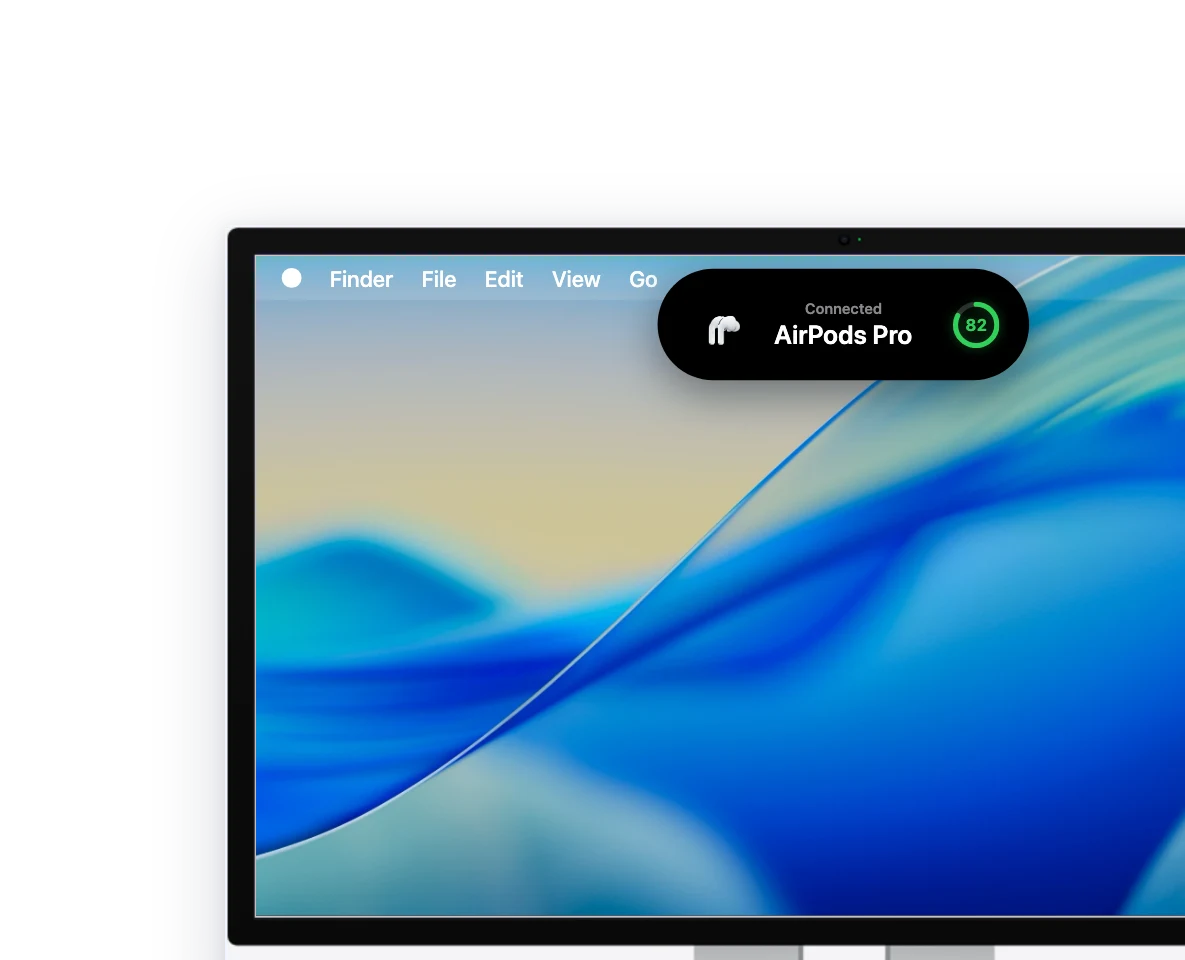
Follow every Claude Code and Codex session: what it is doing, which model, its subagents, and when it finishes. Click to jump to its terminal tab.
See it in action →Allow or deny permission requests and answer an agent's questions right from the notch, with a sound when a session needs you.
See it in action →Turn on Clipboard MCP and agents like Claude Code, Cursor and Codex can search your clipboard history, read the latest copy and put text back, so “the error I just copied” needs no pasting. It runs locally on your Mac, stays off until you enable it, and can hide password managers.
See it in action →OneNotch keeps getting updates. More features are on the way.

Supercharge your daily workflow with everything at your fingertips.
Download for Mac