The Mac clipboard holds one thing. Copy a name, then copy an email address, and the name is gone. So moving several pieces of text between apps usually means switching windows over and over: copy, switch, paste, switch back, copy the next one. This guide shows how to copy and paste multiple items on a Mac, from the manual workaround to a clipboard that queues everything and pastes it in order.
Quick disclosure: we make OneNotch, which is the app used in the steps below. We describe the built-in options first and say where they stop being practical. OneNotch details are for version 2.0.3 (October 5, 2026).
Why the normal Mac clipboard can't do it
Every time you press ⌘C, the new item replaces the old one on the system clipboard. There is no queue, so there is no "next". Apple's built-in tools work around this in three limited ways:
- Switch back and forth. Copy, paste, return, copy the next. It works, and it is slow for anything longer than two items.
- Stage it in a scratch document. Paste everything into Notes or TextEdit first, then copy the finished block once. This is fine for plain text and breaks for images, files and anything that must land in separate fields.
- Spotlight clipboard history on macOS 26 Tahoe. Press ⌘-Space, then ⌘-4 to see recent copies and click one to copy it again. It saves the trip of re-copying from the source, but it is still one item per paste, and it is off until you enable it.
None of these paste a series in order. For that you need a stack.
The easy way: Copy Stack in OneNotch
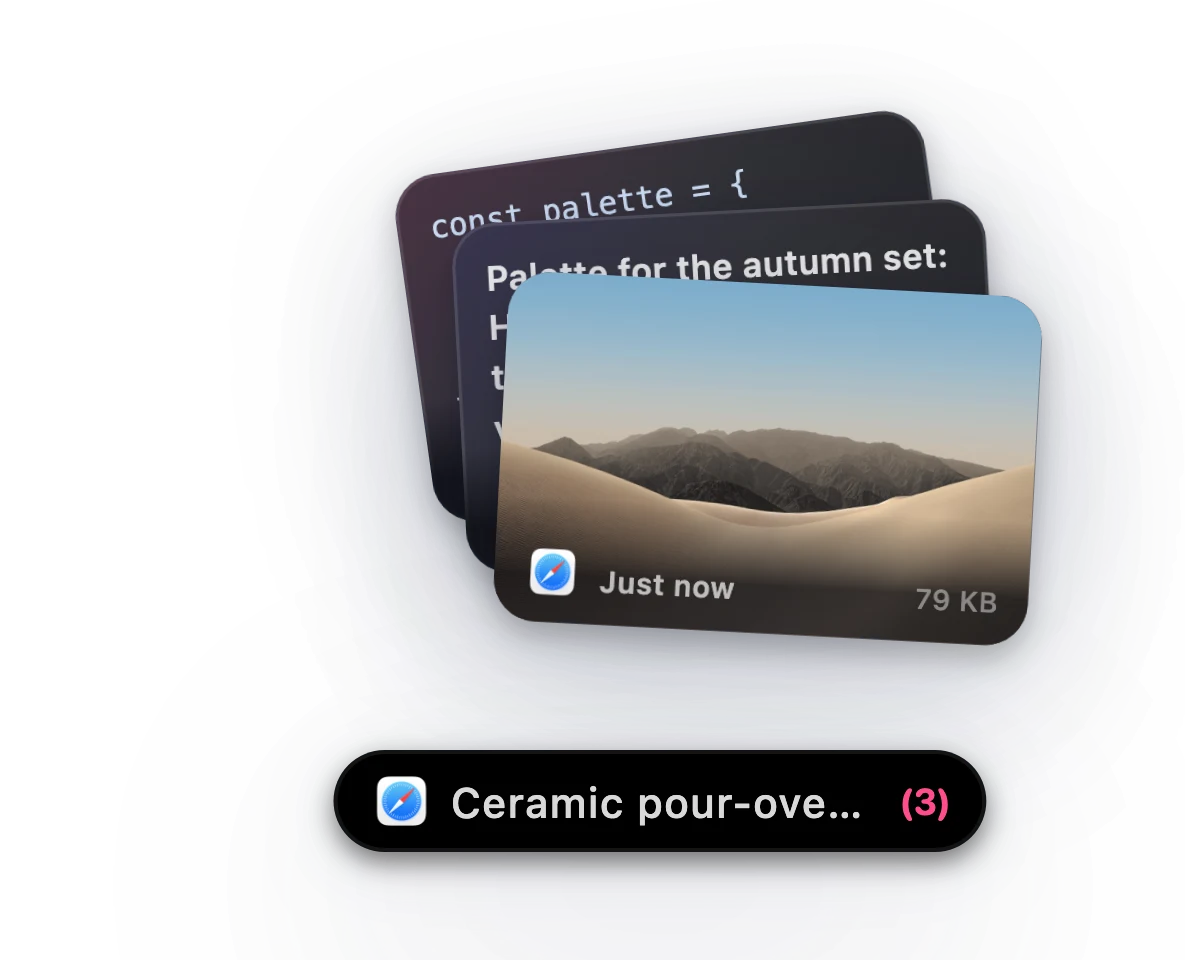
A Copy Stack is a queue for the clipboard. You switch it on, copy things in the order you want them, and each ⌘V then pastes the next item and removes it from the queue.
- Start the stack. Double-press ⌘ (or ⌥, depending on the key you pick in Settings). A small toast under the notch says the stack is collecting.
- Copy as you work. Select text, press ⌘C, move on. Every copy joins the queue, and the notch shows the next clip with a count of how many are waiting.
- Go where the data belongs. Switch to the form, spreadsheet, email or document you are filling in.
- Press ⌘V. The first item pastes. Press ⌘V again and the second pastes, then the third, in the same order you copied them. The notch shows the next clip, and the stack is consumed as you paste.
It works in any app, because OneNotch puts the next item on the clipboard just before your ⌘V arrives. It needs the Accessibility permission that OneNotch asks for during setup, the same one it uses for pasting.
One thing to know: if you stop copying for about ten seconds, collecting turns itself off so a forgotten stack never swallows your later copies. Whatever you already collected stays in the queue and still pastes with ⌘V. Double-press again to start a new stack.
Pick clips from your history
You do not have to plan ahead. If the clips are already in your clipboard history, you can build the queue after the fact:
- Open the clipboard from the notch, or press ⌘⇧C to open it as a panel at your cursor.
- ⌘-click (or ⇧-click) the clips in the order you want them pasted.
- Switch to the destination app and press ⌘V once per item.
This is handy for assembling an email from three snippets you copied earlier, or for pasting a handful of screenshots into a document in a set order.
When to use something simpler
You do not always need a queue.
- Two items: paste one, switch back, copy the other. It is quicker than starting a stack.
- A fixed block you reuse: pin it to a board and paste it with ⌘1 to ⌘9, no collecting needed.
- One long list in a single document: paste it into one place and edit it there.
Copy Stack earns its place when you have five or more pieces to move from several places to several places: filling a form from a spreadsheet, copying fields from a CRM into a ticket, gathering quotes into a draft, or moving rows between apps.
Other ways to paste several things
- Paste a stack of items you pinned. Pins on a board stay put, so you can paste the same series again tomorrow, with ⌘1, ⌘2 and so on.
- Edit before you paste. Right-click a text clip and choose Edit… to trim whitespace, join lines or change case first, or use the Transform menu for things like Format JSON and Base64 encoding.
- Other clipboard managers. Paste includes a sequential Paste Stack, and some others offer a plain multi-paste. See our comparison of the best clipboard managers for Mac for which apps queue clips and which do not.
Set it up in two minutes
- Download OneNotch free (macOS 15 or newer, Apple Silicon). No account is needed.
- Grant the Accessibility permission when asked, so pasting works in other apps.
- Double-press ⌘, copy a few things, and press ⌘V in another app.
Copy Stack is part of the free version. The free tier keeps up to 50 clipboard items for 24 hours; Pro, a one-time purchase at $9.99 lifetime, or $6.99 with code LAUNCH30, raises it to 1,000 items and forever retention.
Frequently asked questions
Can you copy and paste multiple items on a Mac?
Not natively in order. macOS holds one copied item at a time, and Tahoe's Spotlight clipboard history only lets you re-copy earlier items one by one. A clipboard manager with a stack feature, such as OneNotch's Copy Stack, lets you copy several items and paste them in order with repeated Command-V.
How do I paste several copied items in a row on a Mac?
In OneNotch, double-press Command to start a Copy Stack, copy your items, switch to the destination app and press Command-V once per item. Each press pastes the next item in the order you copied it. You can also Command-click clips in your history to queue them.
Does macOS have a clipboard history for multiple items?
Since macOS 26 Tahoe, yes: Spotlight keeps a short clipboard history, opened with Command-Space then Command-4. It lets you pick earlier copies but does not paste a series in order, and you must turn it on first.
How do I copy multiple items without a clipboard manager?
Paste each item into a scratch document such as Notes or TextEdit as you go, then copy the finished text once. It works for plain text but not for images, files or separate form fields.
What happens if I stop copying during a Copy Stack?
After about ten seconds without a new copy, OneNotch stops collecting so it never captures unrelated copies later. The items you already collected stay in the queue and paste in order with Command-V. Double-press the key again to start a new stack.
Is Copy Stack free?
Yes. Copy Stack is included in the free version of OneNotch. Pro is a one-time purchase that raises the history and board limits and adds iCloud sync between your Macs; there is no subscription.