By default, your Mac only remembers the last thing you copied. Copy a link, then copy a line of code, and the link is gone. A clipboard manager fixes that: it keeps a searchable history of everything you copy, so you can find it again, reuse it, clean it up, and paste several things in order.
macOS 26 Tahoe finally added a basic clipboard history inside Spotlight (press ⌘-Space, then ⌘-4; see our guide to seeing clipboard history on Mac). It is fine for grabbing something you copied a few minutes ago, but it is off by default, Mac-only, and temporary. The moment you want history that sticks around, opens at your cursor, searches by type or source app, pastes several things in order, or reads text out of a screenshot, you want a dedicated clipboard manager.
Quick disclosure: we make OneNotch, one of the apps below. We have tried to rank every app on its merits and to be upfront about where OneNotch is not the right pick, so you can judge for yourself. OneNotch details are for version 2.0.3 (October 5, 2026). Prices and features of the other apps are accurate to the best of our knowledge as of October 6, 2026; check each app's own site before you buy.
What to look for in a Mac clipboard manager
Not every point matters to everyone, but these are the things worth weighing before you pick one.
- Where it opens. A menu-bar dropdown means a mouse trip to the top of the screen every time. A panel that opens at your cursor, or on the notch you are already looking at, keeps you in flow.
- Search. Finding the thing you copied last Tuesday is the whole point. Look for fast search plus filters by type and source app, so "that image from Safari" is two keystrokes.
- Formats. Text is table stakes. Also check for rich text, links, colors, images, and files, and whether code and colors are shown as code and colors instead of plain strings.
- Editing and text tools. Copied text often arrives with stray whitespace, curly quotes, or the wrong case. Fixing it before you paste beats pasting, correcting, and pasting again.
- Source tracking. Can you jump back to the page a snippet came from? Great for research, and for finding out where that command came from.
- Organization. Can you pin or group the snippets you reuse into boards, instead of scrolling the whole history?
- Sequential paste. For forms, lists, and repetitive work, being able to collect several clips and paste them in order is a real time-saver.
- Keyboard-first. You reach for a clipboard manager dozens of times a day. It should work end to end without touching the mouse.
- AI agent access. If you code with Claude Code, Cursor or Codex, an app that exposes your clipboard history over MCP lets the agent find "the error I just copied" without you pasting it. Look for it being off by default, local, and limited to the tools you choose. Our Clipboard MCP guide explains how it works.
- Privacy. Your clipboard sees passwords and private messages. Prefer an app that keeps history on your Mac, lets you exclude sensitive apps, and can skip items that password managers mark as concealed.
- Resource use. A clipboard manager watches every copy you make, from login to shutdown. Once your history holds thousands of items and a few hundred screenshots, a careless one balloons in memory and nibbles at your battery. Check it in Activity Monitor, or prefer one that publishes measured numbers.
- Price. Free, one-time, or subscription. All three are below.
Quick comparison
| App | Price | Model | Cross-device sync | Best for |
|---|---|---|---|---|
| OneNotch | Free · Pro $9.99 lifetime, or $6.99 with code LAUNCH30 | Notch-native, one-time | Between Macs (iCloud, Pro); no iPhone or iPad app | Clipboard on the notch, at your cursor, keyboard-first, with AI agent access |
| Maccy | Free (open source) · $9.99 on the App Store | Menu bar | No | The best free, open-source pick |
| Paste | $29.99/yr · monthly and lifetime options | Subscription, sync | Yes (Mac, iPhone, iPad) | Design and Mac/iPhone/iPad sync |
| Raycast | Free · Pro from $8/mo | Launcher extension | No | People already living in Raycast |
| Alfred + Powerpack | Powerpack £34 (about $45) one-time | Launcher extension | No | Workflow builders |
| PastePal | Free · $14.99 one-time | Standalone | Yes (iCloud) | A tidy one-time standalone |
| ClipBook | $9.99 one-time (1 Mac) | Standalone, local-only | No | A simple one-time manager with no cloud |
| macOS Spotlight | Free (built into Tahoe) | Built-in | No | The occasional recent copy |
The best clipboard managers for Mac in 2026
1. OneNotch — the clipboard that lives on your notch
Most clipboard managers live in the menu bar, which means a trip to the top corner of the screen every time you need them. OneNotch takes a different route: it wraps your clipboard history around the MacBook notch you are already looking at, and it can also pop a floating panel right at your cursor with a global shortcut. Hover the notch to browse recent clips, or press ⌘⇧C over any app to search and paste without leaving your window. On a Mac without a notch, it runs as a pill at the top of the screen.
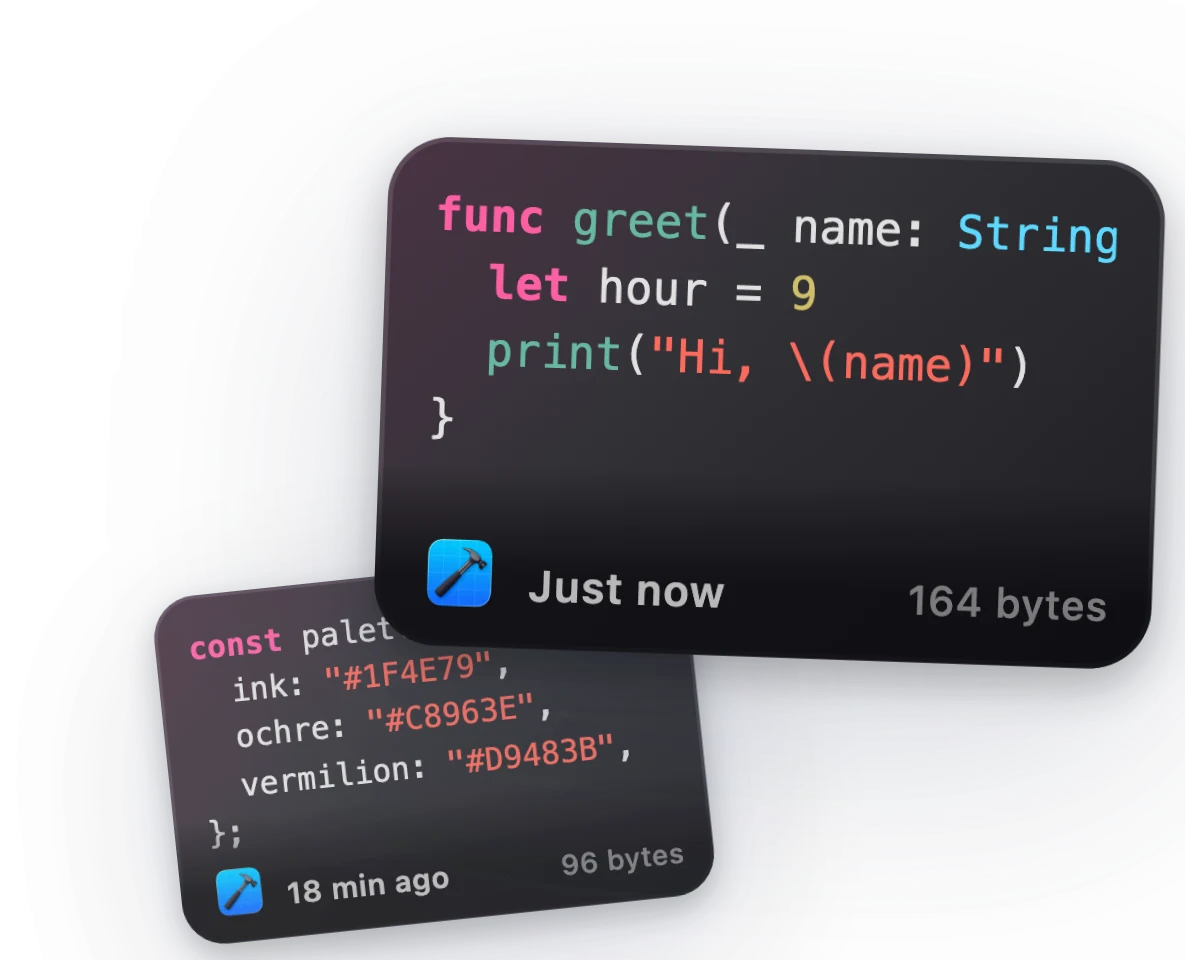
OneNotch saves text, rich text, links, colors, images, SVG and files as you copy them. Code copied from Xcode or an editor is detected and colored with Xcode and One Dark colors, entirely on your Mac. Copy #4A90D9, rgb(74, 144, 217) or hsl(210, 65%, 57%) and you get a real swatch. Links show the page title and lead image, a YouTube link previews as a flipbook of the video's own frames, and a TikTok link shows the post's cover.
Search that understands what you copied. Type @image, @link, @text, @color or @file to filter by type, and any other @word filters by source app: @chrome shows only what you copied from Chrome, and suggestions appear as you type. Press space and the filter becomes a capsule you can combine with ordinary keywords, so @image @safari or @link plus "invoice" gets you to the exact copy. Search ignores case and accents.
Fully keyboard-driven. Arrow keys move through history, Return pastes, and ⌘1 to ⌘9 paste the first nine items you can see, whether that is your recent history or a board. Click a clip and OneNotch pastes it straight into the app you were using, no ⌘V needed.
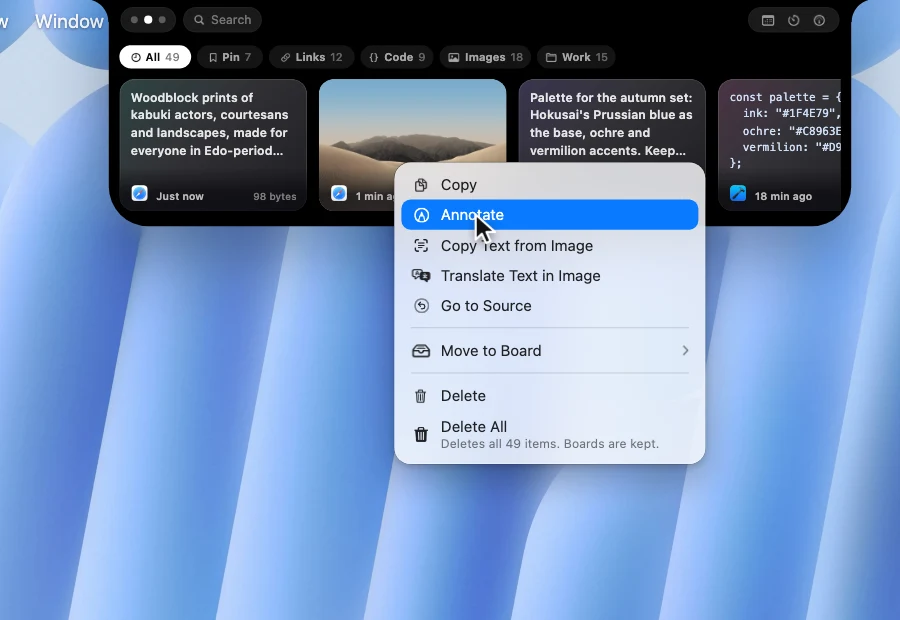
A right-click menu that does real work. Right-click any clip and the menu adapts to what it is. For text you get Copy as Plain Text, Edit…, Translate, Search Google for the copied words, and a Transform submenu. For a clip copied from a web page you also get Go to Source and Copy Link to Highlight. For images there is Annotate, Copy Text from Image (OCR) and Translate Text in Image, and since 2.1.0 Resize and Convert to (PNG, JPG, WebP or HEIC), which copy a new file and leave the clip as it was. Every clip also has Rename…, to give it a name that shows on its card and that search finds (free, new in 2.1.0). For files there are Quick Look and Reveal in Finder.
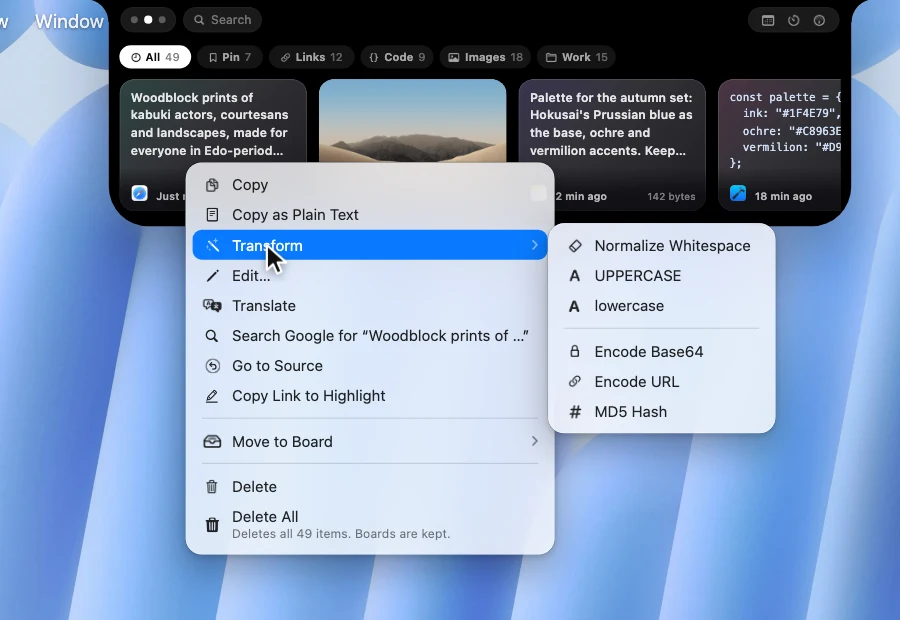
- Edit and clean up text. Edit… opens the clip in its own window. Trim whitespace, remove empty lines, join lines into one, change case or capitalize words in a click, with undo, Revert, and ⌘↩ to save. Since 2.1.0 it also sorts lines, removes duplicate lines, strips Markdown symbols, removes tracking from links and removes accents. You fix the clip before you paste it.
- 15 text transforms. The Transform submenu offers Normalize Whitespace (straightens curly quotes and dashes and strips zero-width characters), UPPERCASE, lowercase, Format JSON, Minify JSON, Encode and Decode Base64, Encode and Decode URL, camelCase to snake_case and back, Timestamp to Date, MD5 Hash, Sort Lines and Remove Duplicate Lines. Only the ones that make sense for the clip show up, and the result goes to your clipboard while the original stays in history.
- Go to Source. OneNotch remembers the web page you copied from. Go to Source reopens it, and for text it adds a text fragment so Chrome, Safari and Firefox scroll to the copied passage and highlight it. Copy Link to Highlight gives you that link to share.
- Search Google for any copied text in one click, without pasting it into a tab first.
Copy Stack for repetitive work. Double-press ⌘ (or ⌥, your choice) to start a stack, keep copying as you work, then paste every item in order with ⌘V. OneNotch numbers the queue, shows the next clip on the notch, and consumes the stack as you paste. You can also multi-select clips and paste them as an ordered queue. Our guide to copying and pasting multiple items on Mac walks through it.
Boards for the snippets you reuse. Right-click a clip and move it to a board, or drag it onto a board pill. Pins survive restarts and history cleanup, and each board has its own icon and order. Boards can be locked with a passcode and their contents encrypted, and that is free for everyone. With Pro, you can open a locked board with Touch ID or your Apple Watch (new in 2.1.0). Free includes 1 board with 10 pins; Pro raises it to 20 boards with 200 pins each.
A Clipboard Library for the long view. OneNotch 2.0 rebuilt the library as a full window: a sidebar for types, source apps and boards, back and forward navigation, smooth scrolling through large histories, an inspector for the selected clip, and a viewer that opens any item full size with zoom, color picking and text extraction.
Let your AI agents look up what you copied. Turn on Clipboard MCP in Settings and agents such as Claude Code, Cursor and Codex can search your clipboard history, read the latest copy, and put text back, so "the error I just copied" never needs pasting into the chat. It runs through a local socket on your Mac and is off until you enable it. You can hide clips from password managers and from specific apps, and clips pinned to a locked board are never shared. Letting agents write a clip back, and letting them create and organize boards, each have their own switch, so you can turn either off. The agent can search by text, type, source app and date range, but it cannot rename or delete your boards. The full setup guide lists every tool.
Your data, your rules. Pause capture whenever you like, ignore specific apps, and switch on Ignore Sensitive Clipboard Content (Settings › Clipboard › Privacy) to skip anything password managers mark as private. History can delete itself after a day, a week, a month or a year (longer retention is a Pro setting). Export everything, images included, to a single .onenotchclip file and import it on another Mac, where it merges and skips duplicates. With Pro, iCloud sync keeps the same history on each of your Macs through your private iCloud database, encrypted, and you choose whether images sync too. A soft sound and a small toast under the notch confirm each copy, and you can turn both off. Since 2.1.0, hovering the toast lets you pin, open, translate or delete what you just copied.
OneNotch is more than a clipboard, too. The same notch surfaces music controls (with a resizable, draggable floating lyrics panel), Live Activities, your calendar, screenshots and AI-agent status (Codex and Claude usage, approvals, and running tasks), so one app handles the whole edge of your screen (see how it stacks up against the best Mac notch apps). It is private by design as well: clipboard history stays on your Mac with no account, and anonymous usage data is optional and can be switched off in Settings.
The usual catch with an app that does this much is that it quietly eats your battery, since a clipboard manager watches every copy you make all day. So we profiled ours with Apple's own tools and fixed what we found. With clipboard, agents and media all running, it stays quiet in the background and lets go of memory it does not need. If you have ever watched a clipboard manager balloon in Activity Monitor, the full write-up is here.
What it does well:
- Clipboard on the notch, plus a floating panel that opens at your cursor (⌘⇧C)
- Search by type (
@image,@link,@text,@color,@file) and by source app (@chrome), combined with keywords - Give any clip a name that search finds, free, and with Pro, search inside the text of copied screenshots (both new in 2.1.0, how it works)
- 100% keyboard-driven: arrow keys, Return to paste, ⌘1–⌘9 quick paste
- Copy Stack (double-press ⌘ or ⌥) and multi-select ordered paste
- Edit… window, 15 transform tools, Copy as Plain Text, Translate, and Search Google from the right-click menu
- Go to Source with a highlighted passage, and Copy Link to Highlight
- Built-in OCR, Annotate, and Translate Text in Image
- Code highlighting, color swatches, rich link previews (YouTube and TikTok included), SVG and files
- Boards with ⌘1–⌘9 paste, drag-and-drop pinning and free passcode locks, opened with Touch ID or Apple Watch on Pro (new in 2.1.0)
- A full Clipboard Library window with an inspector and a zoomable viewer
- Clipboard MCP for Claude Code, Cursor, Codex and other MCP clients, off by default and local
- iCloud sync between Macs (Pro), one-file backup and import, and import from Paste, PastePal, PasteNow, Maccy and CopyClip (Pro, since 2.0.5)
- Native SwiftUI that stays light in the background, with a published profiling write-up
- Pill mode for Macs without a notch
What it doesn't:
- iCloud sync (a Pro feature) keeps your Macs in step, but there is no iPhone or iPad app yet. If you copy on your Mac and paste on your phone, Paste is the better fit.
- Requires macOS 15 or newer on Apple Silicon
- Newer app with a shorter track record than Maccy or Alfred
- Go to Source needs a browser that puts the page address on the pasteboard, so it will not work for text copied from every app
Price: free, and genuinely useful on its own (up to 50 clipboard items, 24 hours of history, and 1 board with 10 pins). Pro is a one-time purchase at $9.99 lifetime, or $6.99 with code LAUNCH30, covers up to 2 Macs, and lifts the limits to 1,000 items, retention from a day to forever, and up to 20 boards with 200 pinned items each, plus iCloud sync between your Macs.
For whom: anyone on a Mac who copies and pastes constantly, wants it a hover or a keystroke away instead of a mouse trip to the menu bar, works with code or AI agents, and prefers a one-time price over a subscription. Developers should also read our guide to the best clipboard manager for developers.
2. Maccy — the free, open-source standard
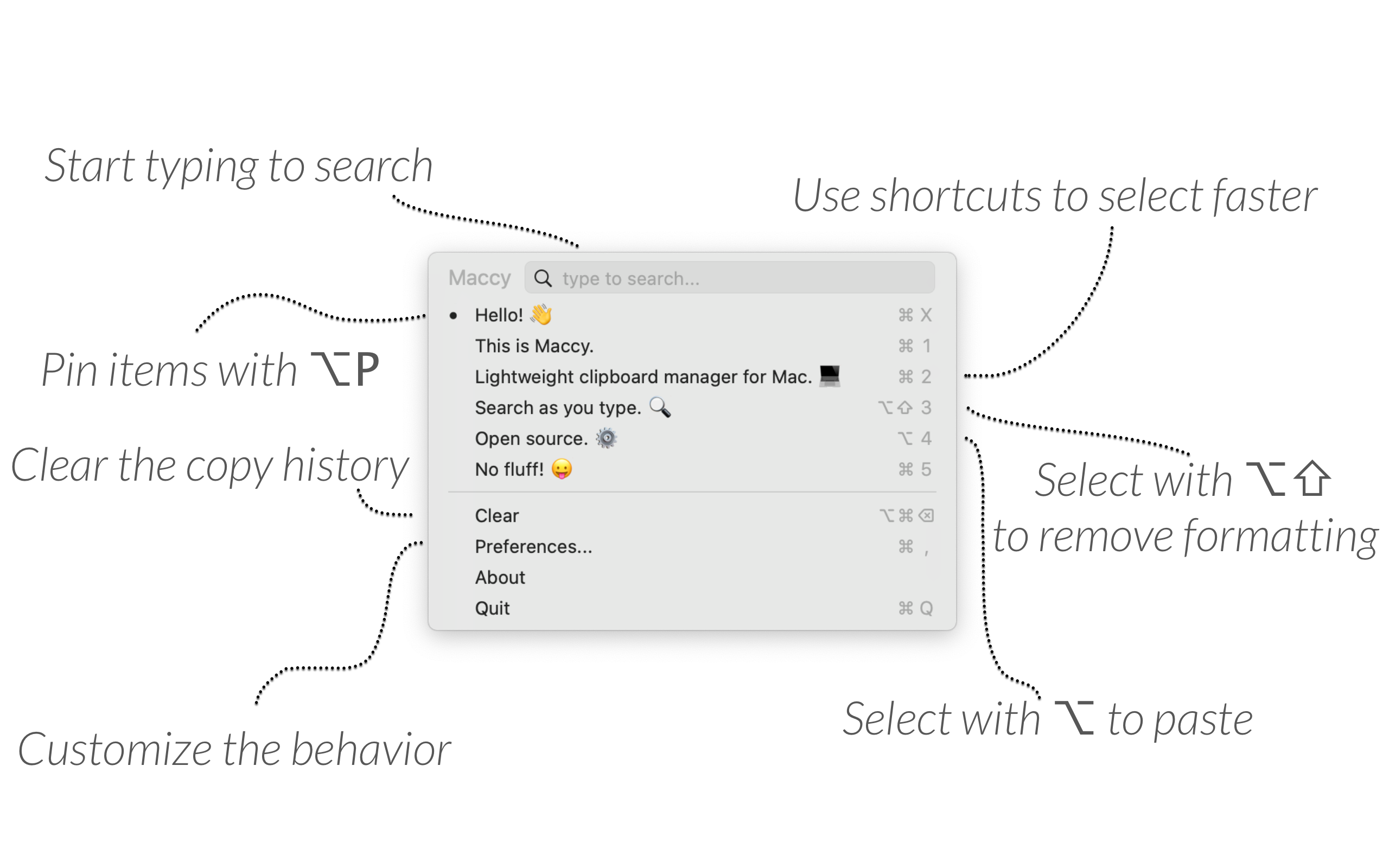
Maccy is probably the most recommended clipboard manager on r/macapps, and for good reason. It is free, open source, lightweight, and does the basics very well. If you want free software and a classic menu-bar dropdown, you do not need to look further.
What it does well:
- Free and open source (MIT), inspectable on GitHub
- Light and fast
- Instant search and pinning
- Keyboard-first, with paste without formatting
- Maintained for years, and it runs on macOS 14 and later
What it doesn't: lives in the menu bar, so there is always a trip up there; no Copy Stack, ordered paste, or OCR; no sync and no AI agent access; a functional UX rather than a polished one.
Price: free from GitHub or Homebrew; a $9.99 build on the Mac App Store supports the developer.
For whom: open source matters most, or you want the simplest thing that works without ever paying. See our Maccy alternative guide if you are outgrowing it.
3. Paste — the polished one with iCloud sync
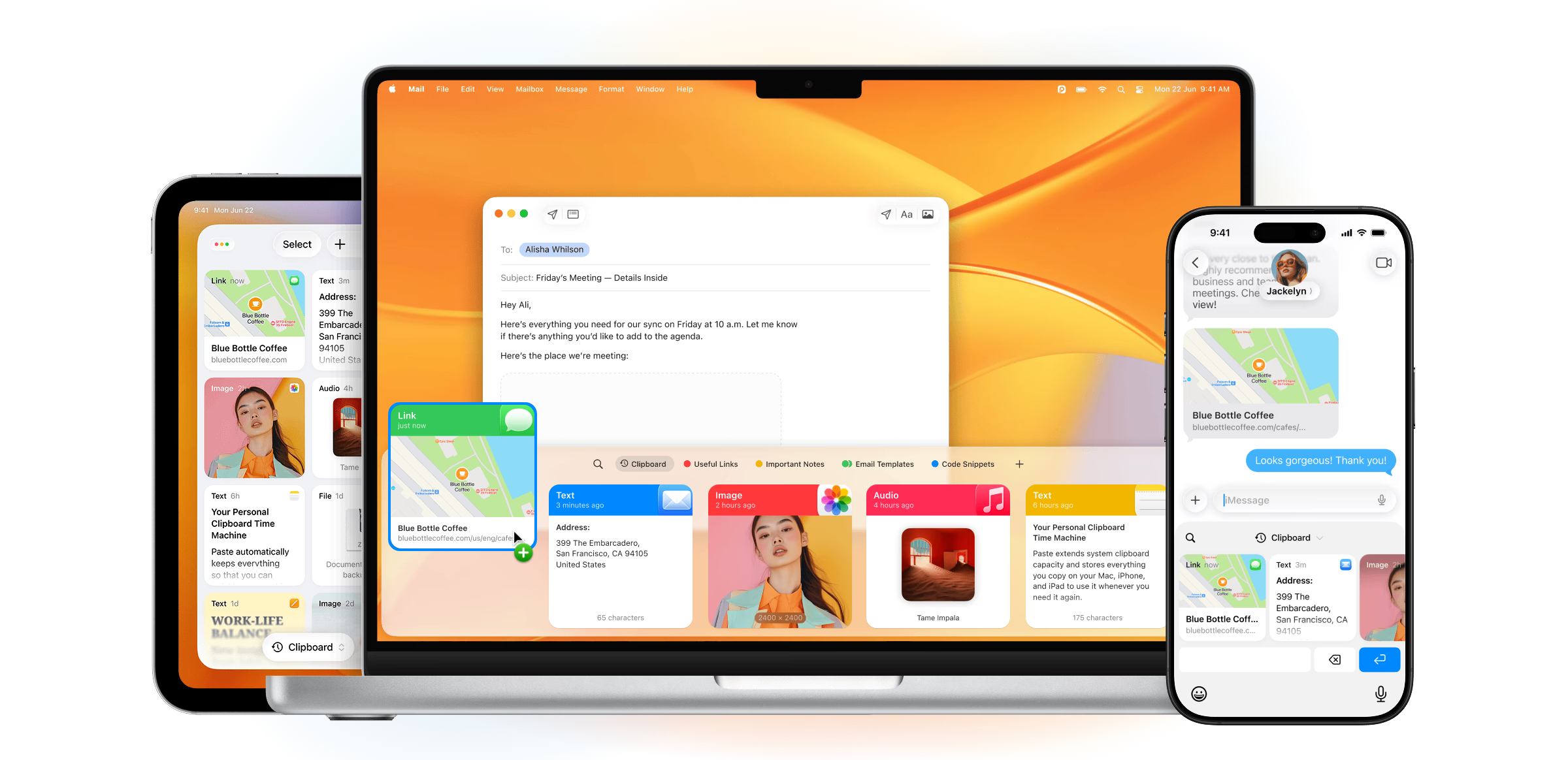
If aesthetics matter to you and you need your clipboard to sync between Mac, iPad, and iPhone, Paste is the app to beat. It has set the design bar in this category for years, and iCloud sync is its killer feature. In 2026 Paste also added its own MCP server, so Claude, Codex and Cursor can search your history and manage pinboards.
What it does well:
- Best-in-class design and animations
- iCloud sync across Mac, iPhone, and iPad
- Pinboards for grouping clips, and a sequential Paste Stack
- Fast search with type, app, and date filters
- Paste MCP for connecting clipboard history to AI tools on your Mac
What it doesn't: it is subscription-first, which is a dealbreaker if you dislike recurring bills; the panel is fixed to the bottom of the screen rather than opening at your cursor; there is no meaningful free tier beyond a trial.
Price: $29.99 a year, with a monthly plan, a lifetime option, a 7-day trial and Setapp availability.
For whom: you live across Apple devices, copy on one and paste on another all the time, and value design over price. If the subscription is your only sticking point, see our guide to a Paste alternative without a subscription.
4. Raycast — only if you already use it
Raycast is a launcher that happens to include clipboard history as a built-in extension. If you already use it as your main launcher, its clipboard history is good enough for most people, and there is no reason to install anything else.
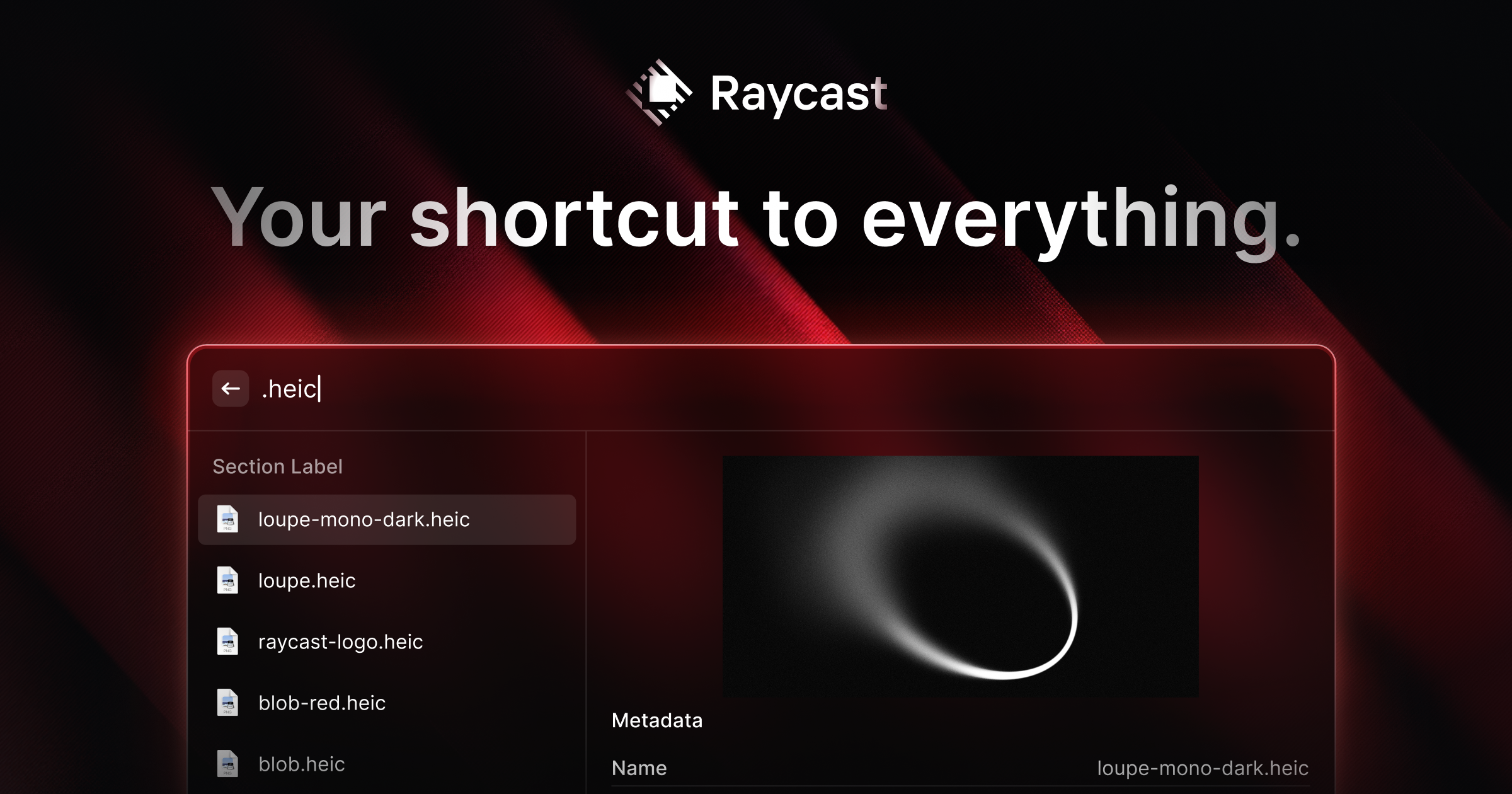
What it does well: clipboard history is built into the free tier; search is fast and integrated with the rest of Raycast; it is polished and keyboard-first.
What it doesn't: the free tier caps history retention, and longer retention needs Raycast Pro (from $8/month); it opens in a command palette rather than at your cursor; adopting a whole launcher just for clipboard is overkill.
Price: free with limited retention; Pro from $8/month.
For whom: you already pay for or use Raycast and want clipboard history in the same window.
5. Alfred + Powerpack — for workflow builders
Alfred is the original Mac launcher, and its clipboard history is part of the paid Powerpack. Once you have it, the history pairs tightly with Alfred's snippets and workflows.
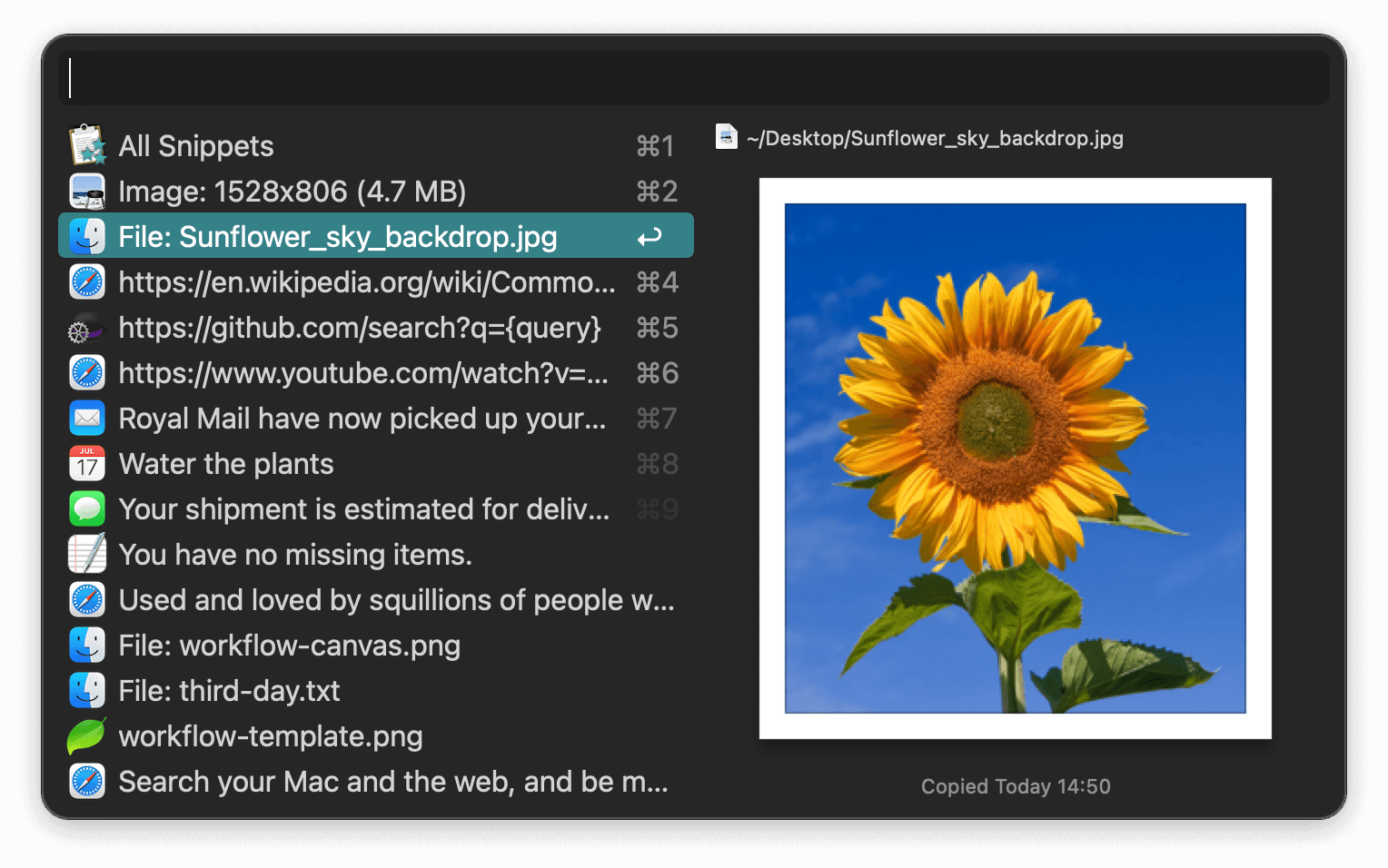
What it does well: a powerful workflow engine; one-time Powerpack payment; text, images, and file lists with merging; a decade of trust.
What it doesn't: clipboard requires the paid Powerpack; it is Mac-only with no device sync; the UI feels dated next to Paste; there is a learning curve.
Price: Powerpack from £34 (about $45) one-time.
For whom: you already build Alfred workflows and want clipboard history alongside them.
6. PastePal — the tidy standalone
PastePal sits between Paste and Maccy: a one-time purchase with a clean UI and iCloud sync across Apple devices, without Paste's subscription.

What it does well: one-time payment; a modern, well-crafted UI; iCloud sync between Mac and iOS; fast search.
What it doesn't: fewer advanced features (no Copy Stack, no ordered paste); a smaller community and maintenance footprint.
Price: free to download with a one-time $14.99 upgrade that covers Mac, iPhone and iPad.
For whom: you want a one-time purchase with device sync and a nice history, and do not need power features.
7. macOS Spotlight clipboard history — the free built-in
If you are on macOS Tahoe, start with what is already on your Mac. Spotlight now keeps a short clipboard history (⌘-Space, then ⌘-4). It is free and already there.
What it does well: free, built in, and fine for re-copying something from a few minutes ago.
What it doesn't: off by default; Mac-only with no sync; temporary by design (items clear after a window you set, from 30 minutes to 7 days); no boards, no OCR, no sequential paste; not available on macOS Sequoia or earlier.
Price: free with macOS 26 Tahoe.
For whom: light needs on Tahoe, and you do not want to install anything.
Also worth a look: ClipBook
ClipBook is a newer, local-only clipboard manager with no cloud and no tracking. It keeps text, images, files, links and colors, lets you choose how long each type is kept (from a day to forever), and offers a 5-day trial with everything unlocked. It costs $9.99 one-time for one Mac ($14.99 for two), with a 14-day money-back guarantee. It has no sync, so it suits people who want a simple, private history and nothing else.
How to choose
- You want your clipboard on the notch and at your cursor, keyboard-first, for a one-time price. OneNotch.
- You code with Claude Code, Cursor or Codex and want them to find what you copied. OneNotch or Paste. Both have an MCP server; OneNotch is a one-time purchase and Paste is a subscription that also syncs to iPhone.
- You edit and reformat what you copy (JSON, Base64, case, whitespace). OneNotch.
- Free software above all else. Maccy.
- You copy on your Mac and paste on your iPhone or iPad. Paste.
- You already live in Raycast. Use its built-in clipboard history.
- You build deep automations. Alfred + Powerpack.
- You want a tidy standalone with device sync and one-time pricing. PastePal.
- You want a simple, local-only manager for one Mac. ClipBook.
- You just need the last few things you copied on Tahoe. The built-in Spotlight history.
Our pick
For a Mac-only workflow, OneNotch is the one we would reach for: the clipboard is a hover or a keystroke away instead of a trip to the menu bar, search filters by type and source app, Copy Stack and ordered paste handle the repetitive work, the right-click menu edits and transforms text before you paste, and the free tier is useful before you ever pay. If you need your clipboard to follow you to an iPhone, choose Paste instead. If you want free and open source, choose Maccy. That is exactly the point of this guide: pick the one that fits how you actually work. If that sounds like your setup, download OneNotch free and try it on your own Mac.
Frequently asked questions
Does macOS have a built-in clipboard manager?
Only recently, and only a basic one. For years macOS kept just the single most recent copy. macOS 26 Tahoe added a limited clipboard history inside Spotlight (⌘-Space, then ⌘-4), but it is off by default, Mac-only, and clears items after a window you set. A dedicated clipboard manager adds a lasting, searchable, organized history.
What is the best free clipboard manager for Mac?
Maccy is the best free, open-source option for a lightweight menu-bar history. OneNotch also has a genuinely useful free tier that keeps up to 50 items and adds Copy Stack, boards, search by type and source app, OCR, Go to Source, text transform tools, and instant Google search, with the clipboard living on the notch or in a panel at your cursor.
Which clipboard manager lives in the notch?
OneNotch. It wraps your clipboard history around the MacBook notch, so you browse recent clips by hovering it, and it can also open the same history as a floating panel at your cursor with ⌘⇧C. On Macs without a notch it runs as a pill at the top of the screen.
Which clipboard manager works with Claude Code, Cursor and Codex?
OneNotch and Paste both include an MCP server, so AI agents can search your clipboard history. In OneNotch it is called Clipboard MCP: you turn it on in Settings, set up Claude Code, Cursor or Codex from the same page (other MCP clients take a pasted config), and choose whether agents may also write to the clipboard or organize boards. It runs locally on your Mac, is off by default, and can hide clips from password managers and chosen apps.
Which clipboard manager has a text editor and text transforms?
OneNotch lets you edit any text clip in its own window, with one-click cleanup such as trimming whitespace, removing empty lines, joining lines and changing case. Its Transform menu adds 15 more actions, including Format JSON, Minify JSON, Base64 and URL encode and decode, camelCase and snake_case conversion, Timestamp to Date, MD5 Hash, Sort Lines and Remove Duplicate Lines.
Can a clipboard manager take me back to the page I copied from?
OneNotch can. It remembers the web page a clip was copied from. Go to Source reopens it, and for text it adds a link fragment so supported browsers (Chrome, Safari and Firefox) scroll to the copied passage and highlight it. Copy Link to Highlight gives you that link to share.
Which clipboard manager syncs to iPhone and iPad?
Paste and PastePal sync across Apple devices via iCloud, so you can copy on your Mac and paste on your phone. OneNotch syncs between Macs through iCloud with Pro but has no iPhone or iPad app, and Maccy, Raycast, and Alfred are Mac-only. If cross-device sync to a phone is your priority, Paste is the strongest pick.
Can you trust a clipboard manager with passwords?
Only if you choose carefully. Prefer an app that keeps history on your Mac rather than a server, and that lets you exclude sensitive apps. OneNotch and Maccy keep history on your Mac by default (OneNotch's iCloud sync is optional), and OneNotch lets you add apps to an exclusion list and, when you switch on its Ignore Sensitive Clipboard Content setting, skips items that source apps mark as concealed. Still, pause capture or clear history when handling secrets.
How much does OneNotch cost?
OneNotch is free, with a genuinely useful free tier (up to 50 clipboard items, 24 hours of history, and 1 board with 10 pins). Pro is a one-time purchase at $9.99 lifetime, or $6.99 with code LAUNCH30, that covers up to 2 Macs and lifts the limits to 1,000 items, retention from a day to forever, up to 20 boards with 200 pinned items each, and iCloud sync between Macs. There is no subscription.