You took a screenshot of an error, a receipt or a slide an hour ago, and now you need it again. You remember what it said, not when you copied it, and unless your clipboard manager can read images, typing those words finds nothing: the screenshot is somewhere in a wall of thumbnails. OneNotch 2.1.0 fixes that: it reads the text in the images you copy, on your Mac, so typing a word from the screenshot finds it. The same update lets you give any clip a name of its own, free for everyone.
Quick disclosure: we make OneNotch. Everything below describes version 2.1.0 (October 2026). Find Text in Images is part of OneNotch Pro; clip names are free for everyone.
Find a screenshot by the words in it
Copy an image, such as a screenshot or a picture from a web page, and OneNotch saves it to your clipboard history as it always has. With Find Text in Images turned on, it then reads the text inside the image and remembers it next to the clip.
From then on, search treats that text like any other part of the clip:
- Type
invoiceand the screenshot of the invoice comes up, even though the word appears nowhere except inside the picture. - Search is not picky about case or accents, so
ngan sachalso finds "ngân sách". - Combine it with the filters you already use.
@image budgetshows only images that mention "budget", and@slack budgetnarrows it to what you copied from Slack.
It also makes Copy Text from Image in the right-click menu instant. If the image has already been read, the text goes straight to your clipboard instead of being read again.
It stays out of your way
A clipboard manager runs all day, so reading text in the background must never be something you notice. Find Text in Images is built around that:
- It reads on your Mac. The text is recognized with Apple's on-device text recognition and stored with your history on your Mac. Your images are not uploaded anywhere to be read.
- It waits for a quiet moment. Reading starts a couple of seconds after you stop copying, one image at a time. Take ten screenshots in a row and it waits until you are done, so it never gets between two shots.
- Your own OCR comes first. While you are capturing text with ⇧⌘2 or using Copy Text from Image, background reading holds off.
- It backs off when the Mac is busy. Reading pauses in Low Power Mode and when your Mac is running hot.
In our tests on an Apple silicon Mac, a screenshot full of text took about half a second to read in the background, and the notch and the Clipboard Panel stayed as smooth as when the Mac was idle.
Good to know
- New copies only. Images that were already in your history before you updated to 2.1.0, or before you turned the setting on, are not read. Every image you copy from then on is.
- You can turn it off. Settings › Clipboard › Content Recognition › Find Text in Images. On the free version the row shows a PRO badge.
- Text read stays searchable. If you stop using Pro, the text OneNotch has already read can still be searched. Only reading new images needs Pro.
- Deleting a clip deletes its text. The text belongs to the clip and goes with it.
Give any clip a name
A pinned clip that shows the first line of some JSON, or a thumbnail of a form, does not say much a week later. Now you can name it.
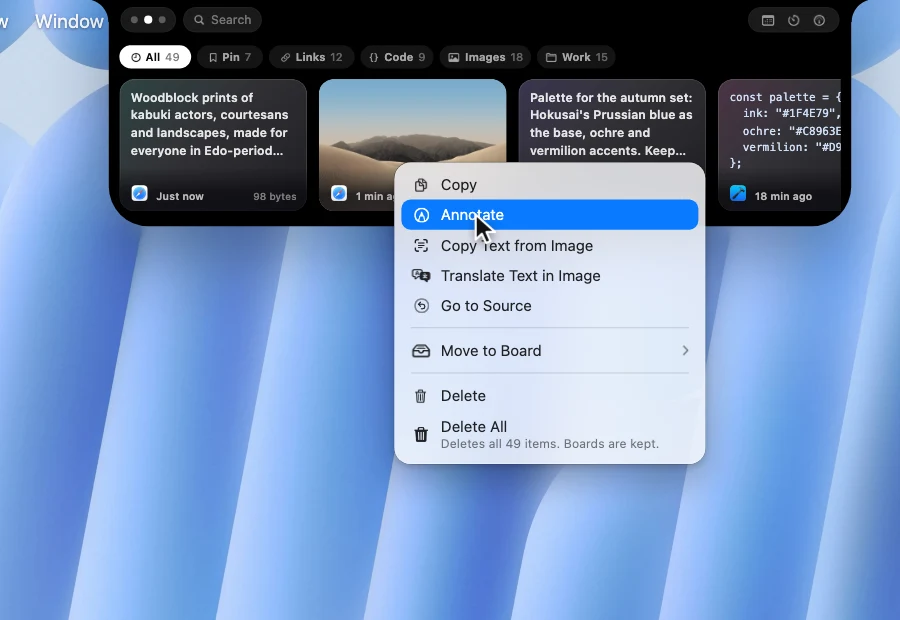
- Right-click a clip on the notch, or a row in the Clipboard Panel (the row's … menu works too).
- Choose Rename….
- Type a name and press Return, or click Save. Saving an empty name removes it.
Any clip can have a name, pinned or not: text, an image, a file or a link.
Where the name shows up:
- On the card. The name sits on top, in bold on the notch, with the content underneath. On a link card the name takes the title's place, and the page title moves to the line below.
- In the preview. The hover preview on the notch and the preview beside the Clipboard Panel both show it.
- In search. Type the name, or part of it, and the clip comes up.
- In a new sort. Named First puts every named clip at the top, A to Z by name, with the rest newest first. The sort that orders clips by what they contain is now called Content (A–Z), so the two are not confused.
Names stay with the clip when you edit it or copy the same thing again, and they are included when you export your history to a .onenotchclip file and import it on another Mac. Names are not synced over iCloud.
Naming clips is free: anyone can give, change or remove a name, on the notch and in the Clipboard Panel.
Also in 2.1.0: screenshot shortcuts and OCR
Shortcuts that work right after you install. OneNotch's capture shortcuts used to wait behind a single switch that was off on a new Mac, so ⇧⌘2 did nothing until you found it. Now every shortcut that does not clash with macOS works straight away:
- ⇧⌘2 Capture Text (OCR)
- ⇧⌘6 Scrolling Capture (a Pro tool)
- ⇧⌘9 Capture Active Window
The switch is now called Replace macOS Screenshot Keys, and it only decides whether OneNotch takes ⇧⌘3 and ⇧⌘4 from macOS. If you had turned the old switch on and then off again, your shortcuts stay off as before. If Shottr or TextSniper is installed, OneNotch leaves ⇧⌘2 to them; you can turn it on in Settings › Shortcuts.
OCR that recovers on its own. Once in a while, text recognition could hang: the "Extracting content…" message spun for up to a minute, you could not take another screenshot in the meantime, and later OCR could keep hanging until you quit the app. Now you can keep capturing while text is being read, the message has a ✕ to cancel it, and if recognition does hang, OneNotch stops waiting after 20 seconds and the next try works normally.
Smaller touches
- A tidier right-click menu. Shorter items, and Delete All and Unpin All show their count in the title, for example "Delete All (400)".
- Less clutter in the Clipboard Panel. The preview beside the panel steps aside while you right-click or rename a row.
- A complete Pro table. "What Pro unlocks" in Settings now lists everything Pro includes, among them Find Text in Images and importing from other apps.
- Readable translation errors. When a translation fails, the message under the notch is shown in full instead of being cut off.
More for the clipboard in 2.1.0
- Act on what you just copied. Hover the "Copied" toast under the notch to pin it, open it (for a link) or translate it (for text), or delete it.
- Resize and convert image clips. Right-click an image clip for Resize (half size, or a smaller long edge such as 1920, 1280 or 640 pixels) and Convert to PNG, JPG, WebP or HEIC. The result is copied as a new file and the original clip stays as it was. Free.
- Touch ID for locked boards. Boards locked with a passcode are still free. With Pro, after you enter the passcode once since OneNotch started, you can open locked boards with Touch ID or your Apple Watch.
The rest of 2.1.0, from the new tools beside the notch to Eye Break, is on the Updates page.
Coming from another clipboard manager?
Your history does not have to start from zero. Since 2.0.5, Settings › Clipboard › Backup › Import from Other Apps finds Paste, PastePal, PasteNow, Maccy and CopyClip on your Mac, shows how many items and pins each one has, and brings them over. Content you already have is skipped, and pinned items go to a matching board. Importing is part of Pro; the free version can open the panel and see what it would bring over.
OneNotch Pro is a one-time purchase at $9.99 lifetime, or $6.99 with code LAUNCH30, for up to 2 Macs, with free updates and no subscription. If you are weighing it against Paste, our Paste alternative guide is honest about where Paste is still the better fit. For the wider field, see the best clipboard managers for Mac.
How to get 2.1.0
If OneNotch is already installed, it checks for updates on its own, or you can choose Check for Updates. New to OneNotch? Download it free: no account, macOS 15 or later on Apple silicon.
Frequently asked questions
Can OneNotch search the text inside screenshots in my clipboard history?
Yes, with OneNotch Pro 2.1.0 or later. Find Text in Images reads the text in each image you copy, on your Mac, and clipboard search then matches those words, alone or combined with filters such as @image or a source app.
Are my images uploaded to read the text?
No. OneNotch reads the text with Apple's on-device text recognition and keeps it with your clipboard history on your Mac.
Will reading text in images slow my Mac down?
It is designed not to. OneNotch reads one image at a time, starts only after you stop copying, lets your own OCR go first, and pauses in Low Power Mode or when the Mac is running hot. In our tests a dense screenshot took about half a second to read in the background, with no effect on how smoothly the notch and the Clipboard Panel move.
Does it read images I copied before updating?
No. Only images copied after you update to 2.1.0 with the setting on are read. Images already in your history are not read.
How do I rename a clip in OneNotch?
Right-click the clip on the notch or in the Clipboard Panel and choose Rename…, type a name and press Return. The name shows on the card and in the preview, search finds the clip by its name, and the Named First sort puts named clips at the top.
Are clip names and Find Text in Images free?
Clip names are free for everyone. Find Text in Images is part of OneNotch Pro; text already read while on Pro stays searchable if Pro ends, and only reading new images needs Pro.