You copy a stack trace, switch to your AI coding agent, and paste it. Then a few minutes later you need the link you copied earlier, and the JSON from before that. The agent cannot see any of it unless you paste it in yourself. MCP, the Model Context Protocol, fixes that: it lets an agent call tools on your Mac, and a clipboard MCP server turns your clipboard history into one of those tools.
Quick disclosure: we make OneNotch. This guide explains how clipboard MCP works in general, how to set it up in OneNotch, and where the alternatives fit. OneNotch details are for version 2.0.3 (October 5, 2026).
What clipboard MCP does
An MCP server is a small program that tells an AI agent which tools it can call. A clipboard MCP server gives an agent tools like "search the clipboard history" and "read the latest copy". Instead of pasting, you say what you want in plain words and the agent finds it.
Without it, the agent only knows what is in your prompt. With it, you can write:
- "Fix the error I just copied."
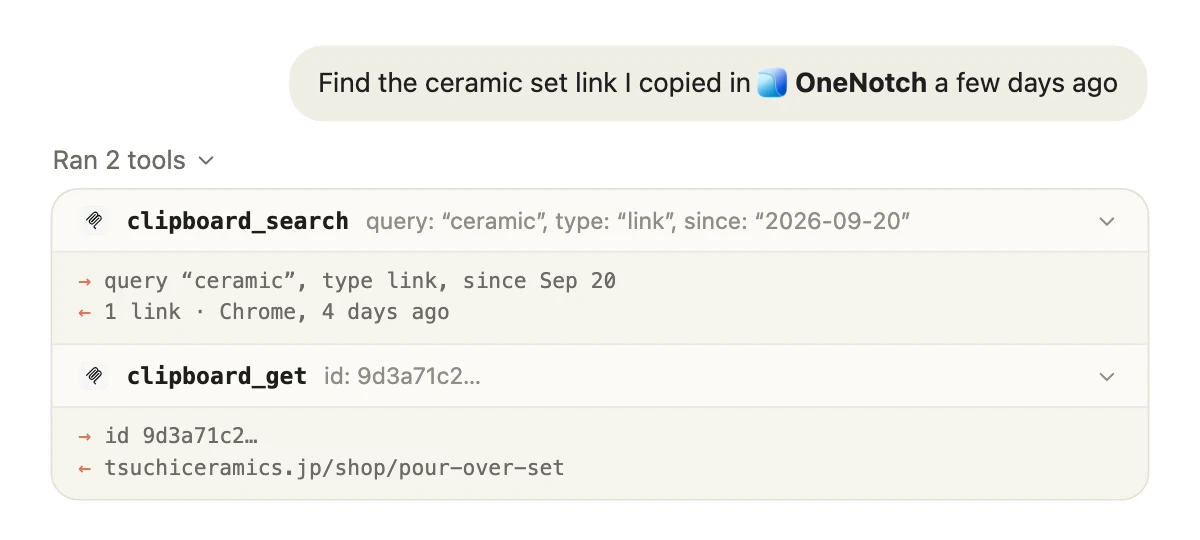
- "Find the link I copied from Chrome last week."
- "Take the JSON I copied earlier and write a TypeScript type for it."
- "Put that cleaned-up SQL on my clipboard."
- "Sort my clipboard into boards."
There is no need to switch windows, select, copy and paste. The agent pulls the clip itself.
What OneNotch's Clipboard MCP exposes
OneNotch gives agents eleven tools. All of them work on the clipboard history OneNotch already keeps.
| Tool | What it does |
|---|---|
clipboard_get_current | The most recent clip in full: text, link, color, an image's file path, or file paths. |
clipboard_search | Search history, newest first. Filter by words, type (text, link, color, image, file), source app, and a date range. Returns previews up to 300 characters, with ids. |
clipboard_get | One clip in full by its id from a search, with a limit on how much text comes back. |
clipboard_list_recent_apps | The apps you recently copied from, with counts, to filter a search by source app. |
clipboard_set | Write text to your clipboard so you paste it yourself. It is saved to history as coming from "AI Agent". |
clipboard_copy_item | Put an existing history item back on the clipboard, without creating a duplicate. |
clipboard_list_boards | Your boards, with names, icons and item counts. |
clipboard_list_board_items | The clips pinned to one board. |
clipboard_create_board | Create a board. An existing board with the same name is returned instead. |
clipboard_pin_to_board | Pin clips to a board, up to 50 at a time. |
clipboard_unpin_from_board | Unpin clips from a board. They stay in history. |
Search returns previews first and full content only when the agent asks for one clip by id, so a search over thousands of items does not flood the agent's context.
How to set up Clipboard MCP in OneNotch
- Install OneNotch (macOS 15 or newer, Apple Silicon) and open it.
- Go to Settings › Clipboard › AI Agents and switch on Allow AI agents.
- Under Agents, press Install next to Claude Code, Cursor or Codex. OneNotch backs up the agent's config file, then adds an
onenotchentry to it. - Restart the agent so it loads the new tools.
- Ask for something you copied. The agent calls the tools.
Where the entry goes:
- Claude Code:
~/.claude.json - Cursor:
~/.cursor/mcp.json - Codex:
~/.codex/config.toml
For Claude Code, OneNotch also installs a small skill, so Claude reaches for the clipboard tools whenever you say things like "the error I copied" or "that link from before", in any language, without you naming a tool.
Other MCP clients such as Windsurf, Cline and Zed take a pasted config. Use Copy JSON (or Copy TOML for clients that use TOML) on the same settings page. The JSON looks like this, with the path to the onenotch-mcp helper inside the app:
{
  "mcpServers": {
    "onenotch": {
      "command": "/Applications/OneNotch.app/Contents/MacOS/onenotch-mcp",
      "args": []
    }
  }
}
Privacy: what the agent can and cannot see
A clipboard holds passwords, tokens and private messages, so this matters more than any other feature in the app. OneNotch builds Clipboard MCP around that:
- Off by default. Nothing is shared until you turn on Allow AI agents.
- Local only. The agent talks to a small helper that connects to OneNotch through a socket on your Mac, readable only by your own account. Nothing about your clipboard goes to a OneNotch server.
- Password managers are hidden from agents by default. Clips from 1Password, Bitwarden, Apple Passwords, Keychain Access and other password managers never reach the agent while that switch is on. This is separate from your history itself: to stop password-manager copies being saved at all, switch on Ignore Sensitive Clipboard Content in Settings › Clipboard › Privacy.
- Hidden from Agents. Pick any app whose clips should stay in your history but never be shown to an agent.
- Locked boards stay locked. Clips pinned to a passcode-locked board are never shared, even while the board is unlocked.
- You choose what the agent may change. Letting an agent write to your clipboard, and letting it create boards and pin or unpin clips, each have their own switch. Agents cannot rename or delete boards.
- Nothing is auto-pasted.
clipboard_setonly puts text on the clipboard. You still press ⌘V.
Everything the agent sees comes from clips your clipboard already saved, so history limits apply: the free version keeps 50 items for 24 hours, and Pro, a one-time purchase at $9.99 lifetime, or $6.99 with code LAUNCH30, keeps up to 1,000 for as long as you like.
OneNotch vs other ways to give an agent your clipboard
- A shell command such as
pbpaste. It returns only what is on the clipboard right now, with no history, no search and no filters, and it needs the agent to run a shell command. - Paste MCP. Paste, the subscription clipboard manager, has its own MCP server on the Mac, so Claude, Codex and Cursor can search your Paste history and manage pinboards. If you already pay for Paste, use it. If you want a one-time price and the clipboard on your notch, see our Paste alternative comparison.
- OneNotch Clipboard MCP. Search by text, type, source app and date, read full clips, write text back and organize boards, with a free tier, a one-time Pro price, and no account.
For the wider field of clipboard apps, see the best clipboard managers for Mac.
Tips for better results
- Name the source or the type. "The link I copied from Chrome" lets the agent filter by app and type instead of scanning everything.
- Use boards for what you reuse. Ask the agent to pin useful clips to a board so they are not lost to history cleanup.
- Let the agent clean it up. "Format the JSON I copied and put it back on my clipboard" uses
clipboard_getandclipboard_setin one go. - Check the status. Settings shows whether OneNotch is listening and which agents are connected. If the tools are missing, open OneNotch and make sure Allow AI agents is on.
Frequently asked questions
What is a clipboard MCP server?
It is a program that lets an AI agent call clipboard tools through the Model Context Protocol, such as searching your clipboard history or reading the latest copy, so you do not have to paste content into the chat yourself.
Can Claude Code read my clipboard on a Mac?
Yes, with an MCP server that exposes your clipboard. In OneNotch, turn on Allow AI agents in Settings, press Install next to Claude Code, and restart Claude Code. It can then search your clipboard history and read clips by id.
Does it work with Cursor and Codex?
Yes. OneNotch can install Clipboard MCP for Claude Code, Cursor and Codex from one settings page, and other MCP clients such as Windsurf, Cline and Zed can use a pasted config.
Is it safe to give an AI agent access to my clipboard?
It is as safe as the controls around it. OneNotch's Clipboard MCP is off by default, local to your Mac, hides password-manager clips by default, lets you hide specific apps, never shares clips from locked boards, and gives you separate switches for writing to the clipboard and organizing boards.
Does my clipboard history leave my Mac?
Not through OneNotch's Clipboard MCP. The agent connects to OneNotch through a local socket on your Mac. What the agent then does with a clip you let it read, such as sending it to its model provider as part of a conversation, depends on the agent you use.
Is Clipboard MCP free?
Yes. It is part of the free version of OneNotch. The history it searches follows your plan: 50 items for 24 hours on free, and up to 1,000 items kept as long as you like on Pro.
Does Paste have an MCP server too?
Yes. Paste added MCP support in 2026 so AI tools can search its clipboard history and manage pinboards on a Mac. Paste is a subscription app that also syncs to iPhone and iPad.