
A OneNotch license is a one-time purchase, not a subscription, and includes all future updates.
- Pro: use it on up to 2 Macs.
- Supporter: the same features as Pro, on up to 5 Macs, with a supporter badge.
Buy
- Go to Settings › OneNotch Pro.
- Click Upgrade to Pro or Become a Supporter. The checkout page opens in your browser.
- After you pay, your license key is sent to the email address you used for the purchase.
Activate
- Open the receipt email and copy your license key.
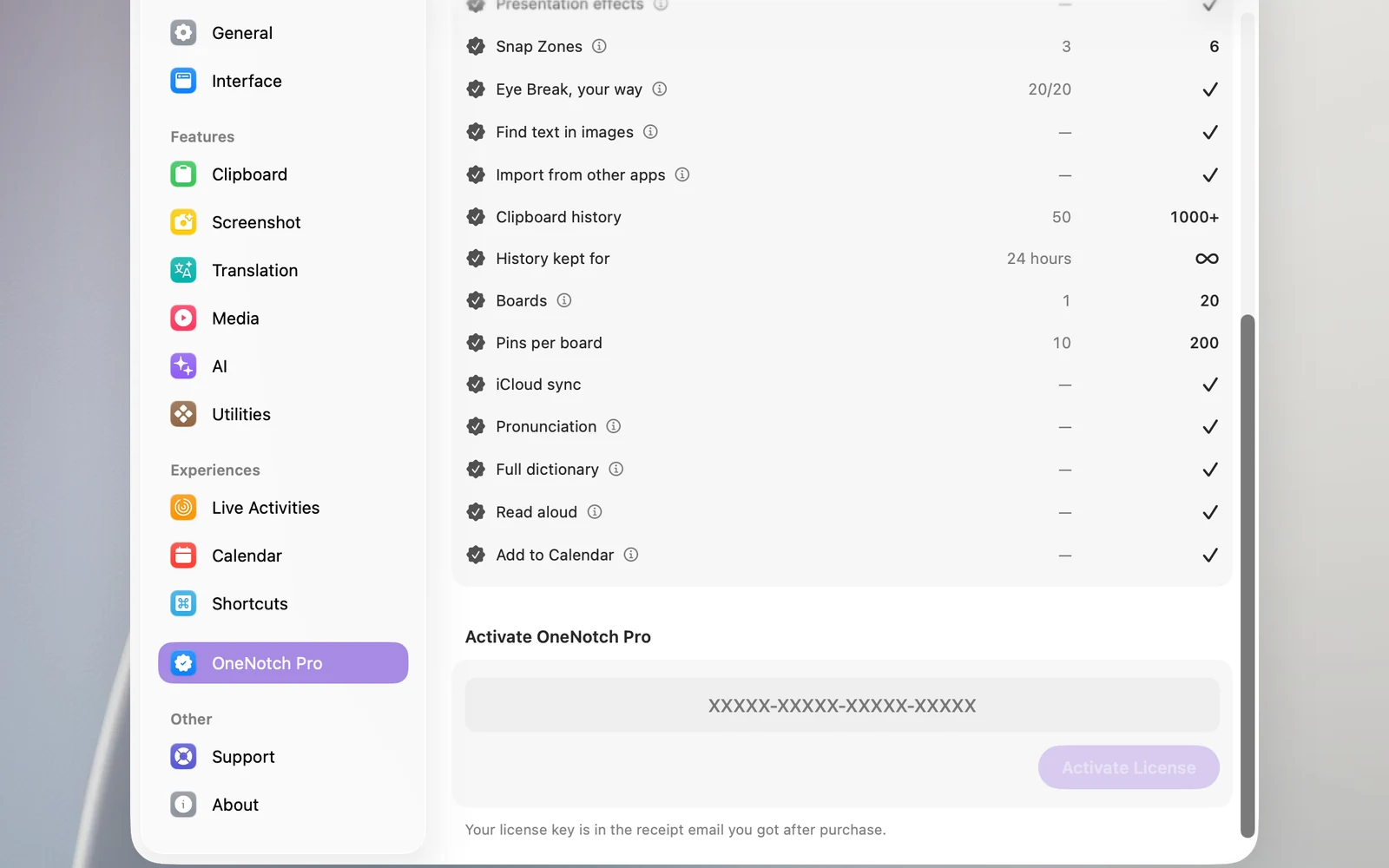
- Go to Settings › OneNotch Pro. The key field is at the bottom of the page: click Already have a key? Enter it here just below the two purchase buttons to scroll straight down and put the cursor in the field.
- Paste the key into the License key field in the Activate OneNotch Pro section.
- Click Activate License or press Return.
If you just copied the key (within the last 24 hours, and it's among the most recent clips in your clipboard history), OneNotch fills it in for you and shows Filled in from a key you copied. Check it, then click Activate. OneNotch doesn't activate on its own: you still click the button as in step 4.
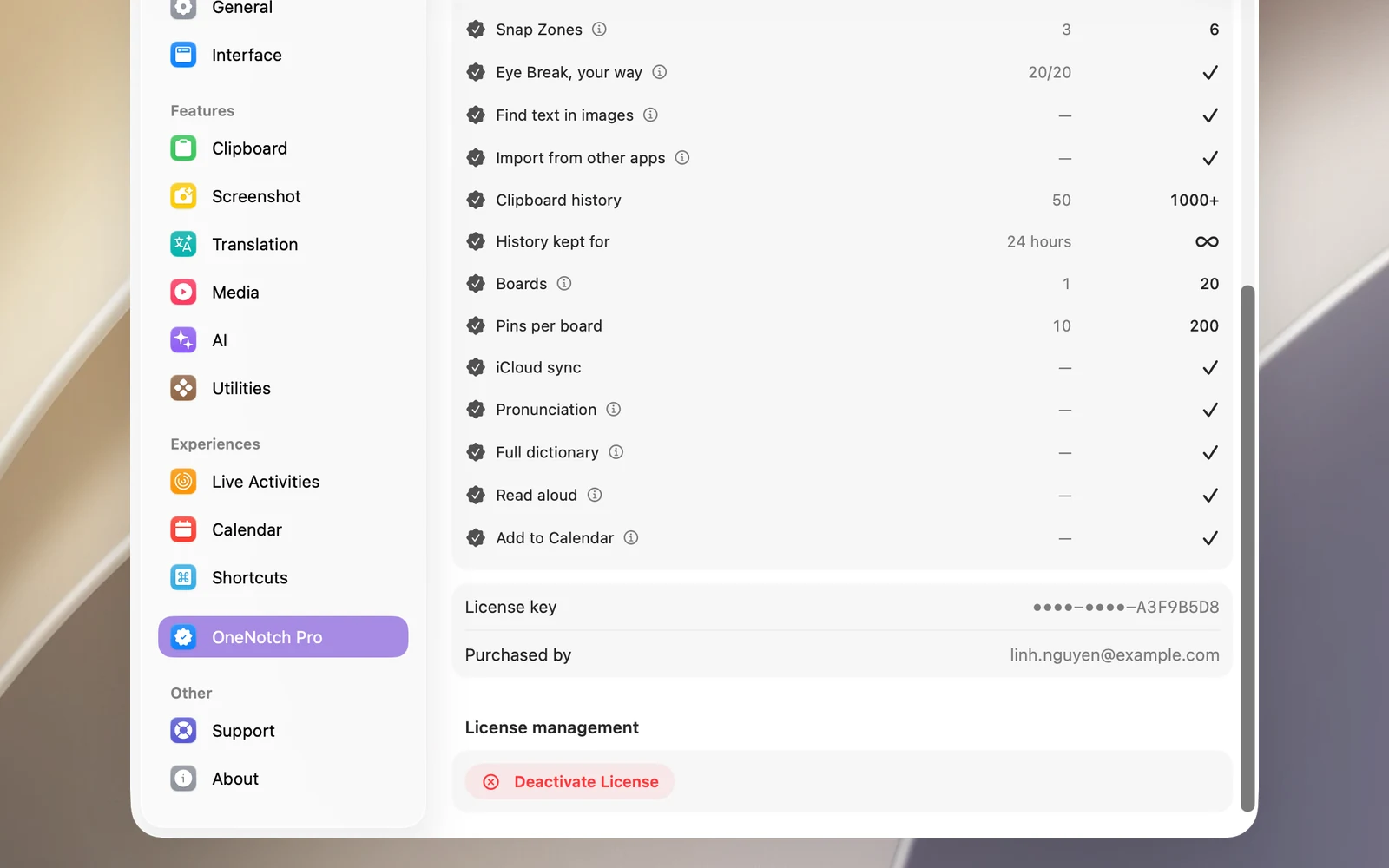
When it's done, the page shows Pro is active on this Mac. The key is stored in your Mac's Keychain.
If activation shows an error
- This license key has reached its activation limit.: the key is already in use on the maximum number of Macs. Deactivate it on another Mac first (see "Move your license to another Mac").
- The license key or device activation could not be found.: check that you pasted the whole key correctly.
- This license key is not for OneNotch Pro.: the key is for a different product.
Do I need the internet?
Not for everyday use. OneNotch checks your license again from time to time when you're online. If it can't check for a long time, OneNotch shows OneNotch hasn't been able to verify your license for a while. Connect to the internet, then open Settings › OneNotch Pro so OneNotch can check again.
Lost your key
Look for the receipt email in the inbox you used for the purchase. You can also sign in with that email address on the Lemon Squeezy order management page (onenotch.lemonsqueezy.com/billing) to see your key again.