
Area & Markup combines capturing and annotating into one step: the screen freezes, you select an area and draw right on it.
Use it
- Choose menu bar › Screenshot › Area & Markup, or assign a shortcut to Area & Markup in Settings › Shortcuts.
- The screen freezes. Drag to select an area.
- Draw with the toolbar beside the selection: the same drawing tools as Annotate (except Crop, because the selection is the crop frame), Color Picker, Undo and Redo.
- Finish with one of these buttons:
- Done (Return or ⌘S): saves it like a normal screenshot.
- Put on clipboard (⌘C): copies the image and closes, without saving a file.
- Stick on Screen: saves the image and pins it floating on screen.
- Cancel or Esc: discards the whole capture.
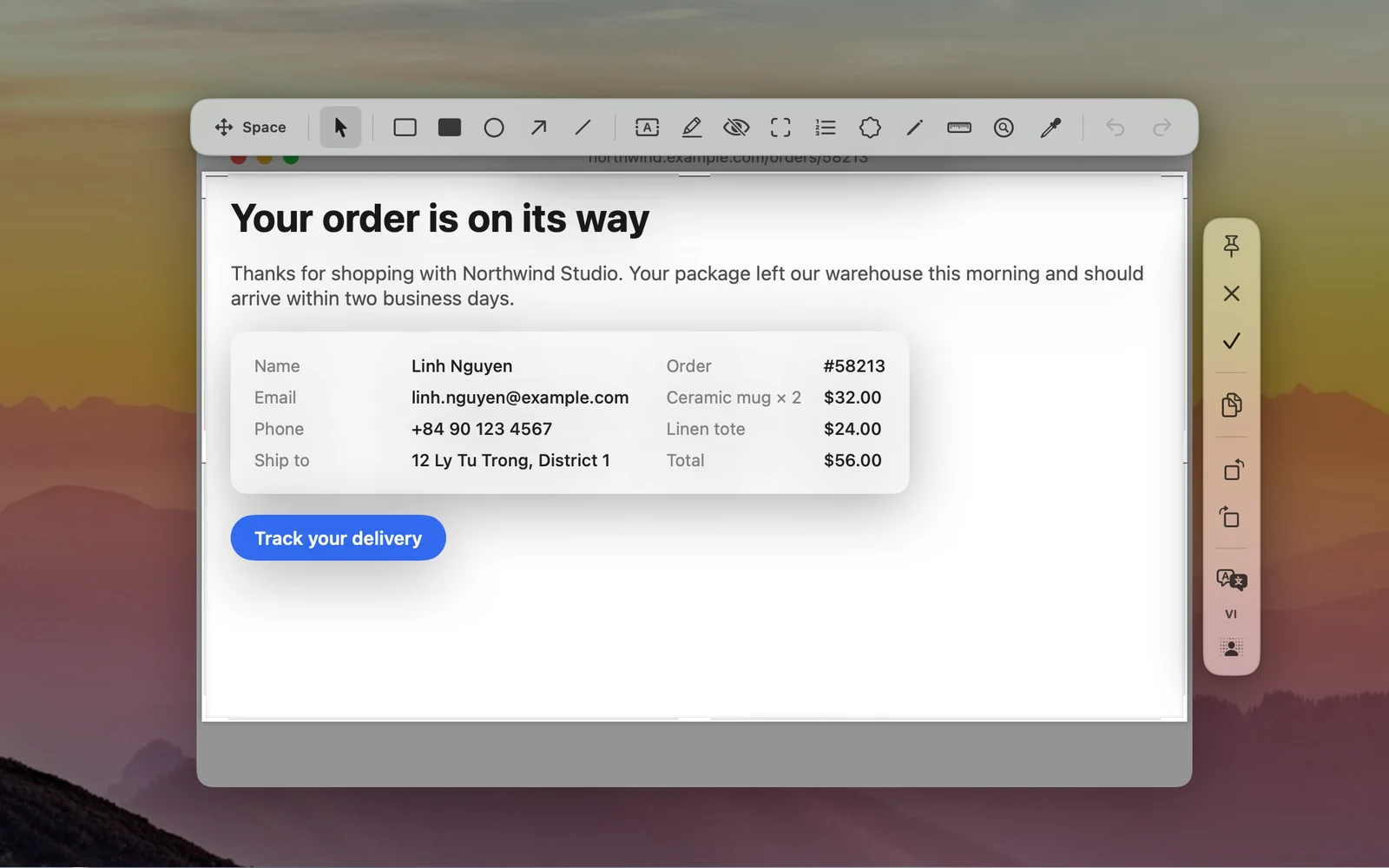
The action column also has a rotate button, Translate text in image (click the language chip to change the target language) and Background Cutout.
Tips
- Drag the handles to resize the selection; hold Space and drag to move it.
- Before you drag a selection, ⌘ + scroll shows the magnifier, C copies a color and Tab switches the color format.
- Requires the Screen Recording permission.
- For the background sidebar, combining images or saving in another format, use Annotate in its own window.