
You take a screenshot of an invoice, a conversation or an error message and copy it to the clipboard. A few days later, type any word from that image into the search field and the image shows up. OneNotch reads the text in images right on your Mac and doesn't send them anywhere.
Turn it on
Go to Settings › Clipboard › Content Recognition and turn on Find Text in Images (on by default).
Use it
- Copy an image as usual (a screenshot, an image on the web, an image from Finder).
- Wait a moment. OneNotch reads the text a few seconds after you stop copying, one image at a time.
- Type a word from the image into the search field in the notch or in the Clipboard Panel.
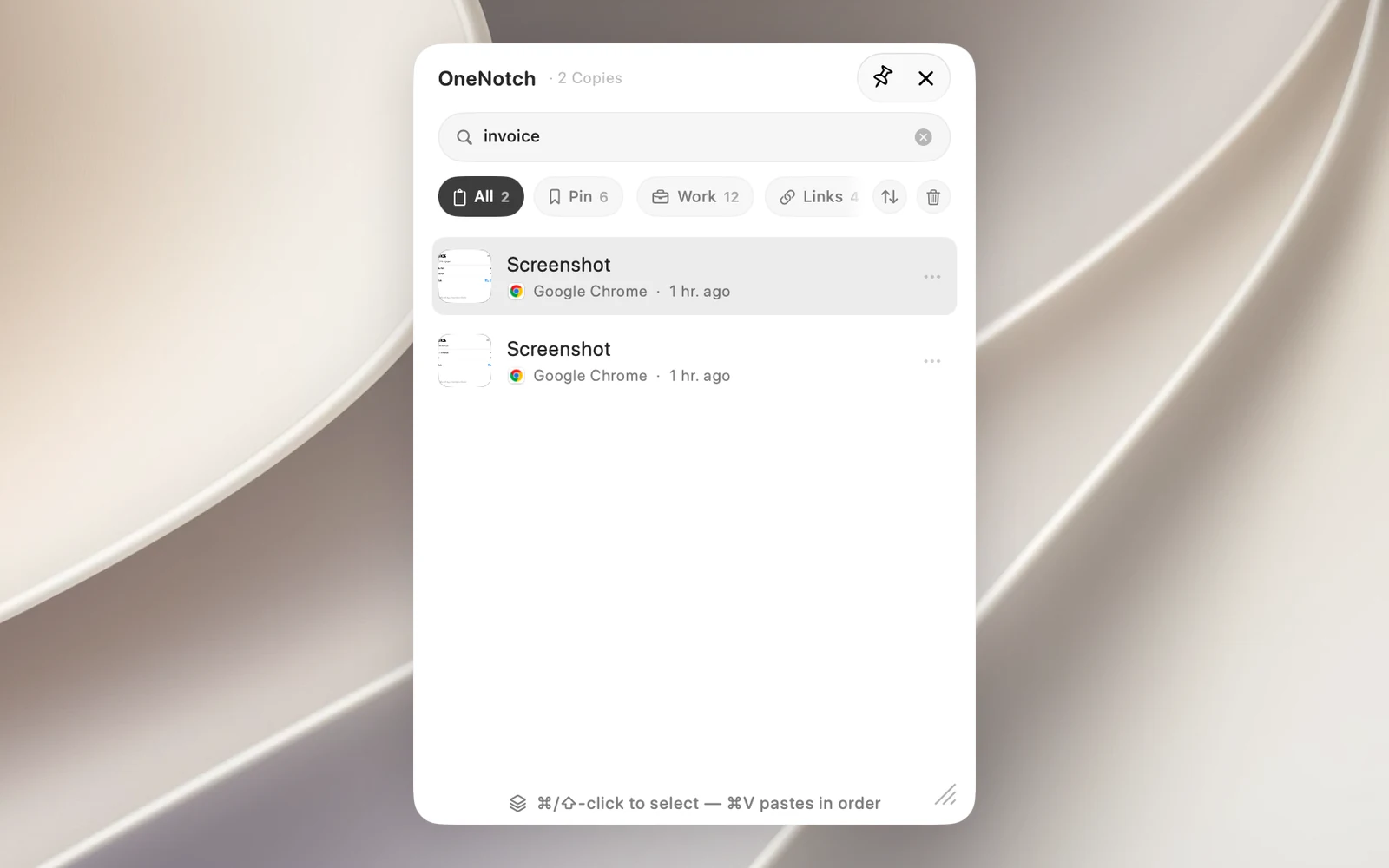
To get the text out, right-click the image card › Copy Text from Image. If the image has already been read, the text is ready right away.
Good to know
- Only images you copy after turning on the feature are read. Older images in your history aren't read again.
- OneNotch pauses reading while your Mac is in Low Power Mode or running too hot, then picks up again later.
- When you delete a clip, the text read from it is deleted too.