
The Calendar page in the notch lets you check today or any other day at a glance, check off reminders and open meeting links directly.
Open the Calendar page
Open the notch and click the Calendar icon on the toolbar in the right corner. Click it again to close the page. Each time you open it, the page starts on today.
The first time you use it, grant access in Settings › Calendar: click Grant Calendar Access and Grant Reminder Access.
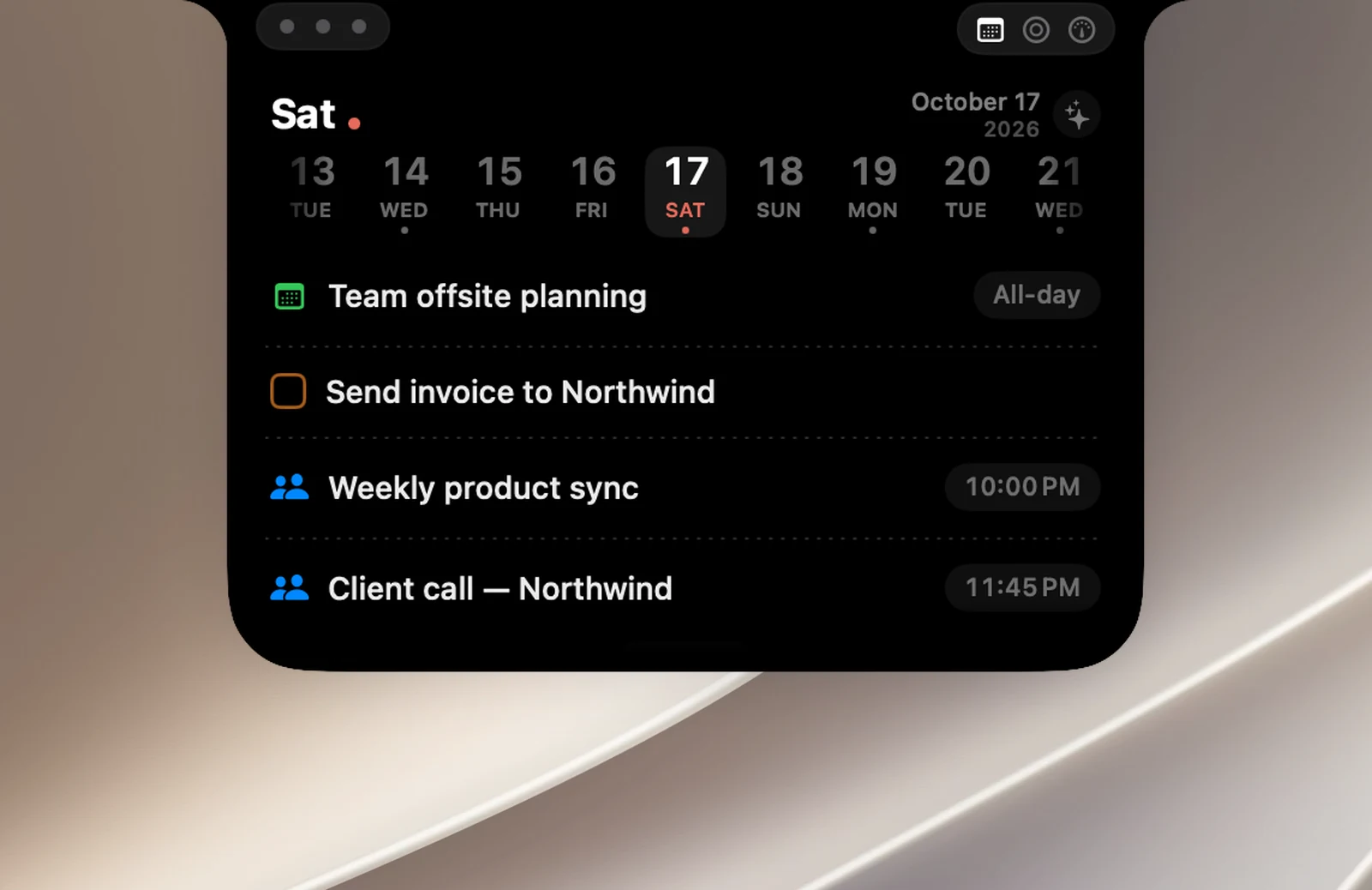
View a day
- Click a day in the strip of days, or swipe sideways to go to another day. Days with events have a small dot.
- Click the weekday name in the left corner to Jump to today.
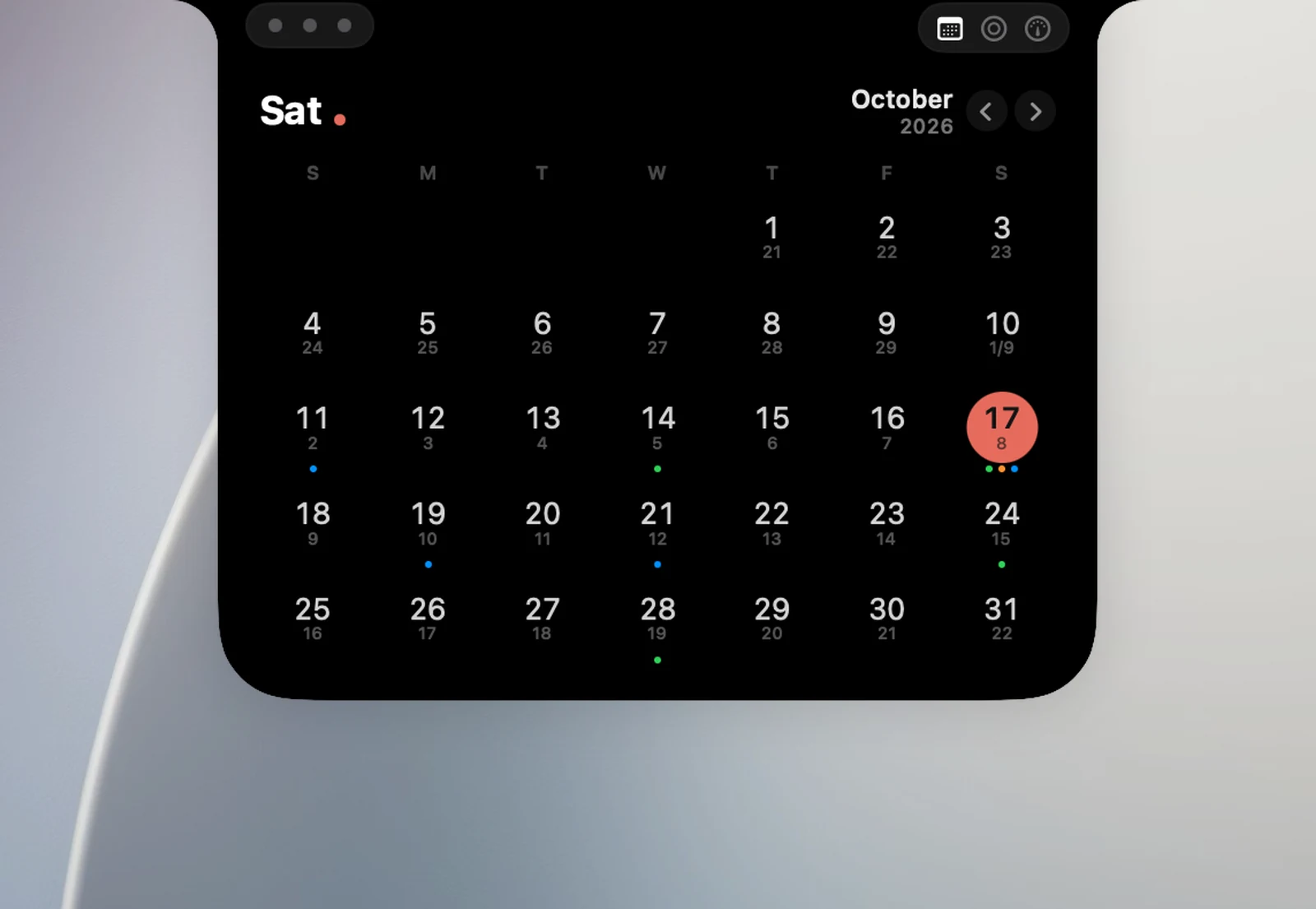
- Click the date in the right corner to open the month view. Use the arrows or swipe to change months, click Today to return to this month, and click a day to see that day.
Events and reminders
- Check the box beside a reminder to mark it as done in the Reminders app.
- Click an event to see its details: status (Happening now, or how long until it starts), time, repeat, your response, location, notes and a Join meeting button if there's a Google Meet, Zoom, Teams… link.
- In the details, click the event name to open it in Calendar, Edit to edit it in Calendar or Reminders, or Delete (click twice to confirm). Deleting a repeating event deletes only that occurrence.
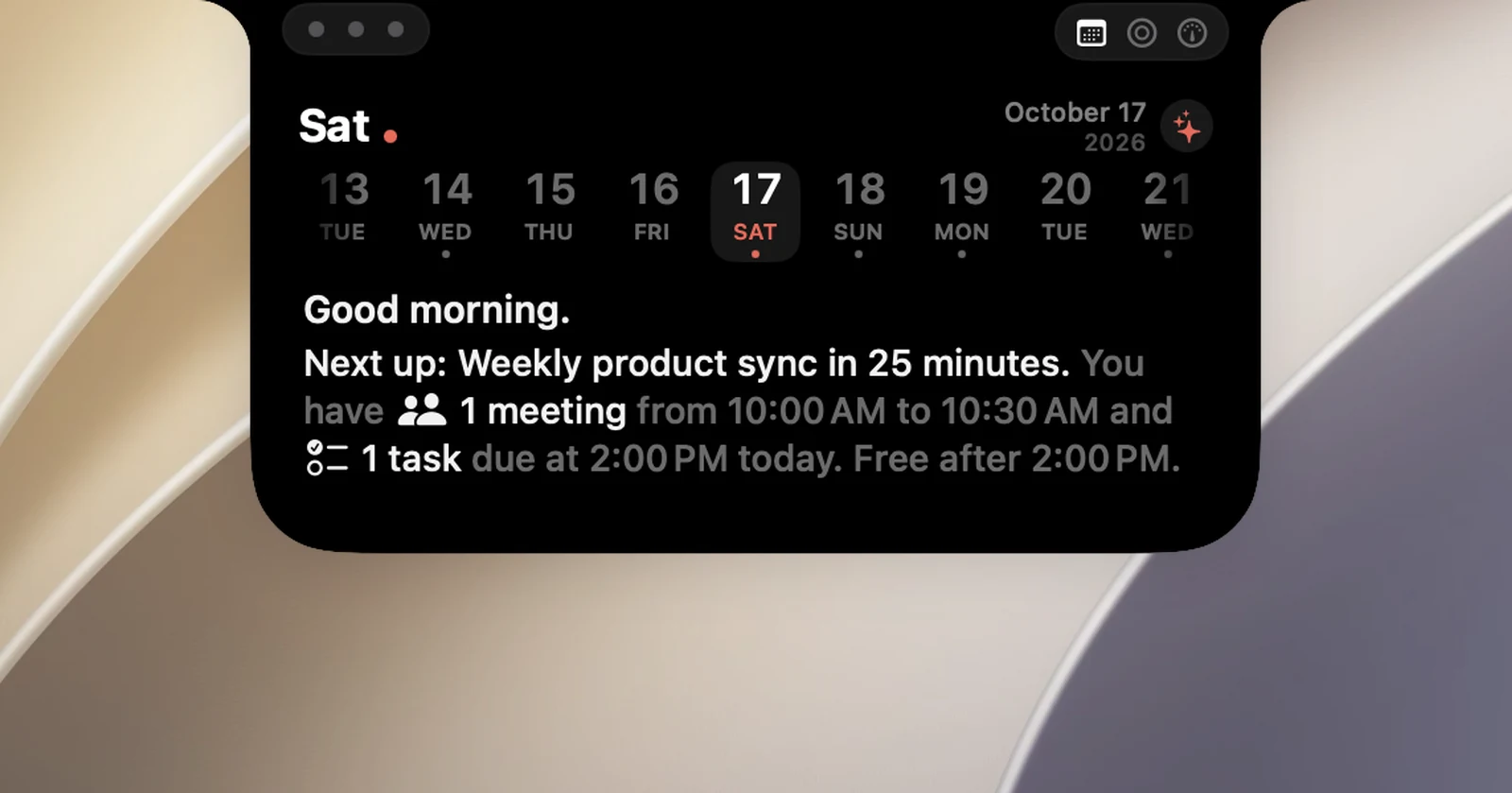
Day briefing
Click the ✨ button at the top of the page to switch to the briefing: a greeting, the number of meetings, events and tasks for the day, the next event and when you're free. Click the event name in the "Up next" line to open its details. Click ✨ again to go back to the list.
Customize in Settings › Calendar
- Hide completed reminders (on by default) and Hide all-day events.
- Secondary calendar: shows the date in another calendar under the selected day, for example Lunar calendar. The month view also shows small lunar dates under each day.
- The Calendars and Reminders sections: choose which calendars and lists are shown.