
OneNotch deletes old items on its own when your history goes over the number of items or the time you choose, whichever comes first. Items pinned to a board are separate copies, so they aren't deleted along with the history.
All the options in this article are in Settings › Clipboard.
Choose how many items to keep and for how long
- In the History section, drag the History Limit slider (from 50 to 1,000 items, 500 by default).
- Open the History kept for menu and choose 1 day, 1 week, 1 month (the default), 1 year or Forever.
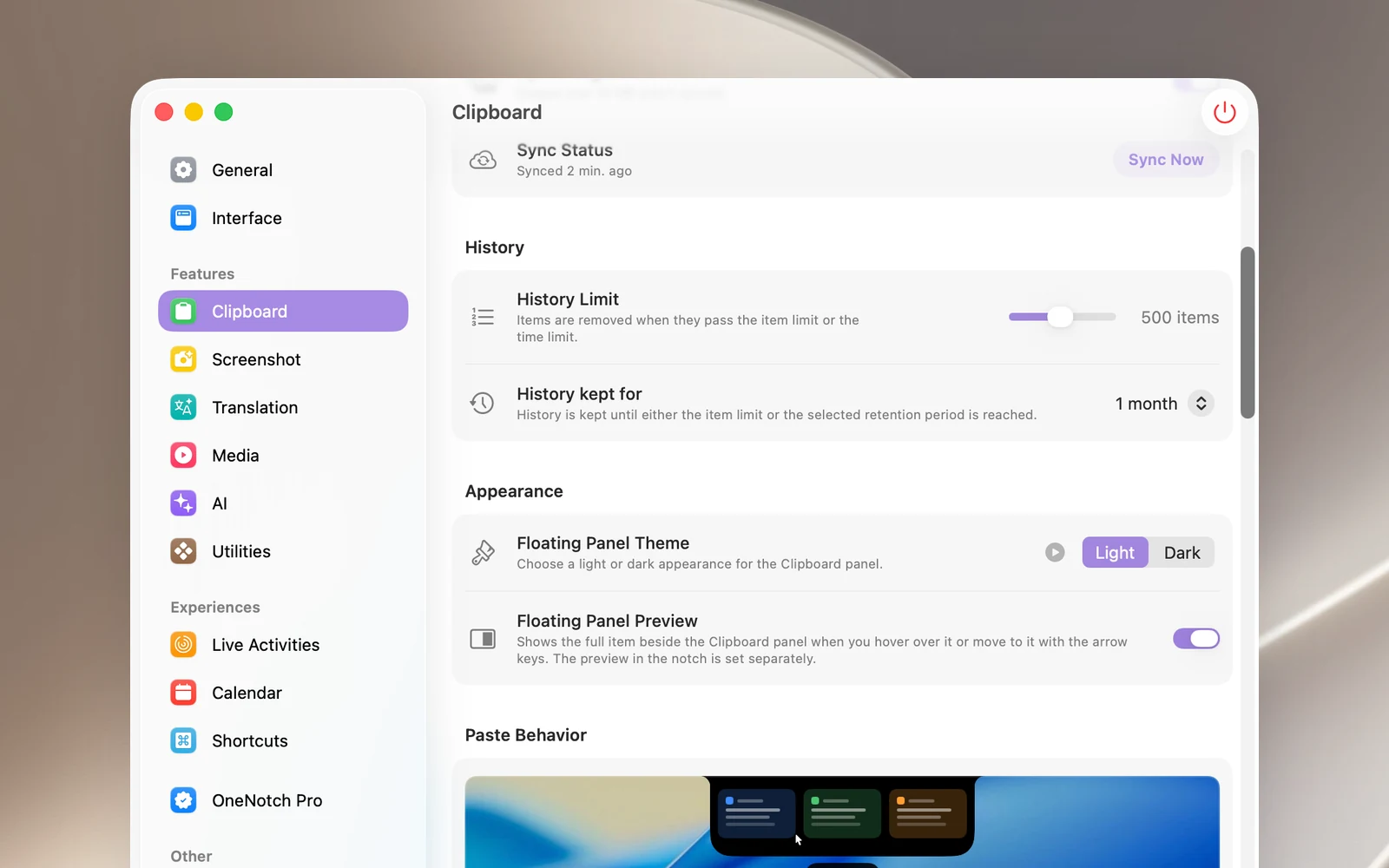
If you lower the limit below the number of items you have, OneNotch asks you first, because the oldest items will be deleted permanently. Above 500 items, OneNotch uses more memory and disk space, and search may be slower when your history has many long pieces of text.
Set a storage limit for images
In the Storage section, drag Image Storage Limit (from 250 MB to 10 GB). When the limit is reached, the oldest items with images are deleted first. Lowering the limit also asks you first before deleting anything.
See how much space is in use
The Clipboard Storage row shows how much disk space your history, images, link preview images and board images take up.
Clear your whole history
- In the Storage section, on the Clear Clipboard History row, click Clear History.
- Confirm in the dialog.
Items pinned to boards are kept. If you use iCloud Sync, your history is cleared on every Mac signed in to the same iCloud account. This can't be undone.
Tip
Want to delete only what you just copied (for example, the last 15 minutes) without touching the rest? Use the trash button in the Clipboard Panel. See "Clipboard Panel".