
Annotate lets you draw arrows, boxes and text, blur information, crop and dress up a screenshot before you send it.
Open Annotate
- On the preview card after a capture: click the pencil button Annotate, double-click the card, or hover over the card and press ⌘E.
- Turn on Jump into Annotate in Settings › Screenshot › After Capture to open every new capture straight in Annotate.
- For an image in your clipboard history: right-click › Annotate.
- Choose menu bar › Screenshot › Area & Markup to capture and annotate right where it is (see "Capture and annotate right on screen").
- In Annotate, the … menu › Open Another Annotate Window opens an empty window: drag an image in, or press ⌘V to paste one. If there's an image on your clipboard, OneNotch asks whether to bring it in.
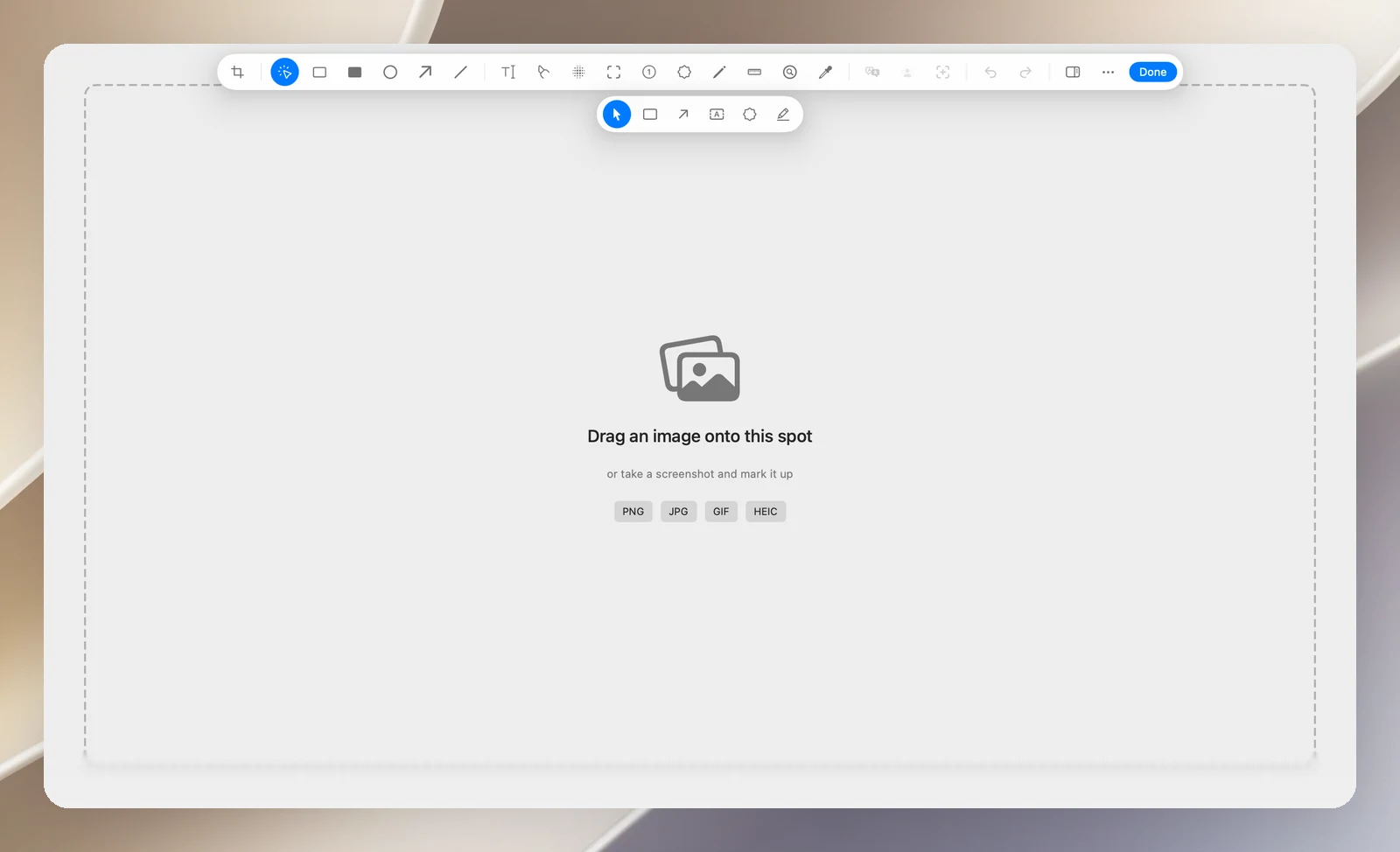
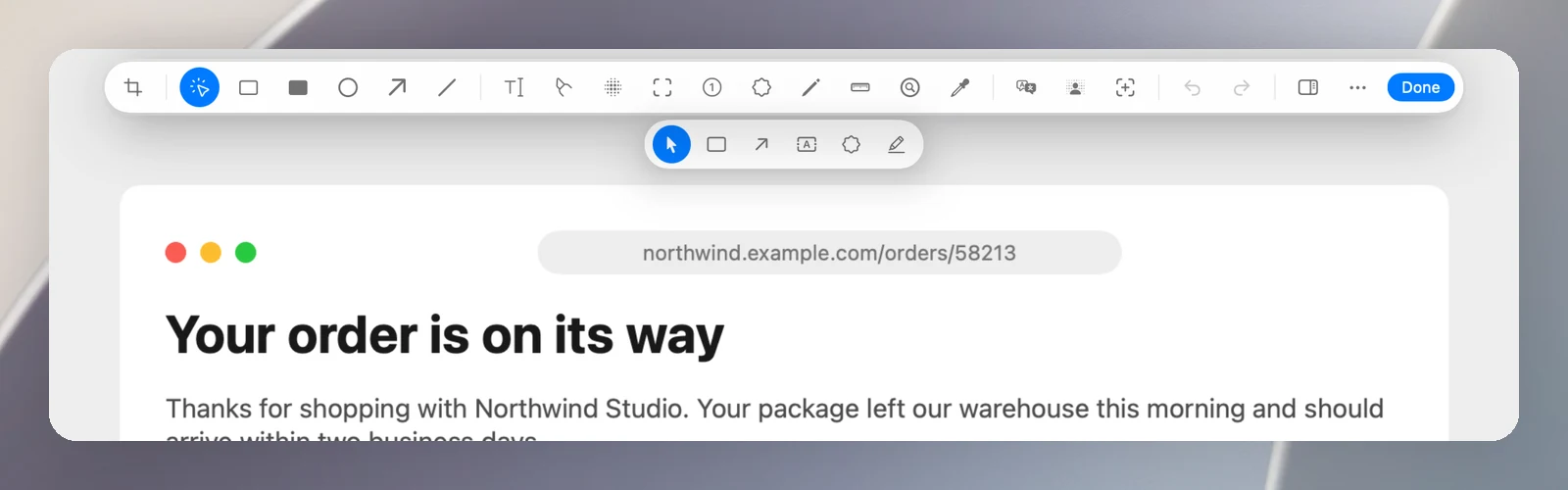
Window layout
- The floating toolbar is at the top; the options for the selected tool sit right below it.
- The column on the right: Resize Image, rotate 90° in either direction, Zoom In, Zoom Out.
- Bottom left: the zoom level; bottom center: a handle for dragging the image into another app.
- The sidebar (hidden by default, press ⌘B): background, padding, shadow, effects.
Zoom with ⌘ + scroll or by pinching; move around with Space + drag or a two-finger scroll. Press ⌘0 to fit the window.
Save and send the image
- Done (⌘S): overwrites the original screenshot file, updates the preview card and closes the window.
- ⌘C (when no shape is selected), ⇧⌘C, Esc or … › Put on clipboard: copies the annotated image and closes the window; your edits are still saved to the original file.
- … › Save as... (⇧⌘S): saves a separate copy as PNG, JPEG or WebP.
- … › Share.
- … › Pin window (⌃⌘P): keeps the window floating above other windows.
- … › Delete: moves the screenshot to the Trash.
- Drag the handle below the image to another app to drop the image there.
For an image from your clipboard history, Done writes the edited image back to that clip.
General shortcuts
| Action | Key |
|---|---|
| Undo / Redo | ⌘Z / ⇧⌘Z |
| Copy, paste, duplicate the selected shape | ⌘C, ⌘V, ⌘D |
| Delete the selected shape | ⌫ |
| Move a shape 1 point (10 points) | Arrow keys (hold ⇧) |
| Zoom | ⌘=, ⌘-, ⌘0 |
| Sidebar | ⌘B |
When you open an annotated image again, your drawings can still be edited as before.