
Each permission unlocks only one group of features. You can skip any permission you don't need.
| Permission | Used for |
|---|---|
| Accessibility | Pasting straight into apps, Copy Stack, reading selected text to translate it, Smart Select, replacing the volume and brightness HUD, media keys, Snap Zones, switching notch pages with Tab, locking the keyboard in Cleaning Mode |
| Screen Recording (Screenshot Access) | Screenshots, scrolling capture, text recognition (OCR), picking colors |
| Calendars, Reminders | The Calendar page, adding events, meeting alerts; Eye Break waits while an event is in progress |
| Full Disk Access | Icons and colors for custom Focus modes; reading another clipboard app's data when you import |
| Media & Apple Music | Word-by-word lyrics, animated album art |
| System Audio Recording Only (in the Screen & System Audio Recording section) | A visualizer that follows the actual audio; adjusting each app's volume on the Sound page. OneNotch doesn't record anything |
Hovering, clicking the notch, dropping files on the notch, Keep Awake, System Monitor and Presenter don't need any permission. System volume, choosing an output and muting microphones on the Sound page don't need permission either.
Grant a permission
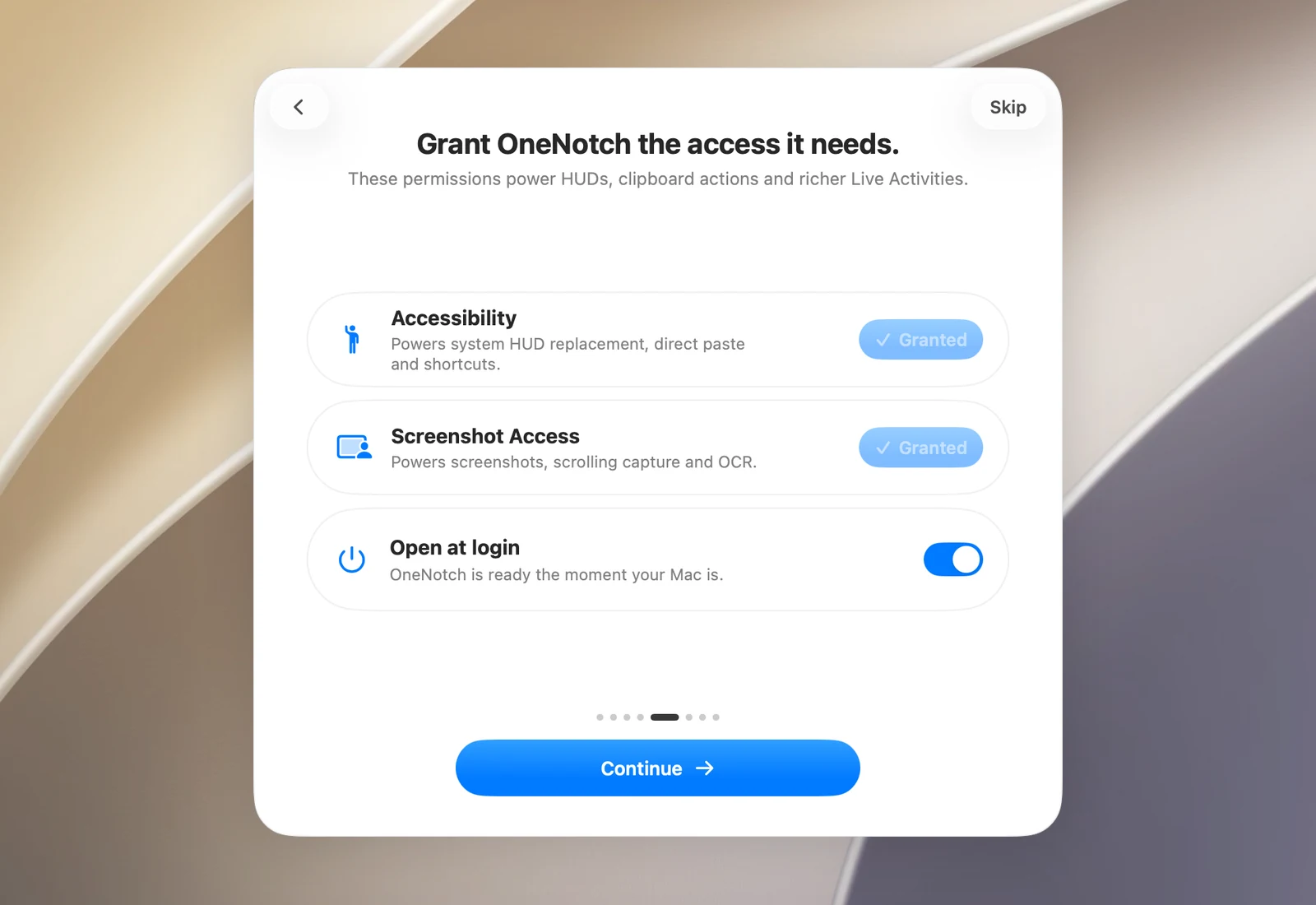
In first-time setup, the Grant OneNotch the access it needs. page has two rows: Accessibility and Screenshot Access. Each row has a button on the right:
- Grant: you don't have this permission yet. Click it to start.
- Settings…: you're partway through, and System Settings is open to that permission.
- ✓ Granted (dimmed button): the permission is granted, and there's nothing else to do.
If you click Continue while a permission is missing, the page reminds you that some features won't work, and the Continue anyway button counts down before it lets you go on.
- Click Grant (in first-time setup) or Allow (in Settings).
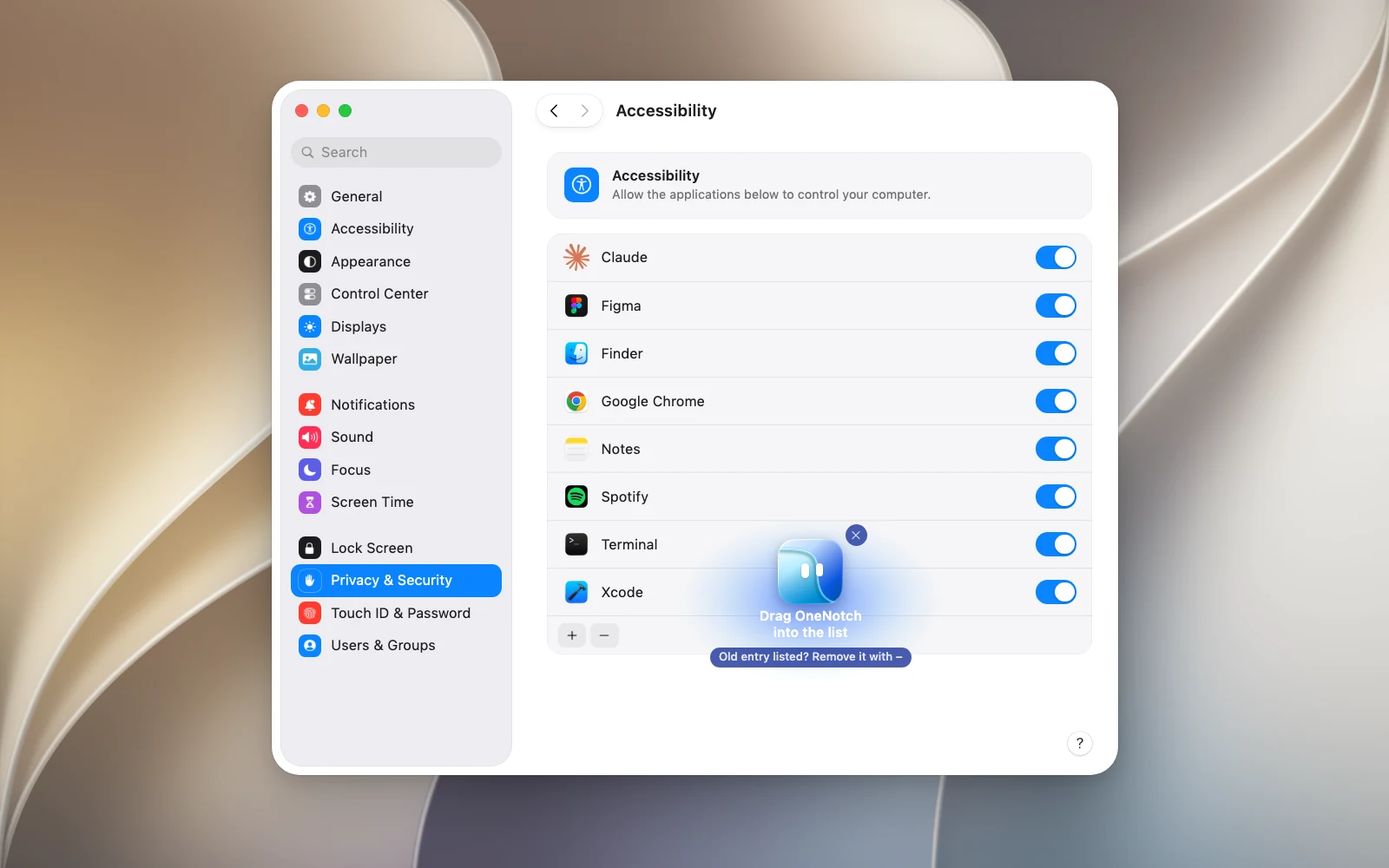
- System Settings opens to the right permission. A small OneNotch panel appears beside it: drag the OneNotch icon into the list, or turn on the switch next to OneNotch.
- Go back to OneNotch. The permission is detected right away; for Screen Recording, macOS may ask you to restart OneNotch.
You granted a permission but OneNotch says it's missing
This often happens after you update or reinstall OneNotch, because macOS keeps an old entry.
- Open System Settings › Privacy & Security and go to that permission (for example Accessibility).
- Select OneNotch and click the – button to remove the old entry.
- Add OneNotch again (with the + button or by dragging its icon in), then turn on the switch.
You can open the permission pages again with Settings › Support › Onboarding › Check Permissions, or with Reset Onboarding.