
The open notch has four places for buttons:
- Left orb and Right orb: two small arcs at the top corners of the notch. Hover over an orb and a column of buttons drops down. Each orb holds up to 5 buttons. An empty orb is hidden.
- Toolbar: the row of buttons on the right shoulder of the notch, up to 3 buttons.
- Page dots on the left shoulder: each dot is a page of the notch.
You arrange all three in Settings › Interface › Notch layout. The editor is a real notch shape: the orb columns on either side, the page dots and toolbar on top of the notch, and the Not in use tray below.
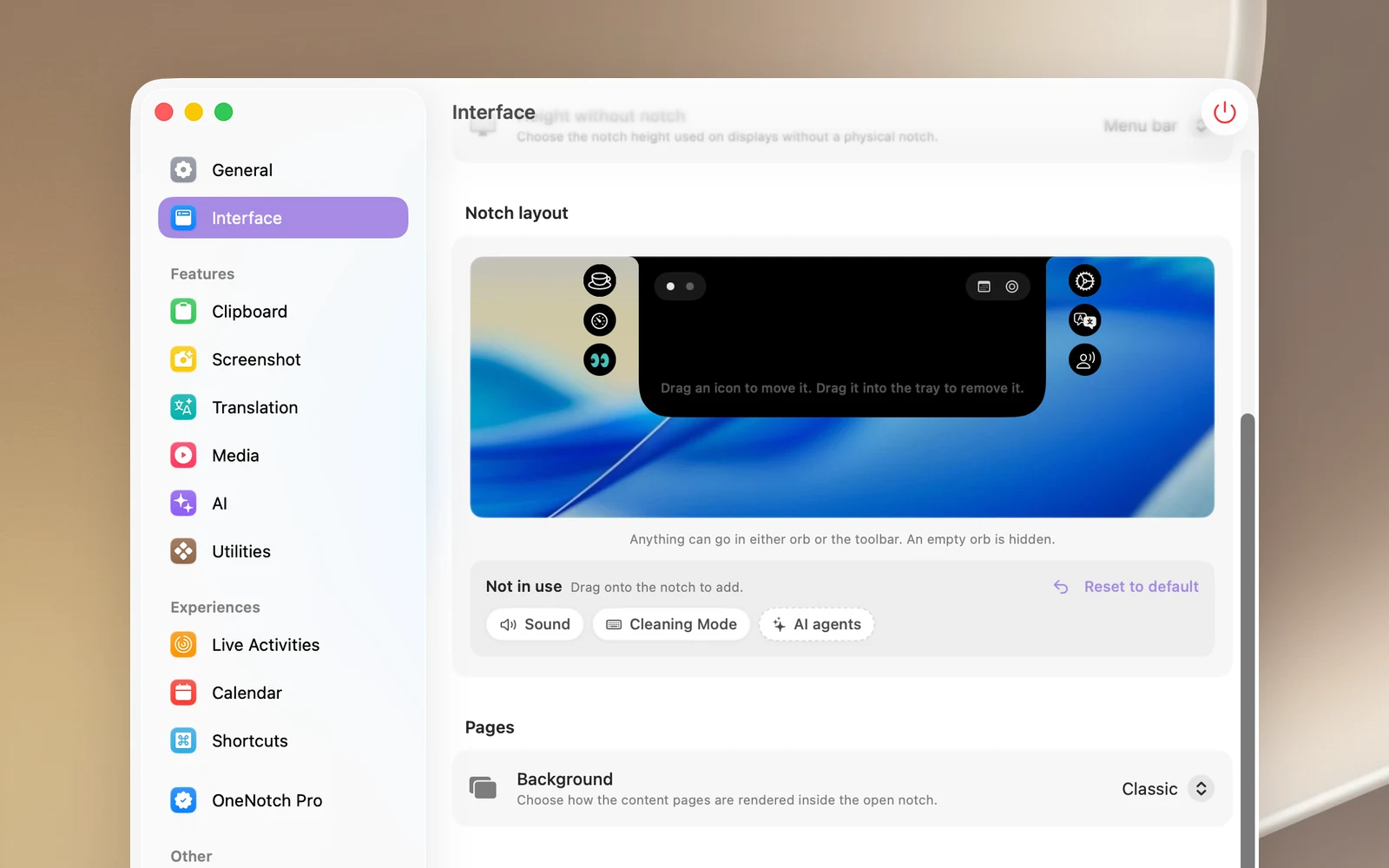
The default layout
On a new install, or after you click Reset to default:
| Place | Buttons |
|---|---|
| Left orb | Keep Awake, System Monitor, Eye Break |
| Toolbar | Calendar, Focus, AI usage |
| Right orb | Settings, Translate, Presenter |
| Not in use tray | Sound, Cleaning Mode |
If you upgraded from an earlier version, your toolbar stays as it was; the new buttons go into the two orbs, and Sound and Cleaning Mode go into the tray.
Arrange by dragging
- Drag a button to another orb, onto the toolbar, or up and down in the same column to change the order. Places where you can drop it light up with an outline.
- Drag a button down to the Not in use tray to remove it from the notch.
- Drag an item from the tray up to the notch to add it.
Every item can go in either orb or on the toolbar, except Battery: The battery can only sit in a toolbar. If the spot is already full, OneNotch shows "… is full. Move one out first." and the button goes back to where it was.
Arrange by clicking
- Click any button on the notch shape. The buttons start to jiggle and show a − in the corner.
- Click − to remove a button. Click an item in the tray to add it to a free spot.
- Click Done (or click an empty area) to finish.
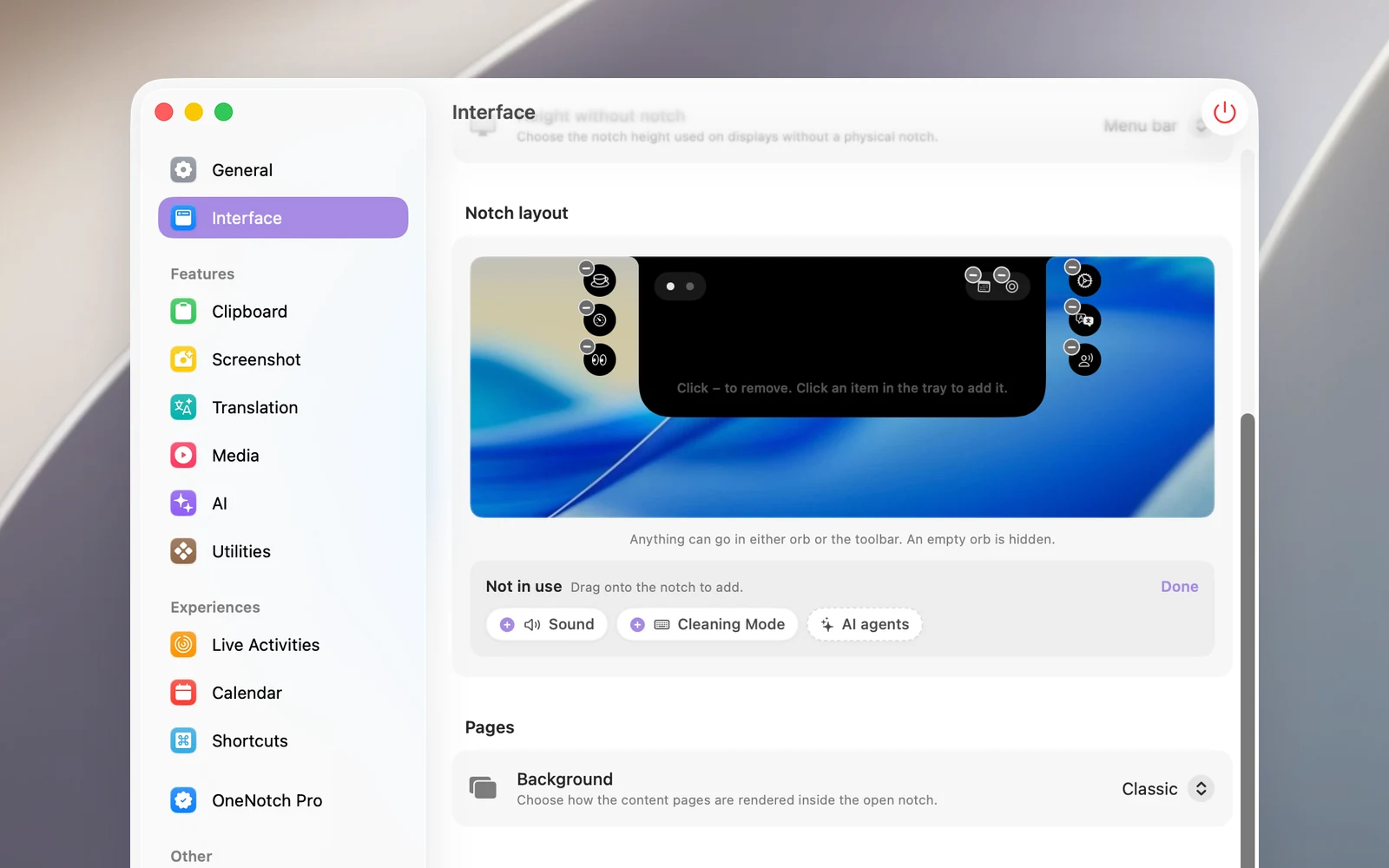
You can also right-click a button and choose Remove from Notch.
Turn a feature back on
Some buttons exist only while their feature is on, like Translate or Keep Awake. When you turn the feature off, its button appears dimmed at the end of the tray, labeled Off. Drag it up to the notch to turn the feature back on.
Buttons you can place
- Calendar, Focus (the Pomodoro timer), AI usage, Translate: open the matching page in the notch. Click again to close it.
- Settings: opens the Settings window.
- Battery: only on Macs with a battery; click it to see the battery status. When the Battery button is on the toolbar, Battery percentage and Power status icons also appear below the editor.
- Keep Awake, Sound, System Monitor, Cleaning Mode, Presenter, Eye Break: each opens one side of the tools page. See the articles in the "Notch tools" section and "Eye Break (20-20-20)".
When music is playing and you're on a page other than the music page, the mini player takes the toolbar's place. The toolbar's buttons then move down into the right orb column (still up to 5 buttons), so you can still click them.
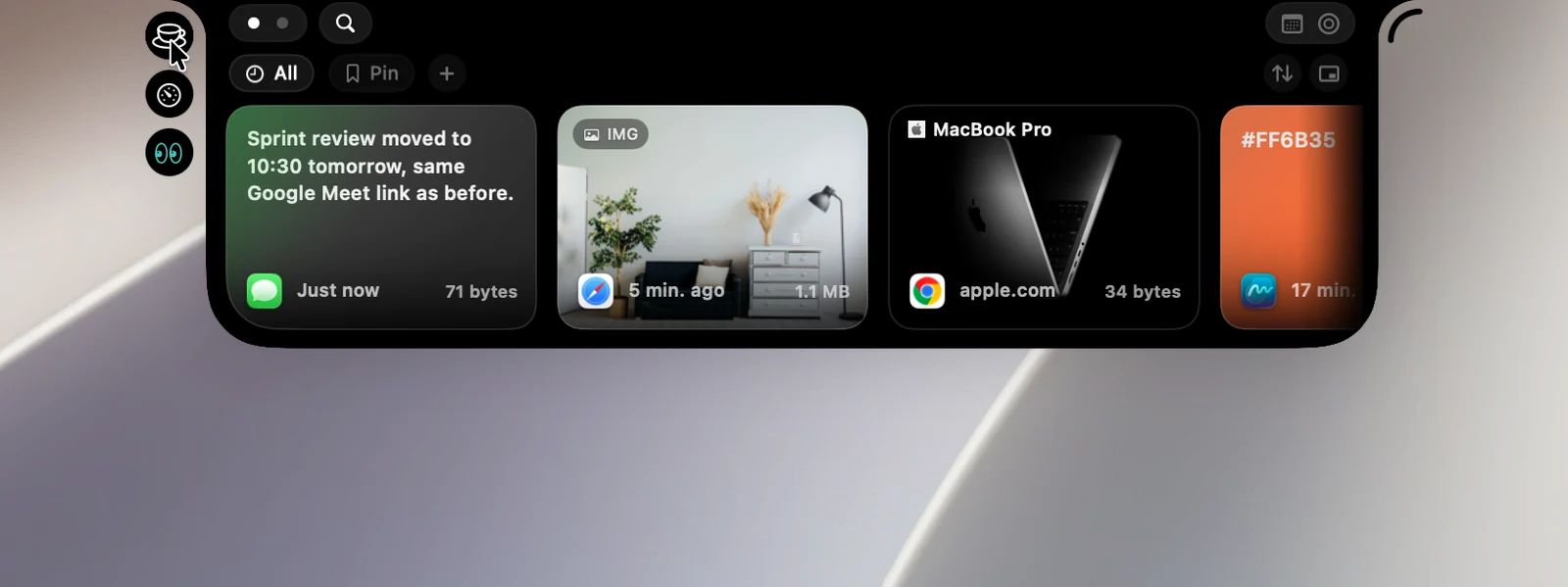
Notch pages
Drag the page dots on the left shoulder to change their order, drag a dot down to the tray to hide that page, and drag it back up to show it again. Hover over a dot to see the page's name. You have to keep at least one page (Keep at least one page.).
If you hide the Clipboard page, your history is still recorded, and you can still open the Clipboard Panel with ⇧⌘C.