
When the text you translate is in a field you can edit (an email draft, a chat box, a text editor), the translation result has an extra Replace button. Click it and the translation takes the place of the original text right where it is.
Use it
- Select the text in the field you're typing in.
- Press ⇧⌘G or click the translate button beside the selection.
- Click Replace in the notch (or at the bottom of the floating translation panel).
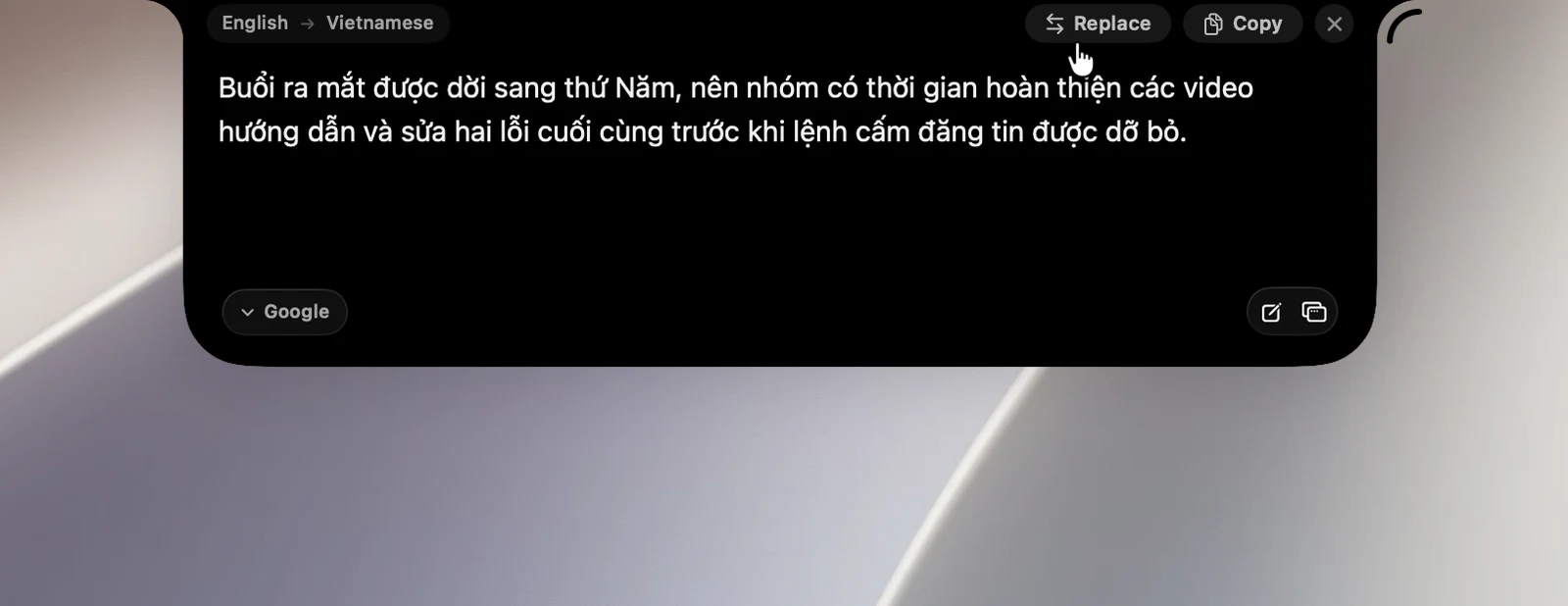
The translation result closes on its own after replacing. If you need to, press ⌘Z in the app to get the original text back. Your clipboard is restored to what it was.
When there's no Replace button
- The text is somewhere read-only, like a web page or a PDF.
- You're on the type-to-translate page, or translating a clip from your history.
- You just clicked ⇄ to translate back.
If you've clicked somewhere else and the selection is no longer what it was when you translated, the button says Selection changed and doesn't replace anything. Select the text again and translate it once more.
Permission needed
OneNotch needs Accessibility permission to write the translation into another app.