
Lock a board when it holds something you don't want others to see when they look at your screen. One passcode is shared by every locked board. The pinned items in a locked board are encrypted and hidden from the notch, the Clipboard Panel, backup files and AI agents.
Set a passcode
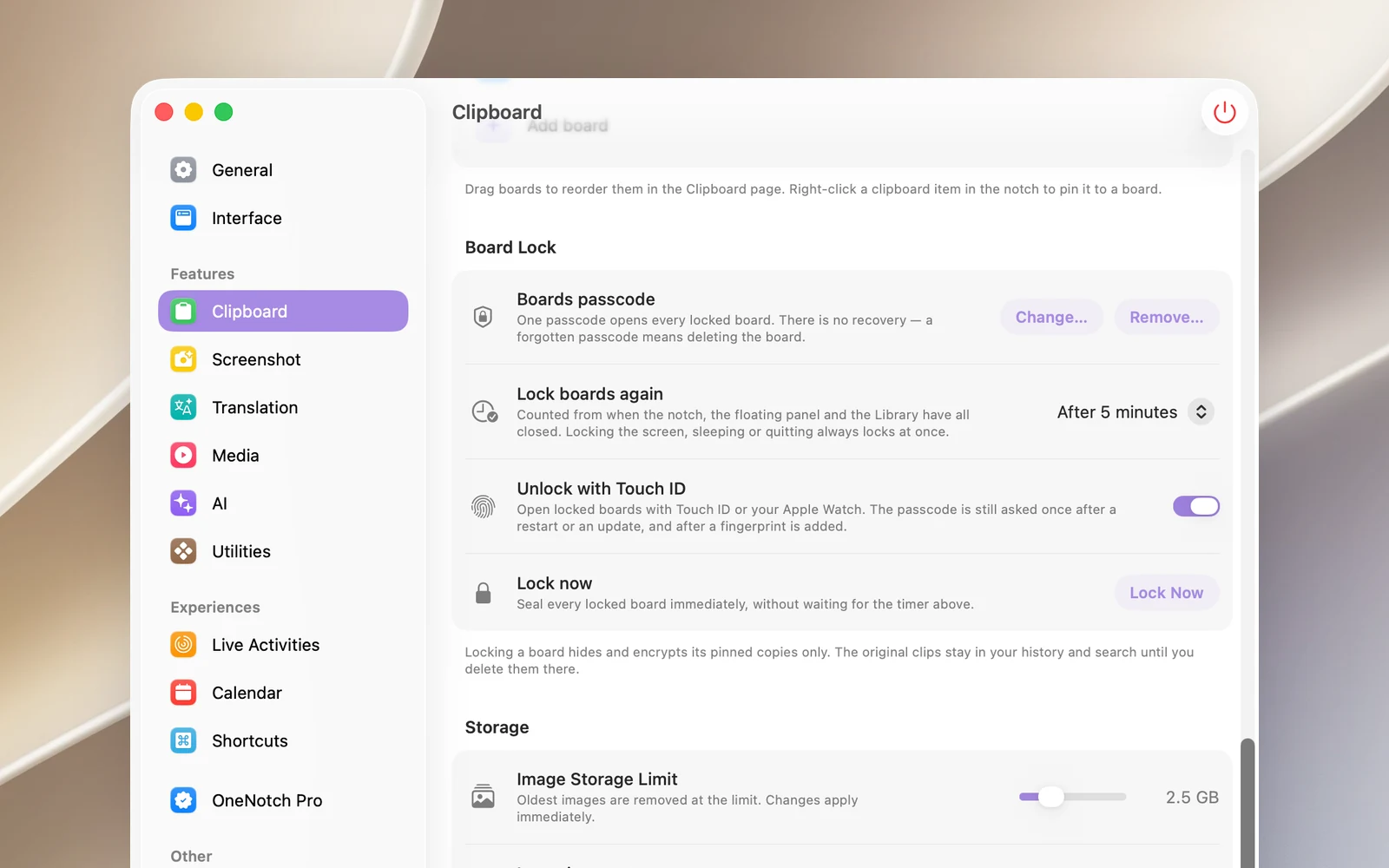
- Open Settings › Clipboard › Board Lock and click Set Passcode….
- Choose a type: 4-digit code, 6-digit code or Password.
- Enter it in New passcode, enter it again in Confirm, then click Set Passcode.
The passcode can't be recovered. If you forget it, the only option is to delete your locked boards (see below).
Lock a board
- In Settings › Clipboard › Boards, click the lock icon at the end of that board's row.
- Or right-click the board's name in the notch or the Clipboard Panel › Lock Board….
If you haven't set a passcode yet, OneNotch asks you to set one first, then locks the board right after.
Open a locked board
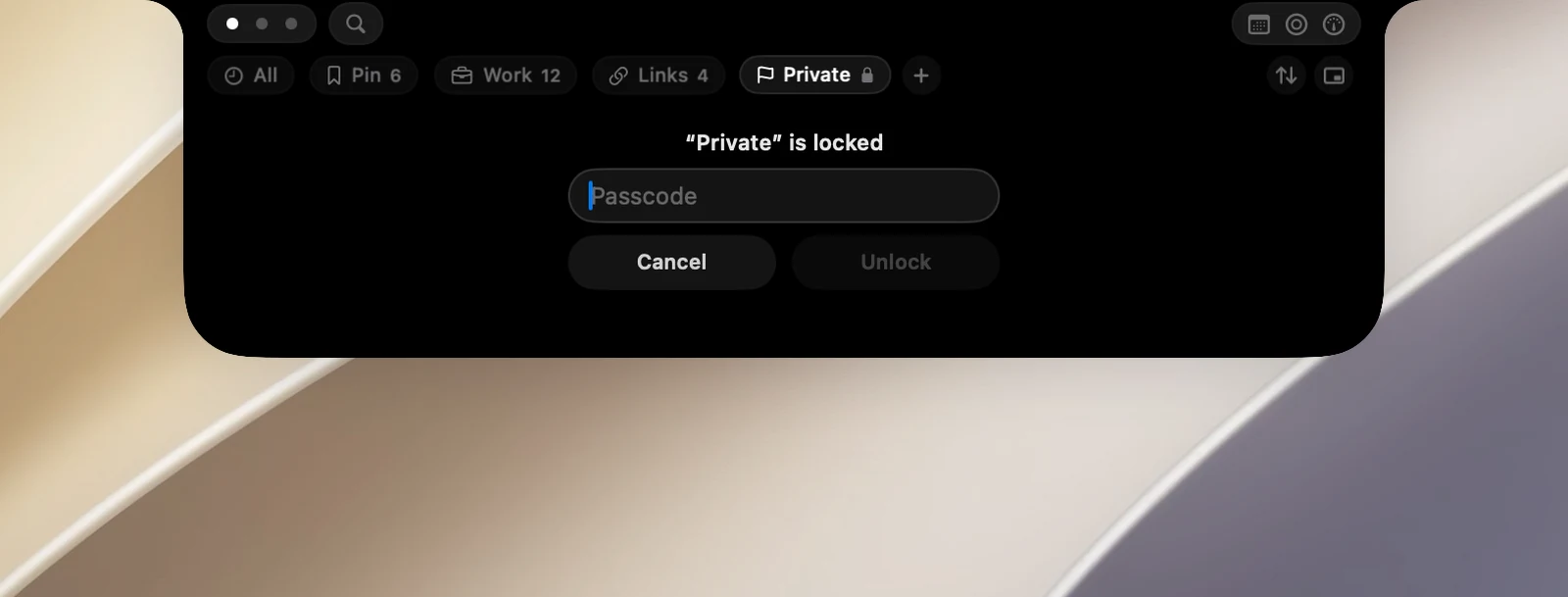
- Click the board's name. The content area says the board is locked, with a Passcode field and two buttons, Cancel and Unlock.
- Enter your passcode and click Unlock. With a numeric code, the board opens as soon as you type all the digits. Cancel takes you back to all items.
Unlocking once opens every locked board for that session.
Unlock with Touch ID or Apple Watch
Turn on Unlock with Touch ID in Settings › Clipboard › Board Lock. After you've entered your passcode once, whenever the boards lock again on their own you can unlock them with your fingerprint or a paired Apple Watch.
This option is only available on a Mac that can use Touch ID (a MacBook or a Magic Keyboard with Touch ID) or that has an Apple Watch paired for unlocking. In that case, while the passcode field is empty, the Unlock button becomes Touch ID (or Apple Watch if you only have the watch). On a Mac with neither, the prompt has only the passcode field, Cancel and Unlock, as in the image above.
OneNotch still asks for your passcode once after you restart your Mac or the app, after an update, and after you add a new fingerprint. Your Mac login password can't be used instead.
Lock again automatically
Lock boards again decides how soon the boards lock again: Immediately, After 1 minute, After 5 minutes (default), After 15 minutes, After 1 hour or Never (until quit). The time counts from when you've closed the notch and every clipboard window. Locking the screen, putting your Mac to sleep or quitting OneNotch always locks them right away.
To lock them right now, click Lock Now in Settings or in a board's right-click menu.
Remove a lock, change or remove the passcode
- Remove the lock from a board: click the highlighted lock in the board's row in Settings, or choose Remove Lock… in the right-click menu.
- Change Passcode: click Change…, enter your current passcode, then the new one. You can change the passcode type too.
- Remove Passcode: click Remove…. Every board is unlocked and keeps its contents.
If you forget your passcode
- In Settings, open a dialog that asks for your current passcode (for example Change…) and click Forgot passcode?.
- Read the warning, then click Delete & Reset. OneNotch counts down 5 seconds before deleting; click Cancel or press Esc to stop.
This deletes every locked board along with the items pinned to it, then removes the passcode. If the Pin board is locked, it's only emptied. Your clipboard history isn't affected.
Notes
- Locking a board hides only the pinned copies. The original clips stay in your history and can still be found until you delete them there.
- There's no limit on wrong attempts.