
The open notch has several pages. By default there are Clipboard, Media controls and AI agents (when you turn on AI tracking); these are the pages with a dot in the top-left corner of the notch.
There are also pages you open with a button on the toolbar or in the two orbs at the top corners of the notch:
- Calendar, Focus (the Pomodoro timer), AI usage and Translate.
- Tool pages: Keep Awake, Sound, System Monitor, Cleaning Mode, Presenter and Eye Break.
Click the button again to close that page and go back to the previous one.
Switch pages
- Click the page dots in the top-left corner of the notch.
- Swipe sideways with two fingers on the middle of the top of the notch.
- Press Tab to go to the next page and ⇧Tab to go back, while the notch is open and the pointer is over it.
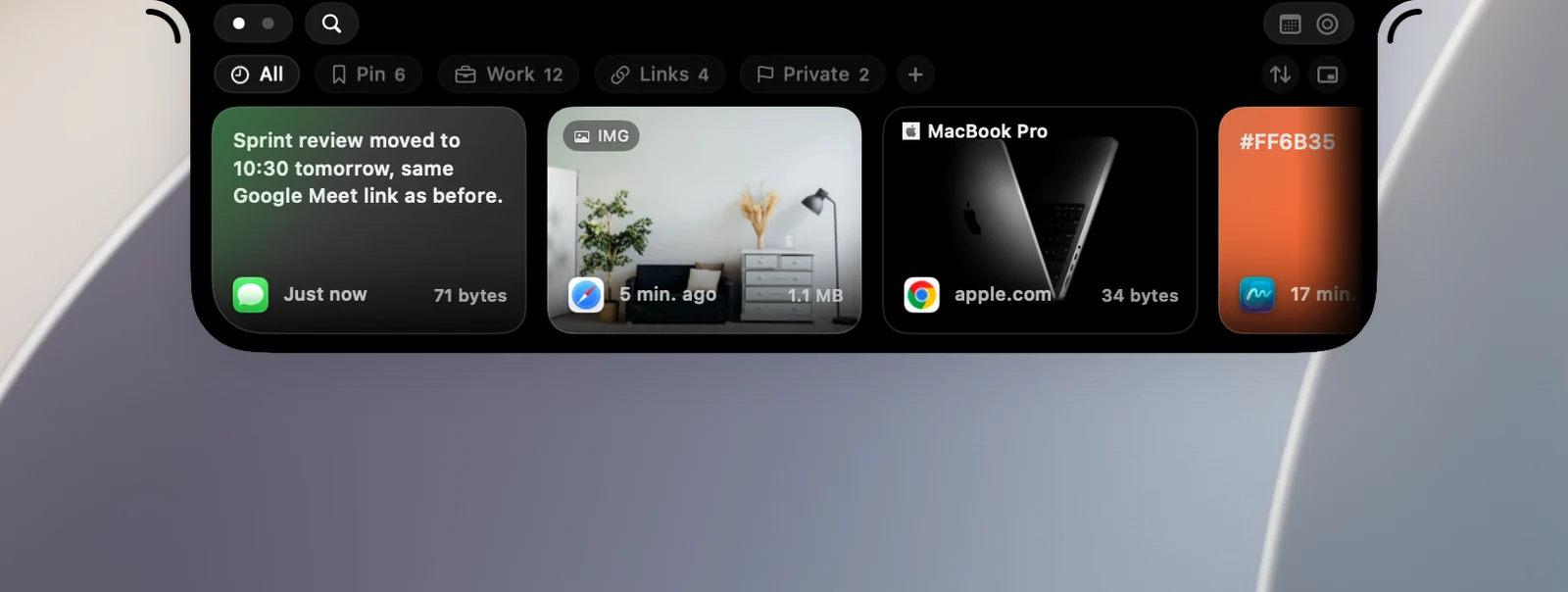
Tab doesn't switch pages while you're typing or searching your clipboard. For Tab to work while you're in another app, OneNotch needs the Accessibility permission.
Choose the default page
In Settings › General › Interaction › When the notch opens:
- The page I choose: opens the same page every time, set in Page to open.
- What I used last: opens the page you used last time, and goes back to your chosen page after 10 minutes.
- What's happening: opens the AI page if an agent is waiting for you, the music page if music is playing, and the AI page if an agent is running; if nothing is going on, it opens the page in Fall back to.
Hide or rearrange pages
Drag the page dots, and choose which buttons sit on the toolbar or in the orbs, in Settings › Interface › Notch layout. See "Customize the notch layout".