
OneNotch turns the notch at the top of your screen into a place for your clipboard, music, calendar, translation, screenshots and the status of your AI agents.
Requirements
- A Mac with Apple silicon.
- macOS 15 or later.
- Works on MacBooks with a notch, MacBooks without a notch and external displays.
Install
- Open the DMG you downloaded and drag OneNotch into the Applications folder.
- Open OneNotch from Applications. If you open it straight from the DMG, OneNotch asks Move OneNotch to Applications?; choose Move to Applications.
Running OneNotch from somewhere other than Applications (for example your Downloads folder) can break updates and permissions.
First-time setup
The first time you open OneNotch, it takes you through a few steps:
- A short introduction to what OneNotch does.
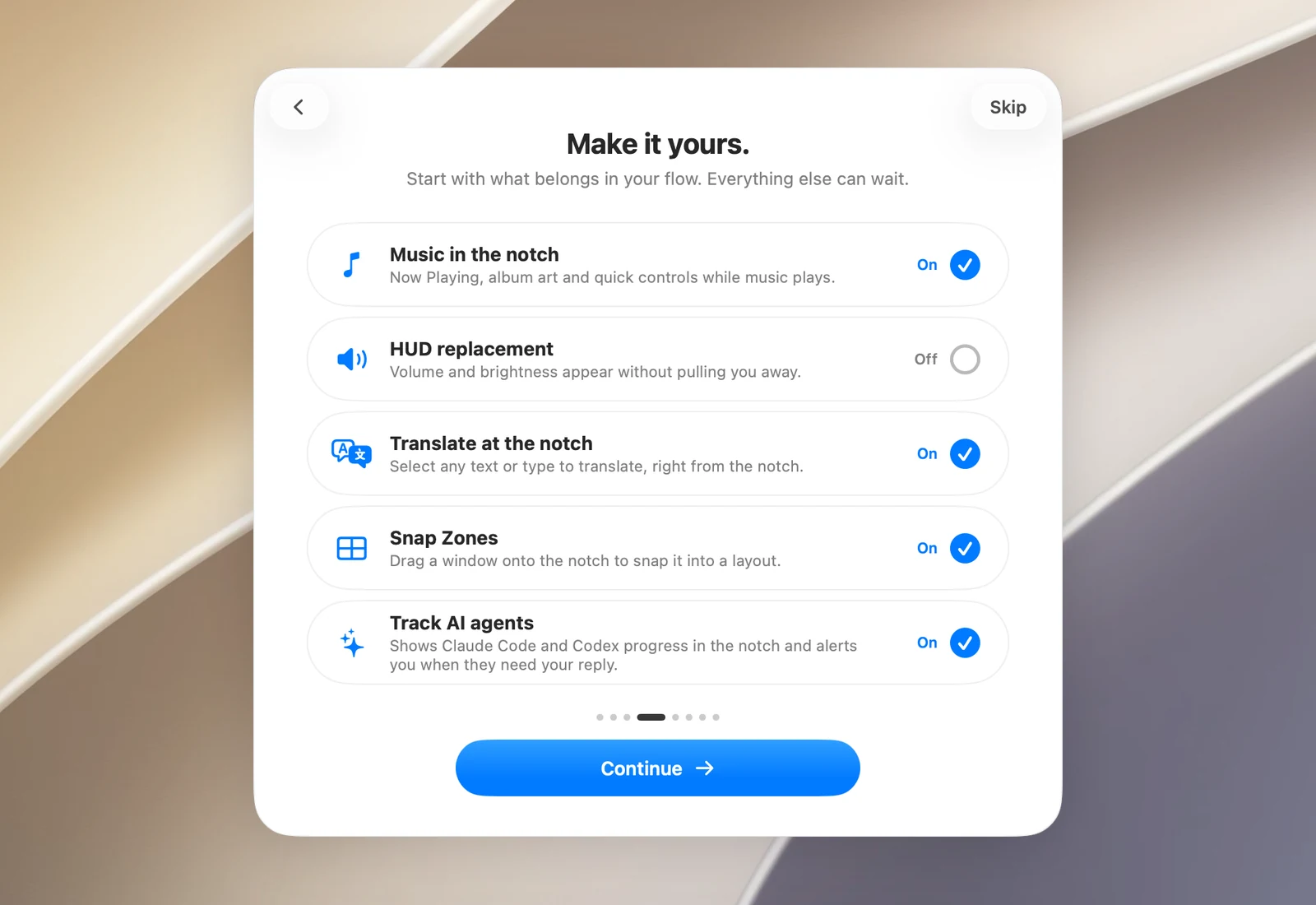
- Make it yours.: turn the main features on or off: music in the notch, HUD replacement, translation, Snap Zones and AI agent tracking.
- No notch? No problem.: choose Notch or Pill, if your display doesn't have a notch.
- Grant OneNotch the access it needs.: Accessibility and Screenshot Access, plus the Open at login option. See "Grant permissions to OneNotch".
- Connect your AI agents., if you turned on AI tracking.
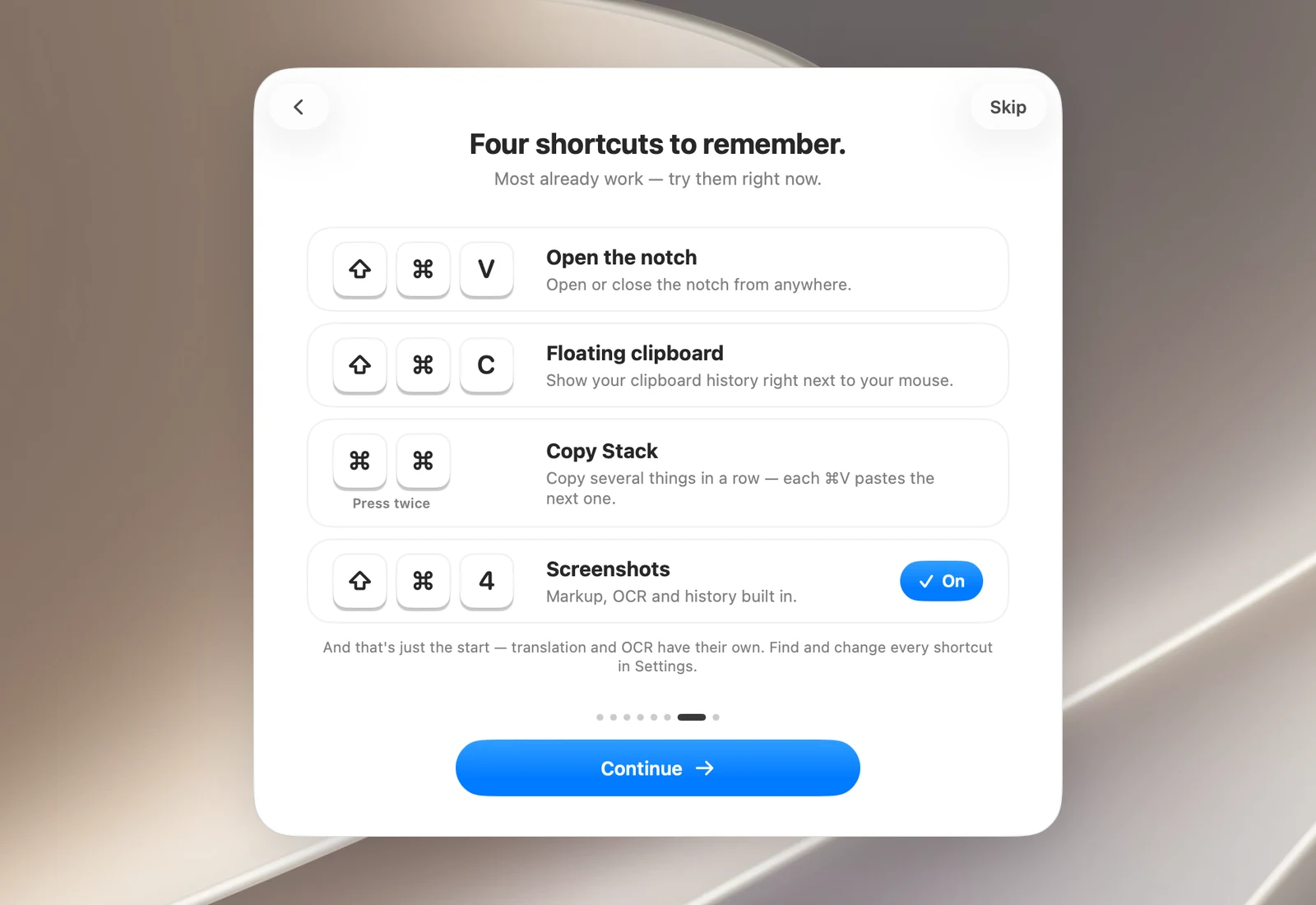
- Four shortcuts to remember.: open the notch, open the Clipboard Panel, Copy Stack and screenshots. Click Use OneNotch to use ⇧⌘3 and ⇧⌘4 for OneNotch instead of macOS.
- Send anonymous usage data: turn it on or off.
You can click Skip at any time. You can change every choice later in Settings.
See the setup again
Go to Settings › Support › Onboarding and click Reset Onboarding.