
Capture
- Press ⇧⌘4 (requires Replace macOS Screenshot Keys), or choose menu bar › Screenshot › Area.
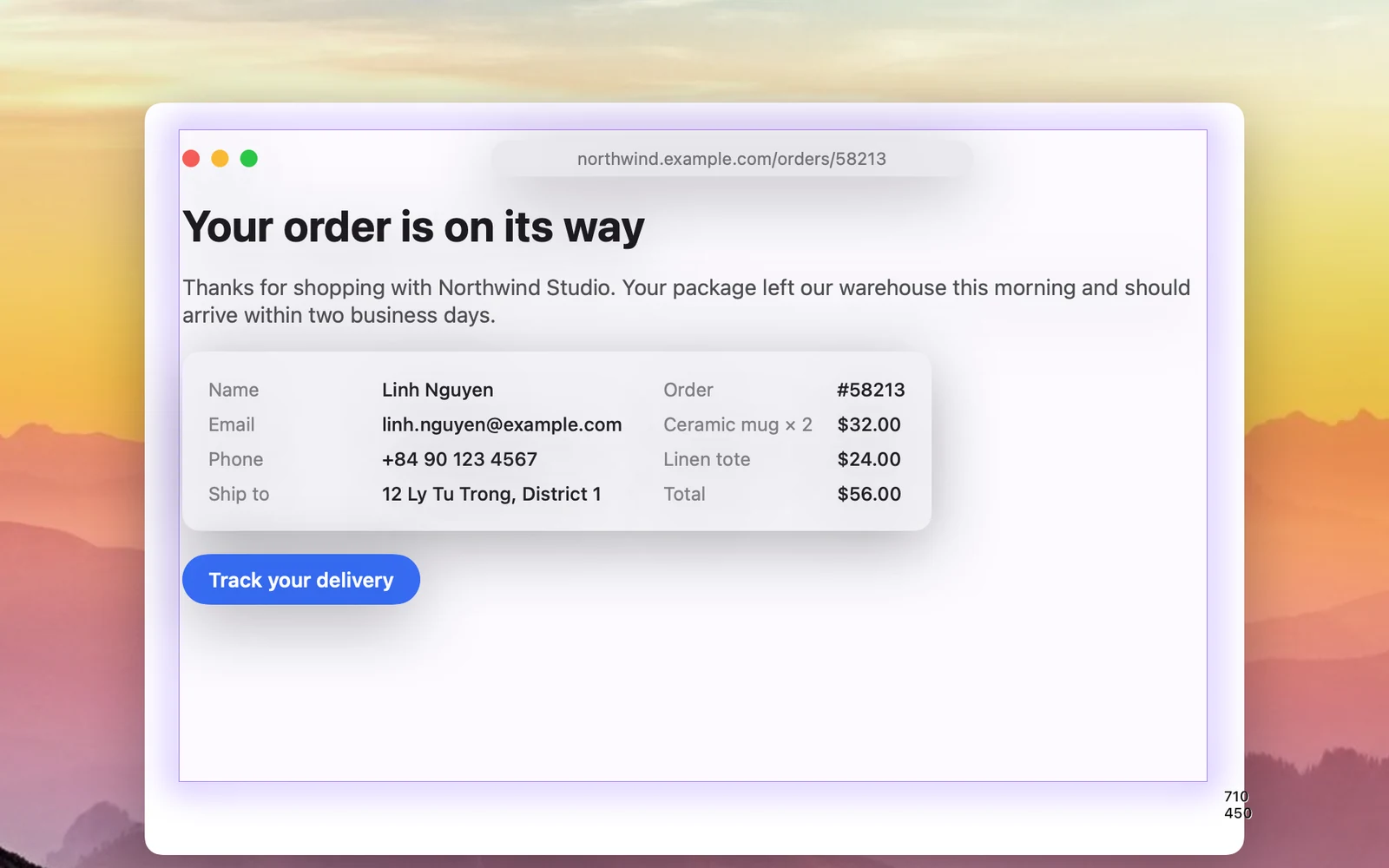
- Drag to select the area you want to capture. The label beside it shows the size.
- Release the mouse button. The image is handled according to the steps you set in After Capture (by default: show the preview card, copy it and save the file).
Keys while selecting
| Key | What it does |
|---|---|
| Hold Space while dragging | Move the whole selection |
| A | Switch to window selection: hover over a window to highlight it, click to capture that window |
| Return | Capture the same area as last time |
| ⌘ + scroll | Show a magnifier that zooms in on pixels |
| C (with the magnifier) | Copy the pixel's color |
| Tab (with the magnifier) | Switch the color format between HEX, RGB, HSL and HSB |
| Esc or right-click | Cancel |
Capture the same area as last time
Choose menu bar › Screenshot › Repeat Area, assign a shortcut to Repeat Area in Settings › Shortcuts, or press Return while selecting. OneNotch immediately captures the last area you selected, without selecting it again. If you haven't selected an area yet, OneNotch asks you to select one first.
Related options
In Settings › Screenshot › Capture:
- Glowing selection: the screen keeps its brightness while you drag, and the selection border glows in the color of each kind of capture (purple for captures, green for OCR, pink for subject lifting, amber for scrolling captures). Turn it off to dim the screen as before.
- Ripple on capture: a short ripple over the area you just captured.
- Show cursor: includes the pointer in the image.