
System Monitor shows you at a glance how your Mac is running, without opening Activity Monitor. The page shows only current values, with no graphs.
Open it
Click the System Monitor button (a gauge icon) in the notch. By default the button is in the left orb: open the notch and hover over the small arc in the top left corner so the column of buttons drops down. To move the button somewhere else, go to Settings › Interface › Notch layout (see "Customize the notch layout").
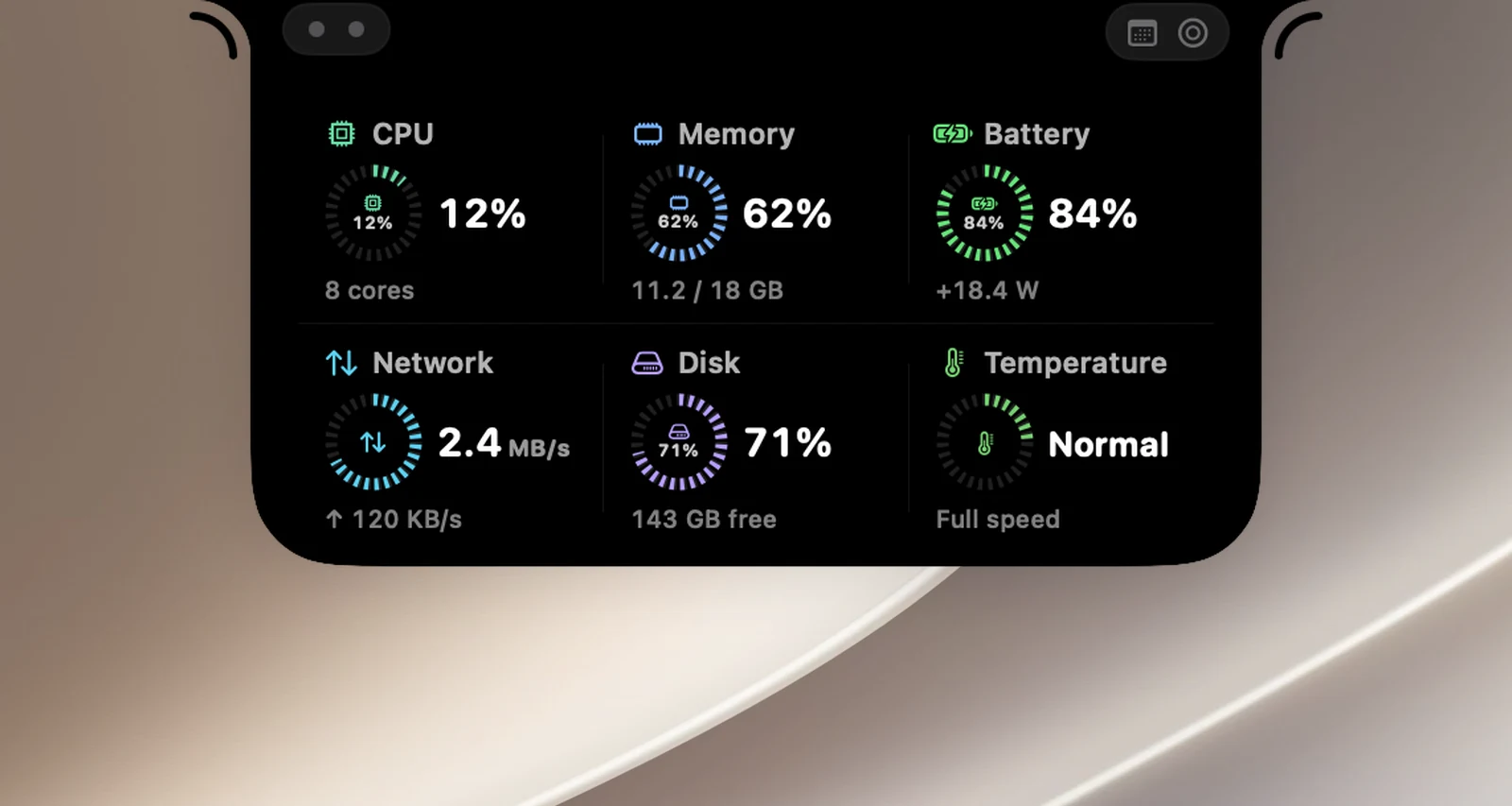
The six tiles
| Tile | Shows |
|---|---|
| CPU | CPU usage as a percentage, averaged over the last 2 seconds, plus the number of cores. |
| Memory | The percentage of memory used and GB used / total. Hover over it to see memory pressure and the breakdown (app memory, wired, compressed, cached files, swap). |
| Battery | Battery percentage and charging status. On Macs without a battery, this tile is Power: how many watts the whole Mac is using. |
| Network | Download speed (the large number) and upload speed (↑), across every network connection except VPN tunnels. |
| Disk | The percentage used on your startup disk and the free space (… free), including space macOS can free up. |
| Temperature | Your Mac's thermal state according to macOS: Normal, Warm, Hot or Very hot, with the secondary line Full speed, May slow down or Slowing down. |
The Temperature tile doesn't show degrees. It shows how hot macOS considers your Mac to be, and whether it's slowing itself down to cool off. When you see Slowing down, your Mac runs slower than usual until it cools down.
Tip
Values are measured only while the page is open: the first time after about 1 second, then every 2 seconds. When you close the page, OneNotch stops measuring, so it costs nothing extra when you're not looking.
System Monitor has no settings of its own and needs no permissions.