
When you drag to select text, or double-click or triple-click text in another app, a small translate button appears right beside the selection. Click it to get the translation.
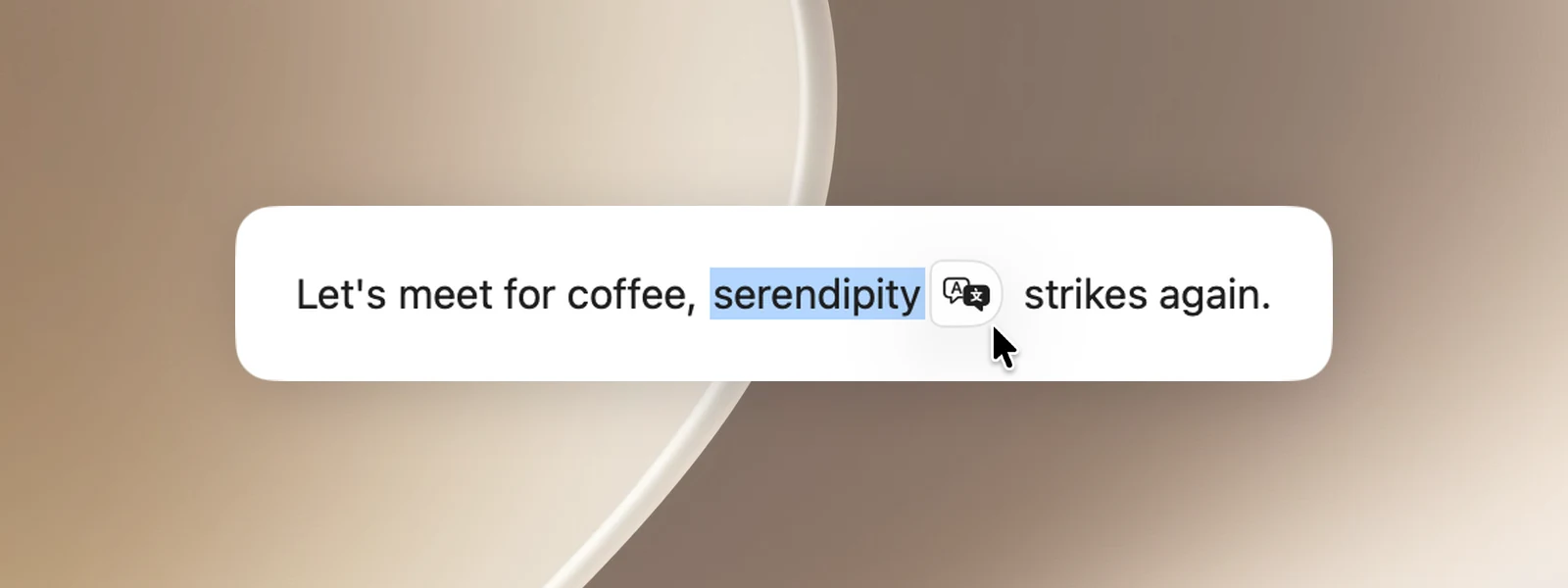
Use the translate button
- Select the text you want to translate.
- Click the translate button that appears.
The button hides on its own after a few seconds, or when you click somewhere else. In most apps, the button sits right after the last letter of the selection. In Chrome and apps built on web technology, a round button appears near where you released the mouse button.
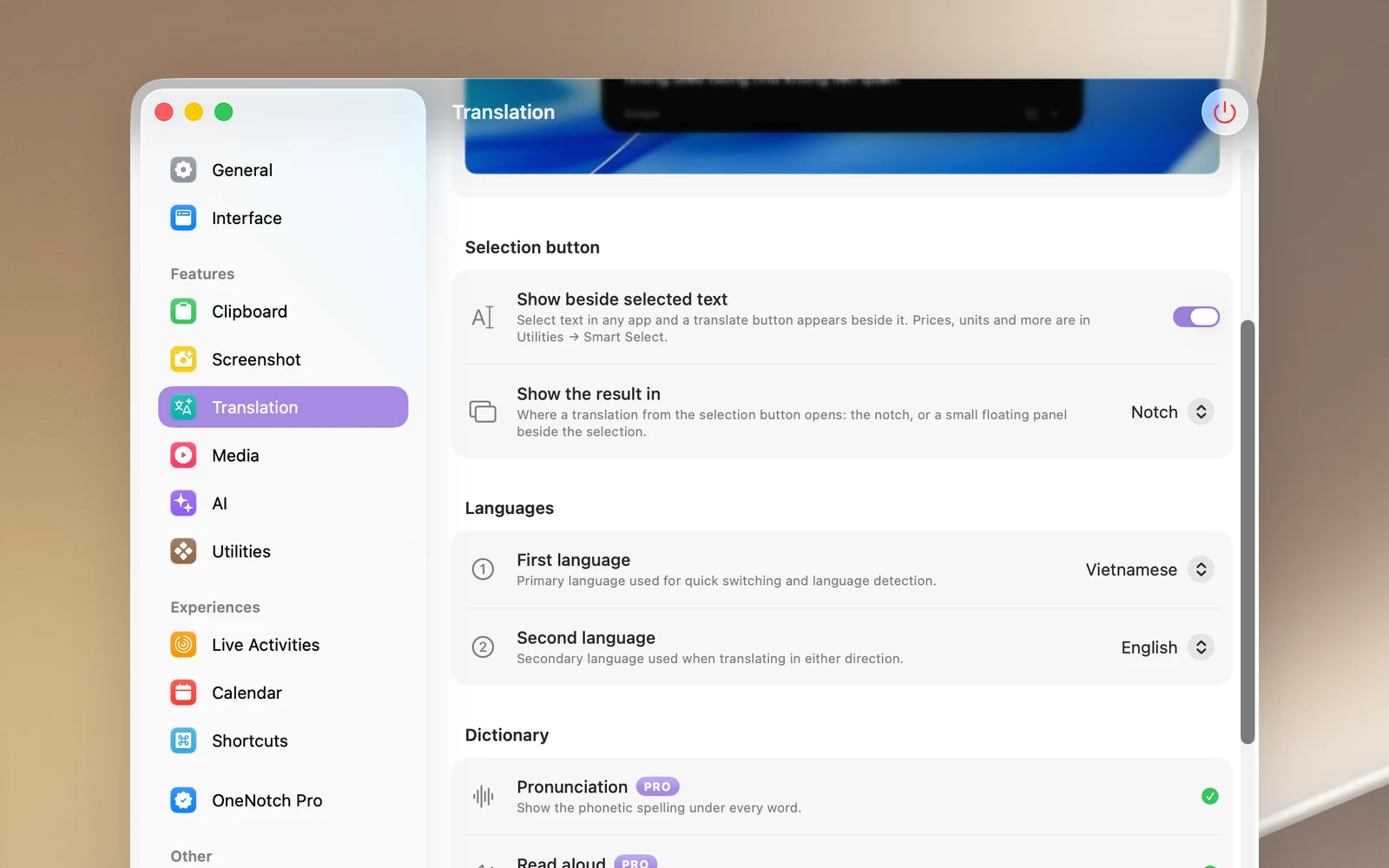
Choose where the result appears
Go to Settings › Translation › Selection button:
- Show beside selected text: turns the button on or off (on by default).
- Show the result in: Notch (the default) or Floating panel, a small panel that opens beside the selection.
When the button appears too often
Two options in Settings › Utilities › Smart Select also apply to the translate button:
- Skip short selections: choose 2, 3, 5 or 10 characters or more, so the button doesn't appear when you accidentally double-click a single letter.
- Apps to Ignore: click Add app to exclude… to turn off the button in an app, such as a photo editor, a drawing app or a game, where dragging isn't for selecting text.
Permission needed
The button needs the Accessibility permission to read the text you've selected. Without it, the button never appears. Grant the permission in Settings › Translation, on the Accessibility for Quick Translate row.
Tip
If you want the button to do more than translate, like converting currencies, units or time zones, turn on Smart Select. See "Smart Select: convert as you select".