
You can change every global shortcut in Settings › Shortcuts. Click a shortcut field, then press the new key combination. Reset Shortcuts to Defaults puts every shortcut back the way it was.
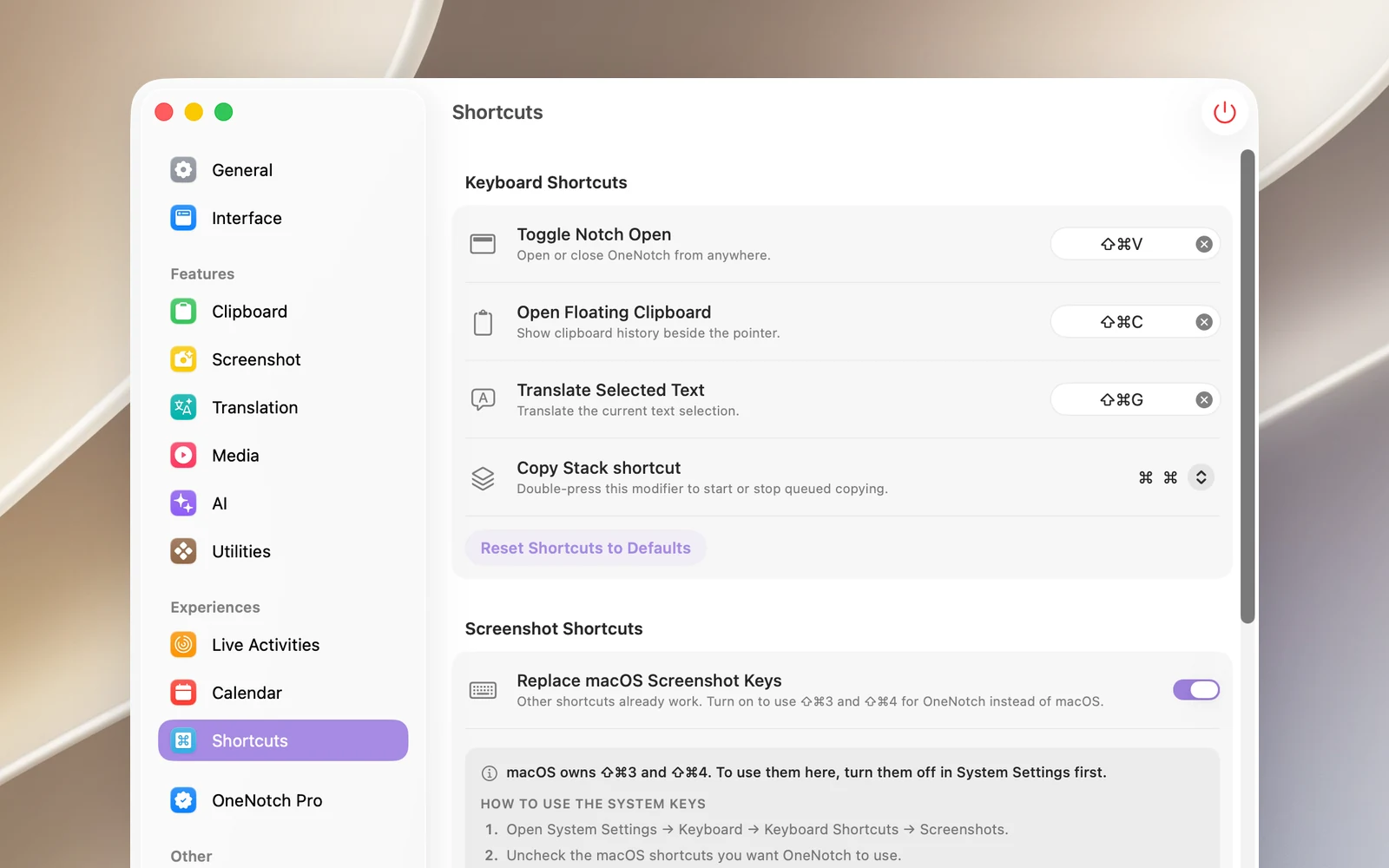
General shortcuts
| Action | Default shortcut |
|---|---|
| Toggle Notch Open | ⇧⌘V |
| Open Floating Clipboard (Clipboard Panel) | ⇧⌘C |
| Translate Selected Text | ⇧⌘G |
| Copy Stack shortcut | Double-press ⌘ (or ⌥) |
Screenshot shortcuts
| Action | Default shortcut |
|---|---|
| Area | ⇧⌘4 |
| Full Screen | ⇧⌘3 |
| Window | ⇧⌘9 |
| Scrolling | ⇧⌘6 |
| Text (OCR) | ⇧⌘2 |
| Pick Color | ⇧⌘1 |
| Repeat Area | not set |
| Area & Markup | not set |
⇧⌘3 and ⇧⌘4 are macOS's screenshot shortcuts, so they only run OneNotch when you turn on Replace macOS Screenshot Keys. The other shortcuts work right away. Each row has its own switch to turn that shortcut off. See "Screenshot shortcuts".
Presenter
The Presenter shortcuts are in the Other section of Settings › Shortcuts, together with the shortcuts for opening the notch and translating.
| Action | Default shortcut |
|---|---|
| Draw on Screen | not set (suggested ⌥⇧D) |
| Teleprompter: Play / Pause | not set (suggested ⌥⇧T) |
| Teleprompter: Faster | ⌥⇧↑ |
| Teleprompter: Slower | ⌥⇧↓ |
| Teleprompter: Back a Few Lines | ⌥⇧← |
| Teleprompter: Next Section | ⌥⇧. |
| Teleprompter: Previous Section | ⌥⇧, |
The first two aren't set by default so you don't press them by accident. To use them, click their field and press the combination you want. The other five work only while the teleprompter is running; the rest of the time, those combinations still belong to the app you're using. See "Teleprompter" and "Draw on Screen".
In the notch and in the Clipboard Panel
| Action | Shortcut |
|---|---|
| Switch notch pages | Tab / ⇧Tab (with the pointer over the notch) |
| Use the 1st–9th card in the notch | ⌘1 … ⌘9 |
| Select an item | ← → in the notch, ↑ ↓ in the panel |
| Use the selected item | Return |
| Switch boards in the panel | Tab / ⇧Tab |
| Add to the paste queue | ⌘-click, ⇧-click to select a range |
| Clear the search or filter, close the panel | Esc |
Other
| Action | Shortcut |
|---|---|
| Translate now on the type-to-translate page | ⌘↩ |
| Close a translation result or the translation panel | Esc, ⌘W |
| Open macOS Sound or Displays settings | ⌥ + a volume or brightness key (when the HUD is replaced) |
| Open Settings / Quit (while the menu is open) | ⌘, / ⌘Q |
Shortcuts for use while capturing, picking a color and in the screenshot annotation editor are in the articles of the Screenshot section.