
Drag files from Finder or the desktop toward the notch, and the notch opens drop zones that fit the file type. Drop a file on a zone and it's processed right away.
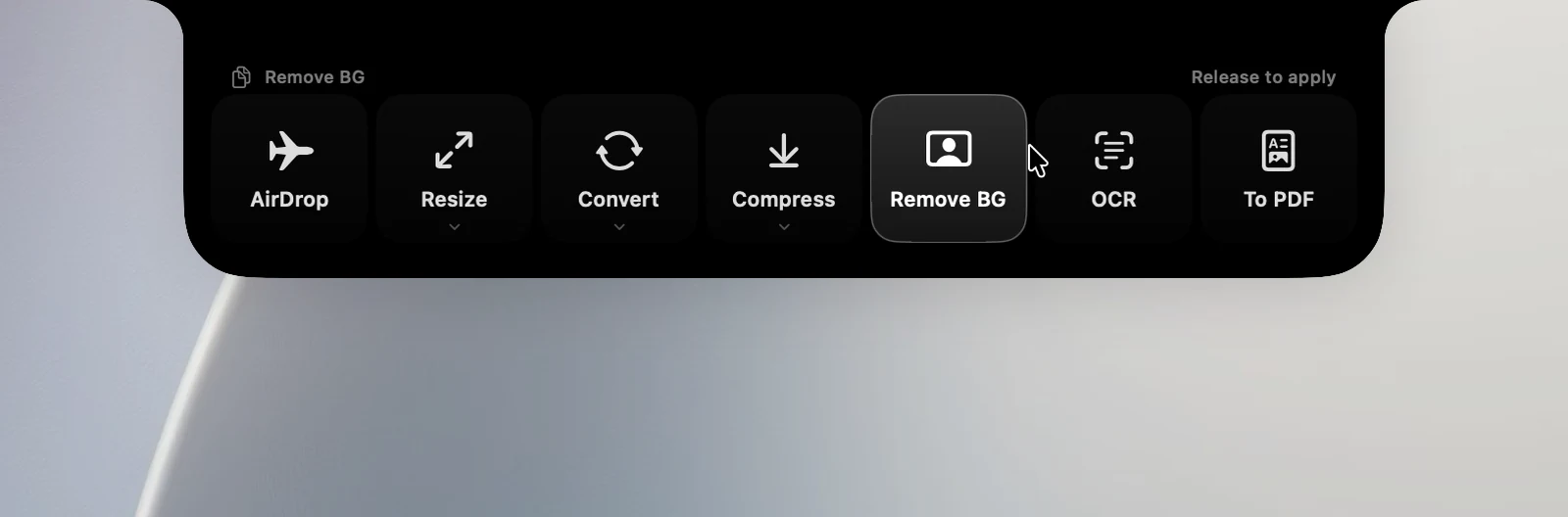
Zones by file type
- Images: AirDrop, Resize, Convert, Compress, Remove BG, OCR, To PDF.
- Videos: AirDrop, To MP4, Audio (extracts the audio).
- PDFs: AirDrop, OCR, and Merge when there are 2 or more files.
- Archives: AirDrop, Unzip, Zip.
- Mixed types: AirDrop, Zip, and running one of your shortcuts (from the Shortcuts app).
Choose an option
Hold the files over a zone for about half a second to see its options, then drop them on the option you want:
- Resize: 50%, 1920, 1280 (default) or 640 px.
- Convert: JPG (default), PNG, WebP, HEIC.
- Compress: Light, Medium (default), Strong.
- To MP4: H.264 (default), HEVC, 720p.
If you drop without waiting, OneNotch uses the option you chose last time.
Results
- The new file is saved next to the original, with a number added to its name, like " (1)". If that folder can't be written to, the file is saved to Downloads.
- OCR puts the recognized text on your clipboard.
- The result card has Reveal, Copy and share buttons; you can also drag the result file out.
- If you leave the notch while a job is still running, a progress ring appears on the closed notch; click it to see the result again.
Tip
The drop zones open as soon as the files come close, just below the notch, so you don't need to drag all the way to the top edge of the screen (where it's easy to open Mission Control by mistake). Dragging a window onto the notch snaps the window instead of dropping files.