
OneNotch saves everything you copy: text, links, images, files and color codes. Open the notch to see your recent items as a row of cards, and click a card to put that content back on your clipboard.
Open the Clipboard page
- Move the pointer onto the notch. The Clipboard page is the notch's first page.
- Or press ⇧⌘V from anywhere.
If the notch opens to a different page, swipe sideways on the notch or press Tab to switch pages. You can choose the default page in Settings › General › When the notch opens.
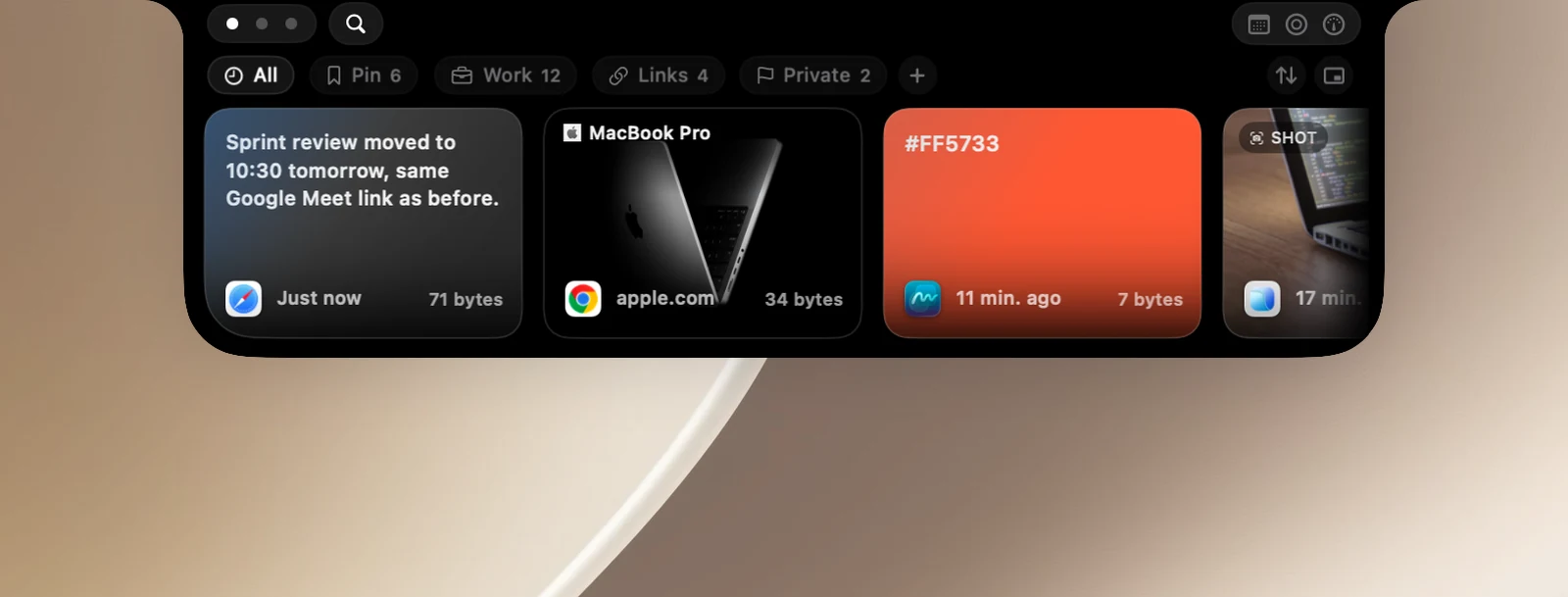
Use a clip again
- Scroll sideways through the cards (swipe sideways on the trackpad, or scroll the mouse wheel with the pointer over the cards).
- Click the card you want. The card shows Copied and the content is on your clipboard.
- Switch to your app and press ⌘V.
To paste straight into the app you're using with a click, see "Paste straight into other apps".
Card actions
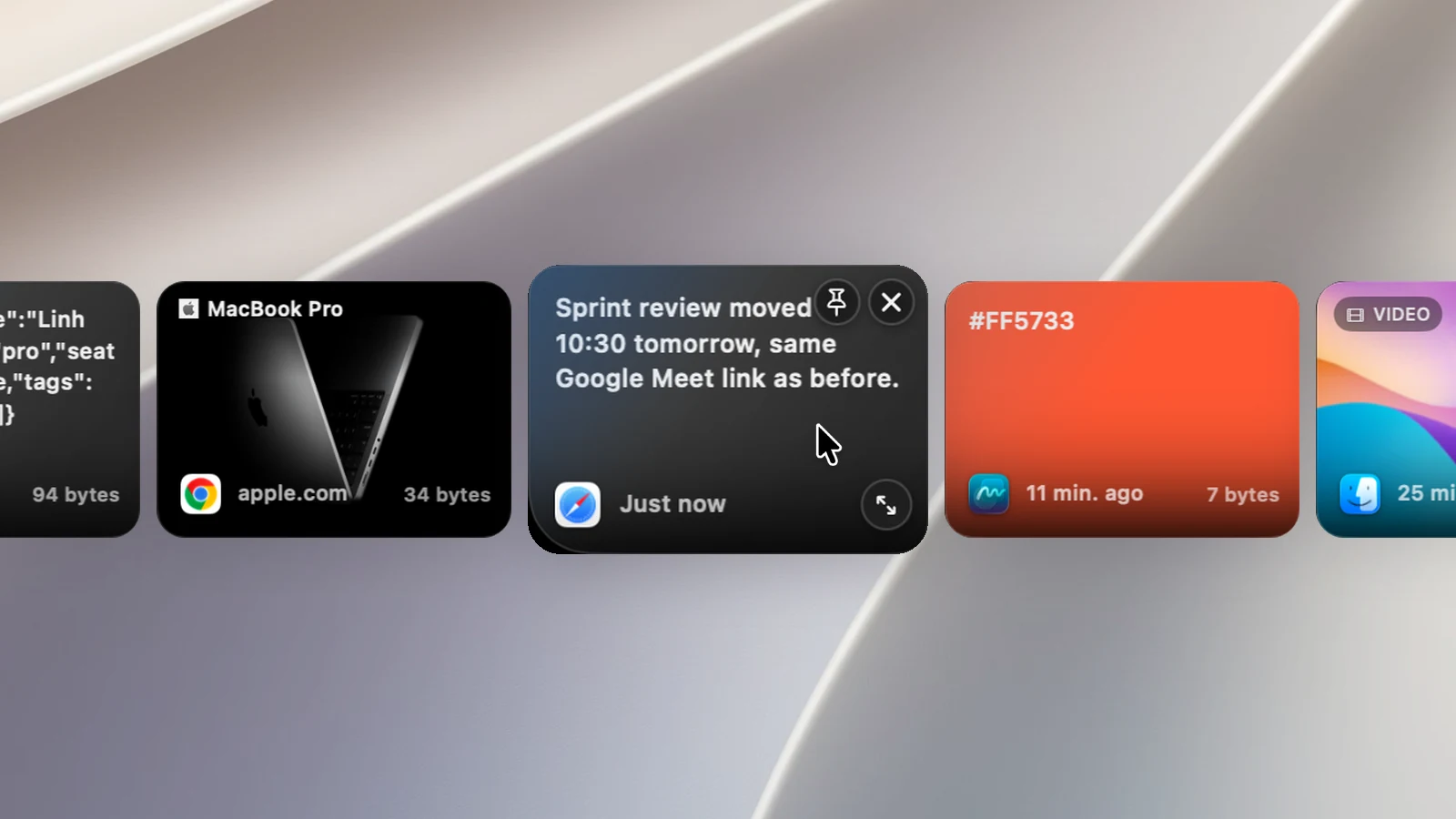
Hover over a card to see:
- Pin: pins the card to the Pin board.
- ✕ Delete: removes it from your history (when you're viewing a board, it only unpins it).
- Preview: opens a large preview just below the notch, with Paste and Copy buttons and actions for that type of content.
Right-click a card for more actions. See "Work with a clip".
Shortcuts in the notch
- Type anything to start searching.
- ← → to move between cards, Return to use the selected card.
- ⌘1 to ⌘9 to use the 1st to 9th card shown right away.
- Esc to clear the search field.
Tips
- The notch shows up to the 80 newest items. The "+N more items" card at the end opens the Clipboard Panel so you can see your whole history.
- Choose how the preview opens in Settings › Clipboard › Paste Behavior › Open preview: On click (default) or On hover, with a Preview delay.