
Auto redact
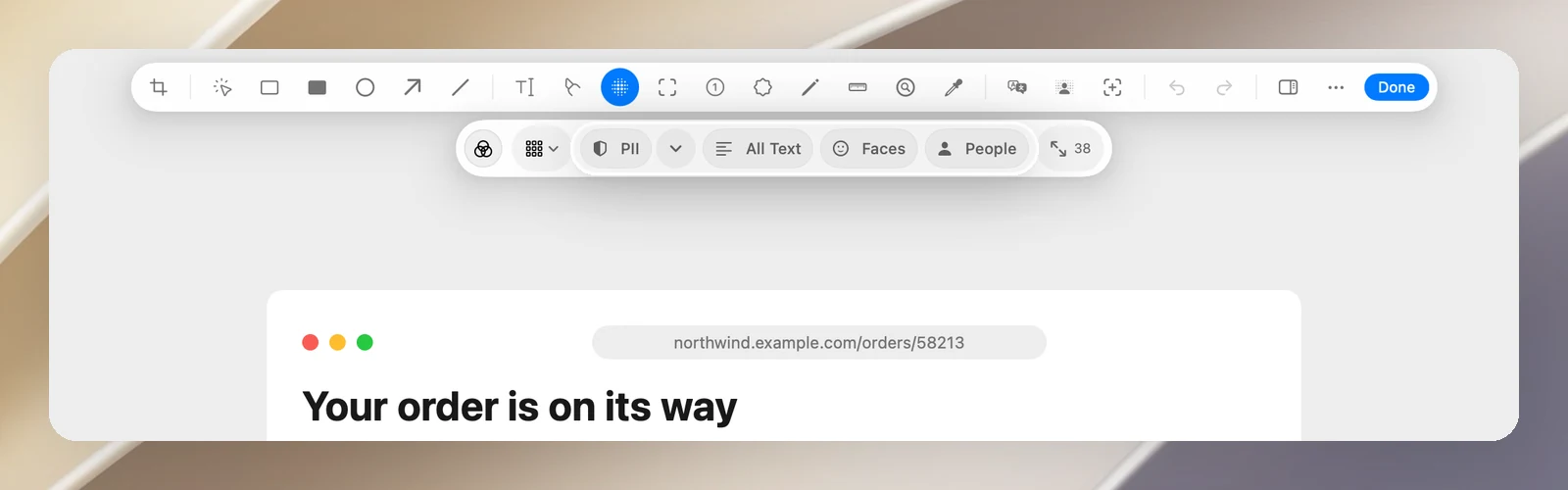
- Choose the Blur tool (B).
- In the Auto Redact group, click:
- PII: finds and covers emails, phone numbers, card numbers, CVV codes, expiration dates, cardholder names, links, IP addresses, API tokens, passwords and secret keys. Click the Detect arrow to choose what to look for.
- All Text: covers all text.
- Faces or People.
- OneNotch tells you how many areas it covered. The covered areas are ordinary blur shapes, so you can adjust them, delete them or change their style.
Detection runs entirely on your Mac.
Translate the text in an image
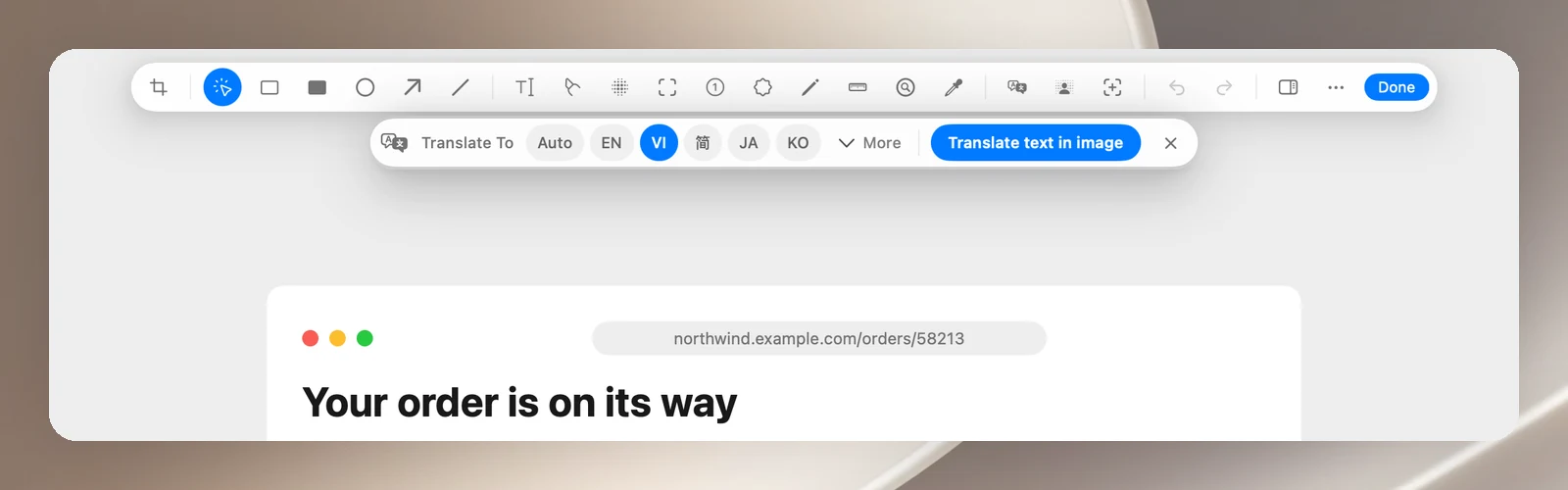
- Click Translate text in image on the toolbar.
- Choose the target language on the Translate To bar (Auto, EN, VI, 简, JA, KO, or More to choose another language).
- Click Translate text in image. OneNotch reads each line of text and places the translation right over it, as editable text.
Translation uses the service you chose in Settings › Translation. Press Esc to close the translate bar.
Remove the background
Click the Background Cutout button on the toolbar. OneNotch lifts the subject off the background, and crops tightly around the subject when it's safe to. Click the button again to bring the background back. Requires macOS 14 or later.
Save images with the background removed as PNG or WebP; JPEG can't keep a transparent background, and OneNotch reminds you if you save as JPEG.