
Normally, the button beside your selection is for translating. With Smart Select on, that button also recognizes when you select a price, a measurement or a color code, and one click gives you the converted result.
Turn on Smart Select
- Go to Settings › Utilities › Smart Select.
- Grant Accessibility access if asked (click Allow).
- Turn on Recognize more than text.
- In the What the button recognizes section, turn each type on or off: Currency, Units, Time zones, Dates → Calendar, Calculations, Colors, Timestamps, Clean links.
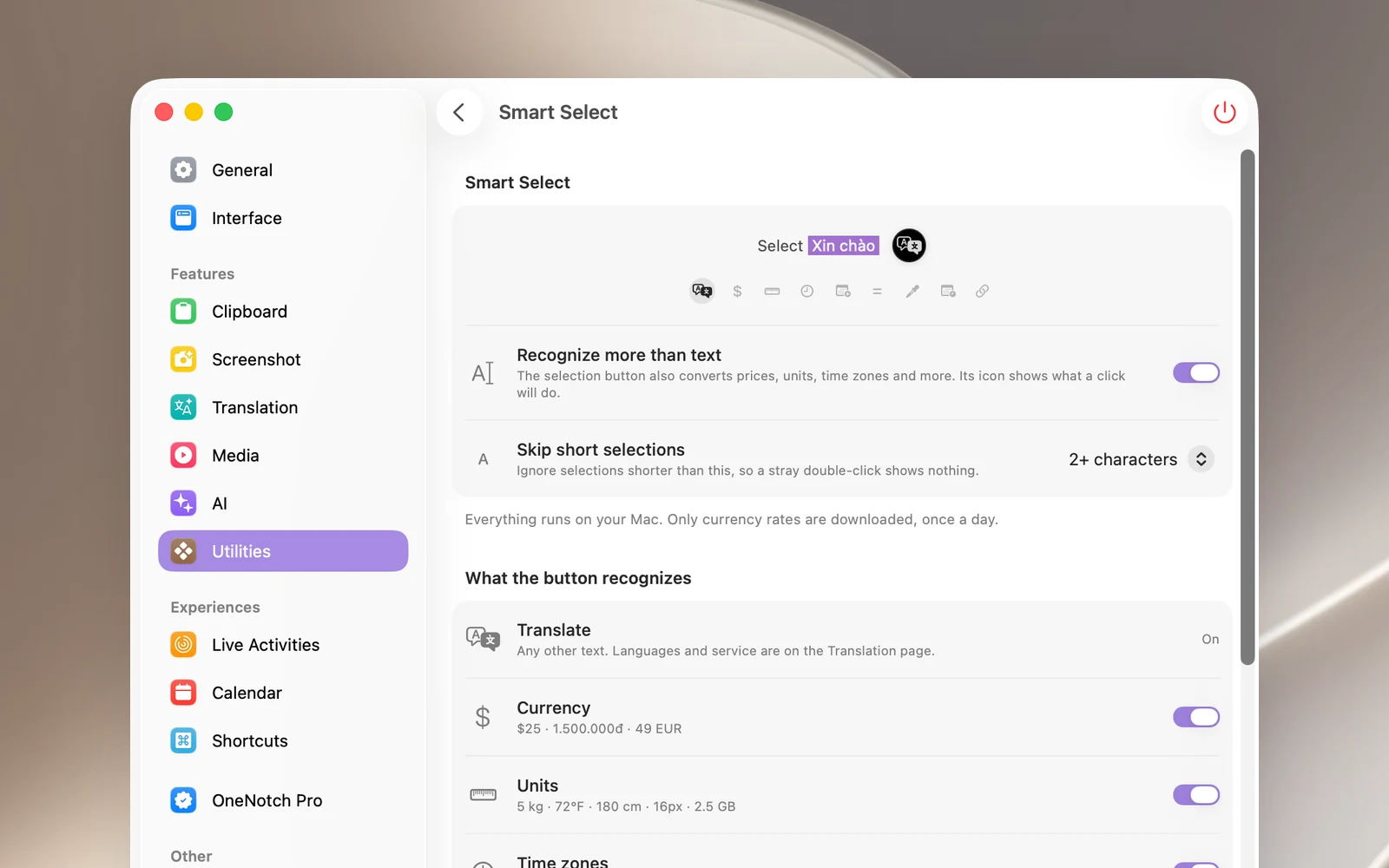
Use it
- Select exactly one value, for example
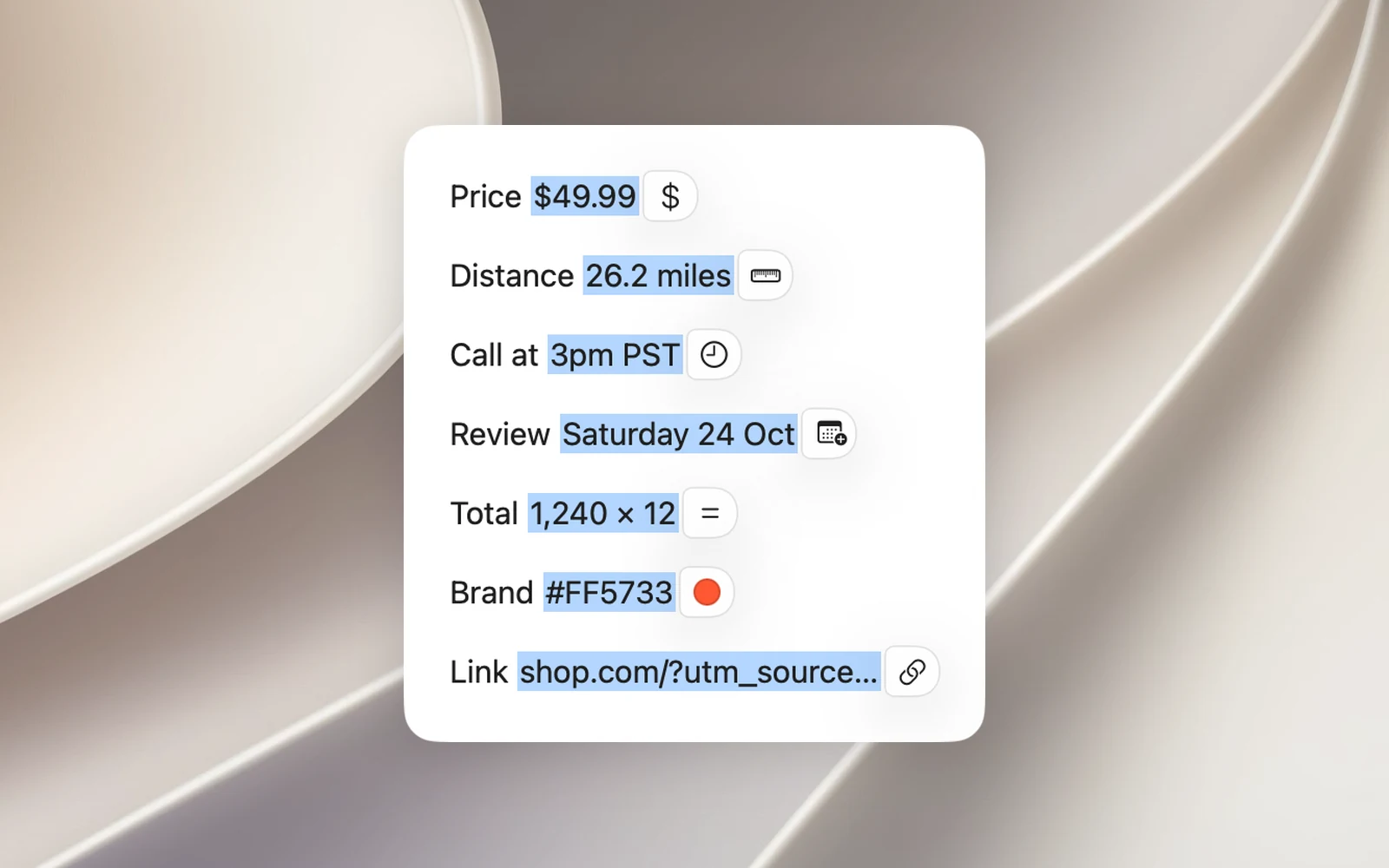
$25,72°F,3pm PST,12*3.5+8or#FF5733. - The button beside the selection changes its icon to match the content: $ for money, a ruler for units, a clock for time zones, a color swatch for color codes…
- Click the button. A result card opens beside the selection.
On the card: the main result at the top, other values below it (click a value to copy it), and the buttons Copy, Translate (switches the card to a translation), Open for links or Add to Calendar for dates.
The button only changes when the selection is exactly one of the types above. A sentence that contains a date or time is still translated, and the dates and times in it are suggested right below the translation.
Good to know
- Everything runs on your Mac. Only currency exchange rates are downloaded, once a day.
- Smart Select keeps working when you turn off Translation.
- Skip short selections and Apps to Ignore in the same section apply to both the translate button and Smart Select.
- In Chrome and web-based apps, the button shows a text cursor icon because the content can only be read after you click.