
OneNotch recognizes the type of content you copy and shows each type in the way that's easiest to recognize.
Text
Plain text and rich text (its formatting is kept when you paste it again). The card is lightly tinted with the source app's color. When you copy from a spreadsheet that has both the cell's text and an image, OneNotch keeps the text.
Links
When a whole clip is a web address, the card shows the page's image, icon and title. Links from YouTube, TikTok and many other sites get a richer preview. Turn off Rich Link Previews in Settings › Clipboard › Privacy if you don't want OneNotch to fetch page information.
Color codes
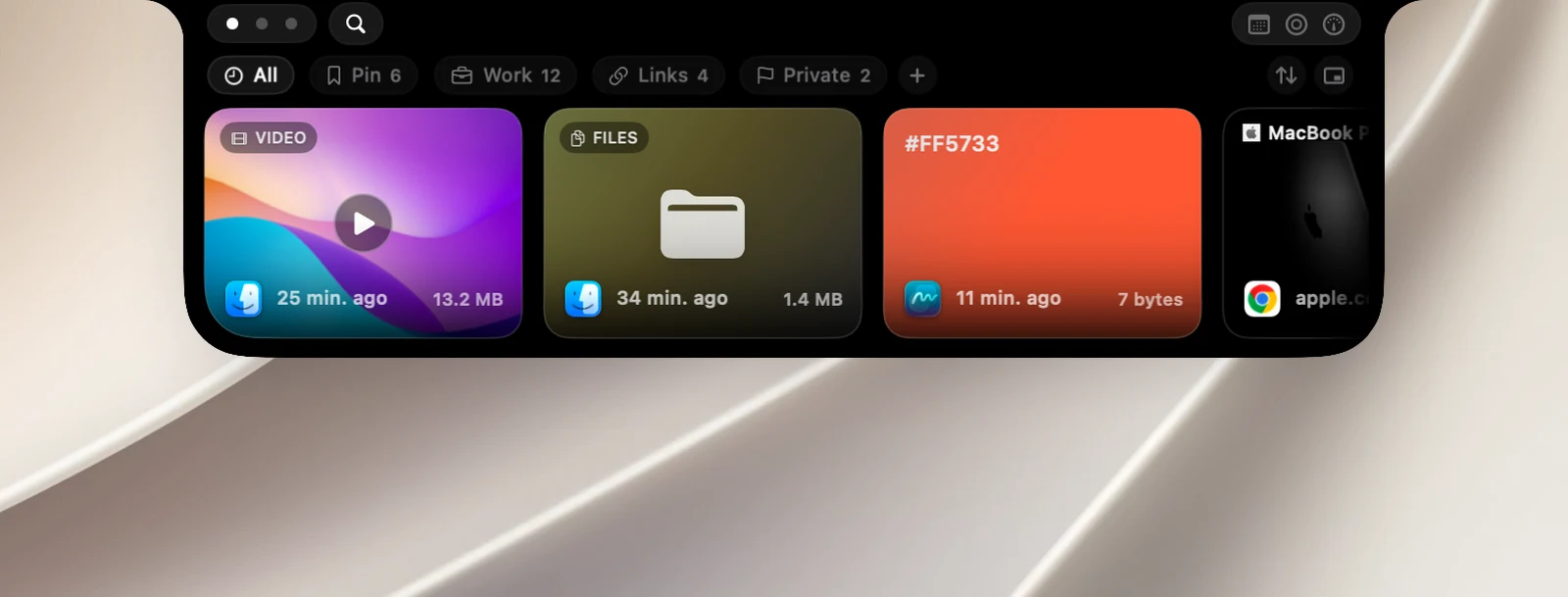
#RGB, #RRGGBB, #RRGGBBAA, rgb(), rgba(), hsl() and hsla() are recognized as colors; the card's background is that color. 6- or 8-character hex codes without a # are also recognized when Recognize Colors Without # is on (on by default).
Images
Images are labeled IMG, OneNotch screenshots SHOT, and vector images SVG. PNG, JPEG and GIF keep their format, and animated GIFs still move.
Copying an image file in Finder creates an image clip that remembers the original file: when you drag the clip out, you get the original file with its name and format.
Files
A single file shows its icon and name; several files show a folder icon and the FILES label. Files that were deleted or moved can no longer be dragged out.
Videos
Videos copied from Finder show a preview frame and the VIDEO label. The frame stays even if the original file was moved or deleted. Type @video to show only videos.