
When your Mac is locked, OneNotch can show a music card so you can control what's playing without unlocking. Typing your password, Touch ID and Apple Watch still unlock your Mac as usual.
Turn it on and choose what appears
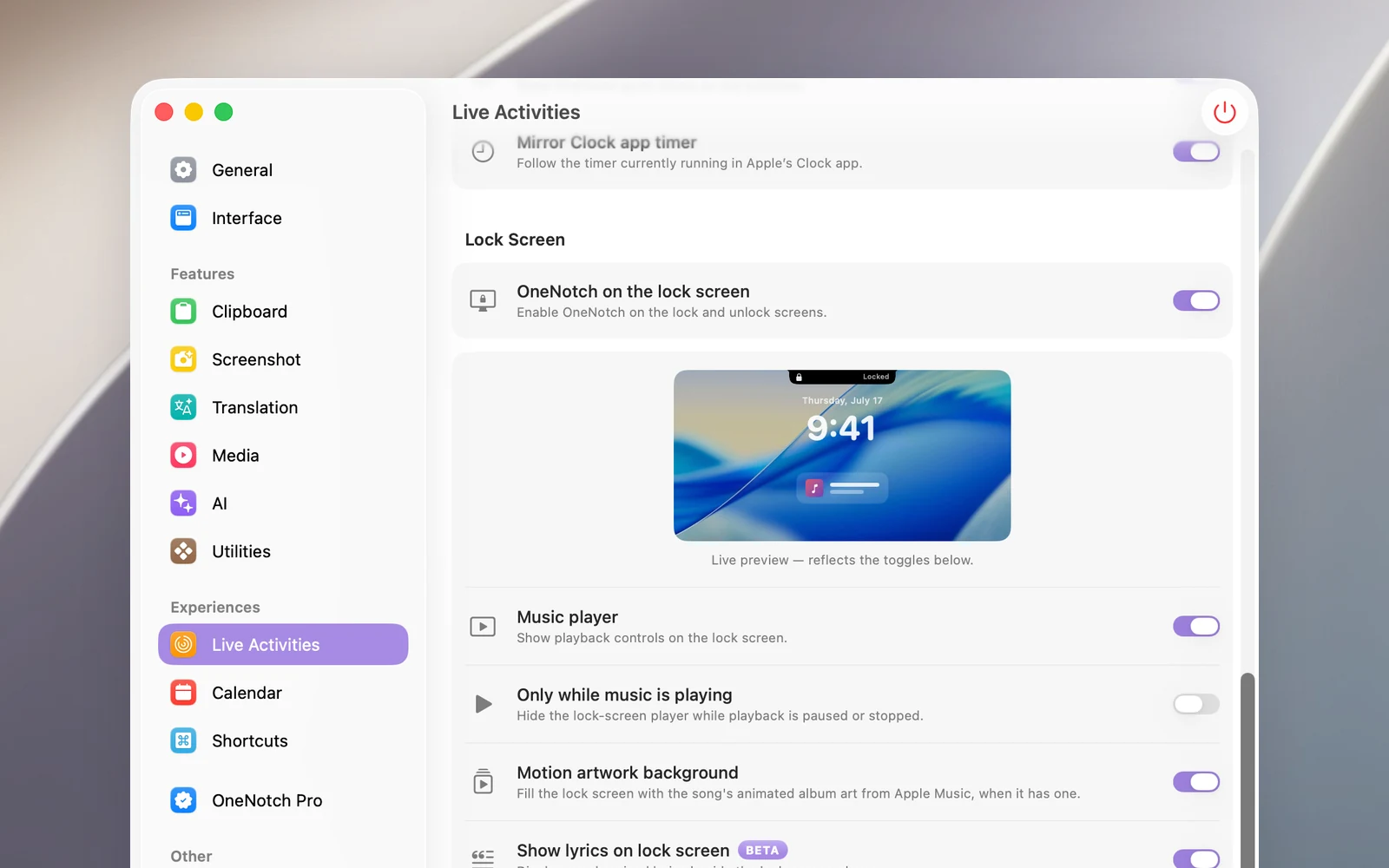
Go to Settings › Live Activities › Lock Screen:
- OneNotch on the lock screen (on by default): the main switch.
- Music player (on by default): shows the music card.
- Only while music is playing: hides the card when music is paused or stopped.
- Motion artwork background (on by default): lets Apple Music's animated album art video cover the lock screen.
- Show lyrics on lock screen (BETA): shows lyrics next to the album art.
- Lock / unlock live activity (on by default): a padlock animation on the notch when you lock and unlock your Mac.
The preview at the top reflects the switches you turn on right away.
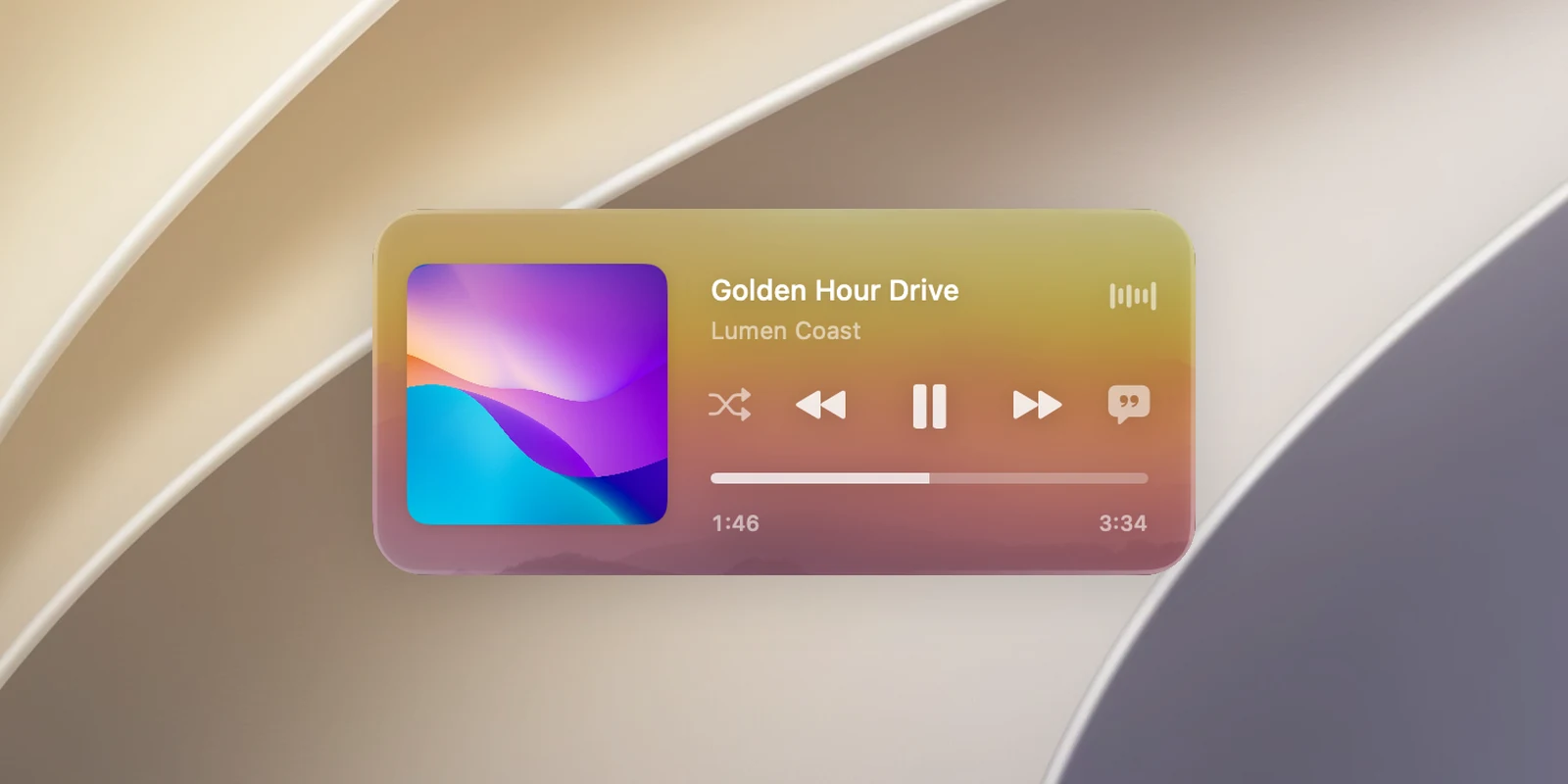
Use the music card
- The buttons on the card work while your Mac is locked. They're the same buttons as on the notch.
- The Lyrics button on the card turns lyrics on the lock screen on or off.
- Click the small album art to enlarge it: the art moves to the center of the screen on a background colored from the artwork, and lyrics (if on) appear in a column beside it, with each word highlighted as it's sung. Click ✕ next to the art or click the large art to shrink it again.
Animated album art video
For songs with animated album art on Apple Music, click the small album art on the card to cover the whole lock screen with that video. Click the art again or click the video to turn it off. Each time you lock your Mac, the screen starts in the regular view.
The video is only available when Animated album art in Settings › Media is on.
The padlock on the notch
With Lock / unlock live activity, the notch shows a padlock when your Mac is locked. If Keep Awake is on, an amber coffee cup appears on the other side of the padlock, so you know your Mac won't go to sleep while you're away. When you unlock successfully, a short sweep runs there before the notch goes back to normal.