
Boards are where you keep clips you want to hold on to: an email signature, an address, a snippet of code you use often. Pinning a clip to a board makes a separate copy, so the clip stays even after your history removes old items on its own or you clear your history.
The first board is always Pin. You can't delete it and it always comes first, but you can change its name and icon.
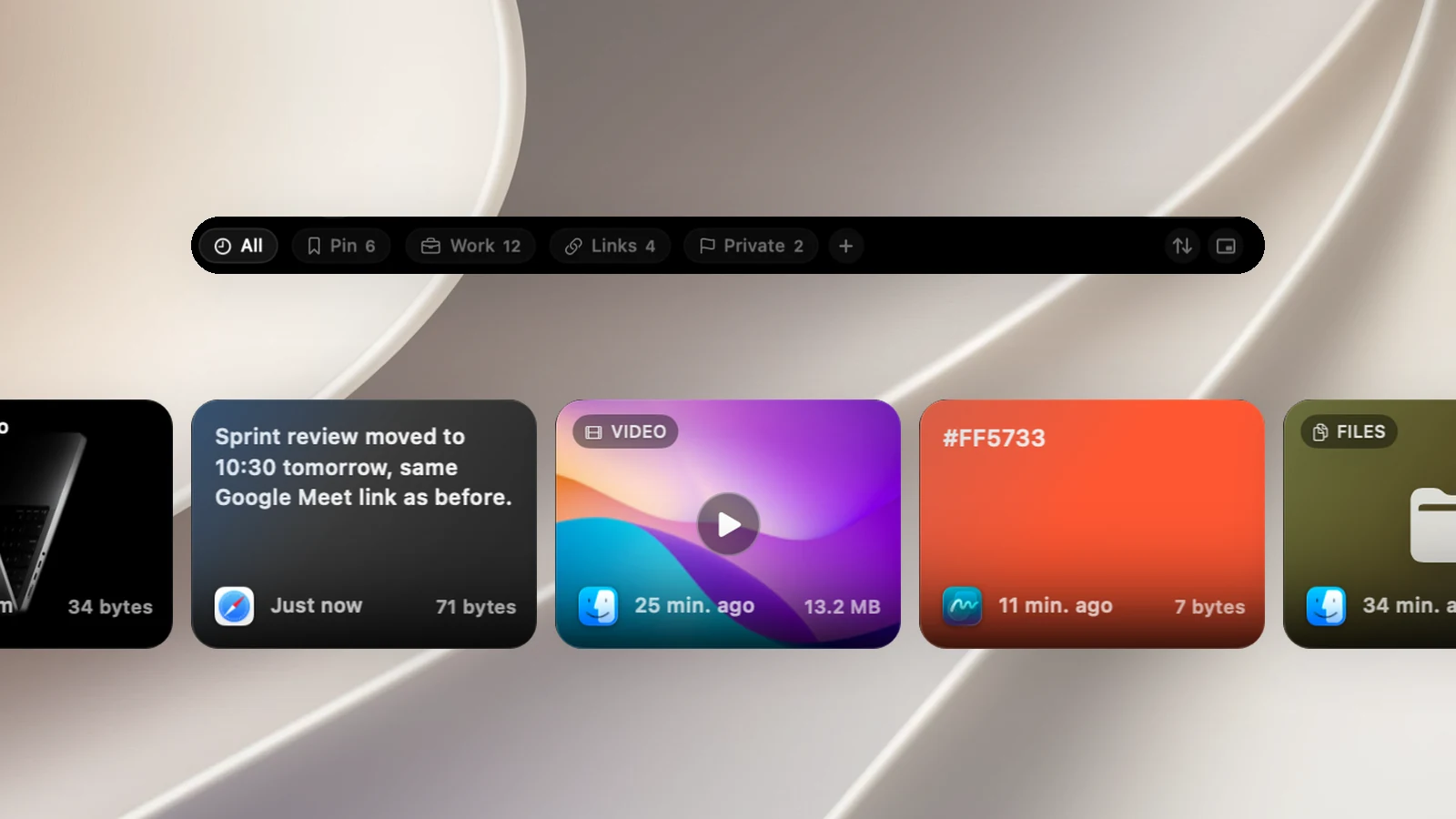
Create a board
- Open the Clipboard page in the notch or open the Clipboard Panel.
- Click the + button at the end of the row of boards.
- Choose an icon, type the board's name (up to 14 characters), then click Create.
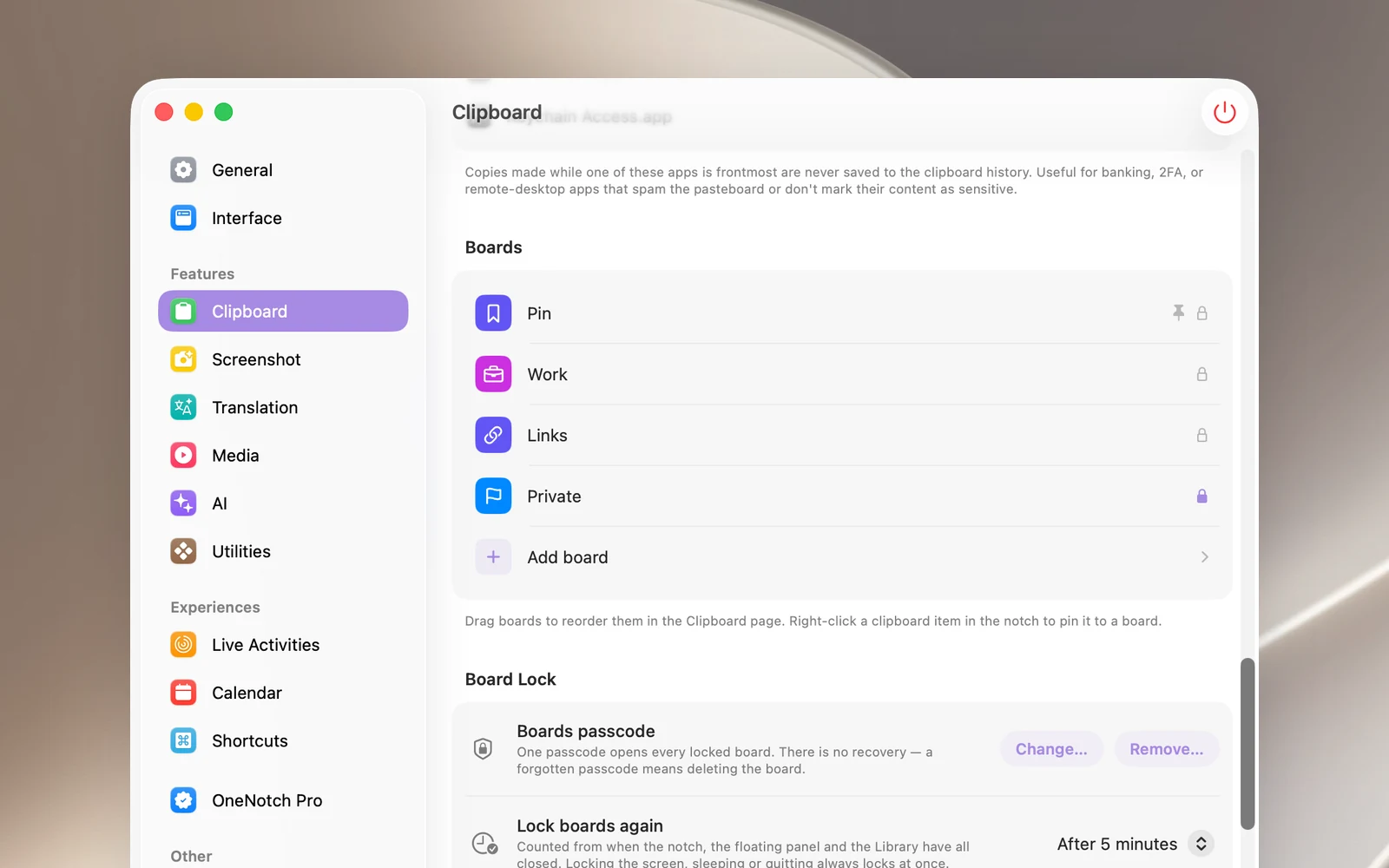
You can also create a board in Settings › Clipboard › Boards › Add board.
Pin a clip to a board
There are three ways:
- The pin button on a card: hover over a card in the notch and click the pin button. The clip goes to the Pin board. In the Clipboard Panel, choose Pin in that row's "…" menu.
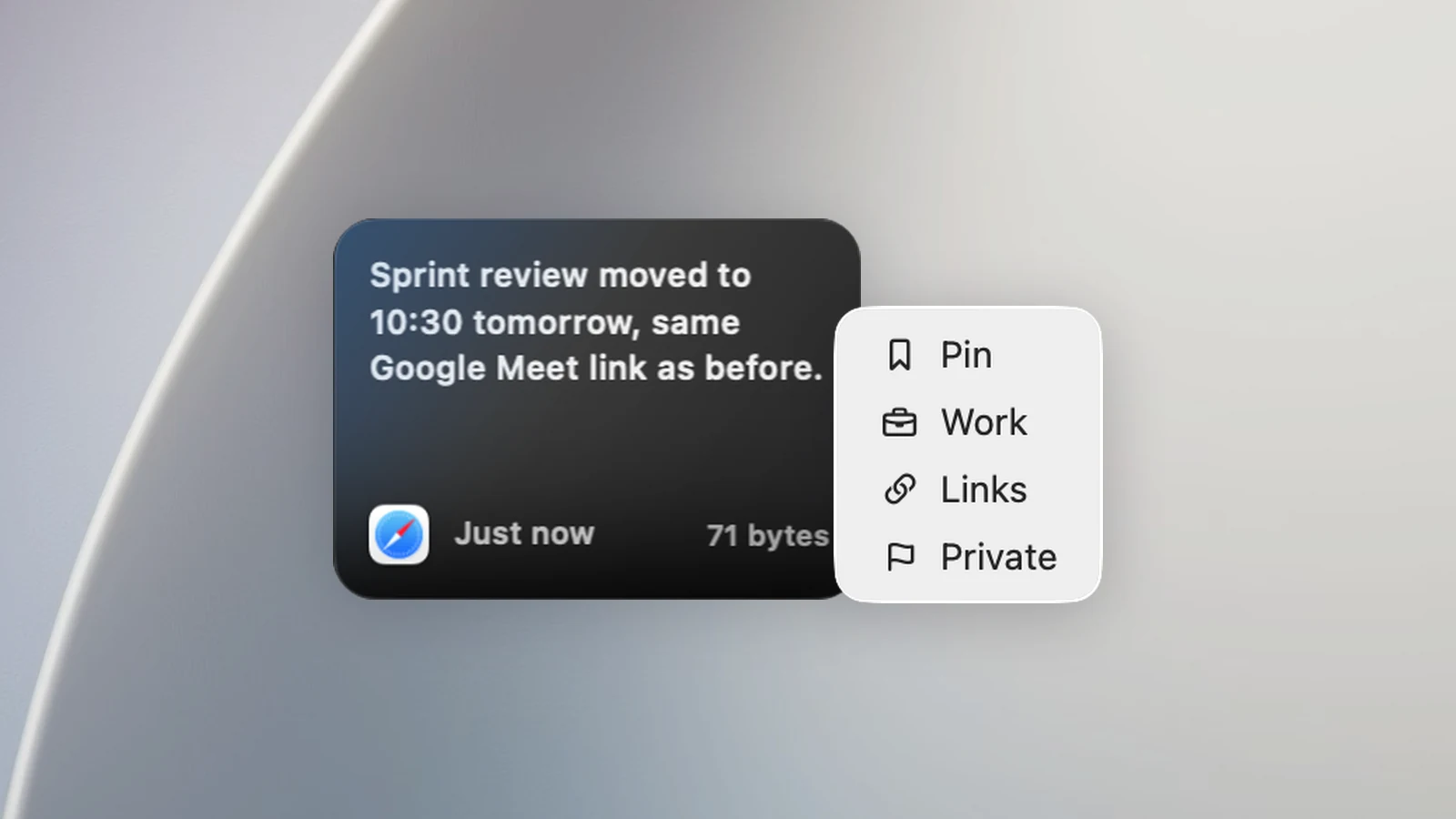
- The right-click menu: right-click the clip › Move to Board › choose a board. Boards that already have this clip show a ✓; choose that board again to unpin it.
- Drag and drop: drag one or more cards onto a board's name in the row of boards. The board's name lights up when you drag over it.
Edit, delete and reorder boards
Right-click a board's name in the notch or in the Clipboard Panel to see these commands:
- Rename… and Change icon.
- Manage boards… opens the Boards section in Settings.
- Delete board deletes the board and the items pinned to it. This command doesn't ask again, so be careful. The Pin board doesn't have this command.
To change the order of your boards, go to Settings › Clipboard › Boards and drag the rows up or down. The new order shows up right away on the Clipboard page. Click a row to change its name or icon.
Inside a board
While a board is open, right-click a card to see more:
- Unpin All empties the board. It runs right away, without asking again. If you're searching, clear the search field first.
- Show in History takes you to the original clip if it's still in your history.
Deleting a card while you're viewing a board only unpins that card; the original clip stays in your history.
Tips
- In the Clipboard Panel, press Tab or ⇧Tab to switch between boards.
- To hide a board's contents, lock it with a passcode. See "Lock boards with a passcode and Touch ID".