
The floating translation panel is a small window that opens beside the pointer and floats above every app, even in full screen. It's useful when you need to read a long translation carefully, or look up a word with all its meanings and examples.
Open the floating translation panel
- From a translation result in the notch, click Open detailed translation.
- Set Settings › Translation › Show the result in to Floating panel so the translate button beside your selection always opens this panel.
- Translating a clip from your clipboard history also opens the result here.
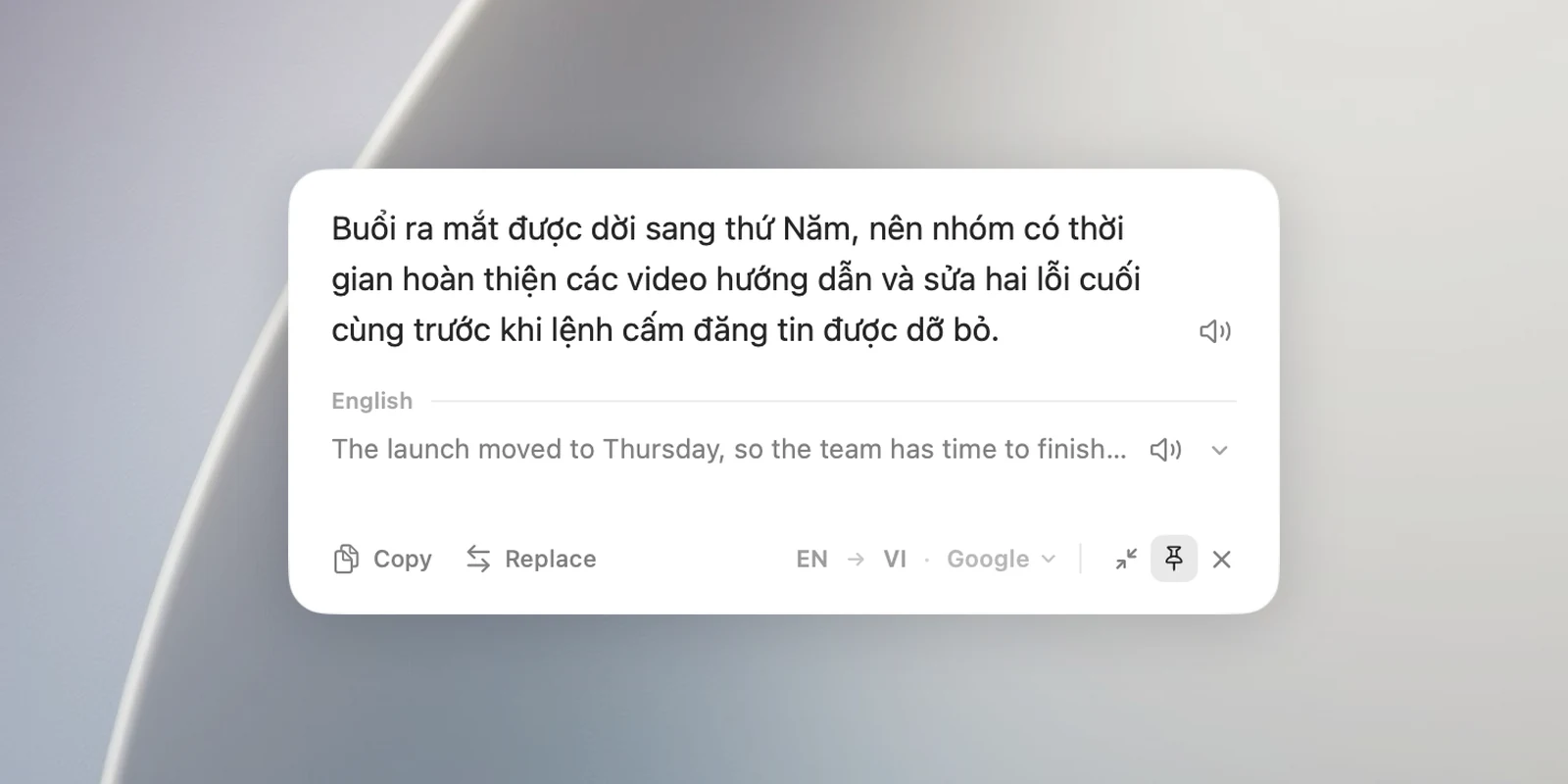
Buttons in the panel
At the bottom of the panel, from left to right:
- Copy the translation, and Replace when the original text is in a field you can edit.
- The language line, for example "VI ⇄ EN · Google". Click ⇄ to translate back, or click the service name to translate again with a different service.
- Continue in notch moves the result back to the notch.
- The pin button (Pin panel).
- ✕ Close translation panel.
Below the translation is the source block: the language name, a one-line preview of the original text (click the arrow to see all of it) and a speaker button.
Pin the panel
- Not pinned: the panel closes when you click into another app.
- Pinned: the panel stays while you work in other apps.
OneNotch remembers whether you last pinned it for next time.
Size and appearance
- Drag the edge of the panel to resize it; drag an empty spot in the panel to move it.
- Change the panel's colors in Settings › Translation › Behavior › Panel theme: Light, Dark (the default) or Glass.
Shortcuts
Esc or ⌘W closes the panel.