
Open the Annotate sidebar with the Toggle sidebar button or ⌘B.
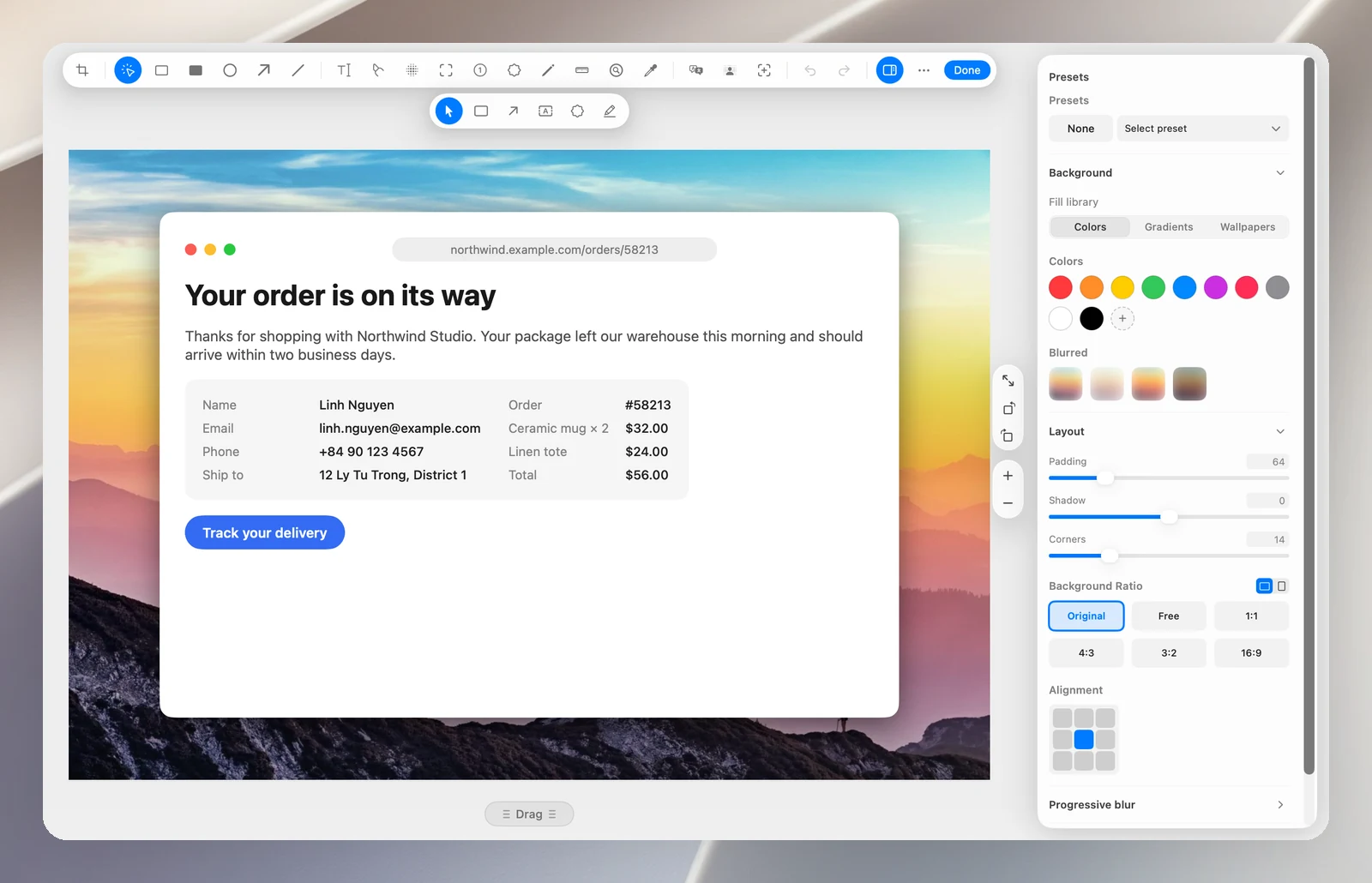
Background
Background Style: Colors, Gradients (16 presets) or Wallpapers (21 built-in images; click + to add your own). Blurred effects for the background: Soft, Frosted, Vivid, Dim.
Layout
- Padding, Shadow, Corners.
- Background Ratio: Original, Free, 1:1, 4:3, 3:2, 16:9, and you can flip it.
- Alignment: place the image in 1 of 9 positions on the background.
If you choose a gradient or wallpaper when there's no padding yet, OneNotch adds padding on its own so the background shows.
Progressive blur
Turn on Progressive blur to gradually blur part of the image: Radial or Directional, applied to the Screenshot or the Whole canvas, and adjust the Strength, Focus size, Falloff, Direction and Focus point.
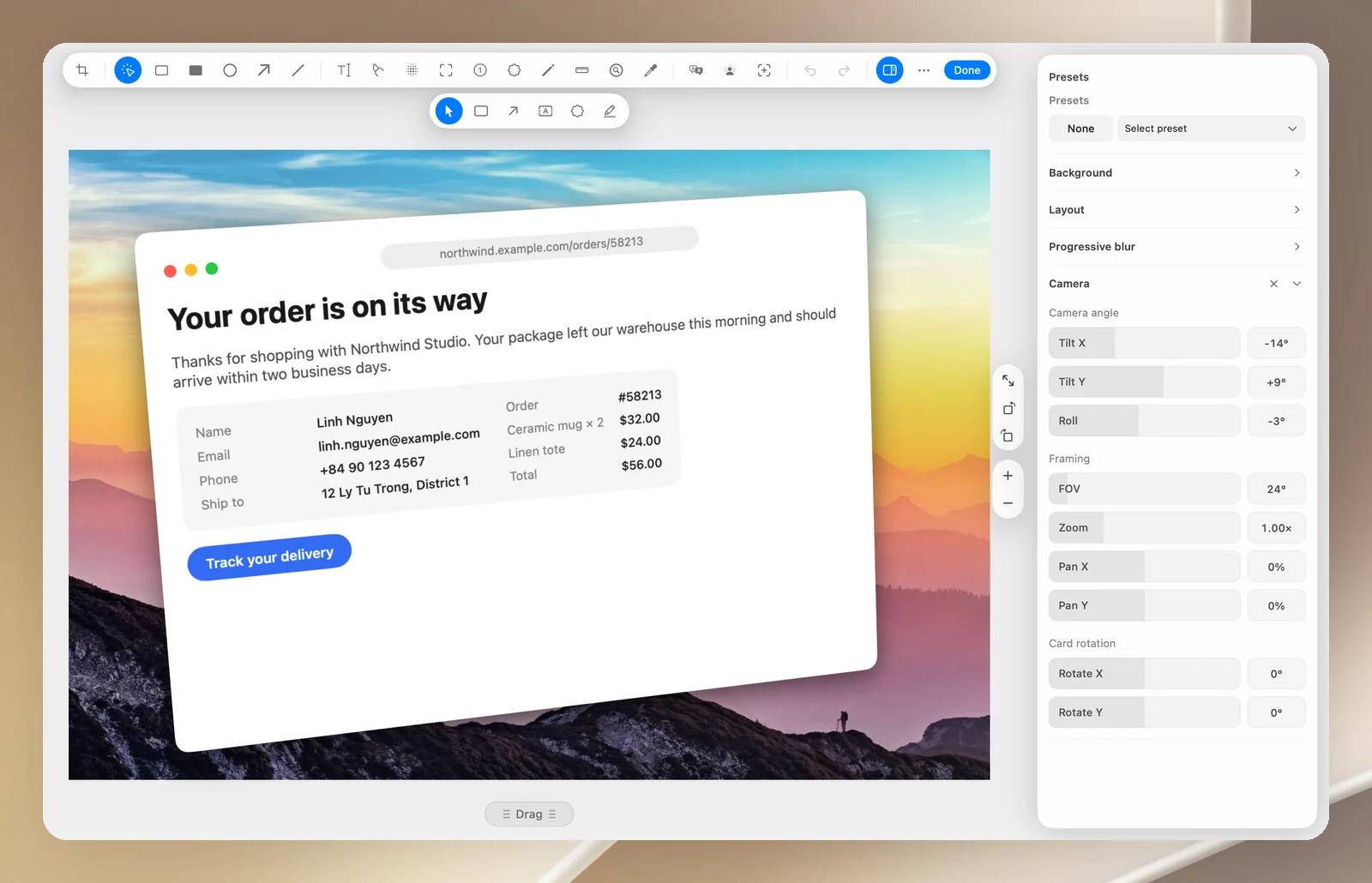
Camera
Tilt the screenshot in 3D perspective: tilt horizontally and vertically, rotate, change the viewing angle, zoom and shift the frame. Click Reset camera to straighten it again.
Presets
- Click Select preset › Create a preset to save the current background, padding, shadow and corners.
- Click the star to Start with this one every time for every new image.
- Use Update preset after making changes, and Delete preset when you no longer need it. You can save up to 20 presets.
- The None preset sets the background, padding, shadow and corners back to how they were.