
All the options in this article are in Settings › Screenshot.
Turn capturing on or pause it
Enable Screenshot (on by default). When it's off, every capture shortcut and capture item in the menu stops working, except Pick Color.
If OneNotch doesn't have the Screen Recording permission yet, the top of the page shows a Screenshot Access row with an Open Settings button.
Capture
- Image Format: PNG (the default), JPEG, HEIC or WebP.
- Show cursor, Glowing selection, Ripple on capture, Play sounds (the capture sound), Keep window shadow.
Save location
- Capture Folder:
~/Pictures/OneNotchby default. Click Choose Folder to change it, or Use Default to go back. - Capture Storage: how much space the folder uses, with an Open Folder button.
After Capture
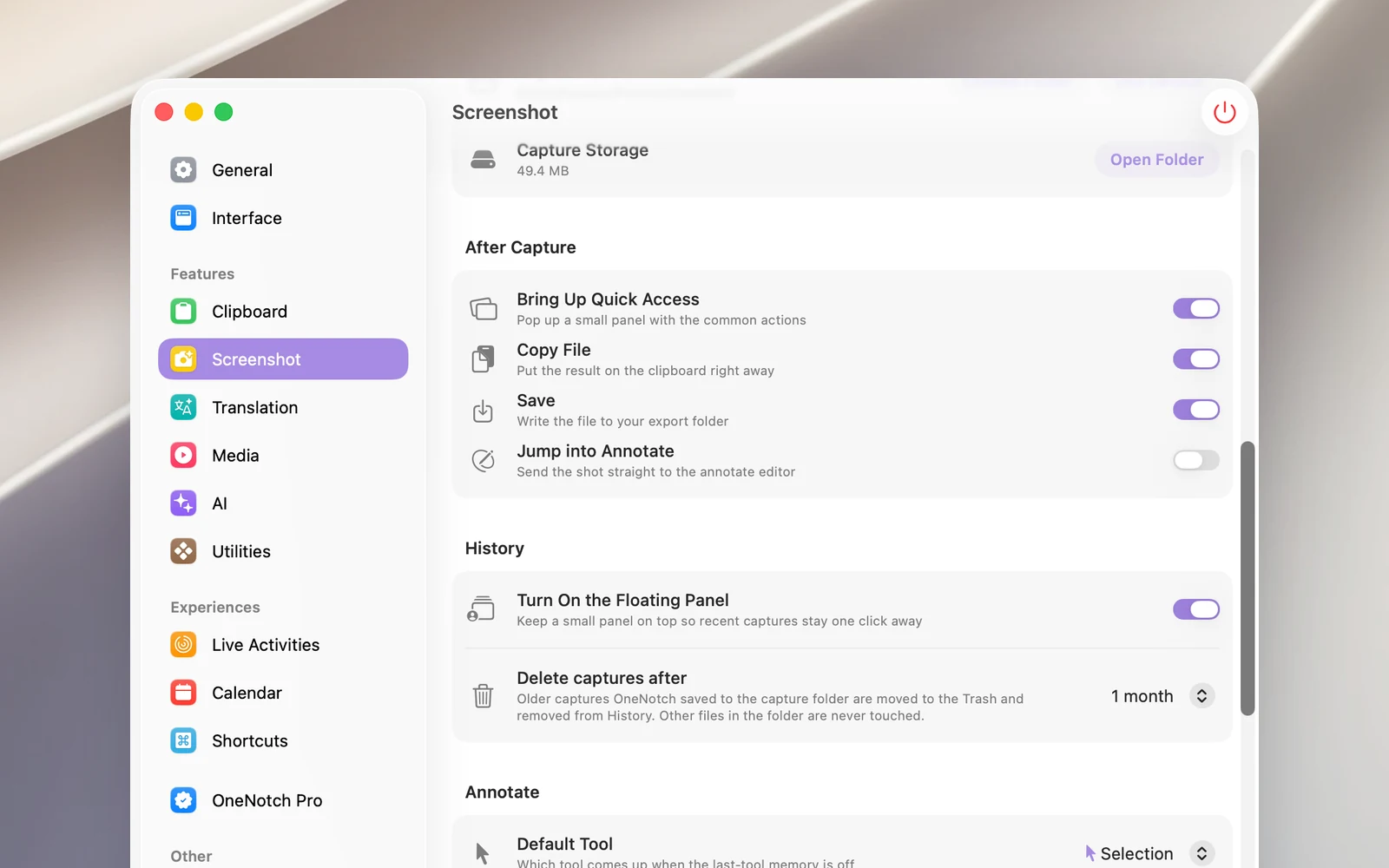
- Bring Up Quick Access (on by default): shows the preview card.
- Copy File (on by default): puts the image on your clipboard right away, so it also goes into your clipboard history.
- Save (on by default): writes the file to the save folder. When it's off, the image is only kept temporarily, and the preview card has a Save button for when you want to keep it.
- Jump into Annotate (off by default): opens the image in Annotate right after you capture it.
Clean up old screenshots automatically
Delete captures after (in the History section): 1 day, 1 week, 1 month, 1 year or Forever. Screenshots older than this that OneNotch saved to the capture folder are moved to the Trash. Other files in the folder are never touched.
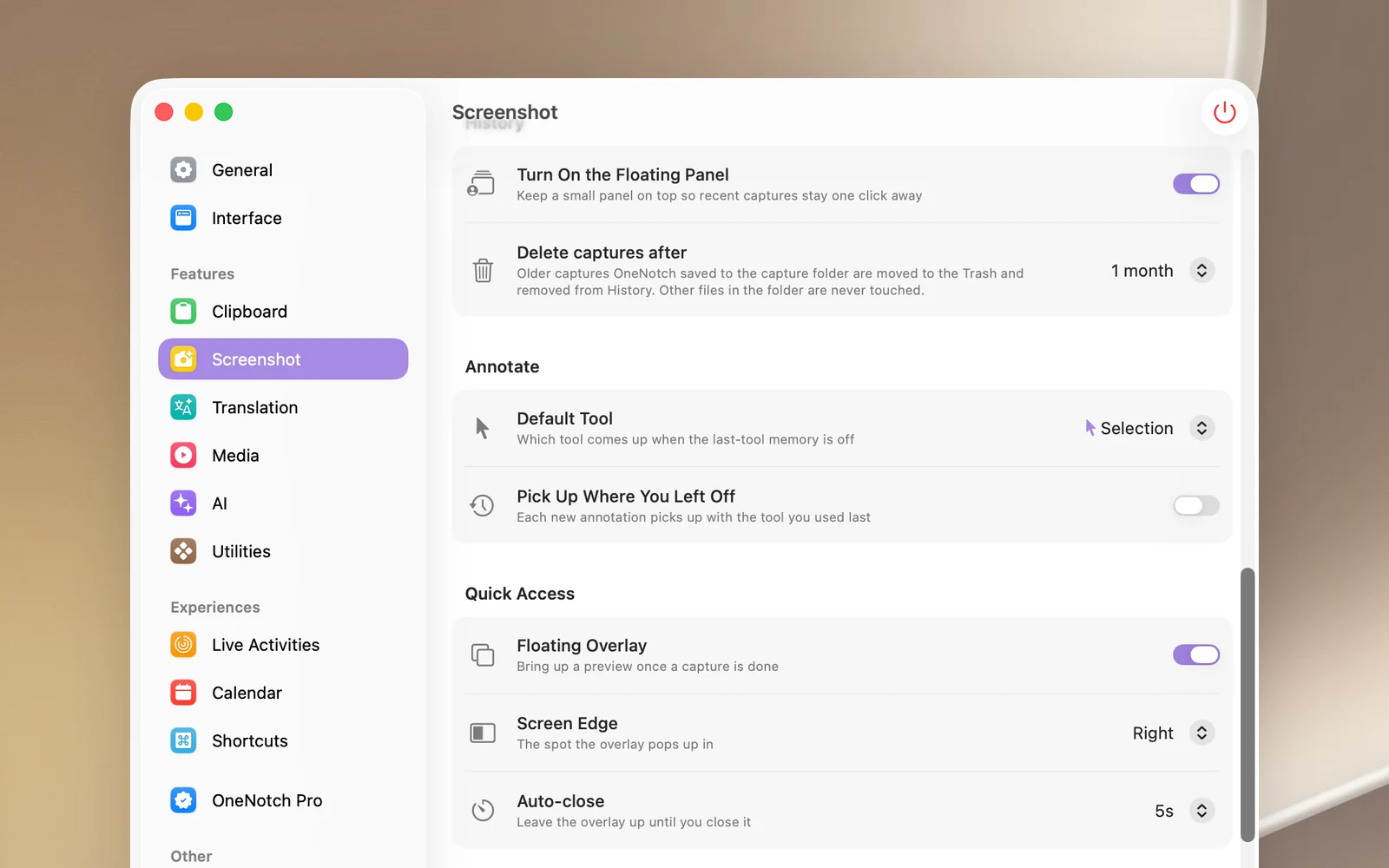
Annotate
The Annotate section has Default Tool (the tool selected when Annotate opens) and Pick Up Where You Left Off (each time it opens, it starts with the tool you used last).