
Keep Awake stops your Mac from going to sleep for as long as you choose: while you download a large file, run a long task, or present without the screen turning off halfway through. Closing the lid or putting your Mac to sleep turns it off.
Open it
Click the Keep Awake coffee cup button in the notch. By default the button is in the left orb: open the notch and hover over the small arc in the top left corner so the column of buttons drops down. You can move the button to the right orb or the toolbar in Settings › Interface › Notch layout (see "Customize the notch layout").
Clicking the button opens the Keep Awake page. To turn it on quickly without opening the page, use the right-click menu (see below).
Turn it on and off
- On the Keep Awake page, click − / + to choose how long: 15 minutes, 30 minutes, 1 hour, 2 hours, 4 hours, 8 hours, Until turned off, or Until 18:00 (the end of your workday, shown only if that time hasn't passed yet).
- Click the large coffee cup. The cup turns amber and starts steaming, and the line below shows when it ends, for example Until 15:45.
- Click the coffee cup again to turn it off.
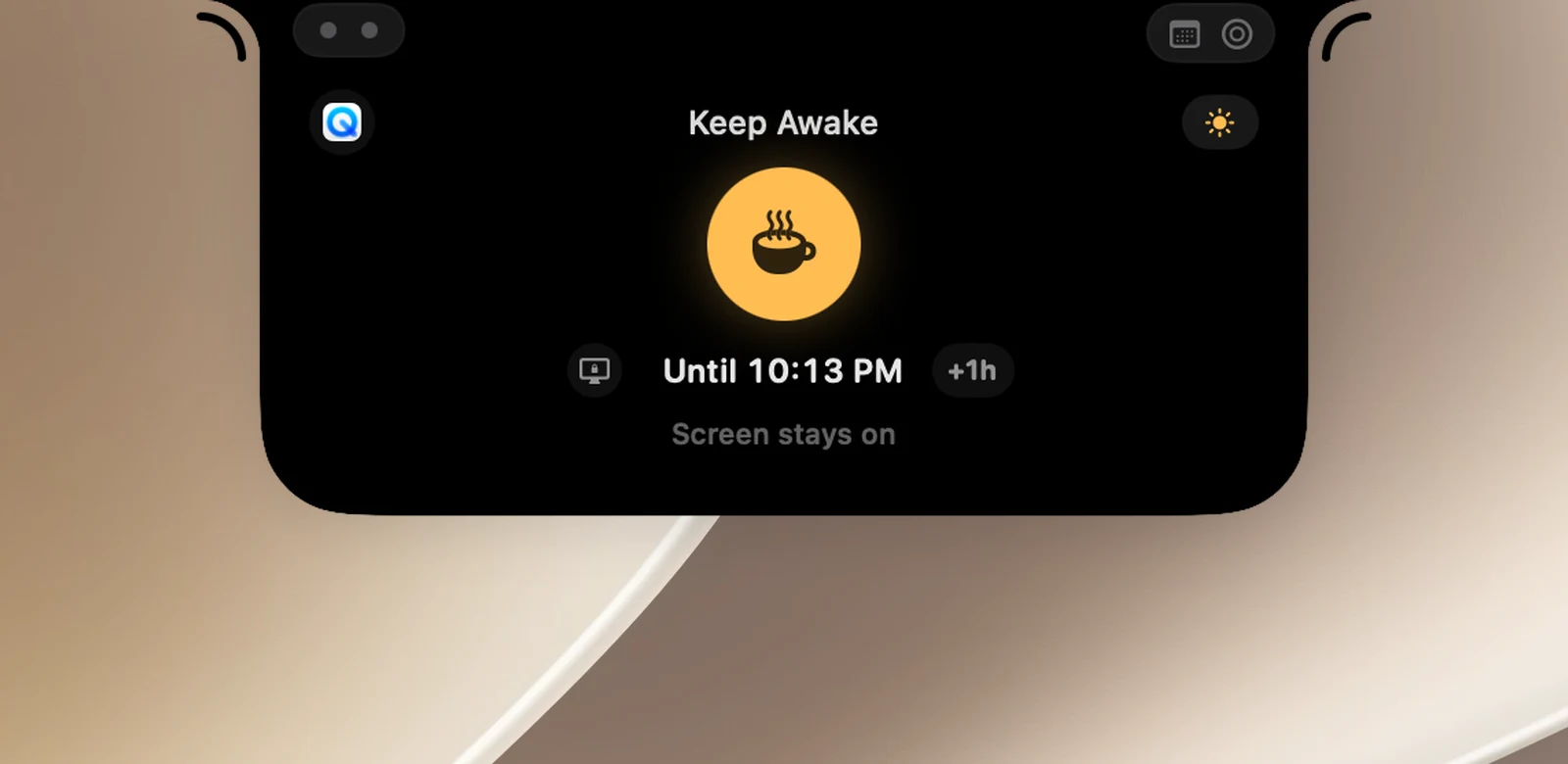
While it's running, you also get these on either side of the end time:
- The screen button: Turn the screen off, keep the Mac running. The screen turns off right away, while your Mac and whatever is running keep going.
- +1h: Add 1 hour to the current session (when the session has an end time).
The sun button to the right of the title is Keep screen on. When it's on, the screen doesn't turn off on its own and your Mac doesn't lock itself. When it's off, the screen can turn off as usual but your Mac stays awake. The small caption under the cup shows which mode you're in.
Stay awake until an app quits
To the left of the page title is the icon of the app you were just using. Click it to keep your Mac awake Until … quits, for example until an installer or a video export finishes and closes itself. Right-click the icon to choose another open app. You can't choose Finder or OneNotch itself.
Right-click menu
Right-click the Keep Awake button (in an orb, on the toolbar, or the coffee cup on the page) to turn it on quickly without opening the page:
- When it's not running: the durations, Until … quits for the app you were just using, Until turned off, and the Keep screen on switch.
- When it's running: a status line, Add 1 hour, Turn Off, Change duration ›, Keep screen on, Turn the screen off, keep the Mac running.
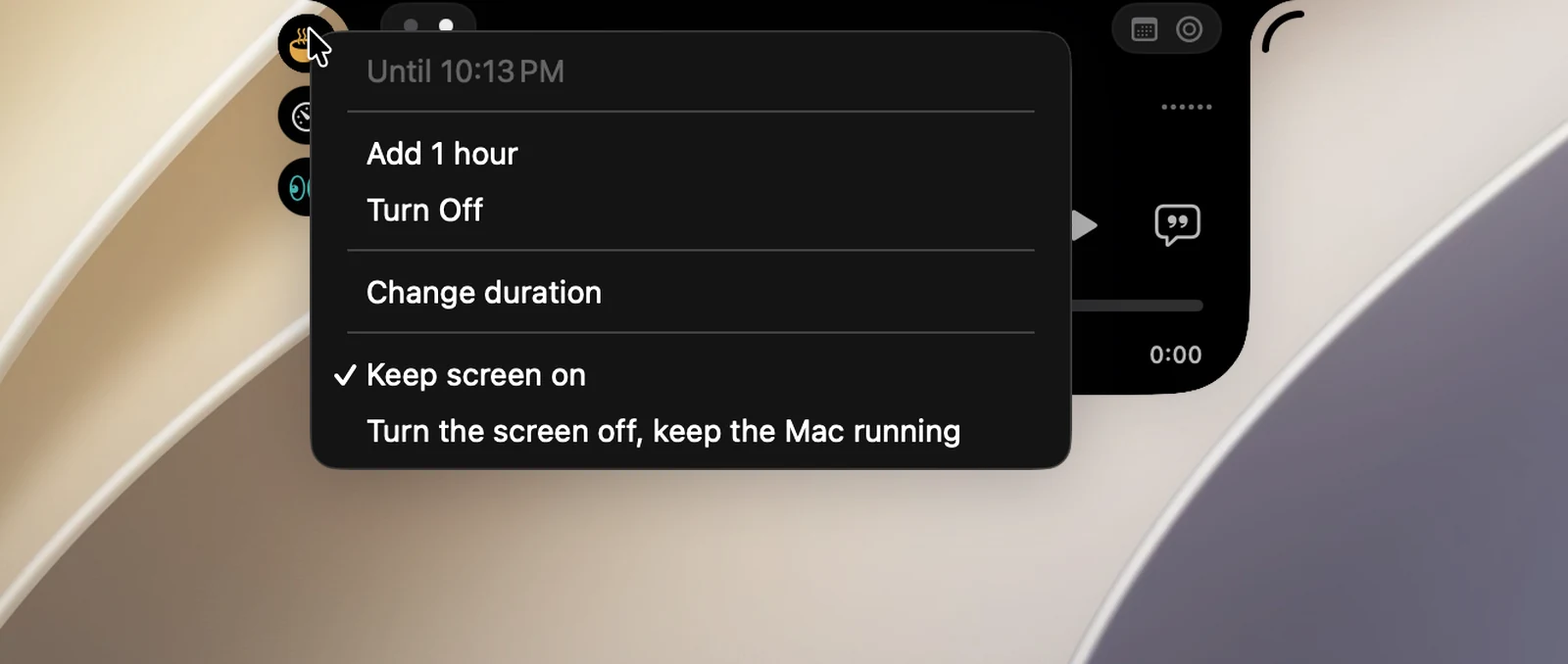
The Keep Awake menu in the menu bar has exactly these commands. While it's running, that line also shows the end time, for example Keep Awake · Until 15:45.
Keep Awake intentionally has no keyboard shortcut.
Know when your Mac is being kept awake
With Show when it's on (on by default):
- The closed notch shows the coffee cup and the end time, when nothing else (like music or an AI agent) is showing there.
- The OneNotch icon in the menu bar gets a dot.
- When you've been away for 10 minutes or more and come back, a short Still on · … line reminds you.

On the lock screen, the lock in the notch also shows an amber coffee cup. Two minutes before a timed session ends, the notch lets you know so you can add more time.
When a session turns off on its own
- The duration you chose runs out (Time's up), or the app you chose quits.
- You close the lid or put your Mac to sleep (Mac went to sleep).
- The battery drops below the level in Turn off when battery is below (only on battery power).
- You turn off Keep Awake in Settings.
If OneNotch restarts itself (with Restart OneNotch or during an update) and opens again within 2 minutes, the running session is kept. Quitting OneNotch normally or restarting your Mac ends the session.
When you lock your Mac, the screen is allowed to dim, but your Mac stays awake.
Settings › Utilities › Keep Awake
| Option | Default | What it does |
|---|---|---|
| Keep Awake | On | The main switch. When it's off, the coffee cup button leaves the notch and the menu bar menu. |
| Workday ends at | 18:00 | Adds a choice to stay awake until this time (15:00 to 23:00, or Off). Once the time has passed, the choice hides itself, so it never runs overnight. |
| Keep screen on | On | Same as the sun button on the page. |
| Turn off when battery is below | 15% | Off, 10, 15, 20 or 30%. Only on battery power; while charging, it keeps going. If you turn it on when the battery is already below this level, the session turns off once the battery drops another 5% from when you turned it on. Only on Macs with a battery. |
| Show when it's on | On | The coffee cup on the closed notch, the dot on the menu bar icon and the reminder line when you come back. |
When you turn off Keep Awake in Settings, the coffee cup button sits dimmed in the tray of Notch layout; drag it onto the notch to turn it back on.
No permissions are needed.