
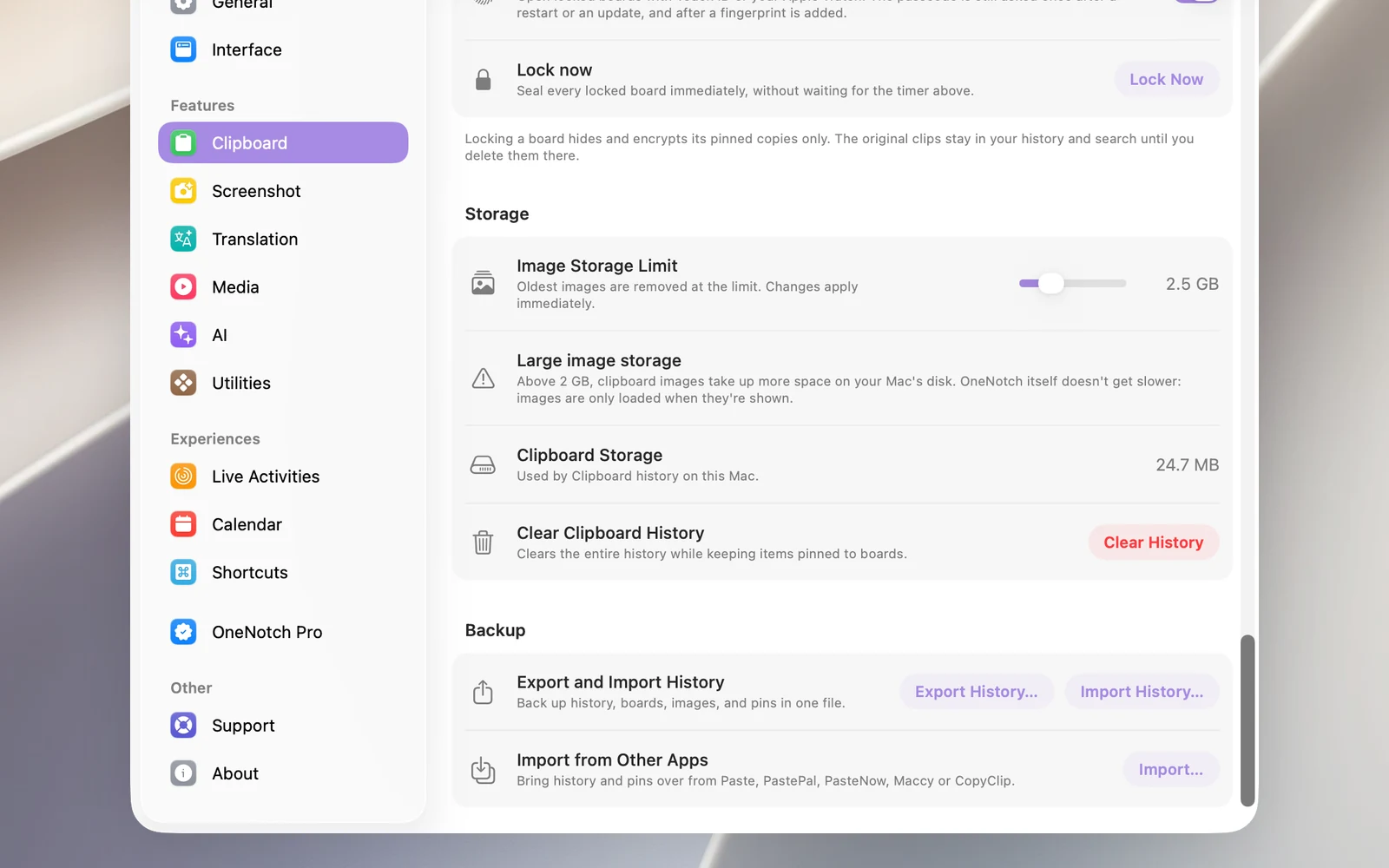
You can pack your whole clipboard history and your boards into a .onenotchclip file, then import that file on a new Mac or keep it as a backup.
Export
- Go to Settings › Clipboard › Backup and click Export History….
- Choose where to save it. The file is named like
OneNotch-Clipboard-20261017-143000.onenotchclip(the date and time of the export).
OneNotch tells you how many items and pinned items were exported. The file includes your history, unlocked boards and their pinned items, images and clip names.
Import
- On the Mac you want to import to, go to Settings › Clipboard › Backup and click Import History….
- Choose the
.onenotchclipfile.
The data is merged into your existing history. Duplicate items are skipped, so importing the same file again doesn't create copies. Boards with the same name are merged. Items older than your current history setting aren't kept.
Double-clicking the file in Finder doesn't import it. Use the Import History… button.
Good to know
- Locked boards aren't exported. Unlock a board first if you want it in the file.
- For clips that are files, the backup only keeps the file's path, not the file itself.
- Settings, text read from images and link preview images aren't in the file.
- The file isn't encrypted. Keep it somewhere safe, especially if your history has private information.