
Capture an interface element
- Choose menu bar › Screenshot › Smart Element.
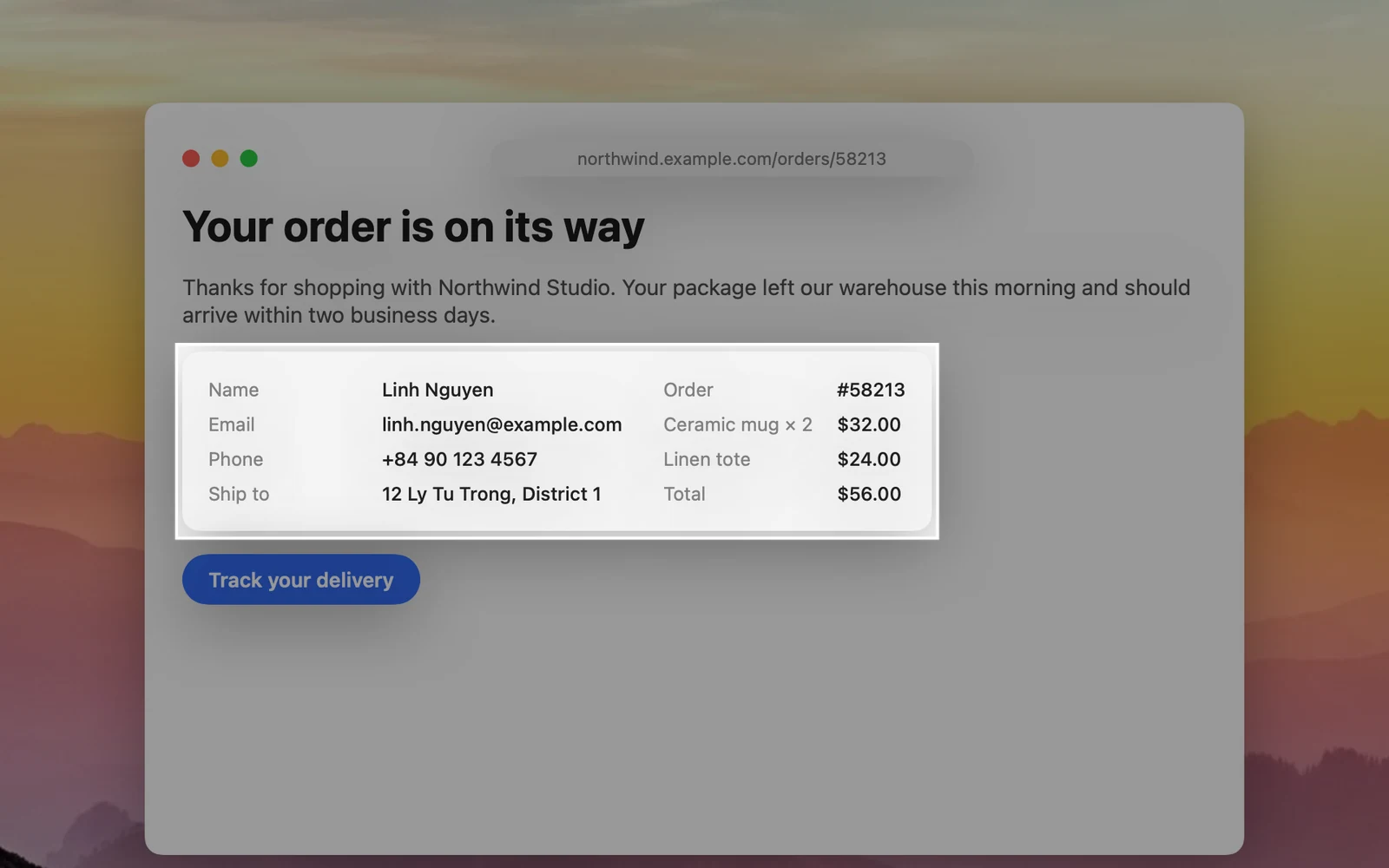
- Move the pointer around the screen: the interface element under the pointer (a button, a field, a sidebar…) is highlighted.
- Click to capture exactly that frame. Press Esc to cancel.
This feature needs the Accessibility permission to know where interface elements are.
Capture and lift a subject
- Choose menu bar › Screenshot › Subject.
- Select an area around the subject (a person, an object, an animal…). The selection border is pink.
- Release the mouse button. OneNotch lifts the subject off the background and crops tightly around it.
The image is saved with a transparent background. If your image format is JPEG or HEIC, images with the background removed are saved as PNG to keep the transparency.
If OneNotch says it found nothing to lift, select the area more tightly around the subject. Background removal needs macOS 14 or later and runs entirely on your Mac.
You can also remove the background from images you've already captured, right in Annotate. See "Smart redaction, image translation and background removal".