After each capture, a preview card appears in the bottom corner of the screen. From this card you can work with the image you just captured without opening Finder.
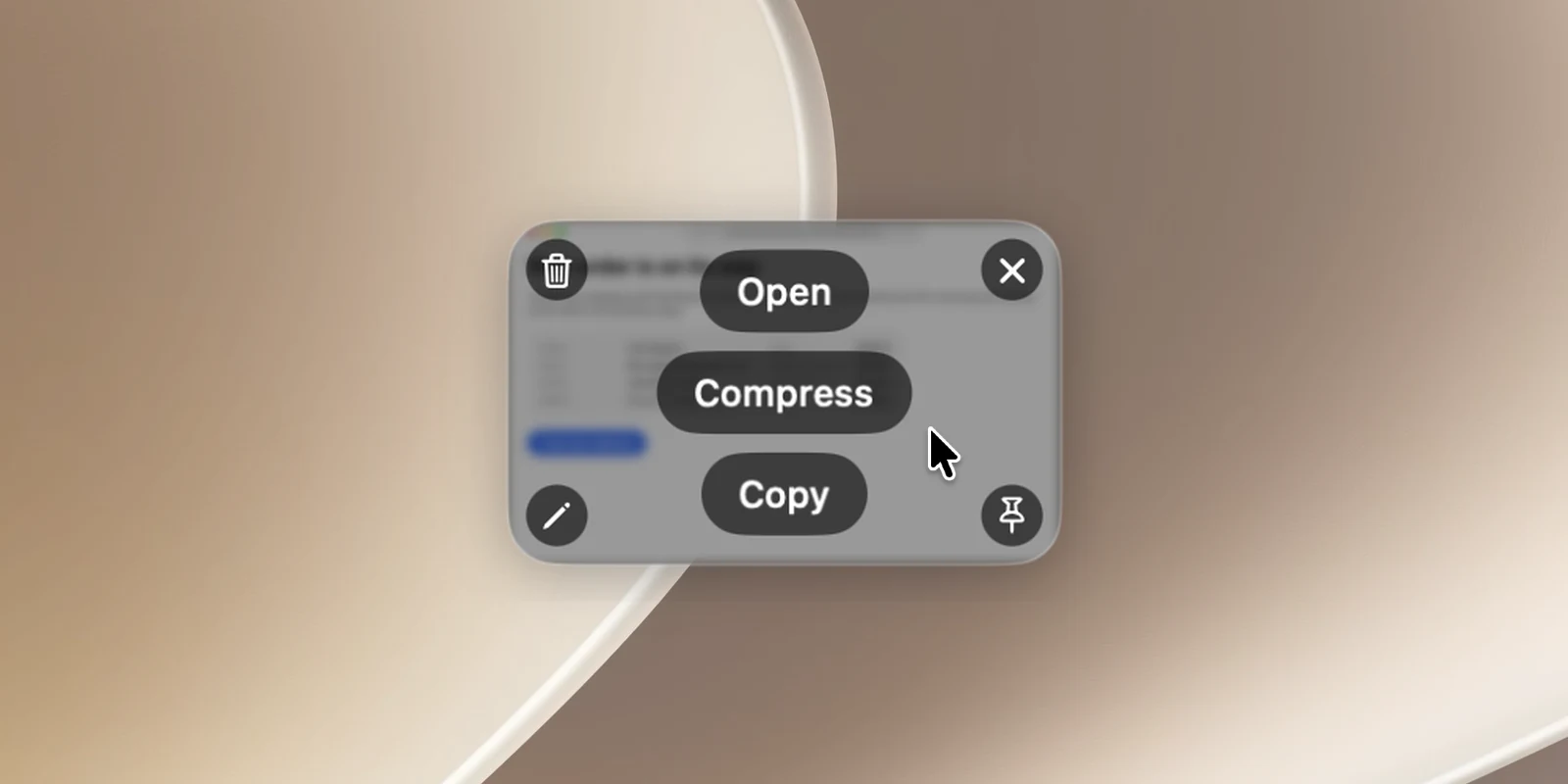
Buttons on the card (default)
- Middle of the card: Save (or Open if the image has already been saved, to show the file in Finder), Compress (makes a smaller JPEG), Copy (copies and closes the card).
- Four corners: Delete (top left), Close ✕ (top right), Annotate (bottom left, opens Annotate), Stick on Screen (bottom right, pins the image floating on screen).
This is the default layout. If you've changed it in Card Actions (see below), the card shows exactly the buttons you placed; empty spots have no button.
Right-click the card to see the same actions.
Keys and gestures while hovering over the card
| Action | Key |
|---|---|
| Copy | ⌘C |
| Save / Open | ⌘S |
| Annotate | ⌘E or double-click |
| Stick on Screen | ⌘P |
| Delete | ⌘⌫ |
| Close | ⌘W |
- Drag the card inward to drop the image into another app (Slack, Mail, Finder…).
- Push the card toward the edge of the screen, or swipe sideways with two fingers, to close it.
Up to 5 cards can stack up; the newest is on top.
Customize
In Settings › Screenshot › Quick Access:
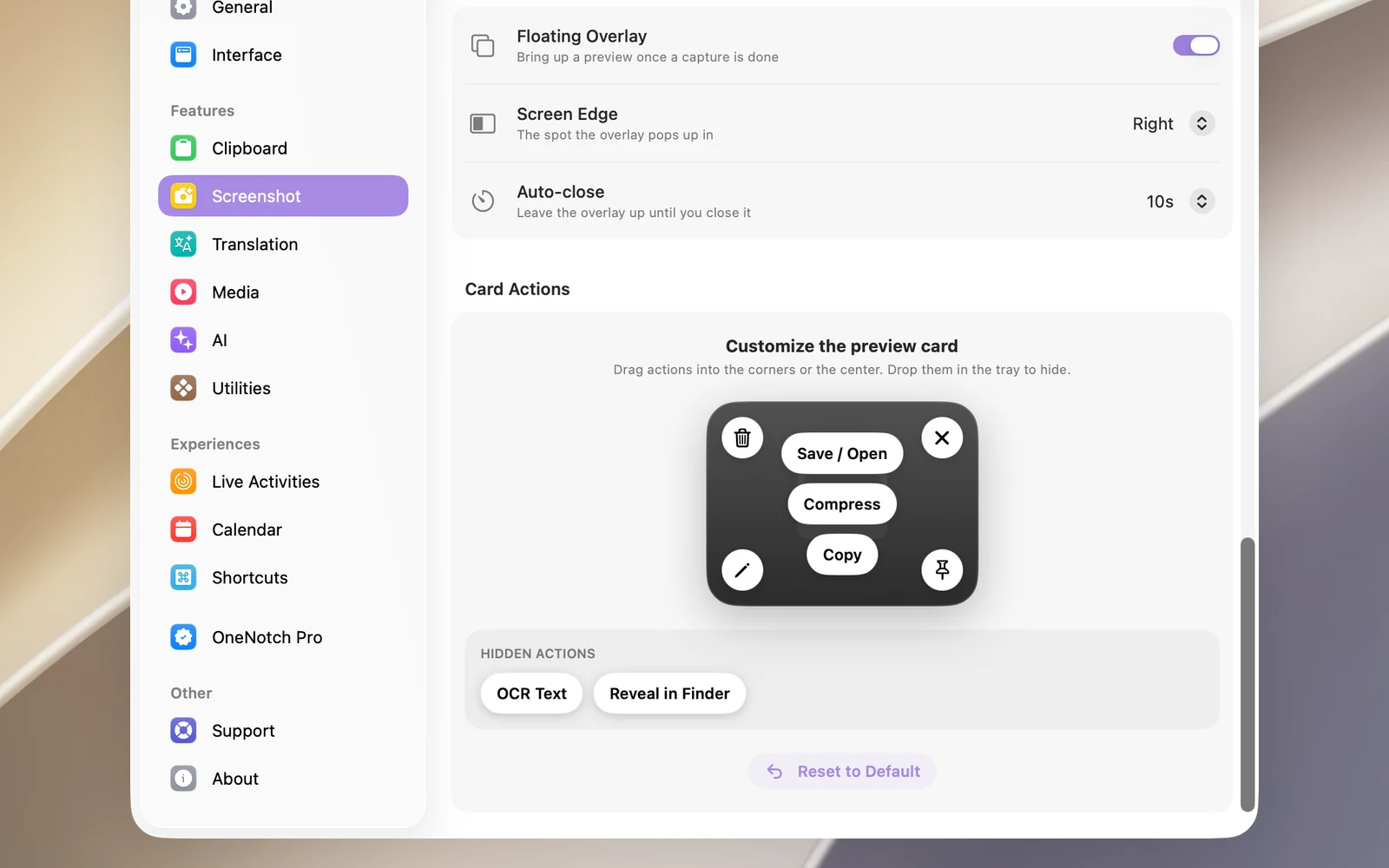
- Floating Overlay (on by default): shows the card after a capture.
- Screen Edge: Left or Right (the default).
- Auto-close: after 3, 5, 10 (the default) or 30 seconds, or never. The card doesn't close on its own while the pointer is over it.
In Card Actions, drag buttons into the corners or the middle of the card, or drop them in the Hidden actions tray to hide them. There are two extra buttons hidden by default: OCR Text and Reveal in Finder. Click Reset to Default to go back to the original layout.