
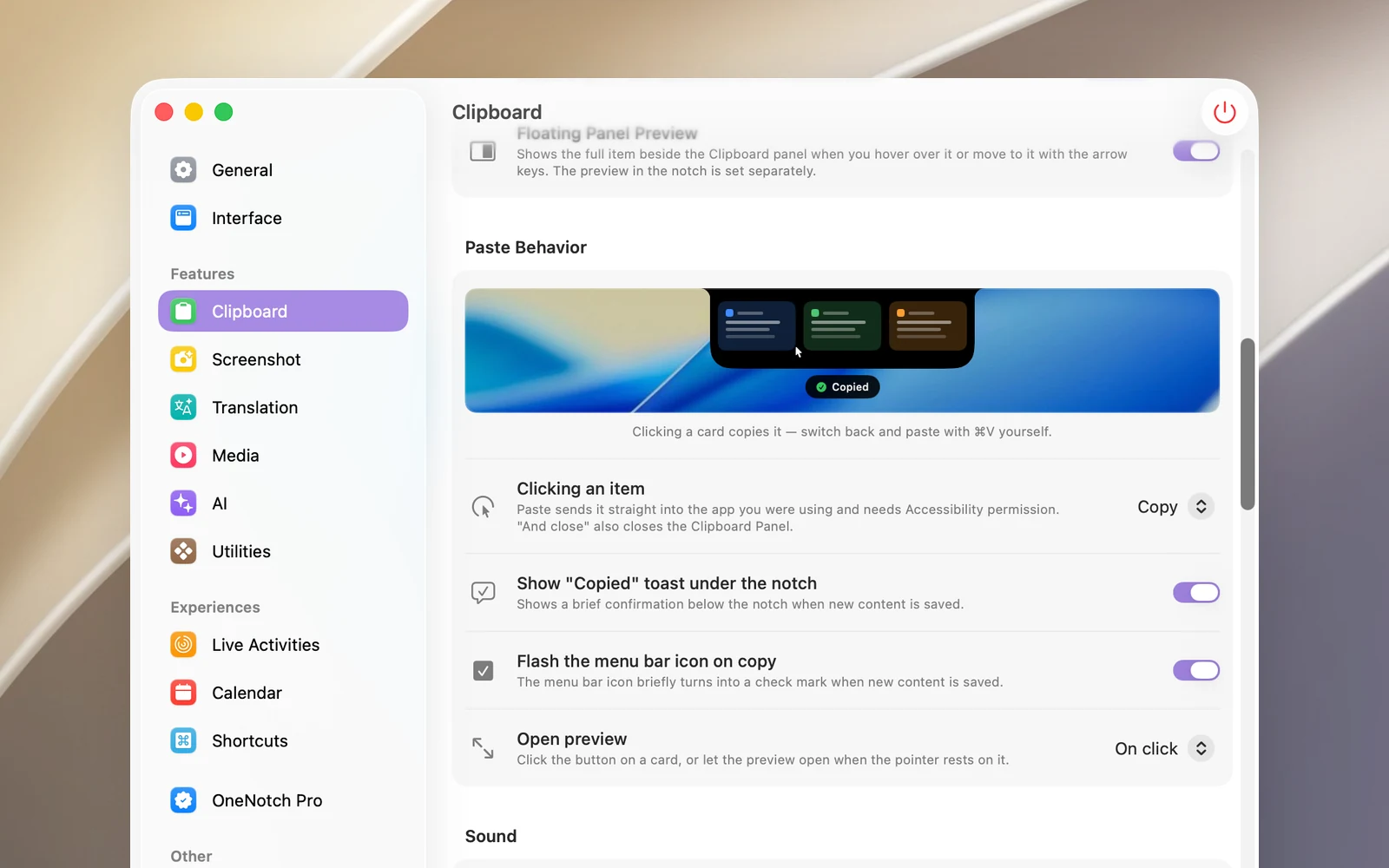
By default, clicking a clip only copies it to your clipboard, and you press ⌘V yourself. You can change this so a click pastes it right into the app you're using.
Turn on direct paste
- Go to Settings › Clipboard › Paste Behavior.
- In Clicking an item, choose:
- Copy (default): only puts it on your clipboard.
- Copy and close: puts it on your clipboard, then closes the Clipboard Panel.
- Paste: pastes it right into the app you're using.
- Paste and close: pastes it right in, then closes the Clipboard Panel.
- The first time you paste, macOS asks you to give OneNotch the Accessibility permission. Allow it.
Actions that work the same way
The choice above applies to: clicking a card in the notch, clicking a row in the Clipboard Panel, pressing Return, ⌘1–⌘9 in the notch, the Paste command in the menu and the Paste button in the preview.
Notes
- "And close" closes only the Clipboard Panel, not the notch, and doesn't close the panel if you've pinned it.
- Without the Accessibility permission, Paste mode does nothing. Check the permission in System Settings › Privacy & Security › Accessibility.
- The Clipboard Panel doesn't take focus from the app you're using, so pressing Return in the panel pastes right into the field you're typing in.