
OneNotch tracks the Claude Code and Codex sessions you run in the terminal: what the agent is doing, when it needs your answer, when it's done and how much quota is left. To do this, OneNotch installs a few small "hooks" in each agent's configuration.
Before you begin
You need the terminal version of Claude Code or Codex, installed and signed in. The desktop and web apps for Claude and Codex don't write the data OneNotch reads, so they can't be tracked.
Turn on tracking
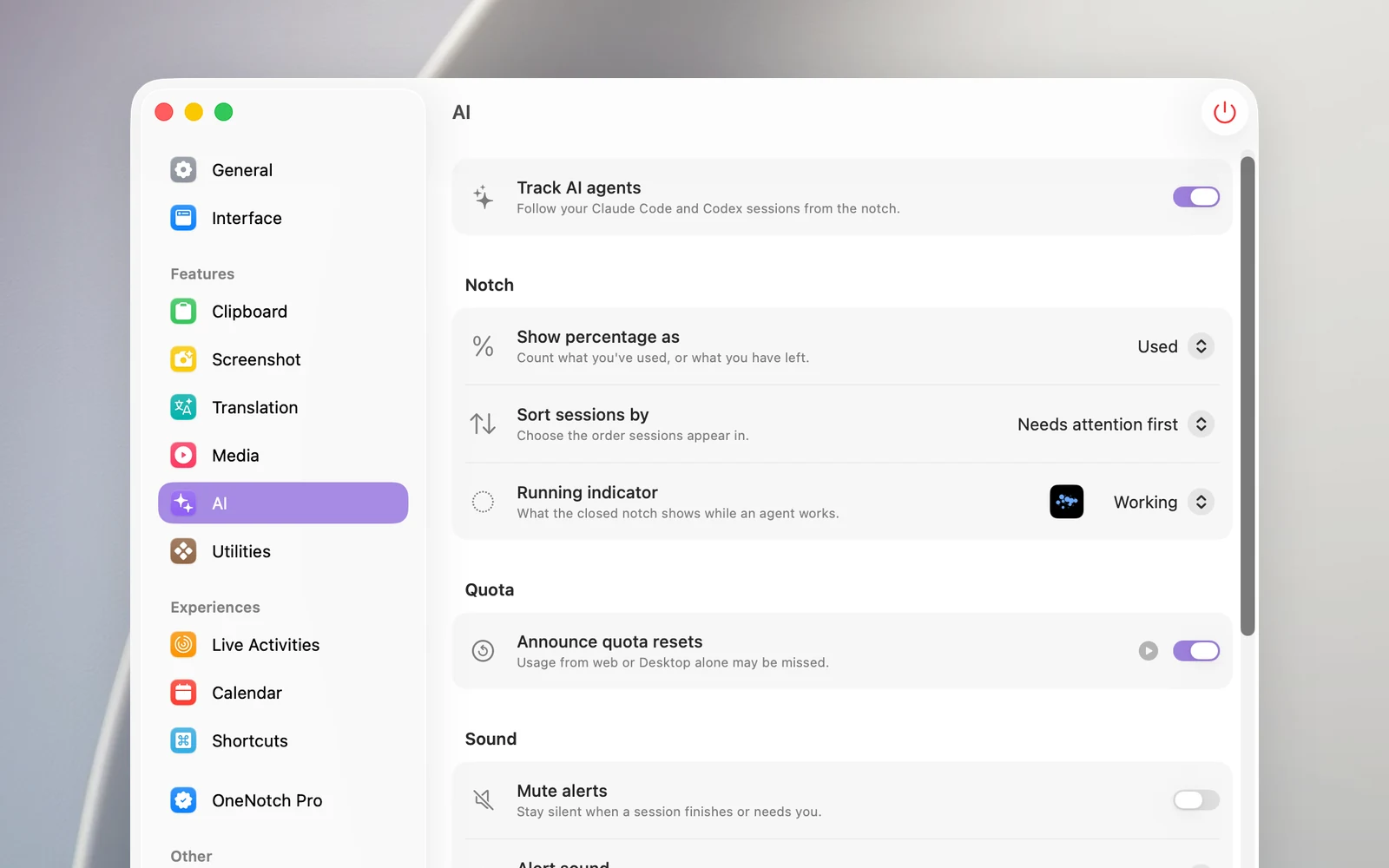
- Go to Settings › AI and turn on Track AI agents.
- In the Agents section, keep Claude Code and/or Codex turned on, depending on which agents you use.
- In the Connection section, open Claude Code or Codex and click Setup.
- For Codex: the first time Codex asks about the new hooks, choose Trust all. If you skipped it, open Codex and run
/hooksto trust the OneNotch hooks.
You can also turn on tracking and connect your agents in the setup guide that appears the first time you open OneNotch.
What Setup does to your configuration
- Claude Code: OneNotch adds hooks to
~/.claude/settings.jsonand a status line to read your quota. If you already have your own status line, it keeps running and showing as before. - Codex: OneNotch adds hooks to
~/.codex/hooks.jsonand turns on the hooks feature inconfig.toml.
All your existing hooks and settings are kept. OneNotch backs up each file before changing it.
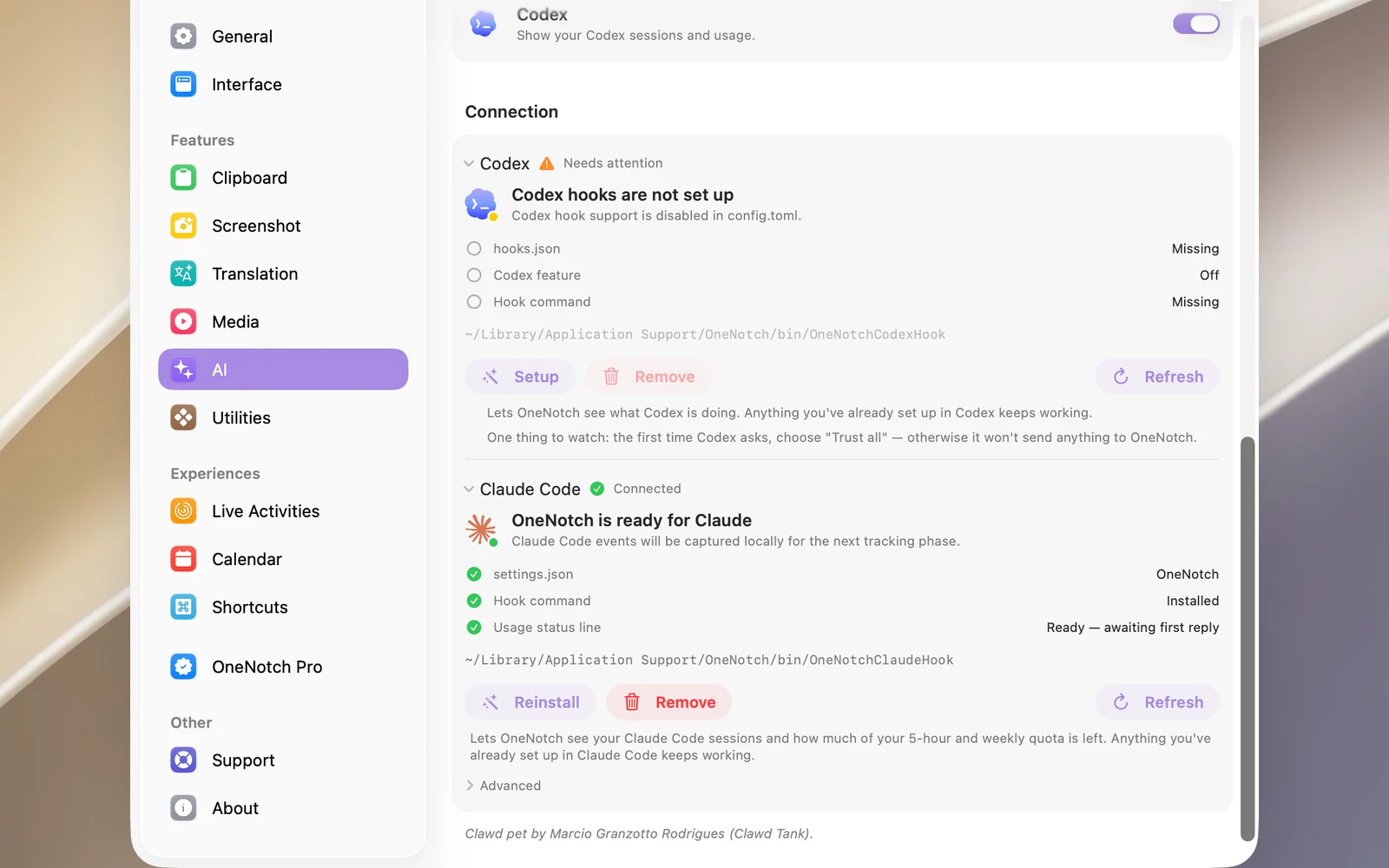
The buttons in the Connection panel change with each agent's status:
- Hooks not installed: Setup, plus Refresh. Remove is dimmed because there's nothing to remove yet.
- Connected (green checkmark, Connected): Reinstall, Remove and Refresh. Reinstall installs the hooks again; use it if the hooks were changed or deleted by accident.
Customize
In Settings › AI:
- Show percentage as: Used (the default) or Remaining.
- Sort sessions by: Needs attention first (the default) or Last update.
- Running indicator: the animation on the notch while an agent is working, such as Pixel grid, Shapes or Scanning globe.
- Mute alerts and Alert sound: the sound that plays when a session finishes or needs you.
If Claude Code uses a configuration folder other than ~/.claude, open Connection › Claude Code › Advanced, enter the path in Config directory, then press Return.
Turn off tracking
Turning off Track AI agents hides the AI page and removes the OneNotch hooks from both Claude Code and Codex. When you turn it back on, click Setup again. To remove the hooks for one agent and keep tracking the other, click Remove in that agent's Connection panel.