
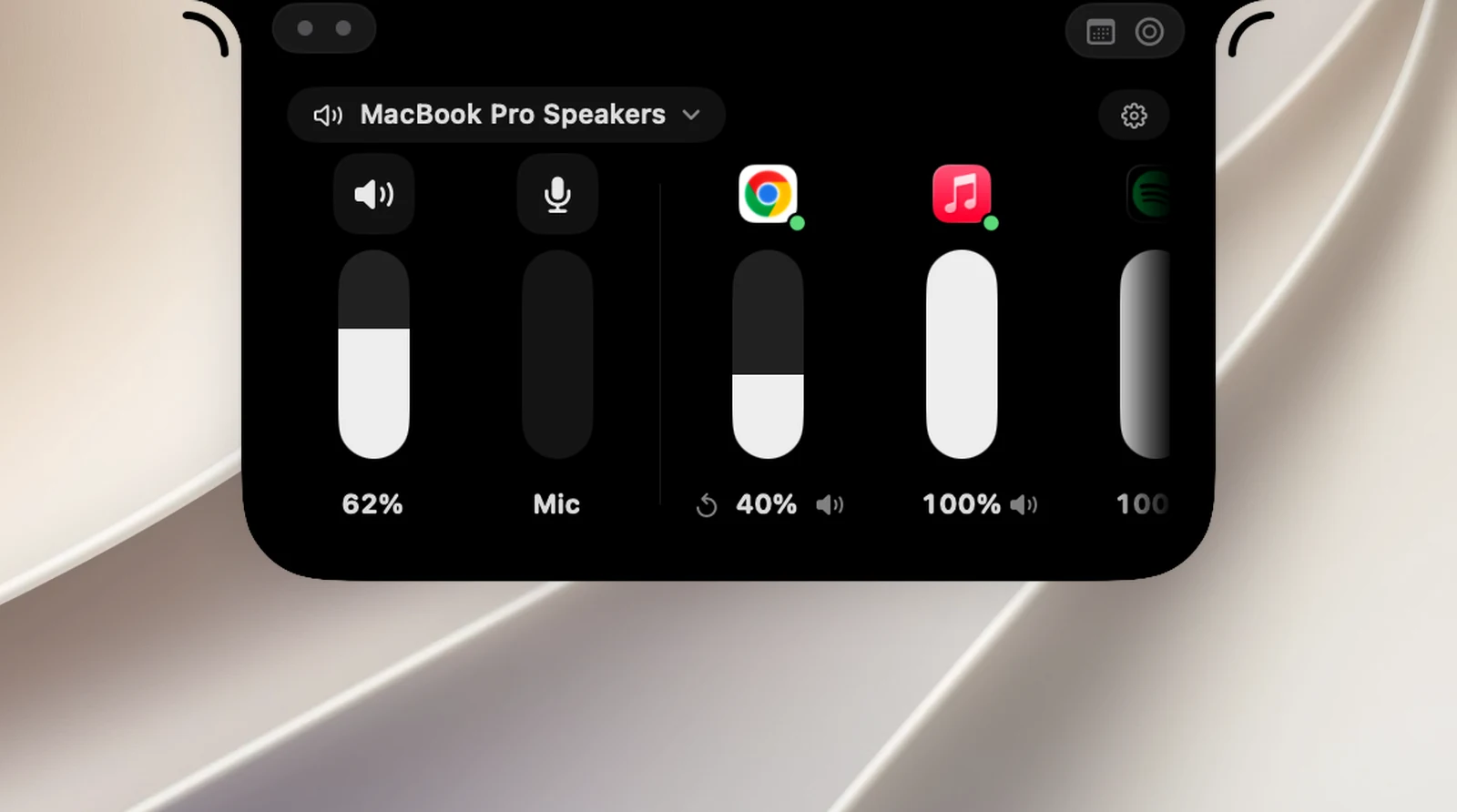
The Sound page is a small sound mixer in the notch. From left to right:
- The Output column: system volume and a mute button.
- The Mic column: mutes every microphone on your Mac at the system level.
- One column for each app that's playing sound, so you can turn that app down on its own.
Open it
The Sound button (a speaker icon) isn't in the notch by default. Go to Settings › Interface › Notch layout and drag Sound from the Not in use tray onto an orb or the toolbar (see "Customize the notch layout"). Then open the notch and click that button.
Choose speakers or headphones
Click the device name in the top left corner of the page to choose the output. Virtual devices (like recording software) are listed separately at the bottom. The Sound Settings… item at the bottom of the menu, and the Open Sound settings gear button in the right corner, open the Sound section of macOS System Settings.
Adjust the volume
- Drag a slider up or down.
- Or put the pointer on a slider and swipe up or down with two fingers on the trackpad (or scroll with the mouse). Each 5% step gives a light haptic tap. Swipe sideways to scroll the whole mixer when there are many apps.
With 3 or more apps, the next column peeks in from the right edge to show there's more to scroll.
Volume for each app
Each app that's playing sound has its own column, and its icon has a green dot while it's playing.
- Drag the slider to lower that app's volume from 0 to 100%. The slider can only turn an app down; it can't boost it above the app's own level.
- The speaker button under the column: Mute / Unmute that app only.
- When the level isn't 100%, a ↺ Reset Volume button appears on the left.
- Right-click a column: Reset Volume, or Don't Touch This App to have OneNotch leave that app alone (click Control This App's Volume to control it again).
When a slider can't do anything, it's dimmed and shows the reason:
- This device sets its own volume: speakers over HDMI or DisplayPort. In this case, the volume keys show the macOS HUD.
- Playing on another device: AirPods are playing for another device.
- Managed by the app: a calling app controls its own audio.
Mute the microphones
Click the Mic column to mute every microphone on your Mac at once. The notch shows Microphones muted, the Sound button in the notch turns into a red crossed-out microphone, and the closed notch shows that icon too so you don't forget. Click again to unmute (Microphones on).
Calling apps may still show your microphone as on, because it's muted at the system level, not in the app. If an app turns the microphone back on by itself or it can't be muted, the Mic column has an orange dot; hover over it to see why, for example … keeps turning itself back on. If your Mac has no microphone, the column says No mic.
Permission needed
Setting the volume for each app requires the System Audio Recording permission (System Settings › Privacy & Security › Screen & System Audio Recording). OneNotch only uses this permission to hear and change the volume of other apps; nothing is recorded.
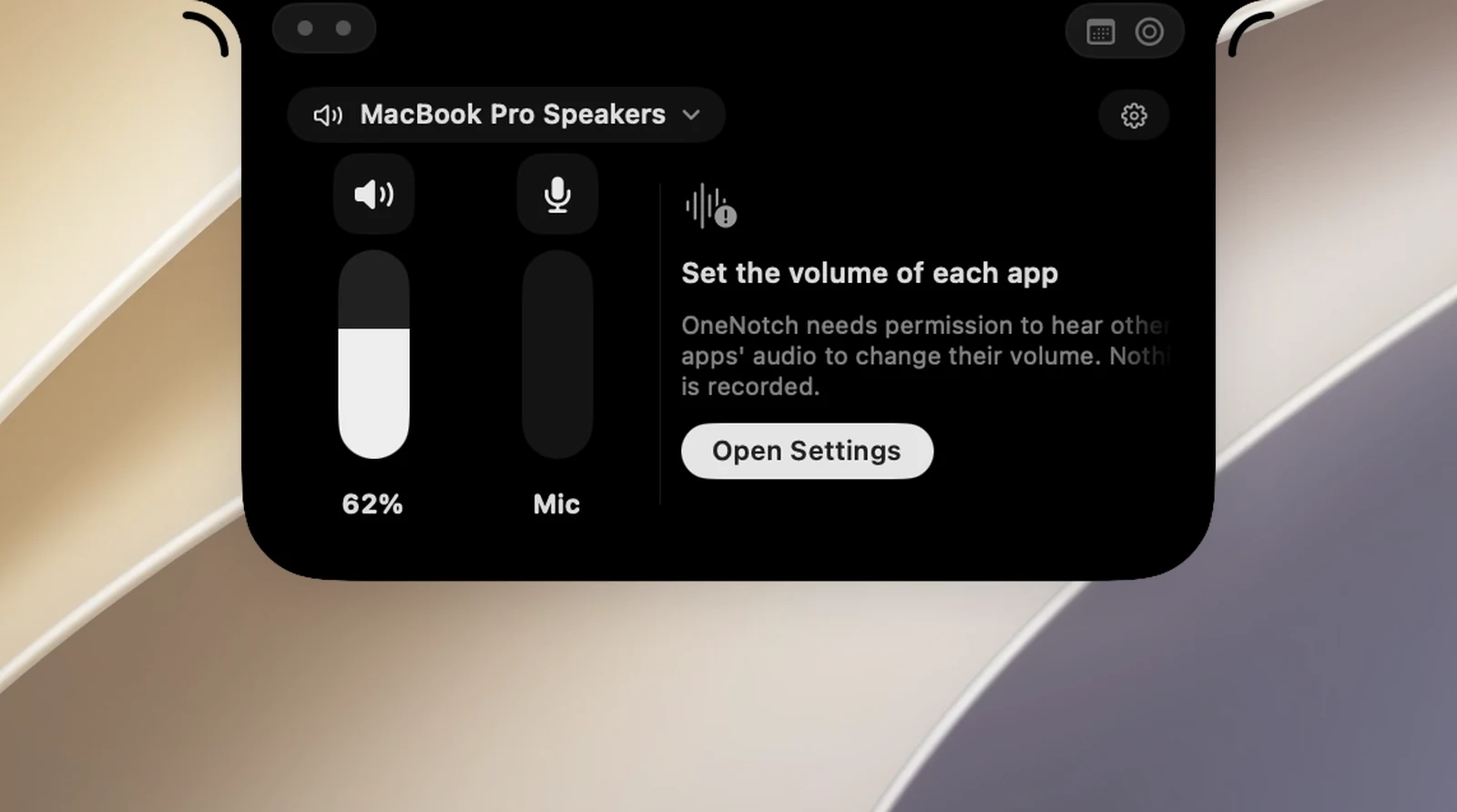
Without the permission, the app columns are replaced by a Set the volume of each app box with an Allow button. macOS asks for permission the first time you click Allow or adjust an app. If you declined, the button changes to Open Settings so you can turn it back on in System Settings.
System volume, output selection and muting the microphones don't need any permission. The Sound page has no section of its own in OneNotch Settings.