
You can change the row of buttons on the notch's player to suit you. You make the changes right on the preview in Settings.
- Open Settings › Media › Player controls.
- Move the pointer over the player preview. The preview holds still so you can work on it.
- Edit the row of buttons:
- Add: drag a button from the Add a control tray onto the player. Drop it on an existing button to replace that button. Click a button in the tray to add it to the first empty spot.
- Rearrange: drag a button along the row.
- Remove: drag a button off the player, or right-click the button and choose Remove.
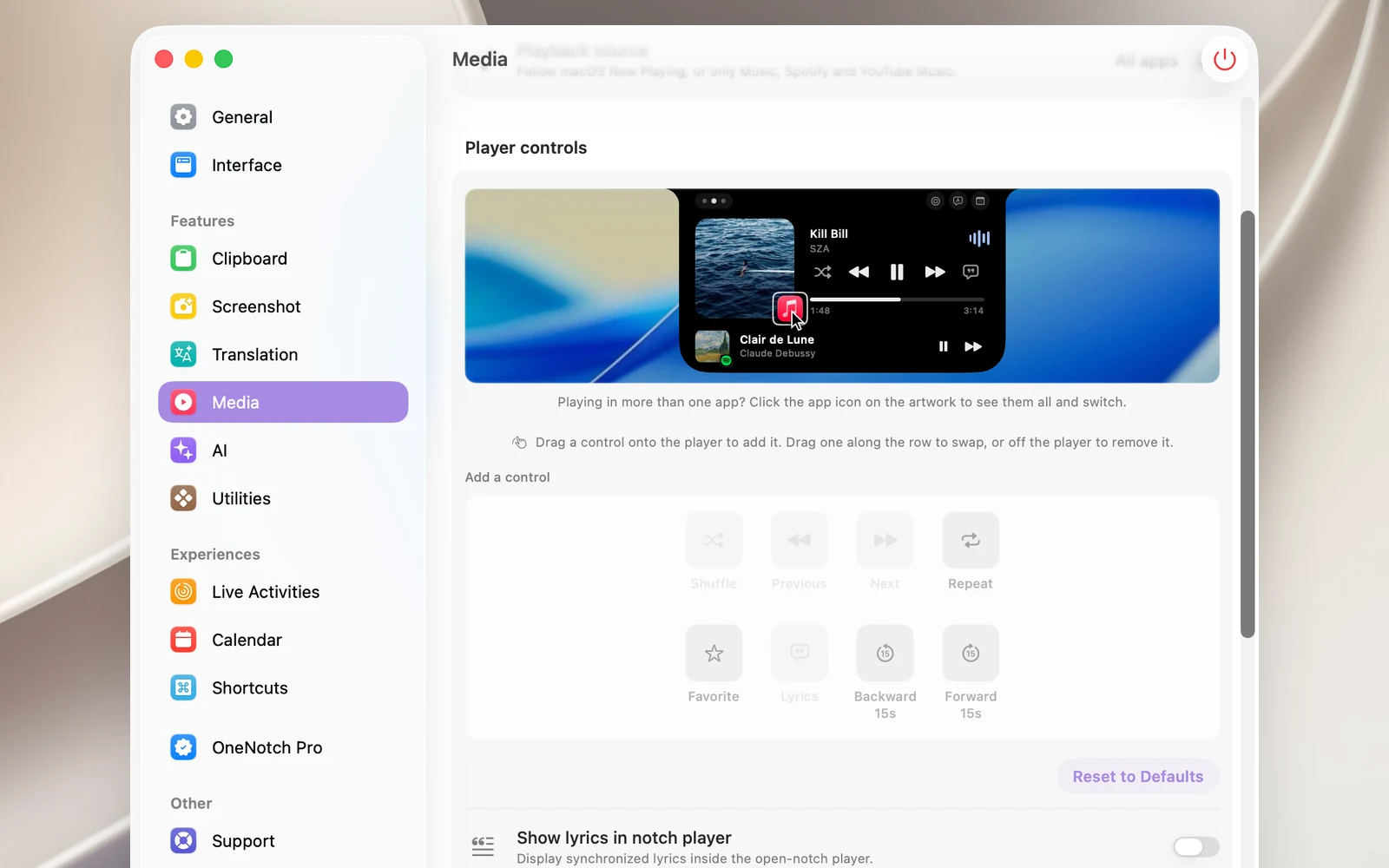
Available buttons: Shuffle, Previous, Next, Repeat, Favorite, Lyrics, Backward 15s, Forward 15s.
Play/Pause is always in the middle, with up to two buttons on each side. Click Reset to Defaults to go back to the original row of buttons.
The player on the lock screen uses this same row of buttons.