
You're reading a web page, an email or a PDF in another language. Select the part you want to understand, press ⇧⌘G, and the notch opens with the translation. No copying, no opening a browser.
Translate
- Select text in any app.
- Press ⇧⌘G, or click the OneNotch icon in the menu bar › Open Translate.
- The notch shows Translating…, then opens with the result.
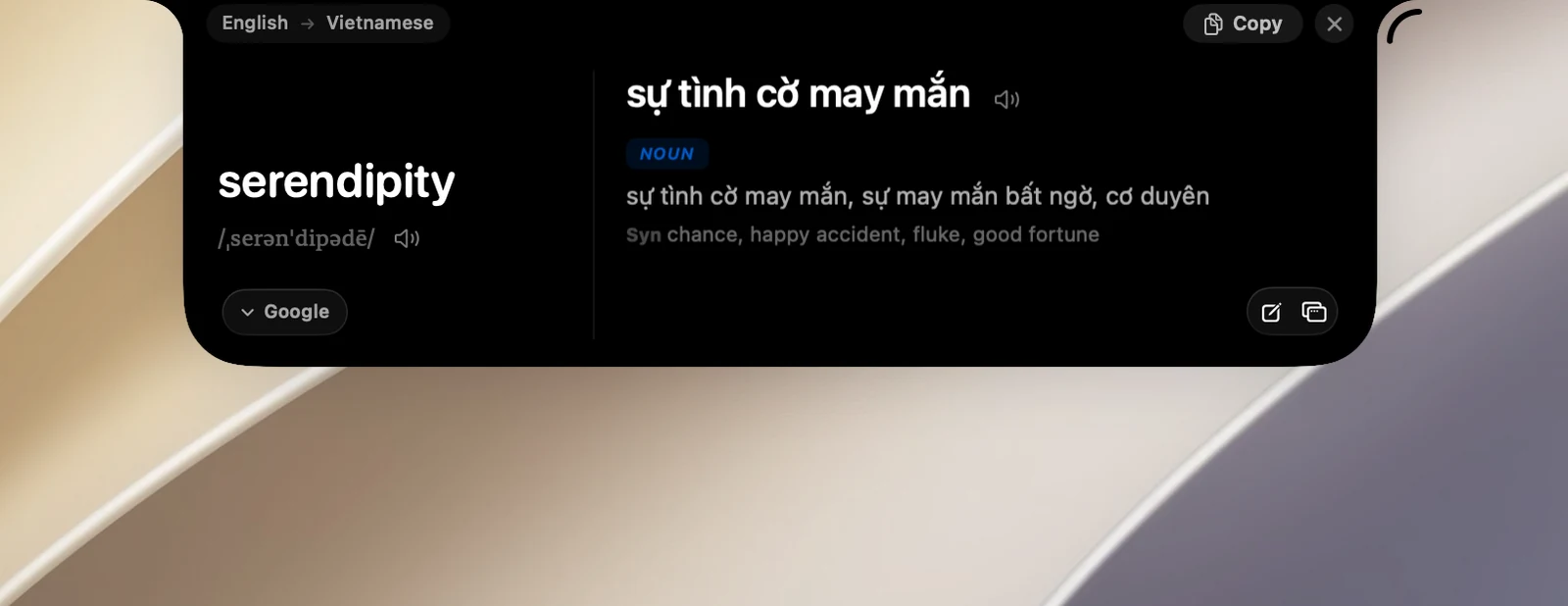
OneNotch detects the language of the text on its own. Text in your First language is translated into your Second language; any other language is translated into your First language. You set these two languages in Settings › Translation › Languages.
Read the result
- A single word: the original word is on the left with its phonetic spelling and a speaker button, and the meanings and dictionary entries are on the right.
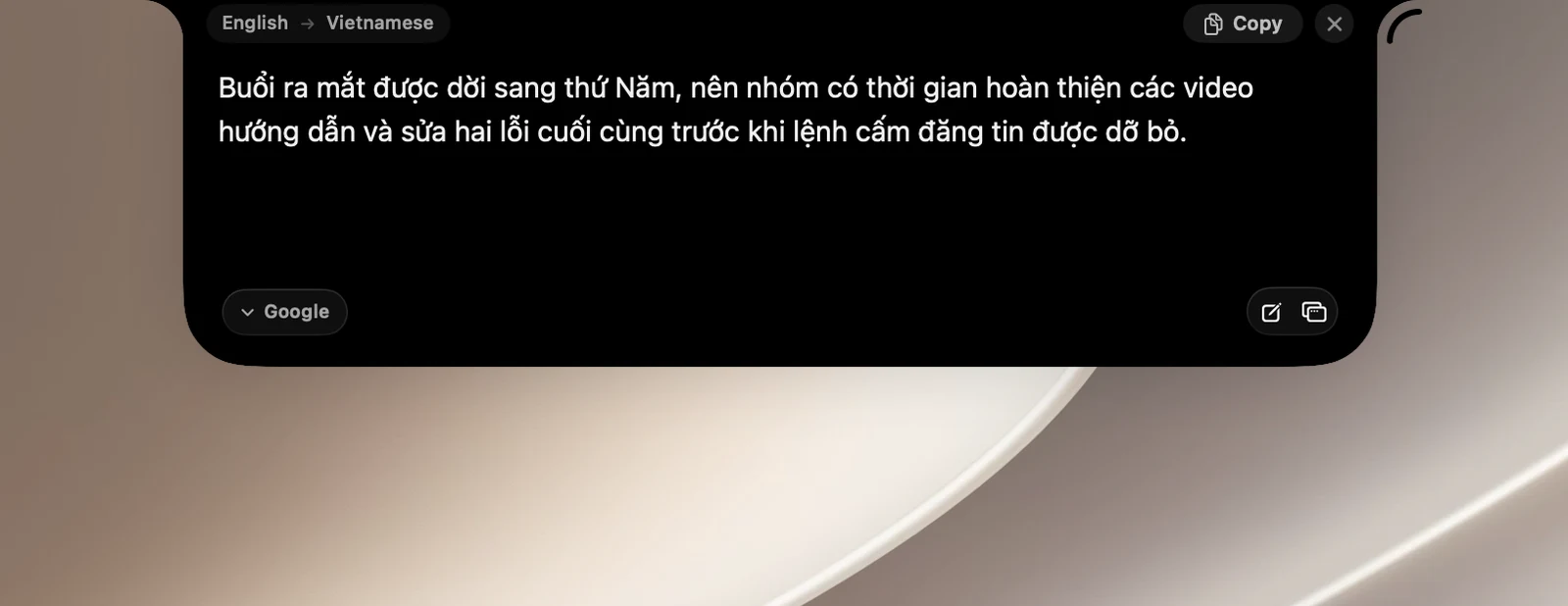
- A passage: the translation fills the whole page. Long passages get smaller text; click Expand to see all of it.
At the top of the page, Copy copies the translation and ✕ closes it. If the original text is in a field you can edit, you also see Replace to replace the original text with the translation.
At the bottom of the page:
- The service chip (on the left) translates again with a different service.
- New translation lets you type something else to translate.
- Open detailed translation moves the result to the floating translation panel and closes the notch.
Close the result
Press Esc or click ✕. If you leave it alone, the result closes on its own after the time set in Settings › Translation › Behavior › Auto-close (20 seconds by default, or choose Only when I close it). Hover over the notch to keep the result open.
Tips
- If you press ⇧⌘G without selecting anything, the notch opens the page where you type to translate.
- Change the shortcut in Settings › Shortcuts › Translate Selected Text.
- Each translation can be up to 4,000 characters. Lines broken in the middle of a sentence (common when you copy from a PDF) are joined before translating.
Permission needed
OneNotch needs the Accessibility permission to read the text you've selected. If you haven't granted it, go to Settings › Translation and click Allow on the Accessibility for Quick Translate row. Without the permission, the shortcut only opens the page where you type to translate.
If OneNotch is already in the Accessibility list but still says the permission is missing, turn the permission off and on again in System Settings.