
OneNotch keeps your clipboard right on your Mac. This article shows how to keep sensitive things out of your history in the first place.
Pause clipboard recording
There are two ways:
- Click the OneNotch icon in the menu bar › Clipboard › Pause Clipboard. Choose it again to resume.
- Turn off Enable Clipboard at the top of Settings › Clipboard.
Anything you copy while recording is paused is never saved. Your existing history stays as it is. While paused, AI agents can't read your clipboard either.
Skip sensitive content
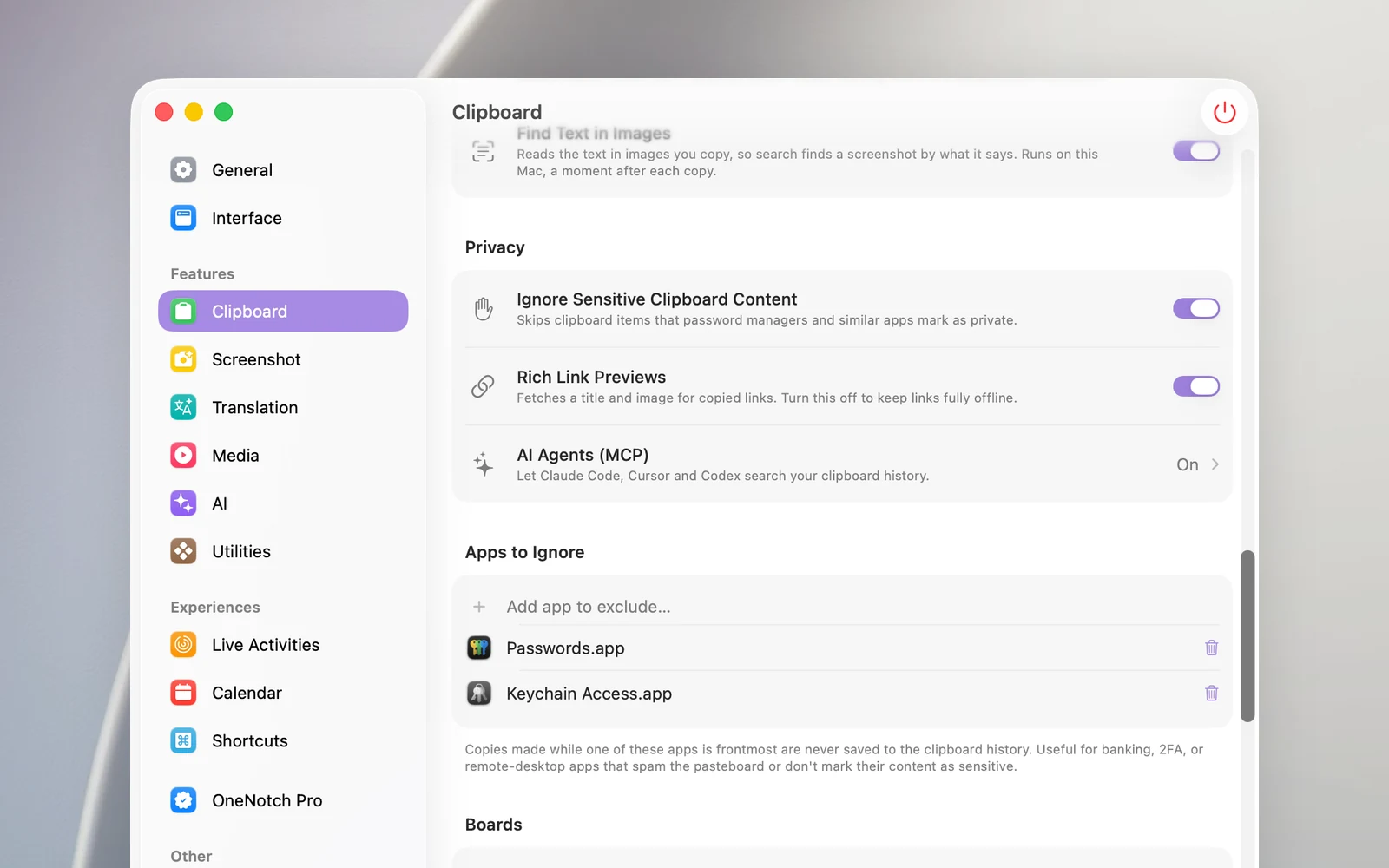
Ignore Sensitive Clipboard Content (in the Privacy section, on by default) skips anything that password managers and similar apps mark as private or temporary. Passwords you copy from these apps don't go into your history.
Some apps don't mark their content. For those, use the ignore list below.
Exclude an app
- In the Apps to Ignore section, click Add app to exclude….
- Choose the app in the window that appears, then click Add.
Nothing you copy while that app is in front is saved. This works well for banking apps, 2FA code apps and remote desktop software. Click the trash icon on a row to remove that app from the list.
Keep links fully offline
When you copy a link, OneNotch loads the page's title and image so the card is easier to recognize. Turn off Rich Link Previews in the Privacy section if you don't want OneNotch to connect to those pages.
Good to know
- The ignore list doesn't apply to data you import from other clipboard apps.
- To hide pinned clips, lock the board. To hide clips from AI agents, see "Let AI agents use your clipboard (MCP)".