
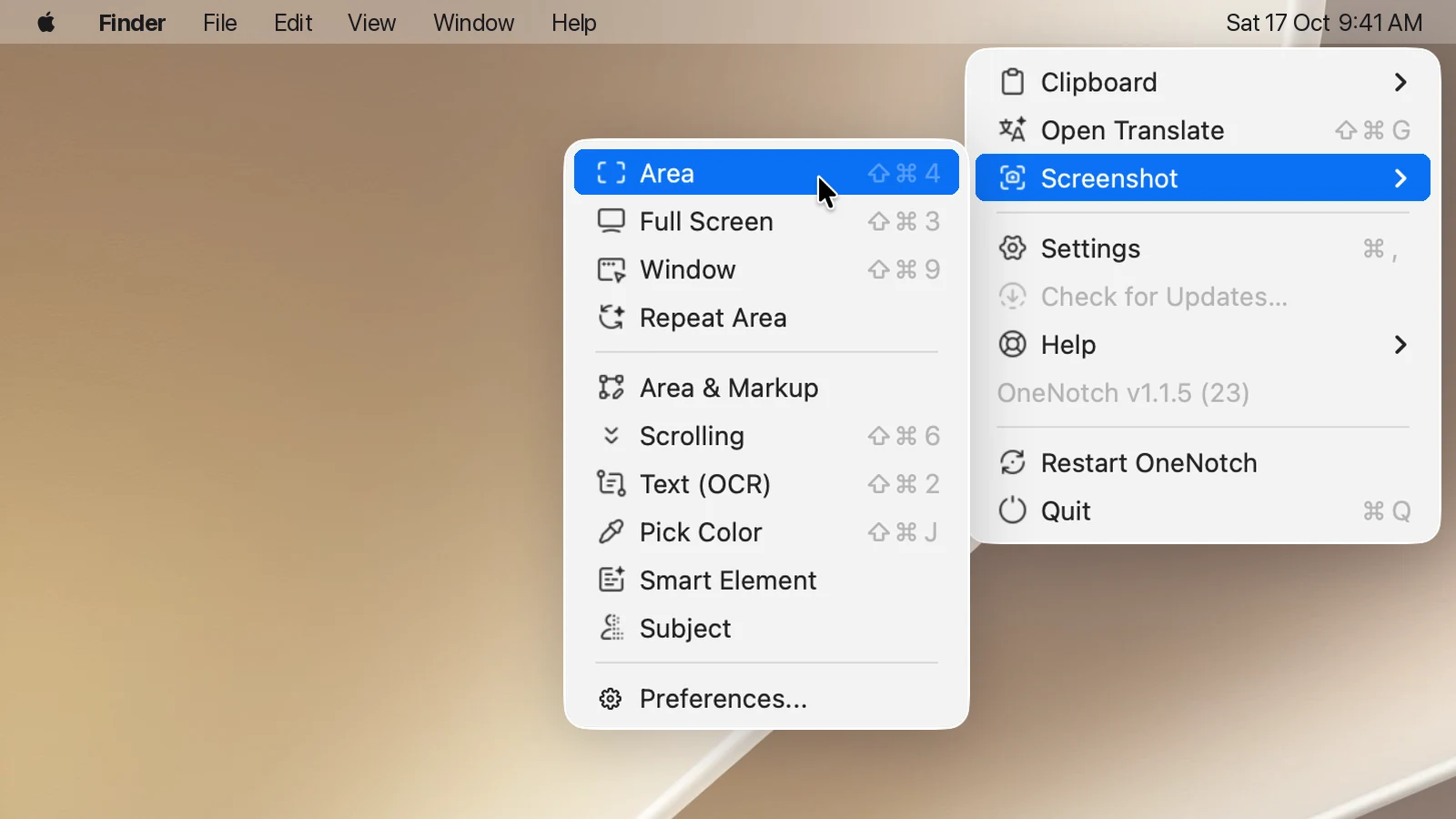
Every kind of capture is in the menu bar › Screenshot. The ones you use most have their own keyboard shortcuts.
| Capture | Default shortcut |
|---|---|
| Area | ⇧⌘4 |
| Full Screen | ⇧⌘3 |
| Window | ⇧⌘9 |
| Scrolling | ⇧⌘6 |
| Text (OCR) | ⇧⌘2 |
| Pick Color | ⇧⌘1 |
| Repeat Area, Area & Markup | Not assigned; assign one if you need it |
Smart Element and Subject are only in the menu.
Use ⇧⌘3 and ⇧⌘4 for OneNotch
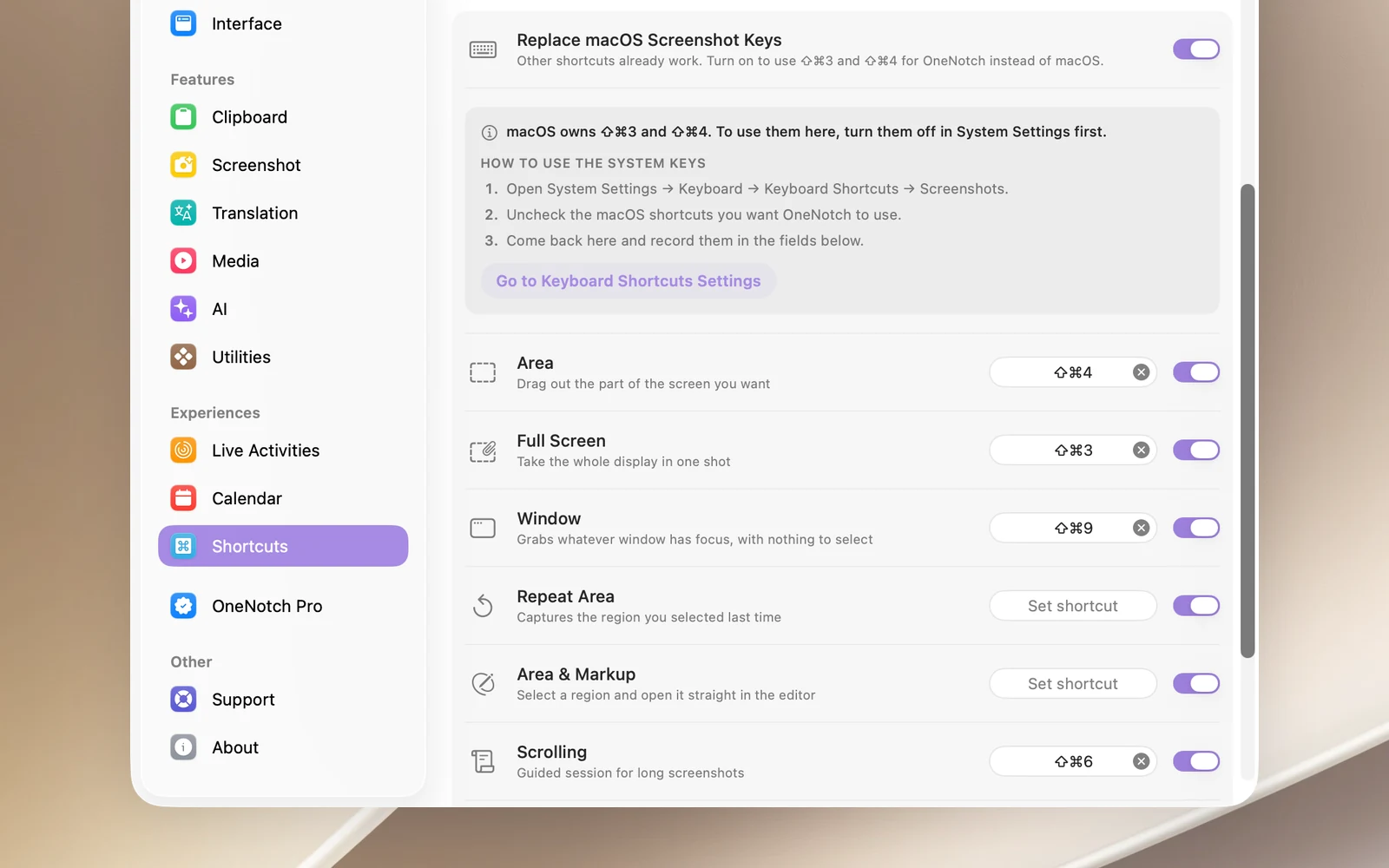
⇧⌘3 and ⇧⌘4 are the macOS screenshot shortcuts. To have OneNotch use them:
- Go to Settings › Shortcuts › Screenshot Shortcuts and turn on Replace macOS Screenshot Keys.
- Click Go to Keyboard Shortcuts Settings. In the macOS Screenshots section, uncheck the shortcuts you want to give to OneNotch.
- Go back to OneNotch. If needed, assign the shortcuts again in the fields below.
The other capture shortcuts work right away, without turning on this switch. You can also click Use OneNotch on the shortcuts page of the first-time setup.
Change or turn off a shortcut
Each row has its own shortcut field and switch. Click the field and press a new key combination; turn off the switch to disable that shortcut while keeping the combination. Reset Shortcuts to Defaults sets every shortcut back to how it was.
If the combination you enter already belongs to another kind of capture or to an action in Annotate, OneNotch refuses it and tells you where it's used.
Shortcuts that conflict with other apps
If another app uses the same combination (for example, Shottr or Xcode with ⇧⌘2 and ⇧⌘1), both apps run it. A common sign is the pointer disappearing after a capture. Change the shortcut in one of the two apps. When you install OneNotch on a Mac that already has Shottr or TextSniper, OneNotch leaves its OCR shortcut turned off.