
Most cases where the notch doesn't see an agent fall into three groups: the terminal version of the agent isn't installed, the agent is signed out, or the hooks aren't installed correctly.
The agent is "not connected"
OneNotch can only read the terminal version of Claude Code and Codex. The desktop app or the web version isn't enough.
- Open Settings › AI. Instructions appear below the agent's row.
- Click Open install page to go to the agent's official installation page. If you have Homebrew, you can click Copy command and paste it into Terminal.
- When it's installed, click Check again.
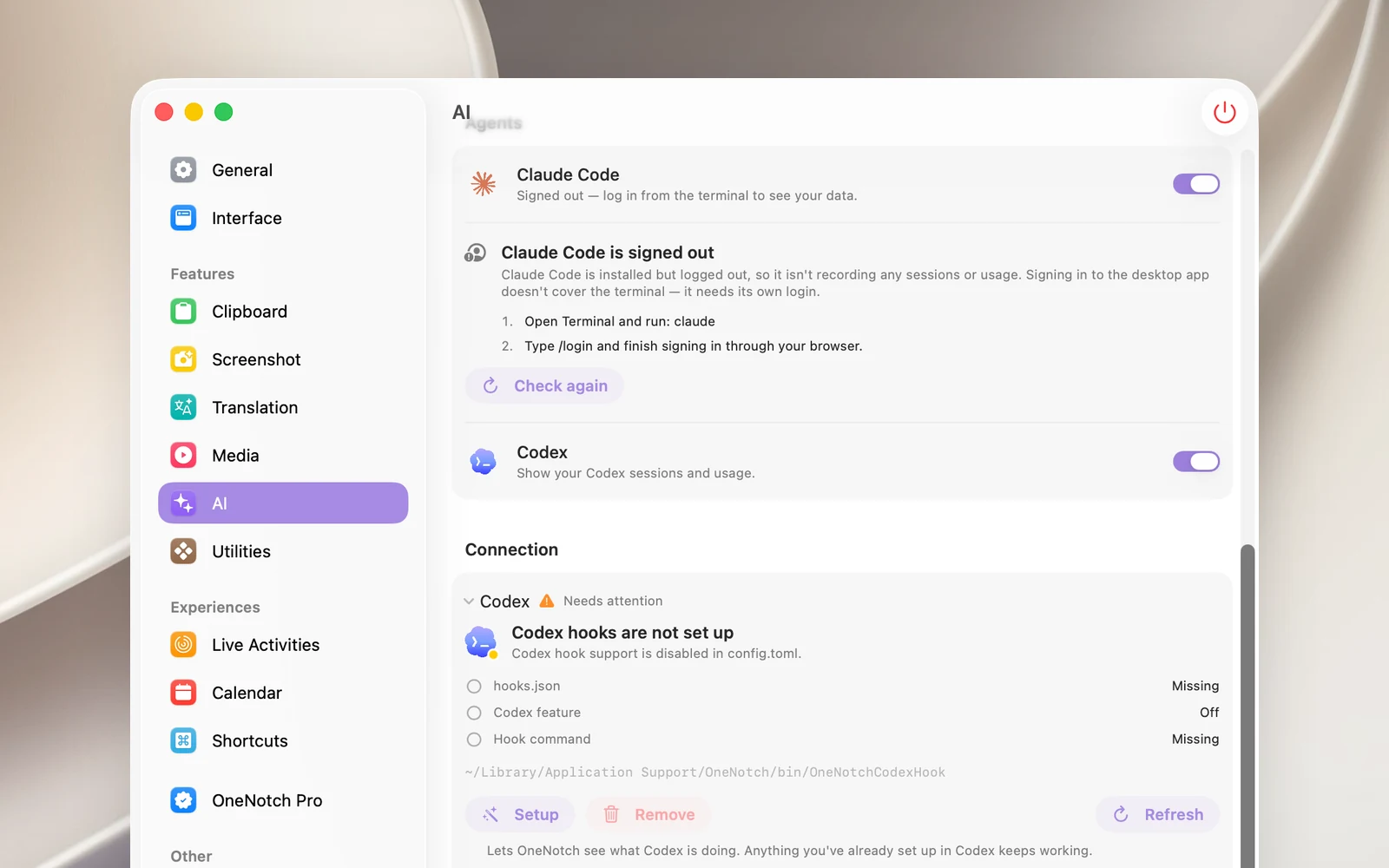
The agent is "signed out"
- Claude Code: open Terminal, run
claude, type/loginand finish signing in in your browser. - Codex: open Terminal and run
codex login.
Then click Check again.
The hooks need fixing
In Settings › AI › Connection, open the agent whose status is Needs attention:
- OneNotch hooks need repair or a line that says Missing: click Reinstall.
- Codex hooks are not set up: click Setup.
- Codex doesn't trust the hooks yet: open Codex, run
/hooksand trust the OneNotch hooks. Codex only runs hooks you've trusted. - Click Refresh to check the status again.
OneNotch repairs its hooks when it opens if it finds them missing or out of date, but it never reinstalls them after you click Remove.
A session is running but doesn't appear
- Check that Track AI agents is on and that the agent's switch in the Agents section is on.
- If you just turned Track AI agents off and on again, click Setup again, because turning off tracking removes the hooks.
- Only sessions that are running or waiting for you appear on the closed notch. Finished sessions are still on the AI page.
- A Claude session isn't listed until it has its first prompt.
Remove everything
Click Remove in each agent's Connection panel. OneNotch removes its hooks, restores your previous Claude Code status line if you had one, and leaves all your other settings as they are.