
Crop the image
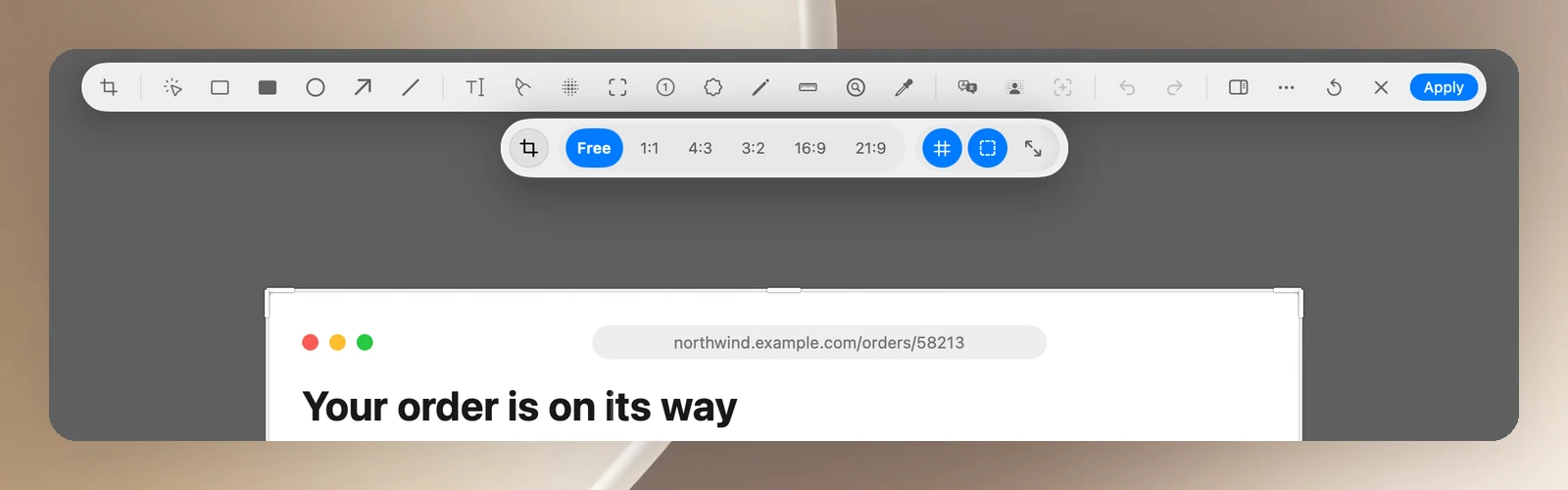
- Click Crop or press C.
- Drag the edges and corners to choose what to keep. Hold ⇧ to keep the proportions.
- Options on the crop bar:
- Aspect Ratio: Free, 1:1, 4:3, 3:2, 16:9, 21:9, and Flip the crop around.
- A rule-of-thirds grid.
- Stick to Edges (on by default): the crop frame snaps to the edges of the content; hold ⌘ to turn this off for a moment.
- Trim Around Content (A key): crops tightly around the content automatically.
- Press Return or click Apply. Press Esc or click Cancel to discard, or Restore to go back to the previous frame.
Work with an area
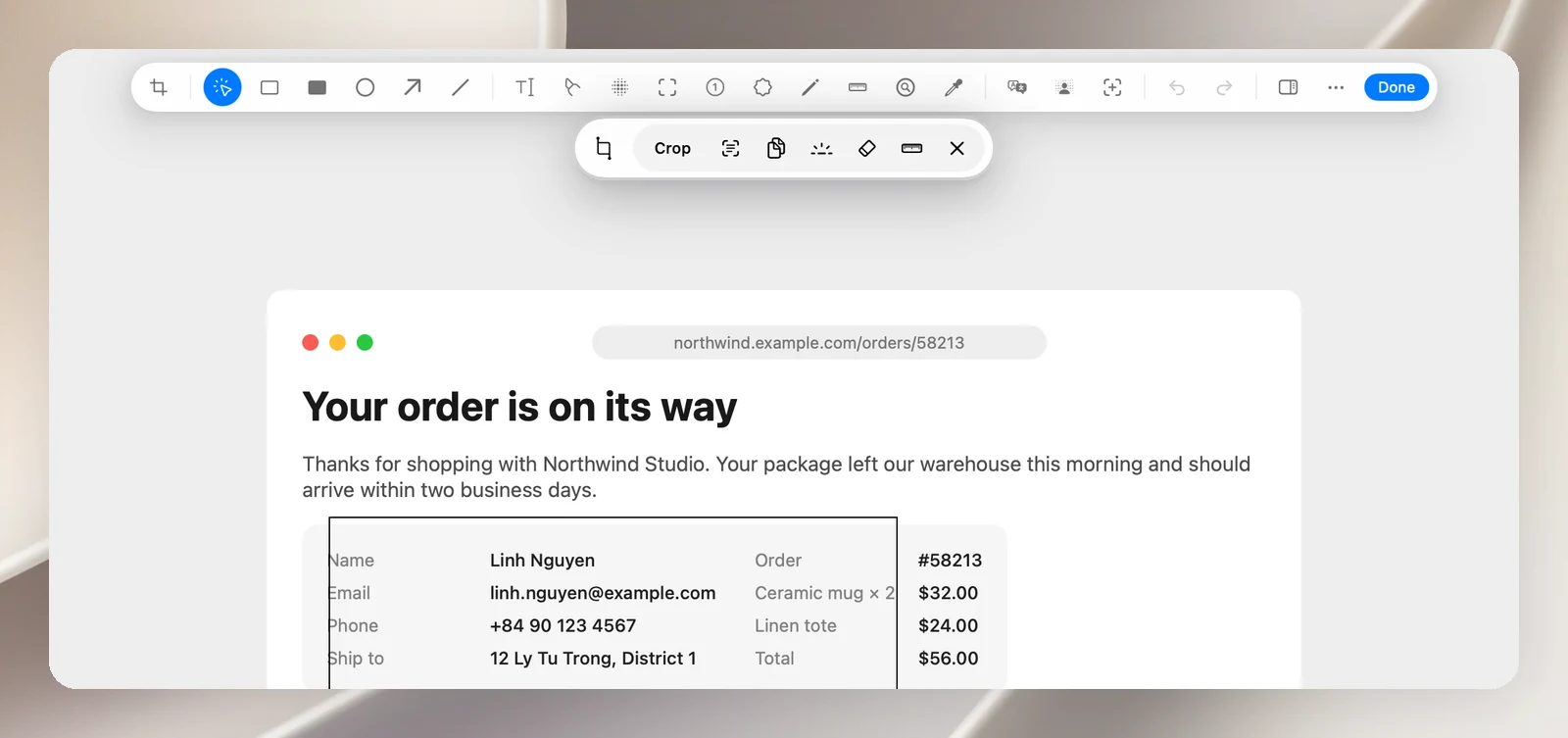
With the Selection tool, drag over an empty part of the image to select an area. An action pill appears:
- Crop to selection (Return).
- Copy text (OCR): copies the text in the area.
- Copy selected area.
- Spotlight: highlights the selected area.
- Erase selection: clears the content in the area.
- Stamp the selection size.
- Deselect (Esc).
Rotate and resize
- Use the two rotate buttons in the column on the right to rotate the image 90° at a time.
- Click Resize Image to scale the whole image along with all annotations: 25%, 33%, 50%, 1×, 2× or 4×, with the new dimensions shown. Undo to put it back as it was.