
No need to select the text again: anything you've copied can be translated straight from your clipboard history.
Translate a text clip
- In the notch or in the Clipboard Panel, right-click the clip.
- Choose Translate.
The translation opens in the floating translation panel. For clips longer than 4,000 characters, the command is dimmed with the note This clipping is too long to translate.
Just copied something? Hover over the "Copied" toast under the notch and click Translate.
Translate the text in an image
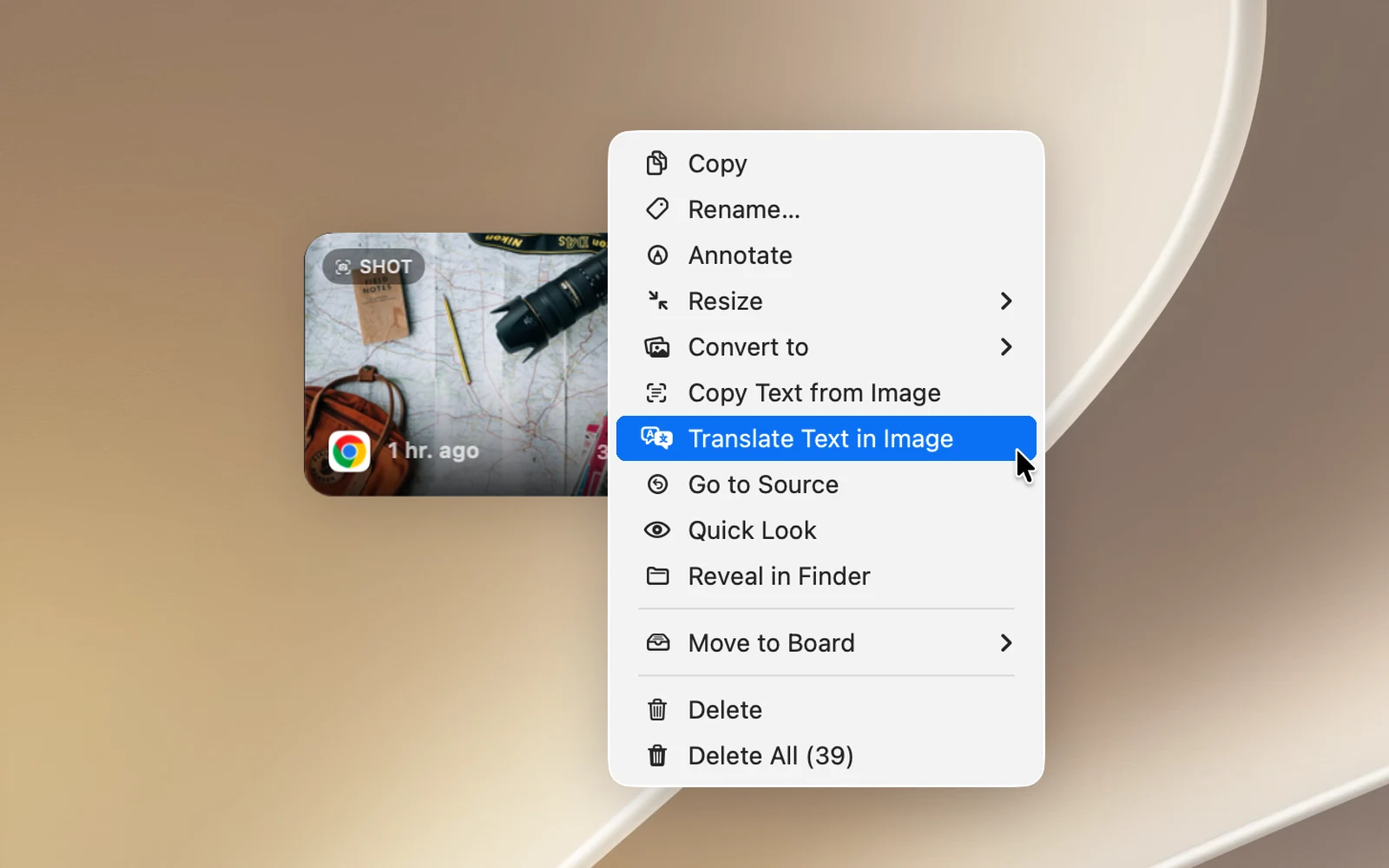
- Right-click an image clip.
- Choose Translate Text in Image.
OneNotch reads the text in the image, then translates it. If the image has no text, you see No text found in this image.
Translate text recognition results
After you capture text with Capture Text (OCR), the result card under the notch has a Translate button that opens the translation in the notch.