
These options are in Settings › Interface.
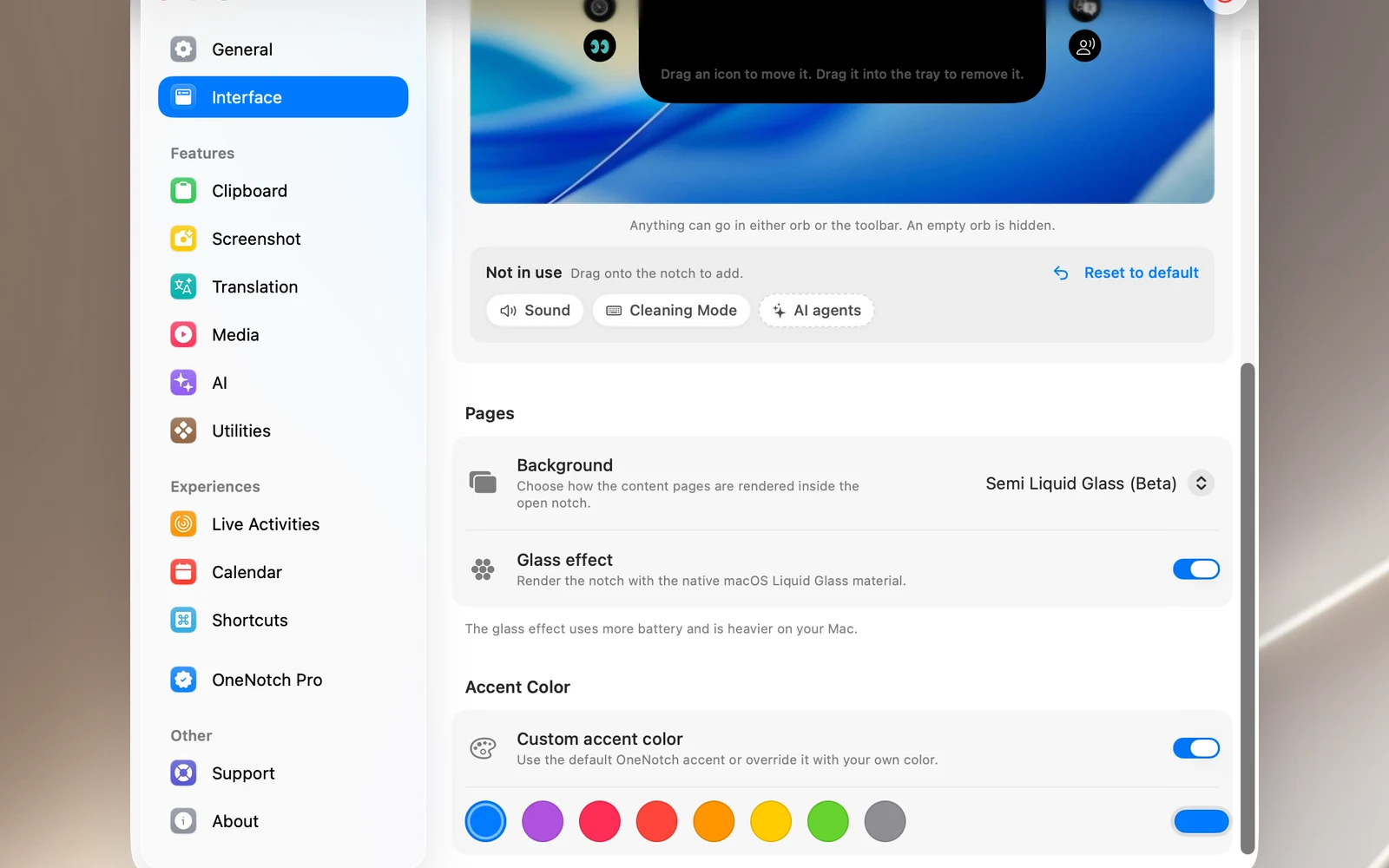
Background style
In the Pages section, choose a Background:
- Classic (default): a solid black background.
- Semi Liquid Glass (Beta): a translucent background.
With Semi Liquid Glass, you can also turn on Glass effect to use the macOS Liquid Glass effect. This effect uses more GPU and battery. On macOS versions without Liquid Glass, the option is dimmed and OneNotch uses a compatible drawing method.
Accent color
Turn on Custom accent color in the Accent Color section, then choose one of 8 colors (blue, purple, pink, red, orange, yellow, green, graphite) or pick your own color. The accent color is used for buttons, progress bars and highlights in the notch.
A new install of OneNotch starts with Custom accent color on and the color set to Blue. If you've used OneNotch since an earlier version, your familiar purple is kept. Turn off Custom accent color at any time to go back to OneNotch's default purple.