
Is your menu bar crowded with icons? OneNotch adds a divider: every icon to the left of it is collapsed until you click to show them again.
Turn it on
- Go to Settings › Utilities › Menu Bar and turn on Hide menu bar items.
- A divider and a control button appear in the menu bar. The icons to the left of the divider collapse right away.
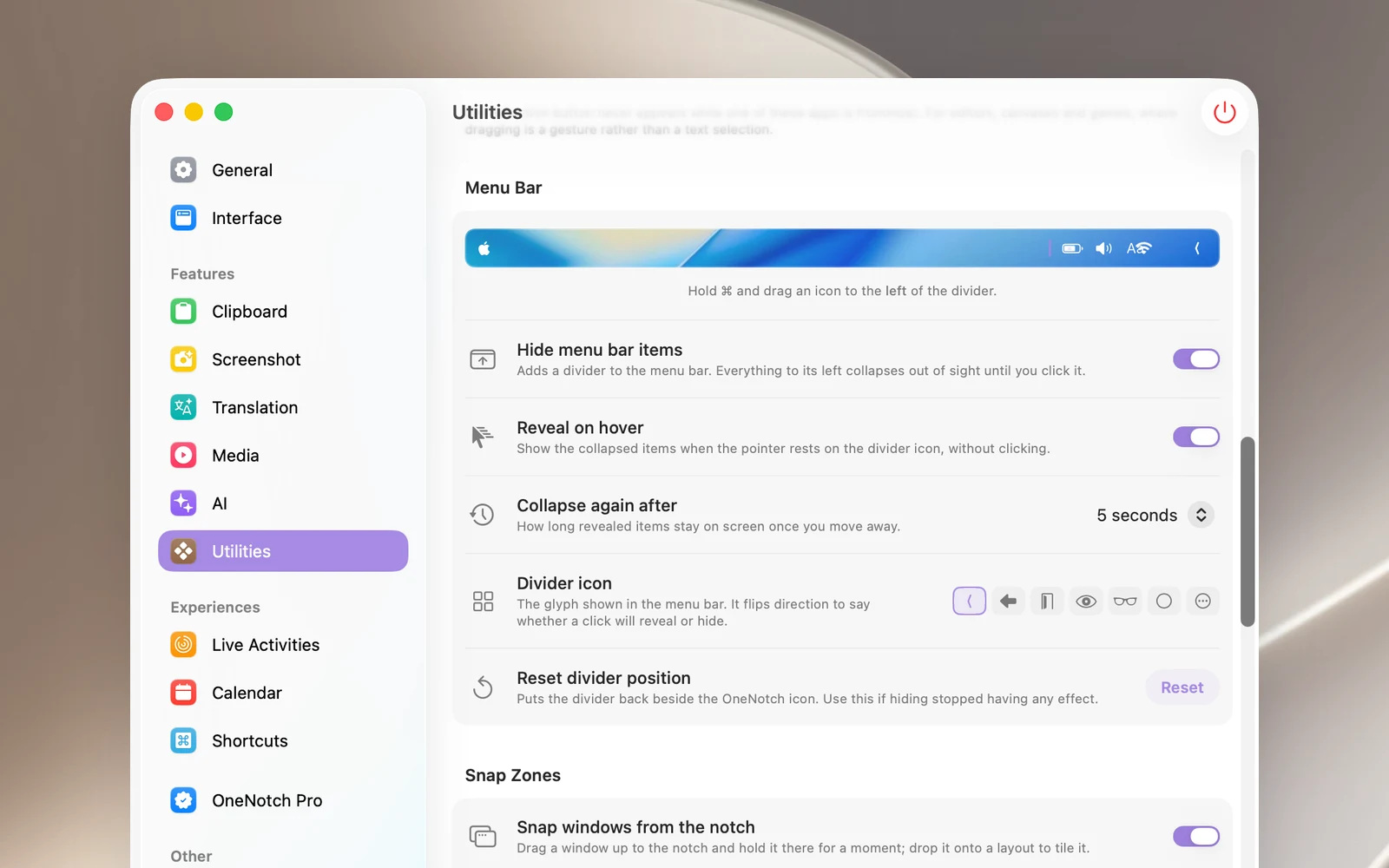
Choose which icons are hidden
Hold ⌘ and drag icons in the menu bar:
- Drag an icon to the left of the divider to hide it.
- Drag an icon to the right of the divider to keep it visible.
macOS remembers where your icons are.
Show and collapse
- Click the control button to show or collapse the icons. Its icon points in a different direction to show what the next click will do.
- Turn on Reveal on hover to show the icons just by hovering over the control button.
- Collapse again after: the icons collapse on their own 5 to 60 seconds after the pointer moves away (15 seconds by default), or Never.
- Divider icon: choose one of 7 styles for the control button.
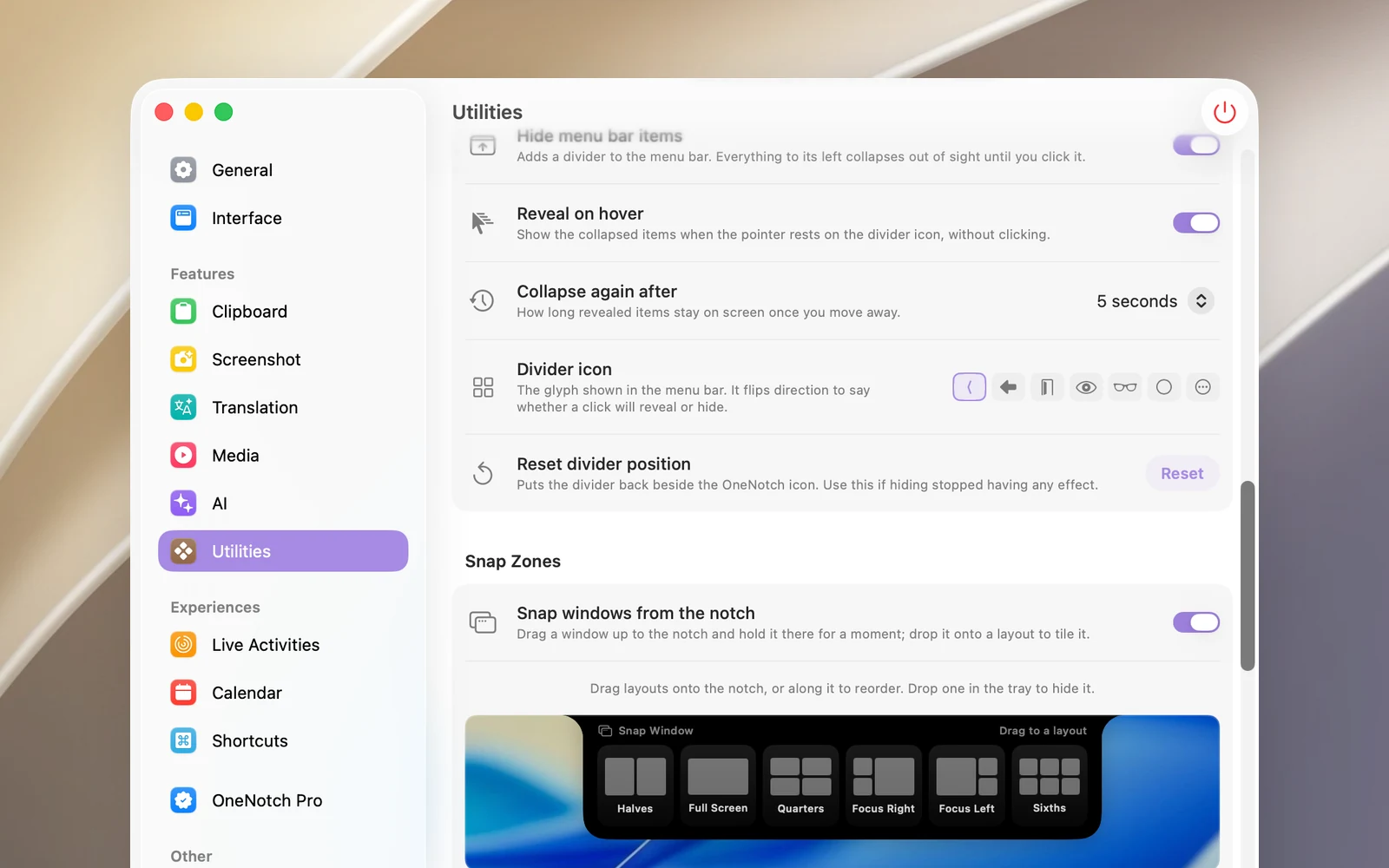
When hiding stops working
Click Reset on the Reset divider position row to move the divider back next to the OneNotch icon, then drag your icons again.
Notes
- No permissions are needed.
- This feature isn't available on macOS 27, because macOS 27 no longer lets this approach work reliably.