
Check for updates
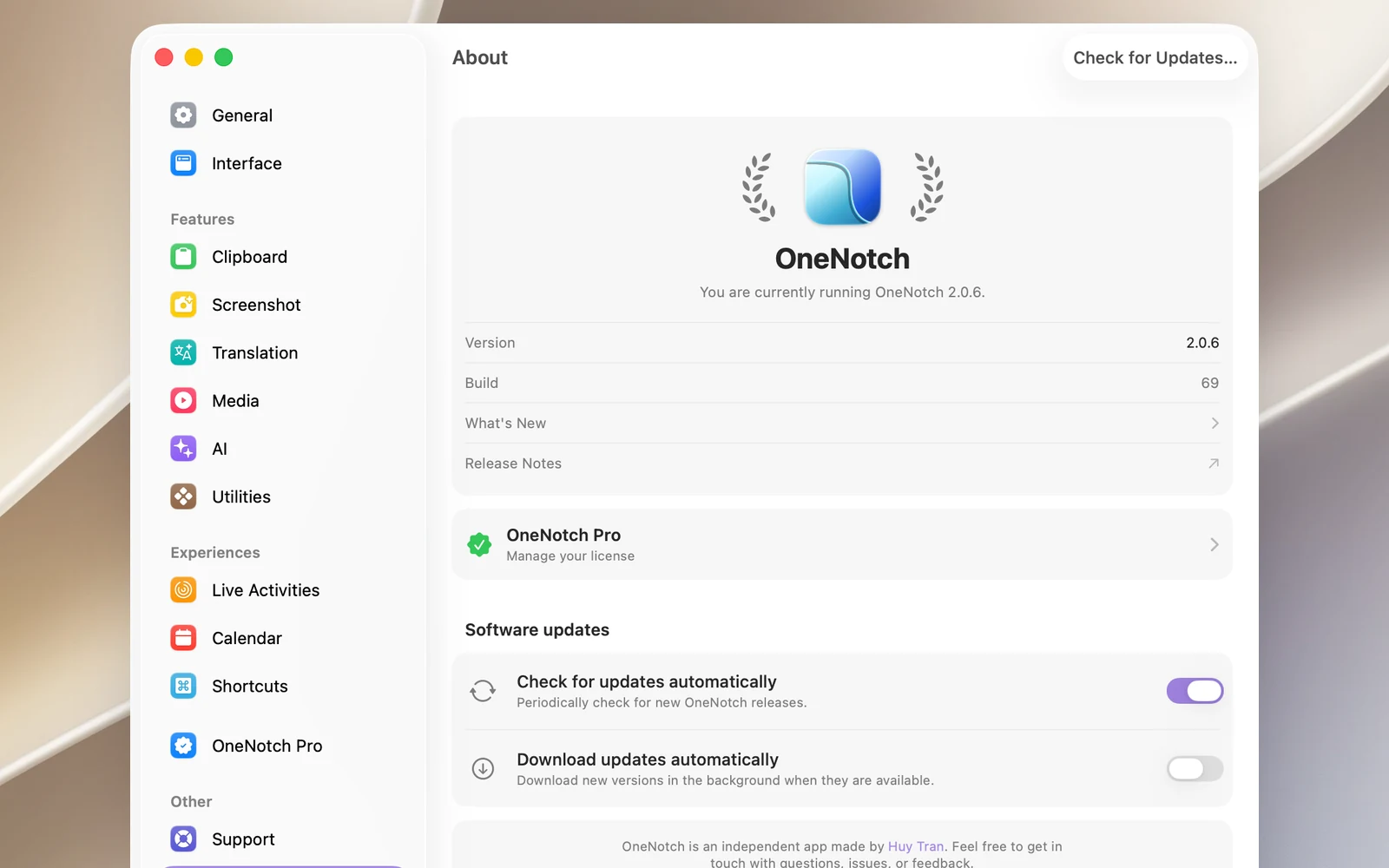
- Click the OneNotch icon in the menu bar › Check for Updates…, or click the button with the same name in Settings › About.
- In Settings › About › Software updates:
- Check for updates automatically (on by default): once a day.
- Download updates automatically (off by default).
When a new version is available, a window shows the release notes and an install button. Some critical updates don't have a skip button.
See which version you're using
Settings › About shows the Version and Build. The version also appears at the bottom of the menu bar menu.
What's new
After each update, OneNotch opens a panel introducing that version's new features. Use Next to see the next page and Got it to close it.
To see it again, go to Settings › About › What's New. Release Notes opens the full update history on the web.