
The menu bar menu
Click the OneNotch icon in the menu bar to see:
- Clipboard ›: Open Floating Clipboard, Clipboard Library, Pause Clipboard and Preferences....
- Keep Awake › (when the Keep Awake feature is on): turn on Keep Awake for a set time, or add time or turn it off while it's running. While it's running, this row also shows when it ends, for example Keep Awake · Until 3:45 PM. See "Keep your Mac awake".
- Open Translate (⇧⌘G).
- Screenshot ›: the capture types and Pick Color, with the shortcut for each.
- Settings (⌘,).
- Check for Updates….
- Help ›: Guides and Feedback.
- The version you're using.
- Restart OneNotch and Quit (⌘Q).
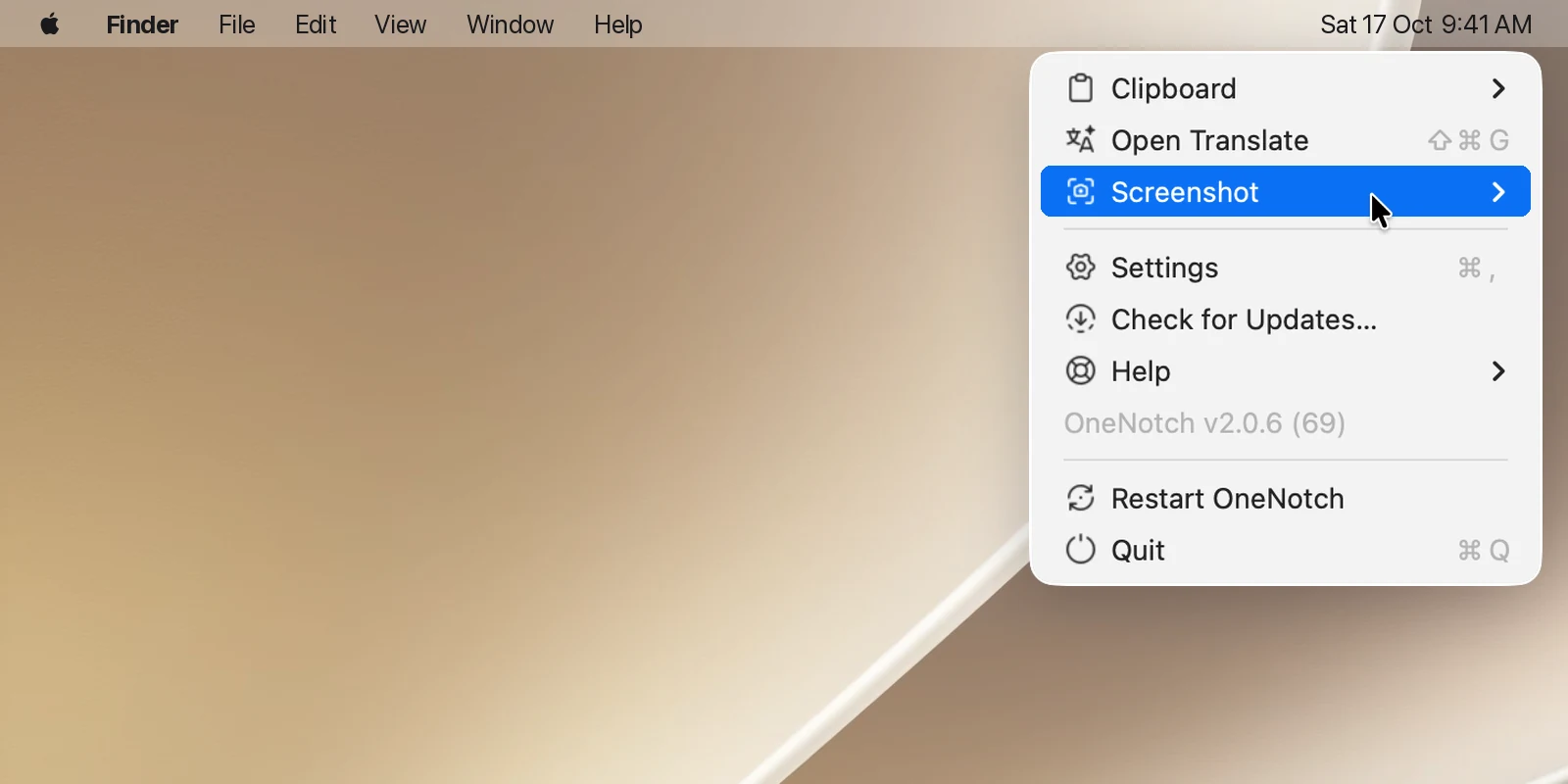
To hide this icon, turn off Show menu bar icon in Settings › General. OneNotch reminds you: To open Settings again, right-click the notch and choose Settings. Opening OneNotch again from Spotlight or Finder also opens Settings.
Open Settings
- Menu bar › Settings, or ⌘, while the menu is open.
- The Settings button in the notch's right orb (its default spot; you can move it to the toolbar in Settings › Interface › Notch layout).
- Right-click the notch and choose Settings.
The Settings window layout
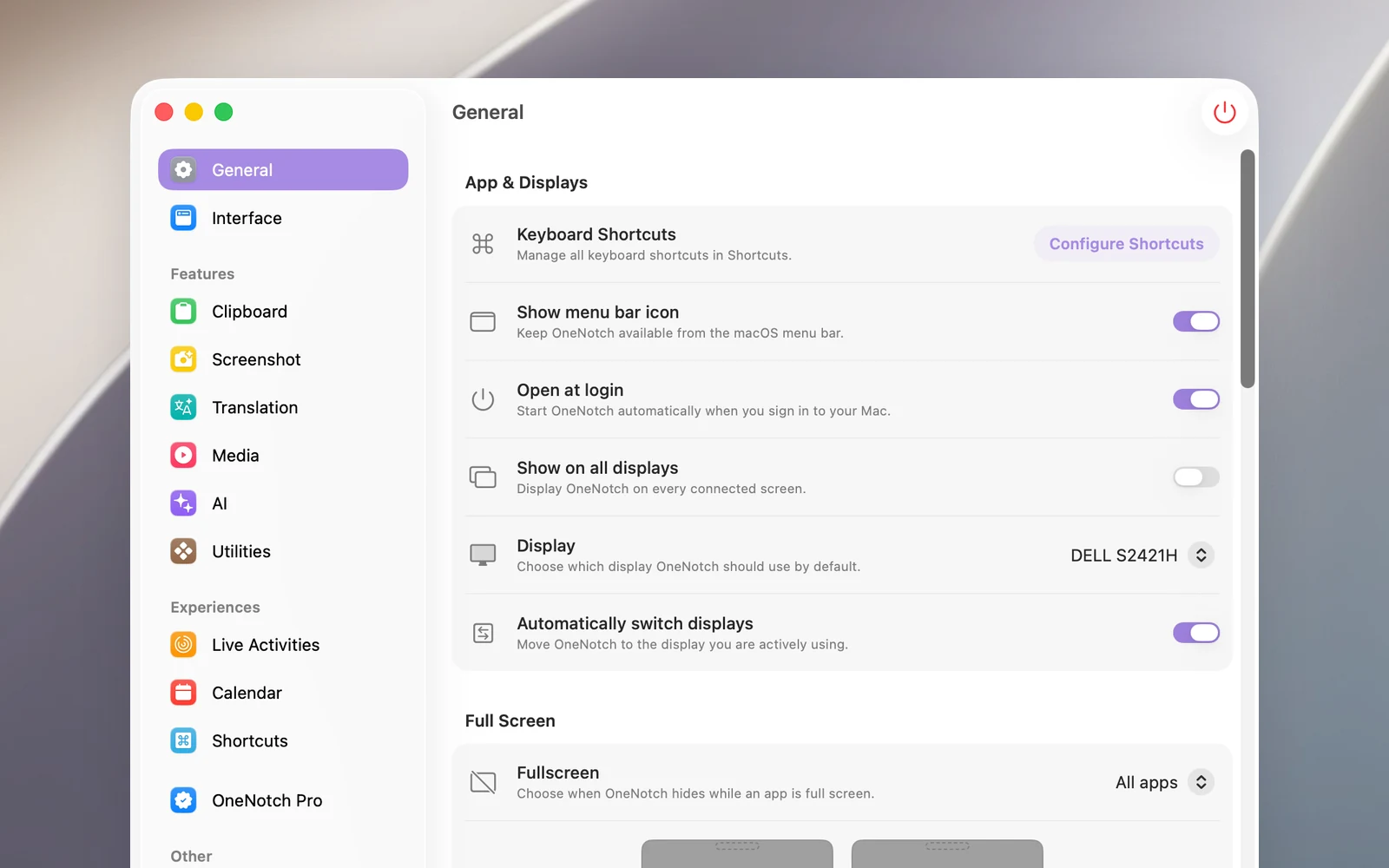
The sidebar is split into groups:
- General and Interface: how the notch works and looks.
- Features: Clipboard, Screenshot, Translation, Media, AI, Utilities.
- Experiences: Live Activities, Calendar, Shortcuts.
- OneNotch Pro: your license.
- Other: Support, About.
Utilities is a list: Smart Select, Menu Bar, Snap Zones, Pomodoro, Eye Break and Keep Awake. Each row (except Pomodoro) shows On or Off. Click a row to open that utility's settings, and click the back button (Back to Utilities) to return to the list. A path like Settings › Utilities › Eye Break means open Utilities, then click the Eye Break row.
The red Quit OneNotch button in the Settings window's toolbar quits the app completely.
Open at login
Turn on Open at login in Settings › General › App & Displays so OneNotch starts on its own when you log in to your Mac.