
A long piece of text or a screenshot is often hard to recognize from its first few words. Give it a name, and the name appears on its card and in the preview, and search finds it by name too.
Name a clip
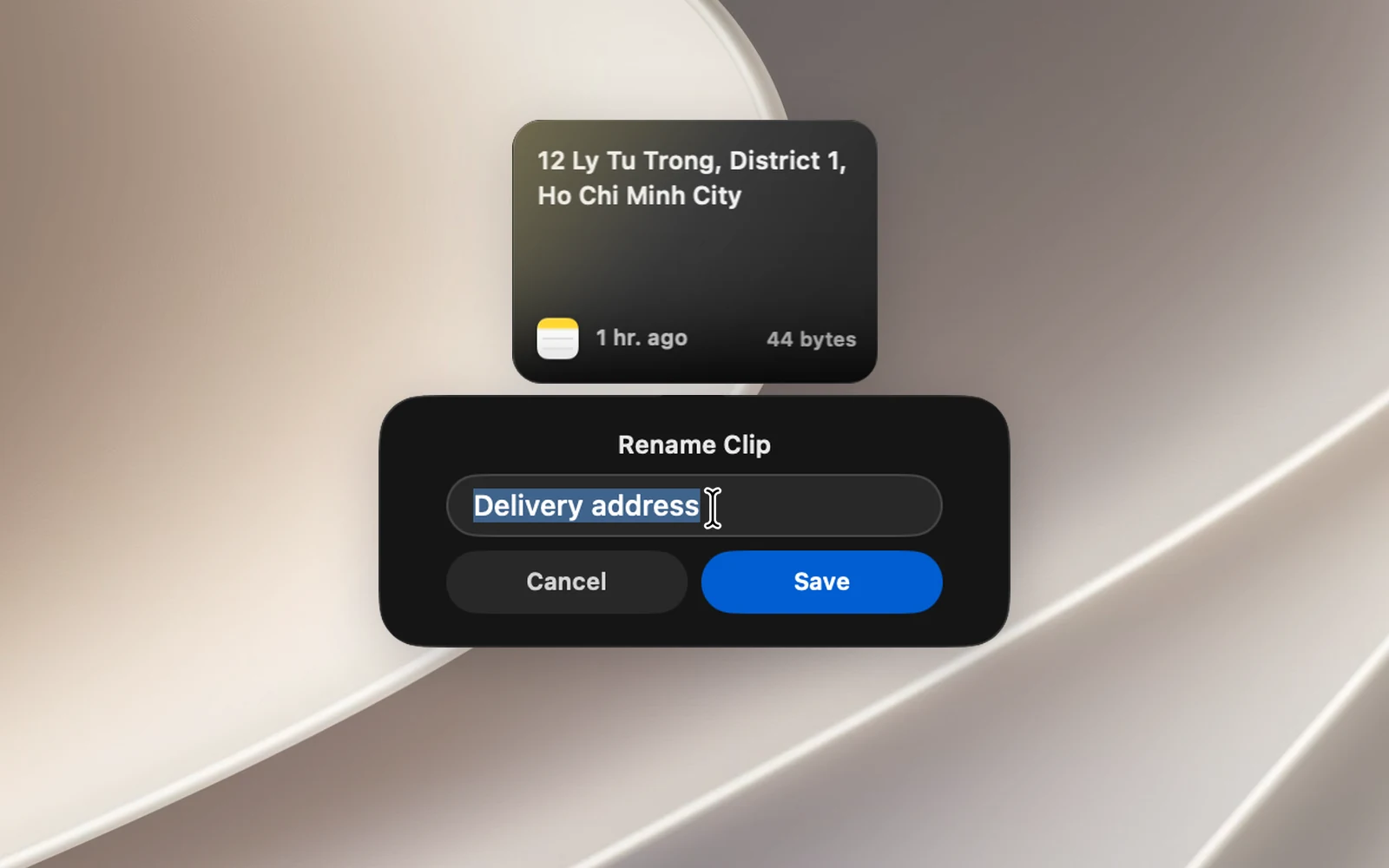
- Right-click the clip in the notch or in the Clipboard Panel (or open that row's "…" menu).
- Choose Rename….
- Type a name (up to 60 characters), then click Save or press Return.
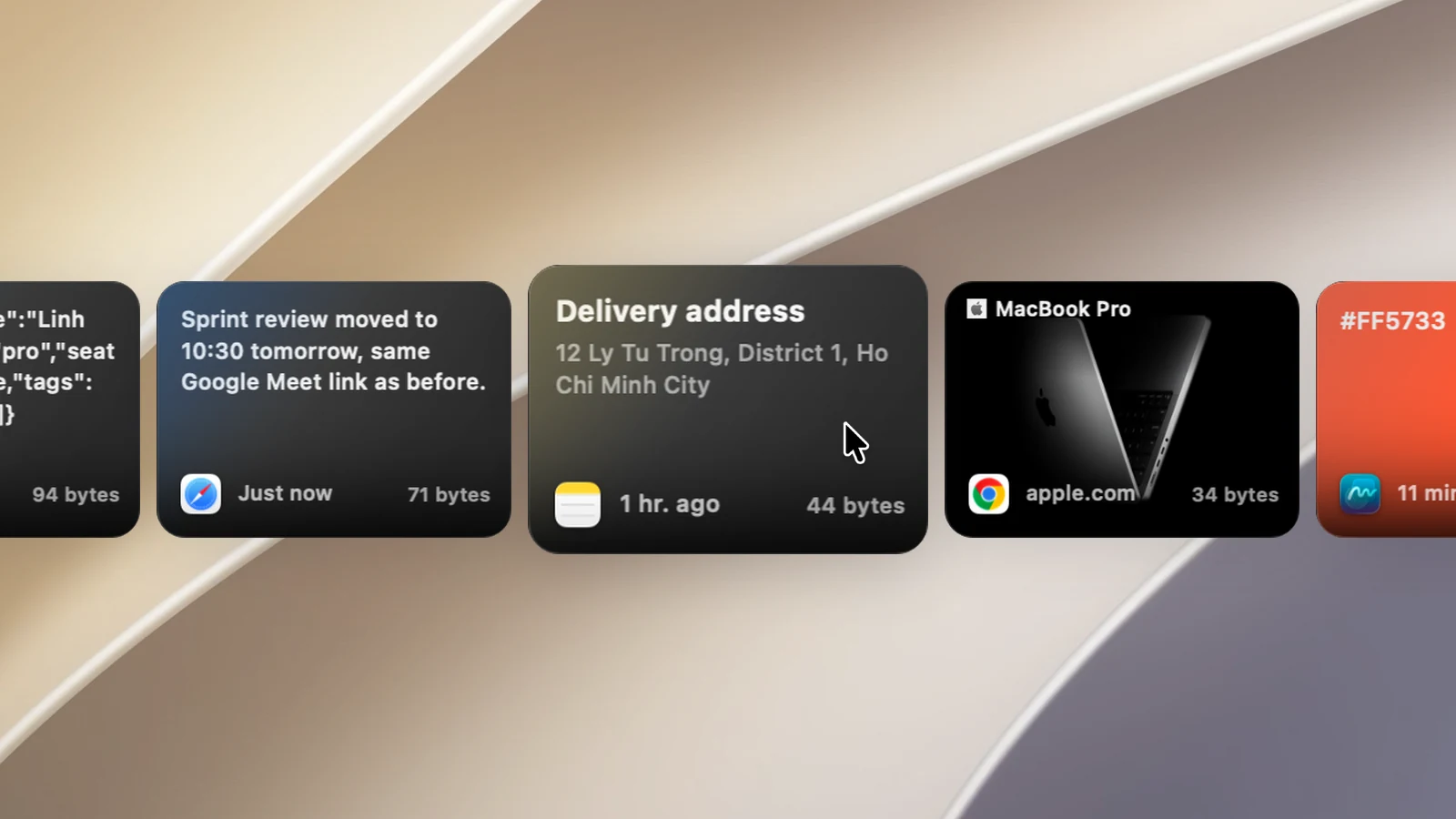
In the notch, the name appears in bold, with the content just below it. On a link card, the name replaces the page title.
Change or remove a name
Open Rename… again. Edit the name and save, or clear the name field and save to remove the name. Press Esc to close without changing anything.
Tips
- Choose the Named First sort order to bring named clips to the top, sorted A–Z.
- You can name any type of clip: text, images, files and links, whether pinned or not.
- Names are kept when you export a backup file. Names aren't synced through iCloud.